
Add images, scans, links, and other files to a Freeform board on iPhone
You can add any photo or video to a Freeform board, or take a new one with your iPhone camera. You can also add different types of files to your board by scanning, linking, or inserting them.
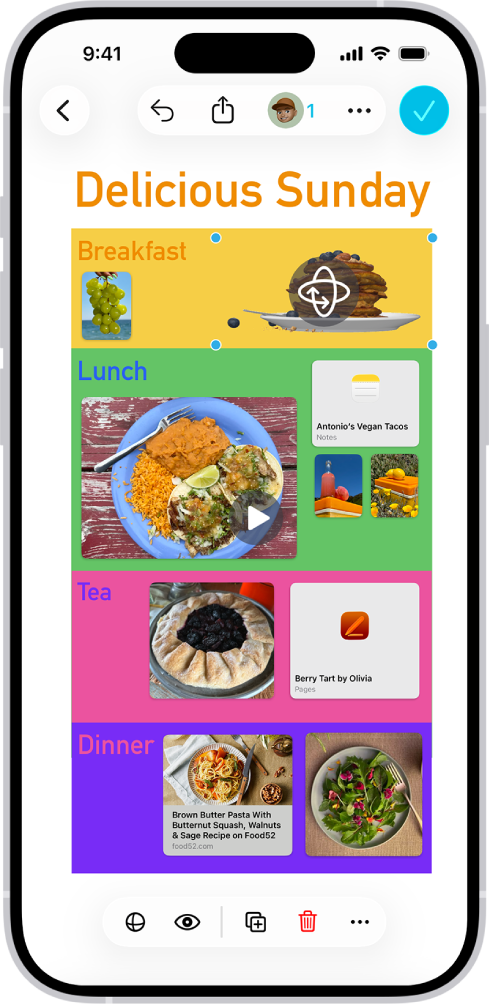
Add a photo, video, sticker, link, or other file
Go to the Freeform app 👁 Image
on your iPhone.Open a board, or tap 👁 the New Board button
to start a new one.Do one of the following:
Tap 👁 the Media button
, tap an option, then tap 👁 the Done button
when you’re finished.Copy the item to your Clipboard, tap an empty space, then, when a menu appears, tap Paste.
To add premium images from the Content Hub to your board, tap 👁 the Content Hub button
in the toolbar, tap an object category in the top of the dialog, then tap a premium image to add it to the board. Anyone can use premium Content Hub images, but you need to subscribe to Apple Creator Studio to remove their watermarks.


Double-tap any media item—photo, video, or other file—to preview it.
If Apple Intelligence* is turned on, you can use Image Playground to create one-of-a-kind images in Freeform. See Create original images with Image Playground.
Note: You can insert files saved on your iPhone or in iCloud Drive. For most file types, Freeform makes a copy of the inserted file. When you add a link to a collaborative Keynote presentation, Numbers spreadsheet, or Pages document, participants in your Freeform board can tap the card to move to the shared file in iCloud. (If you want others to be able to collaborate on the file, you must save it in iCloud.)
Scan and add a document
You can scan a paper document and add it to your board as a PDF without leaving Freeform.
Go to the Freeform app 👁 Image
on your iPhone.Open a board, or tap 👁 the New Board button
to start a new one.Tap 👁 the Media button
, then tap Scan Documents.Position the iPhone camera so the document appears on the screen.
iPhone automatically captures the page. To capture the scan manually, tap 👁 the Auto Shutter button
, tap 👁 the Take Picture button
or press a volume button, drag the corners to select the area you want in the scanned document, then tap Keep.Scan additional pages, then tap 👁 the Done button
when you’re done.


A card with an image of the first page of your scan appears on your board.
Tip: To save your scan to iCloud Drive or on your iPhone, select the card, tap 👁 the Preview button
, tap 👁 the Share button
, then tap Save to Files.


Format a photo or video
Go to the Freeform app 👁 Image
on your iPhone.Open a board with a photo or video in it.
Tap a photo or video to open its formatting tools at the bottom, then do any of the following:
Crop or mask the photo: Tap 👁 the Crop Mask button
.Remove the photo’s background: Tap 👁 the Modify Image button
, then tap Remove Background. If the background of the photo can’t be made transparent, Remove Background isn’t available.Tip: You can also paste an image without a background. See Lift a subject from the photo or video background.
Add a shadow, round the corners, add a description, and more: Tap 👁 the More button
, then choose an option.Replace the photo or video: Select the photo or video, tap 👁 the Modify Image button
or 👁 the Modify Movie button
, tap Replace, then select a replacement.Preview the photo or video: Tap 👁 the Preview button
, or double-tap the photo or video.To preview a movie in full screen, double-tap it.


Auto Crop a photo
If you're subscribed to Apple Creator Studio, you can use Auto Crop to intelligently generate suggestions that improve image composition.
Go to the Freeform app 👁 Image
on your iPhone.Open a board with an image, double-tap the image to view the mask controls, then tap Auto Crop to preview cropping suggestions.
Tap a suggestion to update your image, then tap Done.
Increase resolution with Super Resolution
If you're subscribed to Apple Creator Studio, you can use Super Resolution to increase the resolution of photos, making them clearer.
Go to the Freeform app 👁 Image
on your iPhone.Open a board with an image, tap the image, then tap 👁 the Image Inspector button
.Tap Super Resolution.
Create new images with Image Generation
If you’re subscribed to Apple Creator Studio, you can use image generation to intelligently create images and edit existing ones.
This feature is not available in all countries and regions. To learn more, see the Apple Support article About Apple Creator Studio.
Go to the Freeform app 👁 Image
on your iPhone.Open a board, then tap 👁 the Content Hub button
in the toolbar.Note: If this is your first time using Image Generation in Freeform, follow the onscreen instructions to share your age range with the app. Image Generation is not available for all ages, so a parent or guardian must enable this feature for children and teens in their family group. See Set up Family Sharing.
Tap Generate Image, then follow the onscreen instructions.
If you’re asked to send an image, select Allow Once or Always Allow. To reset this, tap 👁 the More button
, tap Intelligence Features, then tap Reset Permissions.Do one of the following:
Add the image to the board: Tap the Insert button.
Save the image: Tap 👁 the Save button
, then choose where you want to save the image.

Important: Image Generation is subject to usage limitations. To check your usage status, tap 👁 the More button
, tap Intelligence Features, then tap Show Usage Status.
Put an image inside a shape
You can use a shape as a mask or frame for an image. For example, you can put your photo inside a circle.
Go to the Freeform app 👁 Image
on your iPhone.Open a board, or tap 👁 the New Board button
to start a new one.Add a photo or other image to the board.
Tap 👁 the Content Hub button
, tap 👁 the Add Shape button
, then choose a shape.Position the shape over the image, then select both it and the image.
Tap 👁 the More button
in the formatting tools at the bottom, then tap Mask with Shape.

Or drag an image onto a shape to use it as a frame.
To remove it from the shape, select the masked image, tap 👁 the More button
in the formatting tools at the bottom, then tap Reset Mask.
Tip: To add a photo, video, file, or link to a Freeform board from supported apps (such as Notes, Photos, Safari, and more), select it and tap 👁 the Share button
in the other app, tap the Freeform app icon, then tap New Board or the name of an existing board. (If you want others to be able to add items to your board, you must save it in iCloud.)