
What’s new in iOS 26
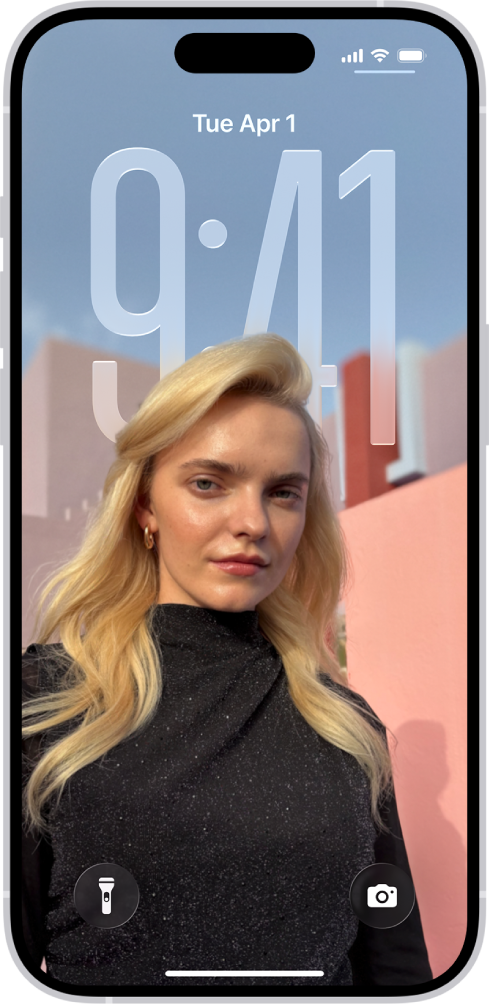
Lock Screen. The time dynamically adapts its position based on your Lock Screen photo or wallpaper and always keeps the subject in view. When you move your iPhone, your Lock Screen photo comes to life with a new 3D effect. See Create a custom iPhone Lock Screen.
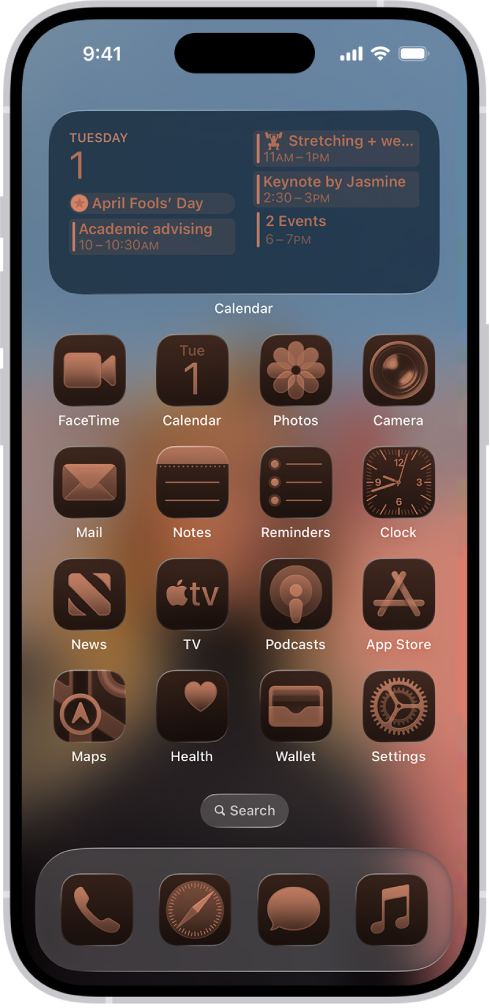
Home Screen. App icons on your Home Screen have a new look that you can tint with different colors or turn light, dark, or clear. See Customize apps and widgets on the iPhone Home Screen.
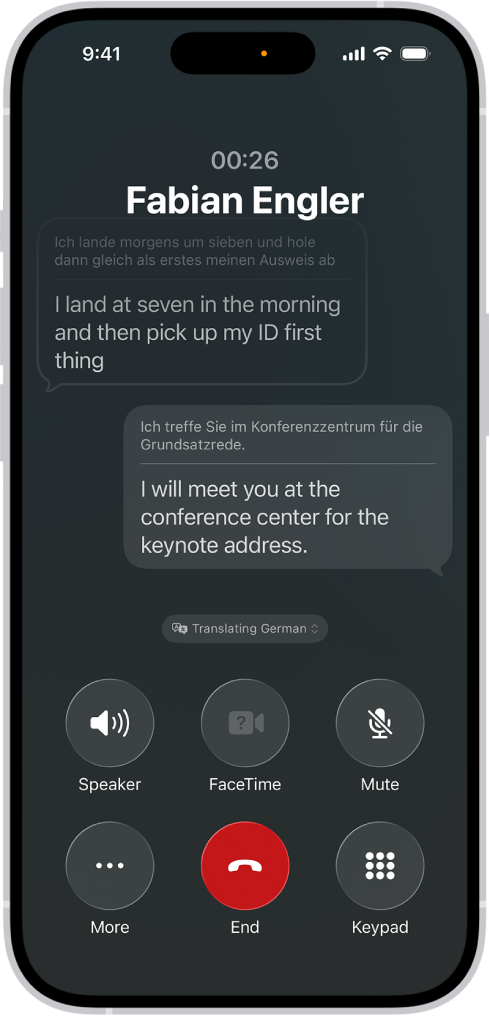
Apple Intelligence.* Create custom Genmoji using existing emoji, combinations of emoji, or descriptive text. Change the look and expressions of Genmoji and Image Playground creations that are based on people from your Photos library. Design custom backgrounds for your Messages conversations. Live Translation automatically translates texts in Messages, shows live translated captions in FaceTime calls, and provides spoken translations for Phone calls. Use visual intelligence to learn more about what you’re viewing on your iPhone screen. See Create original images with Image Playground on iPhone, Create your own emoji with Genmoji on iPhone, Create and edit original backgrounds with Image Playground, Translate messages, calls, and conversations on iPhone, and Learn more about the content on your iPhone screen.
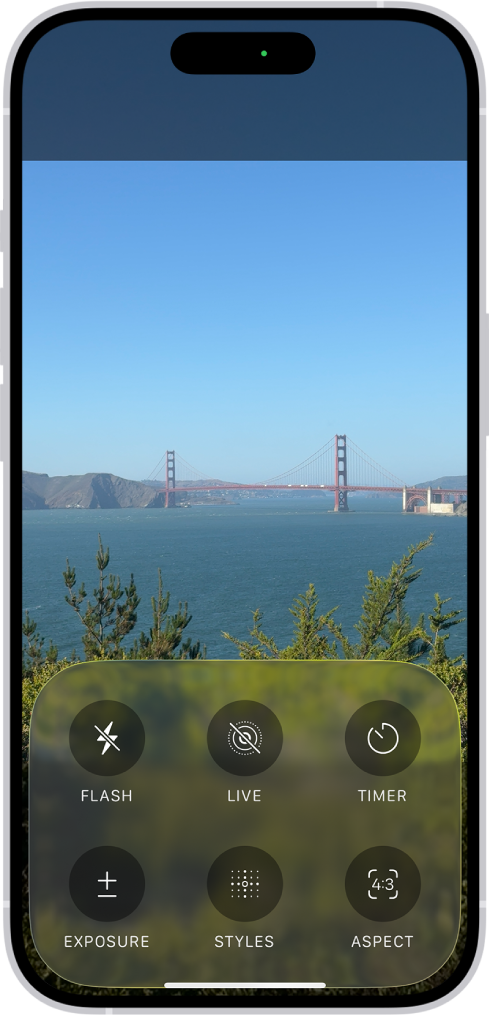
Camera. A simplified design highlights Photo and Video modes for quick access, while the other camera modes are just a swipe away. Camera controls are now grouped together onscreen, making it easier to adjust your camera settings in the moment. See Switch between camera modes and Use iPhone camera tools to set up your shot.
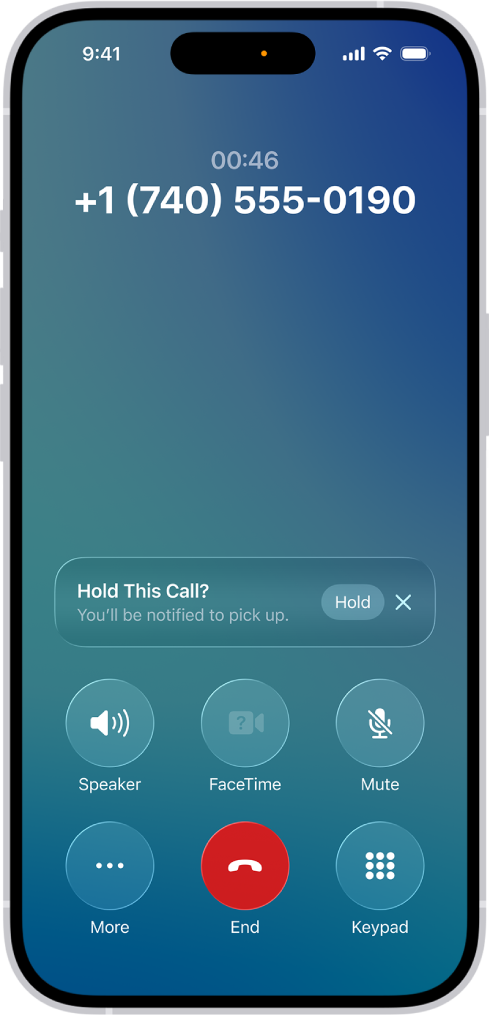
Phone. Remove unwanted distractions from unknown numbers with Call Screening, which gathers the necessary information before your phone rings, so you can make an informed decision on whether to pick up, decline, or ask for more information. Use Hold Assist to wait on hold for you and then send you a notification when it’s time to return to the call. See Screen and block calls on iPhone and Receive a notification when you’re no longer on hold.
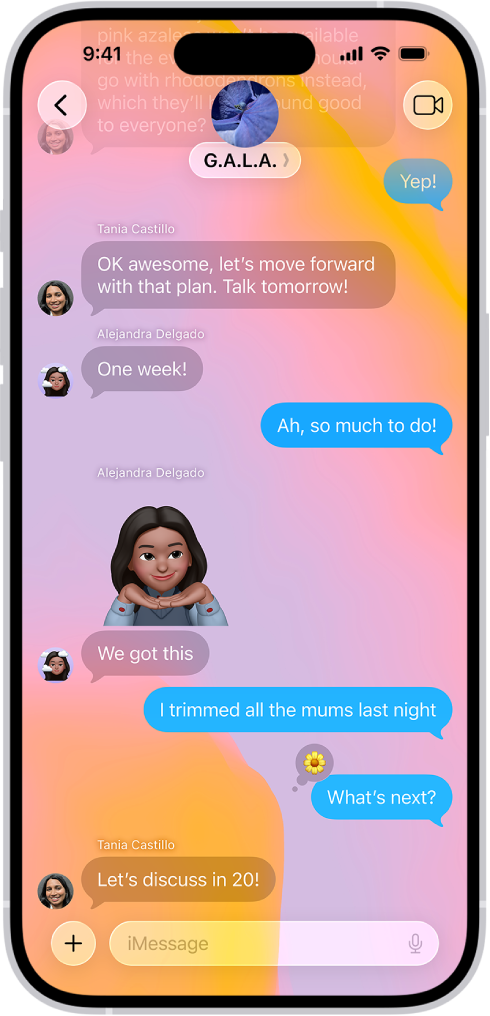
Messages. Messages from unknown numbers are filtered into a separate area of your conversation list for you to review and approve. Backgrounds let you personalize conversations for everyone to enjoy using dynamic backgrounds, your own photos, or backgrounds you create in Image Playground. In group conversations, you can create polls to help make decisions, send money using Apple Cash, and see typing indicators. See Screen and filter text messages on iPhone, Add backgrounds in Messages on iPhone, Send, request, and receive payments with Apple Cash in Messages, and Poll people in Messages on iPhone.
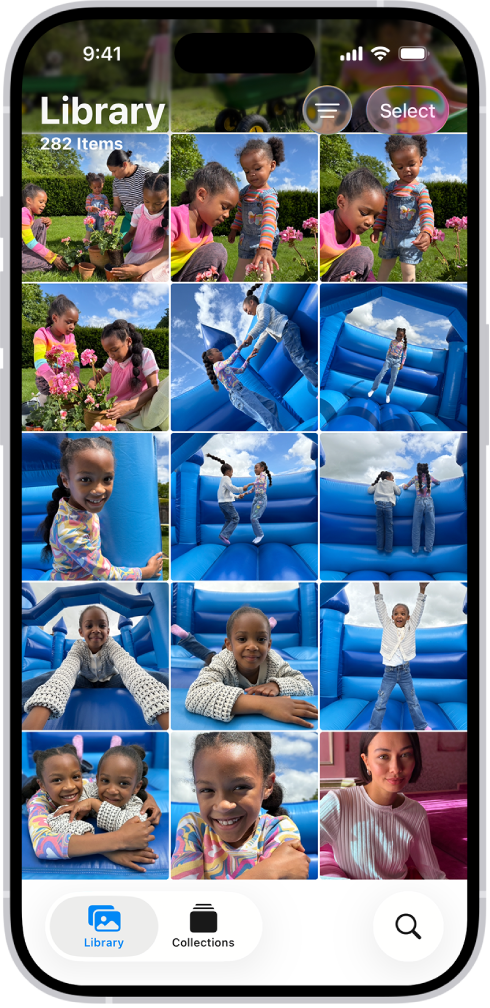
Photos. An updated design makes it easier to switch between your Library and Collections. You can now customize how Collections appear—reorder them, choose which ones to pin, and select from three display sizes: larger tiles, a denser grid, or a layout that highlights the top row. See Browse your photo library on iPhone and Browse your photo collections on iPhone.
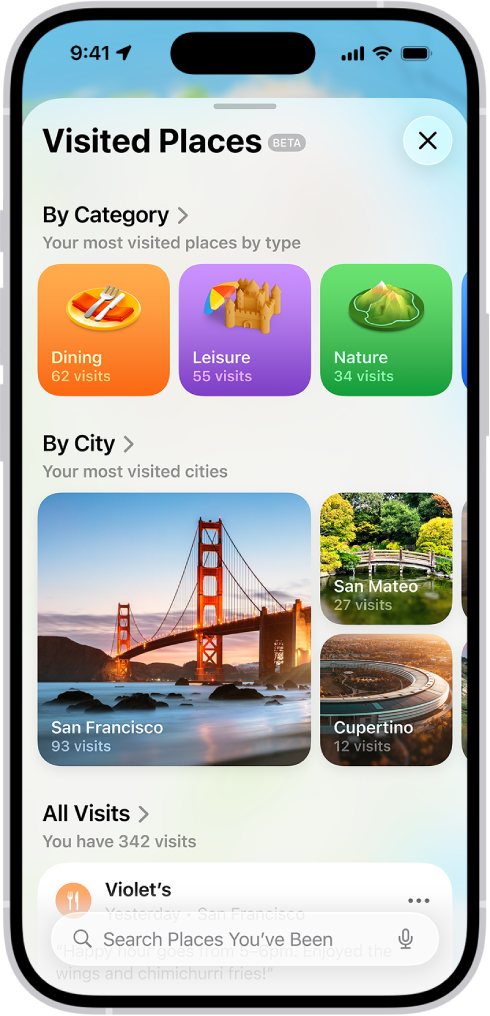
Maps. Maps learns your preferred routes to places you go often, like work or home. Maps will notify you of conditions on your preferred route, such as traffic delays or road closures, before you head out and offer you an alternate route. Use Visited Places to keep track of where you’ve been, so you can recall them later and share with friends or family. See Get driving directions in Maps on iPhone and View and manage Visited Places in Maps on iPhone.
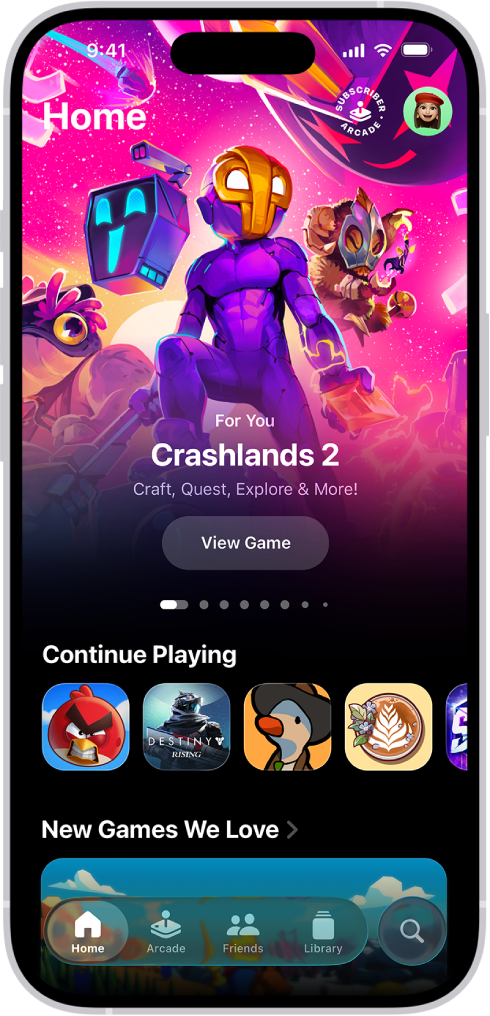
Games. A new app where you can keep track of all the games you’re playing, discover new ones, receive tailored recommendations, and start challenges with friends. See Get started with the Apple Games app on iPhone.
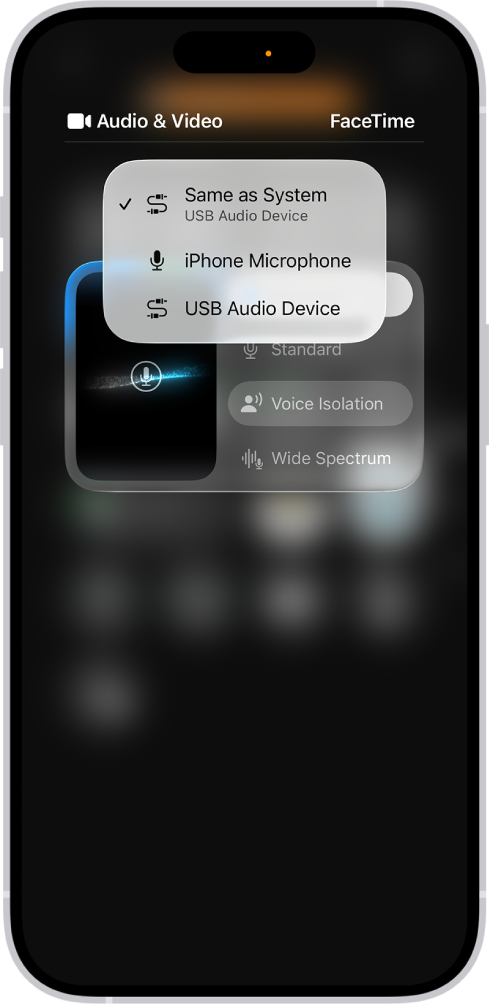
Audio recording. Capture high-quality audio and video during video conference calls and with Camera. A new input chooser makes it easy for creators to pick the right microphone for each app. See Record audio and video on iPhone.
Music. AutoMix seamlessly mixes one song to the next, just like a DJ. See Adjust the sound quality in Music on iPhone.
Reminders. (iOS 26.2) Mark a reminder as urgent to set an alarm that alerts you when it’s due. See Add details in Reminders on iPhone.
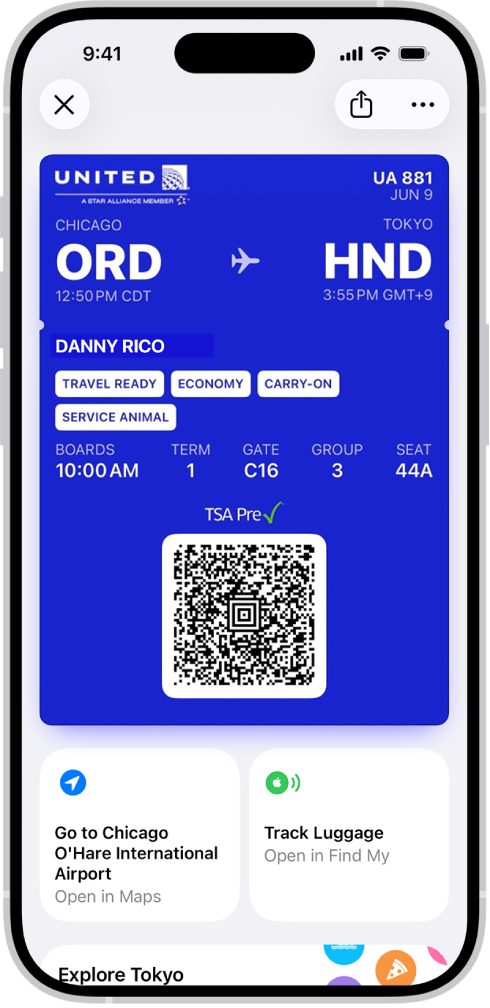
Wallet. Boarding passes that you save in Wallet provide access to relevant information about your flight and airport, as well as airline app features. See Use passes in Wallet on iPhone.
Digital ID. (iOS 26.1) In Wallet, create a Digital ID—a passport-verified ID that you can present at select TSA checkpoints in airports for domestic travel, or in supported apps or websites that require age verification. See Add a Digital ID (U.S. only).
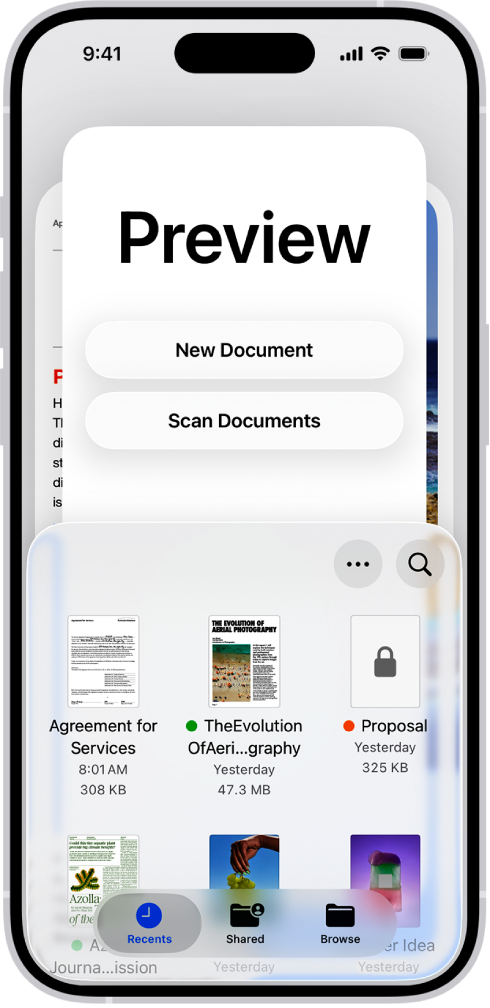
Preview. The Preview app is now available on iPhone so you can easily view, edit, and share PDF documents and images. Scan documents from within Preview, use Autofill in Preview to quickly fill out forms, and export PDFs and images as different file types or sizes. See Get started with Preview on iPhone.
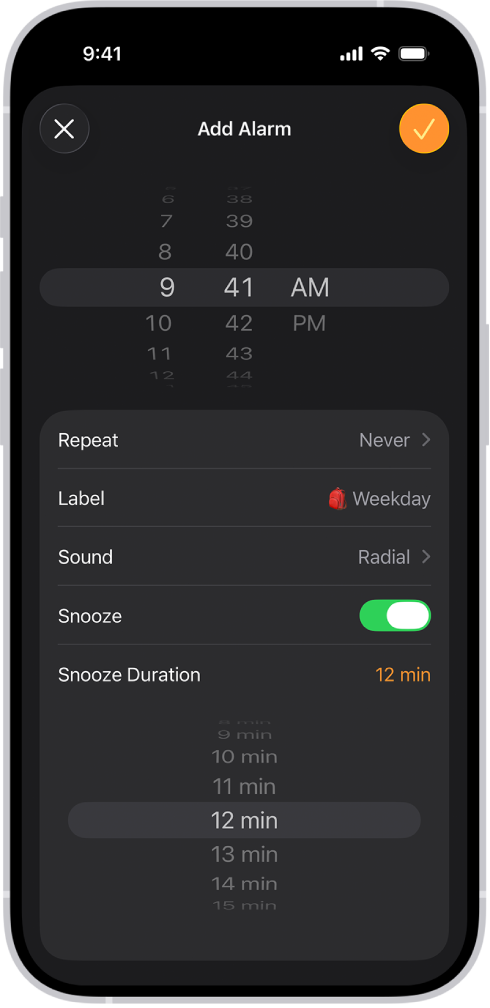
Clock. Set a custom snooze time for your alarm to match your preferred sleeping habits. See Set an alarm.
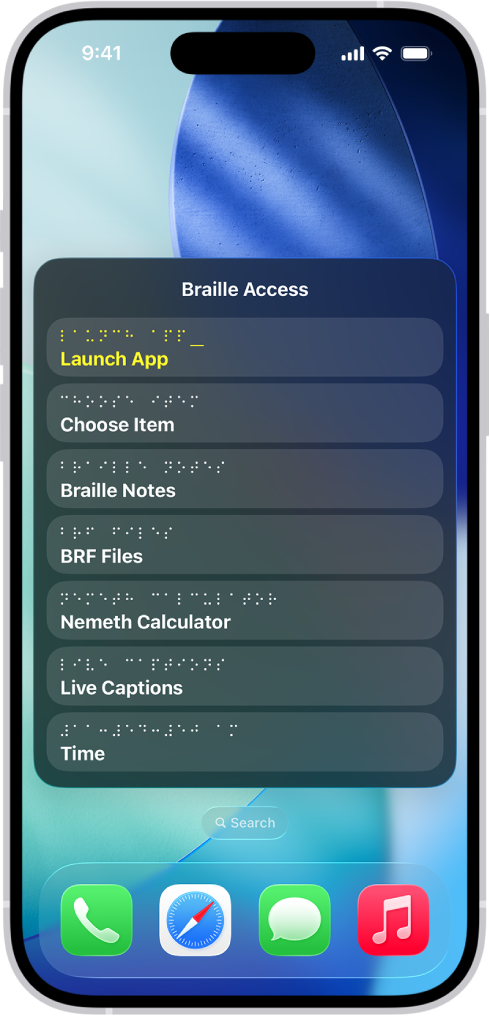
Accessibility. Braille Access introduces an all-new experience designed for Braille users with a connected Braille display that enables note-taking, document-reading, access to Live Captions and more. Vehicle Motion Cues help reduce motion sickness for passengers in moving vehicles. You can also temporarily use your Accessibility settings on someone else’s device. See Use Braille Access with a braille display on iPhone, Use iPhone more comfortably while riding in a vehicle, and Share your Accessibility settings with another device on iPhone.
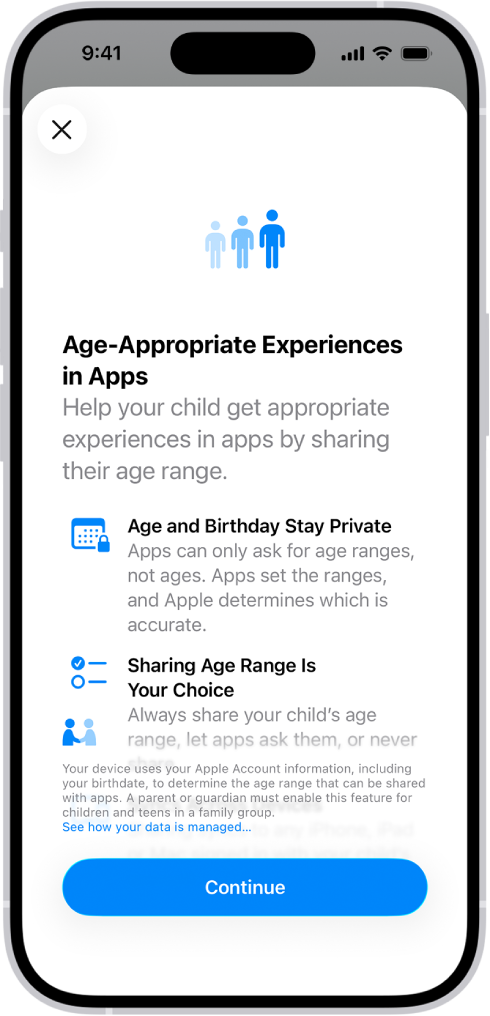
Family. During device set up, parents can specify if they are setting up a device for an older child, age 13–17, and age-appropriate protections are automatically enabled. See Share age ranges with apps on iPhone.
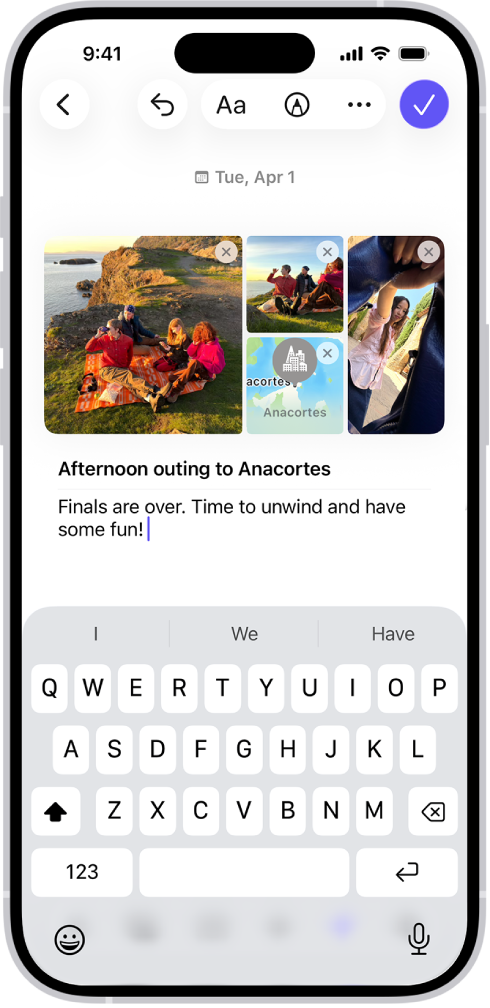
Journal. Create multiple journals for different aspects of your life. As you write, include drawings inline with text, and then view the location of your journal entries on a map. See Create multiple journals, Add formatting, photos, and more in Journal on iPhone, and View and search your journal entries on iPhone.
CarPlay. New design makes CarPlay an easier and safer way to use your iPhone while you drive. Tapbacks in Messages make it easy to quickly respond to messages you receive while driving. Widgets let you keep up with your favorite apps at a glance and Live Activities on the dashboard let you keep track of events in real time. See React with Tapbacks, Add a widget for CarPlay, and View Live Activities in CarPlay.
Weather. Add a Weather widget to your Smart Stack for an upcoming destination. Opt-in to receive severe weather alerts for that location. See Get weather notifications for a suggested location.
Learn tricks for iOS 26. The Tips app adds new suggestions regularly, so you can get the most from your iPhone. See Get tips.
Note: New features and apps may vary depending on your iPhone model, region, language, and carrier.