VOOZH about

URL: https://www.geeksforgeeks.org/computer-vision/edge-detection-with-blur-using-opencv/

⇱ Edge Detection with Blur using Python OpenCV - GeeksforGeeks


  • Courses
  • Tutorials
  • Interview Prep

Edge Detection with Blur using Python OpenCV

Last Updated : 11 Feb, 2026

Edge detection identifies object boundaries by detecting sharp intensity changes in an image. When applied directly to real-time frames, it often produces noisy and overly sharp edges. To improve results, blurring is applied as a preprocessing step before edge detection. Blurring before edge detection helps in:

  • Reduces noise
  • Smoothens intensity variations
  • Produces cleaner and more meaningful edges

Hence, blurring is an important step in most real-world edge detection applications.

Functions and Methods Used

1. cv2.flip(): This function flips an image or video frame, which is used to create a mirrored view. Below is the syntax:

cv2.flip(src, flipCode)

Parameters:

  • src: Input image or frame
  • flipCode: 1 for horizontal flip

2. cv2.blur(): This function applies an averaging blur to an image. Below is the syntax:

cv2.blur(src, ksize)

Parameters:

  • src: Input image
  • ksize: Kernel size as (width, height)

3. cv2.Canny(): This function detects edges in an image using Canny edge detection algorithm. It identifies areas with strong intensity changes that represent object boundaries. Below is the syntax:

cv2.Canny(image, threshold1, threshold2)

Parameters:

  • image: Input image
  • threshold1: Lower threshold value
  • threshold2: Upper threshold value

Python Implementation

The following program captures live video from a webcam, applies blur and edge detection and displays different stages of processing in real time for comparison.

  • cv.VideoCapture(0) opens the default webcam.
  • cam.read() continuously captures frames from the camera.
  • cv.flip(frame, 1) mirrors the frame for natural viewing.
  • cv.blur(frame, (3,3)) smoothens the image and removes noise.
  • cv.Canny() performs edge detection on both original and blurred frames.
  • Multiple cv.imshow() windows display all processing stages.
  • Pressing Escape (27) exits the program and releases resources.

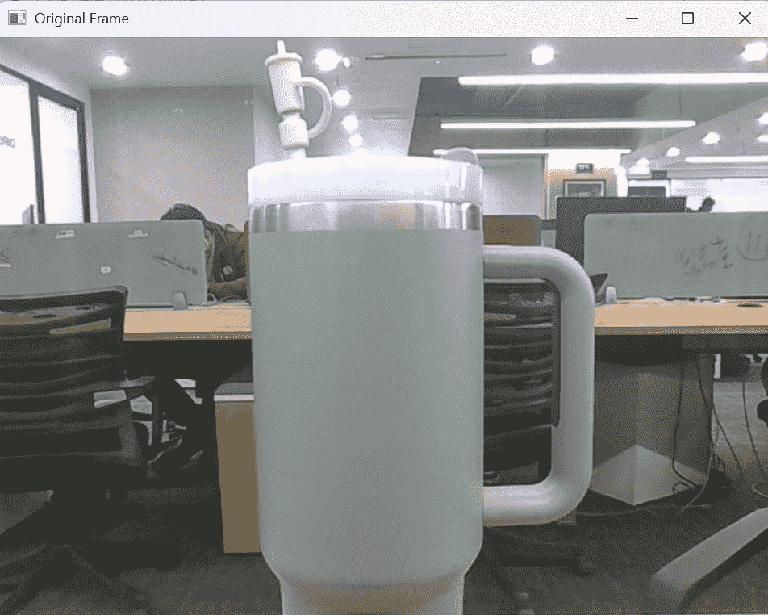
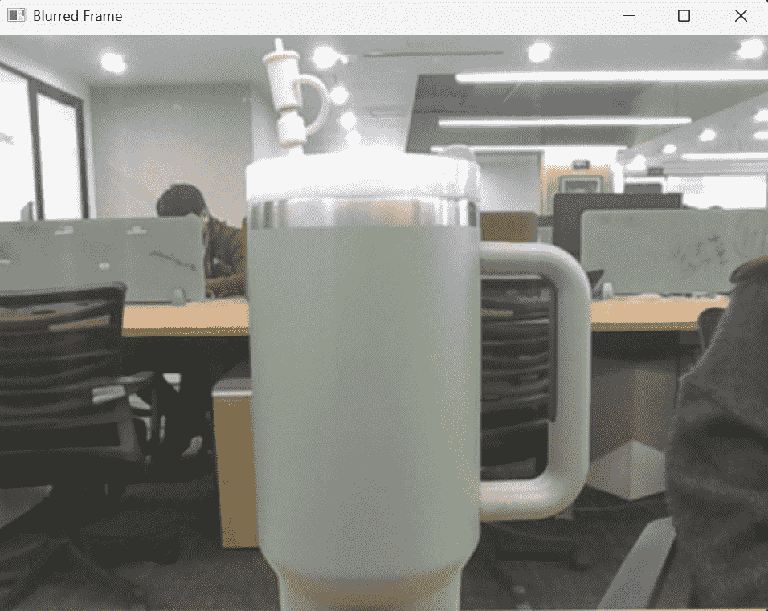
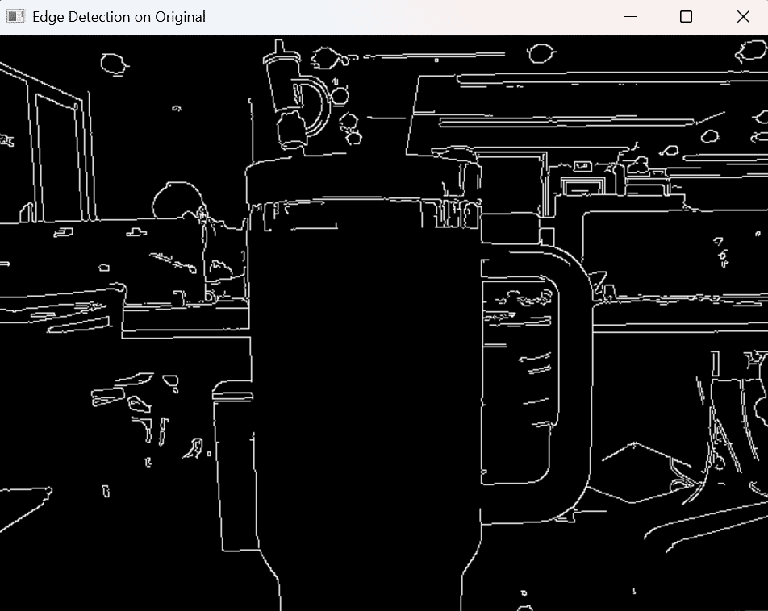
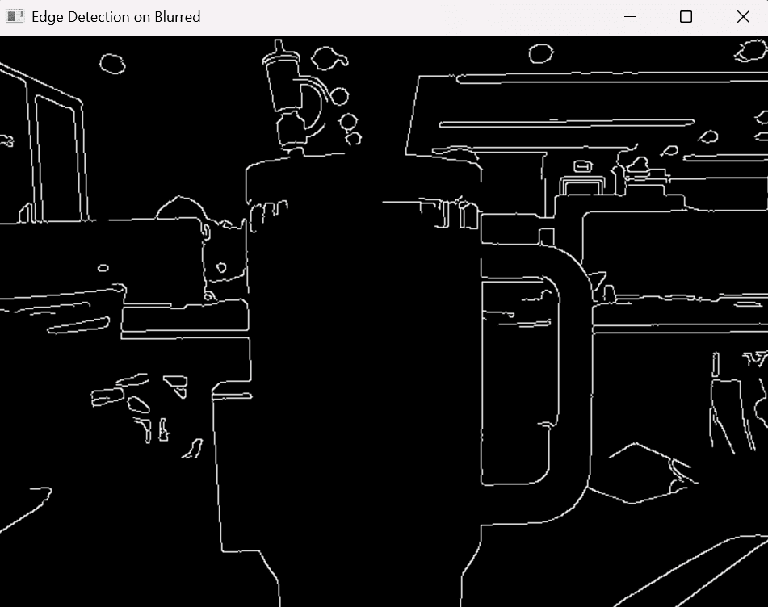
Output: After running the program, four live windows are displayed:

  • Original webcam frame
  • Blurred frame
  • Edge detection without blur
  • Edge detection with blur
👁 Screenshot-2026-02-03-145855
Original webcam frame
👁 Screenshot-2026-02-03-145714
Blurred frame
👁 Screenshot-2026-02-03-145754
Edge detection without blur
👁 Screenshot-2026-02-03-145824
Edge detection with blur

The blurred edge detection output clearly shows reduced noise and smoother edges.

Comment
Article Tags:

Explore