|
VOOZH | about |
|
VOOZH | about |
Connecting multiple data tables in Power BI allows you to combine related data for meaningful analysis and reporting. Relationships help Power BI understand how tables interact with each other.
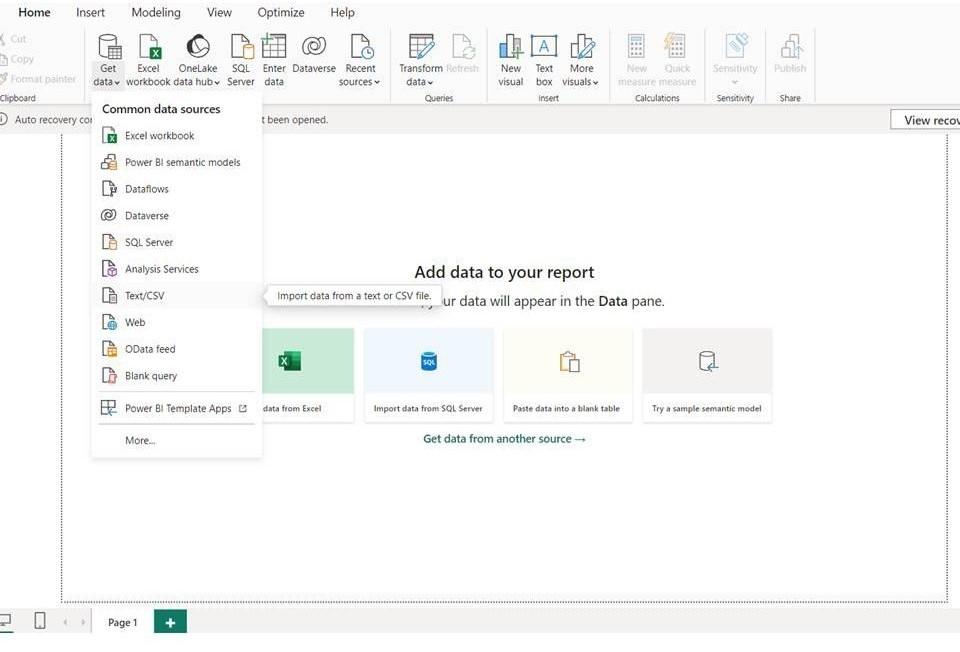
You can import data from sources like Excel and CSV or associate it with online services.
One can either create new table by the help of Data Analysis Expression formulas (DAX) to add the values from the loaded tables or create a relationship.
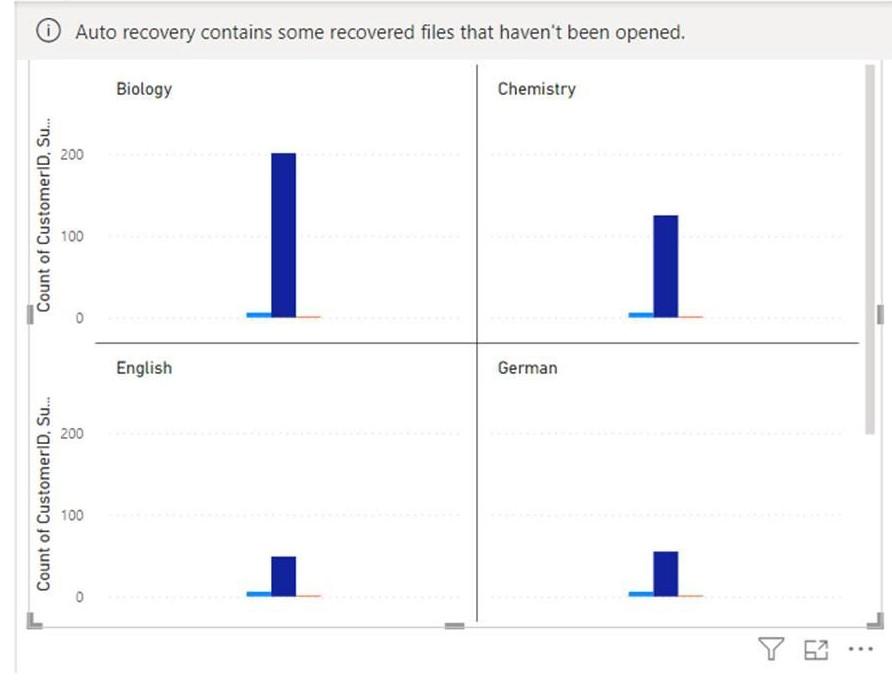
Click on Get data tab and load the file, one can transform the data before loading and then load it and can visualize the data in the dashboard.
Now the question arises how does Power BI make a relationship between tables
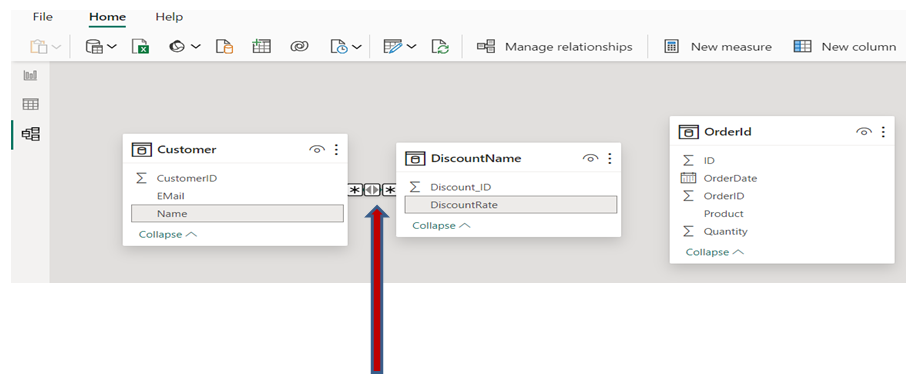
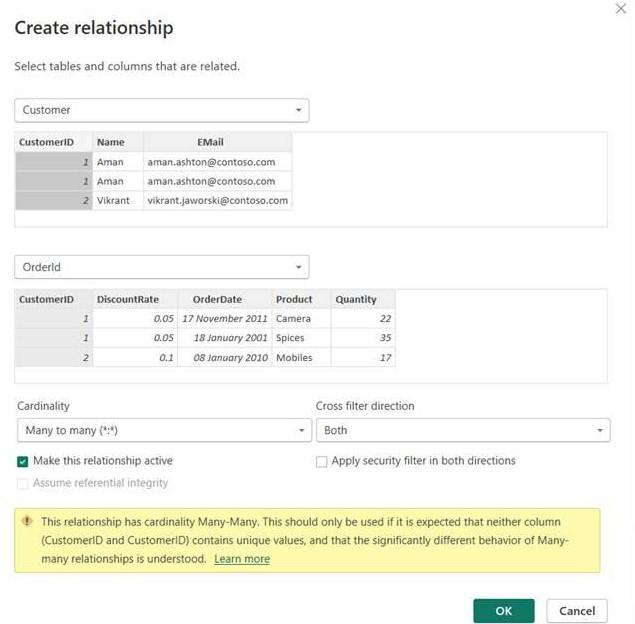
It shows the Relationship between the two table is Many to Many relationships means the record in the table can have many records in the other table or in associated table.
CustomerID and Discount_Id columns are same.
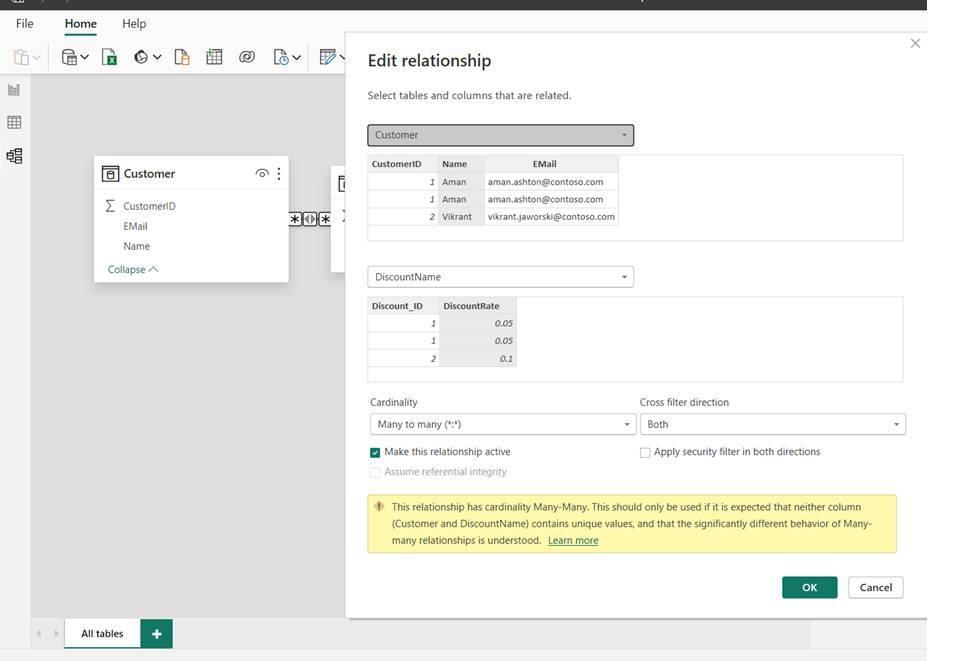
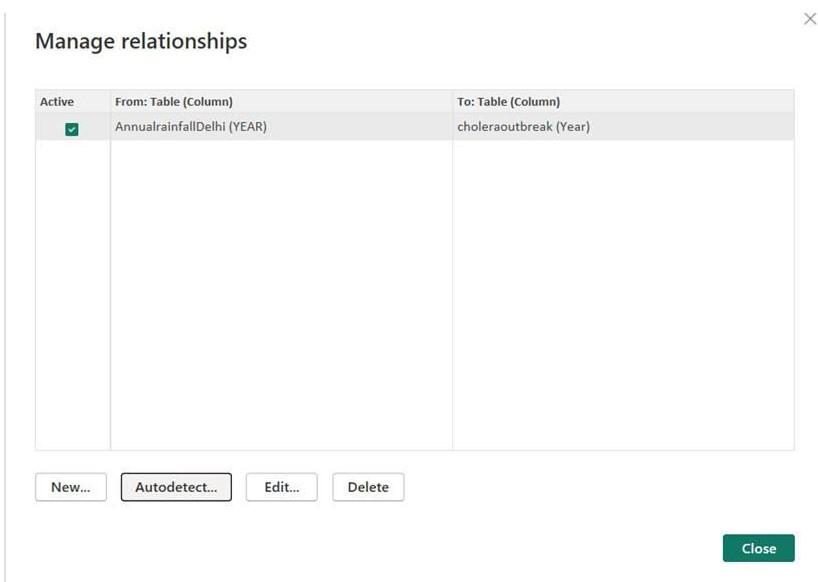
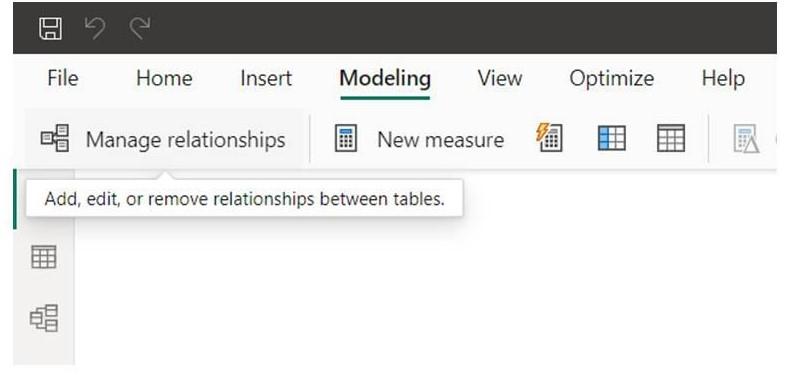
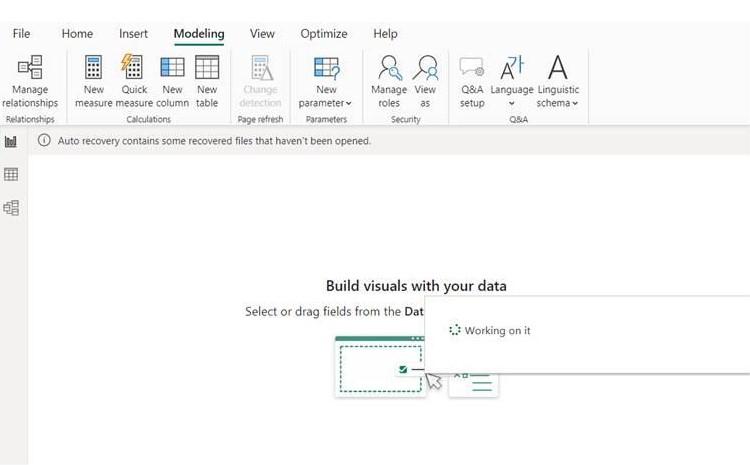
Generally, Power BI catch the relationship automatically. You can create new by clicking the Modeling tab on the upper side, then choose the Manage Relationship tab. You can edit or create new too.
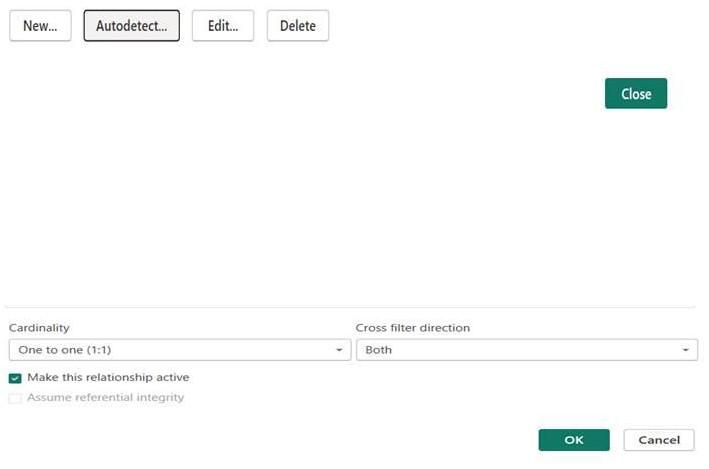
The Manage Relationships window displays existing links between tables, allowing you to view, edit or create relationships based on common columns.
It refers to the degree of relationship.
This diagram shows a one-to-one relationship where each record in one table is directly matched to a single corresponding record in another table using a common key.
1. Open the data model.
2. Click on Modeling and Mange Relationship tab.
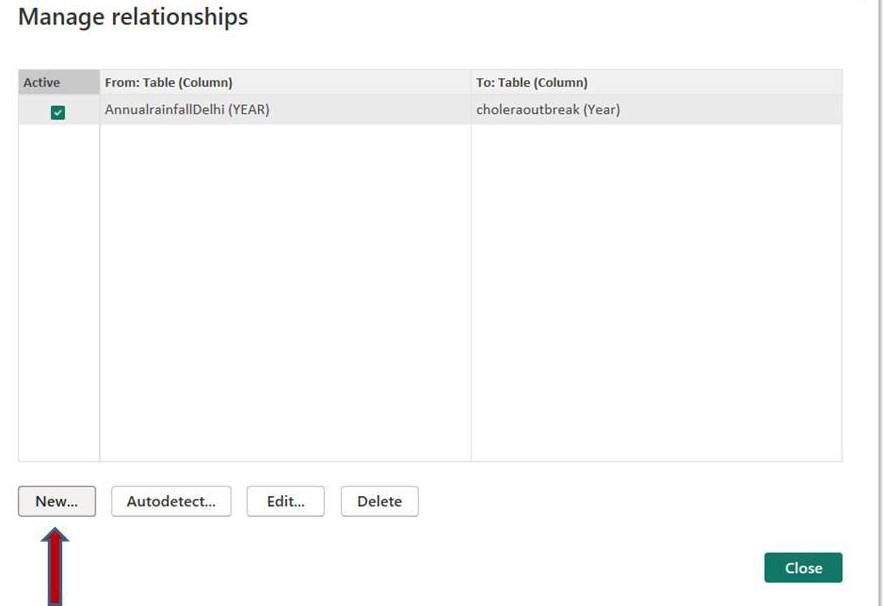
3. Create a new relationship with New tab.
4. Select the columns of the table and save the relationship by pressing the OK button.
Like other Power BI Work area tables, determined tables can have associations with different tables.
Click on Modeling and go to tab New Table
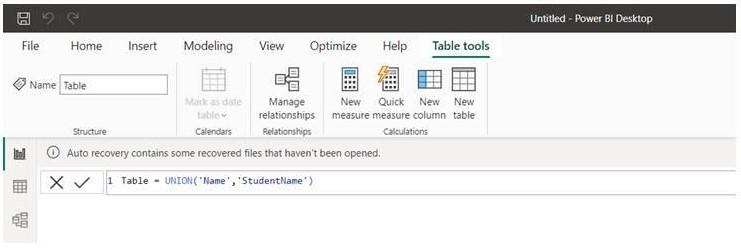
Write on the upper space Table name = UNION('Table1','Table2'). It will make a new table. Makes sure the table should have same name of columns.
You can use different functions that includes:
We used the table of Student Name and Name that was already loaded and then we formed a new table with name Table.
Table = UNION ( 'Name', 'StudentName')