|
VOOZH | about |
|
VOOZH | about |
Sometimes we want to show data in tabular format for that we have two options here one is a table and another one is a matrix. This article deals with Tables in Power BI.
You can download dataset from here.
The topic that will be covered in the articles are:
Import the table from Your Excel to Power BI.
To create a Table steps are:
After selecting the table visual we can populate it using the desired features.
Formatting a table is a trick used to change the appearance of the table to increase readability.
There are two types of Formatting Visual and General.
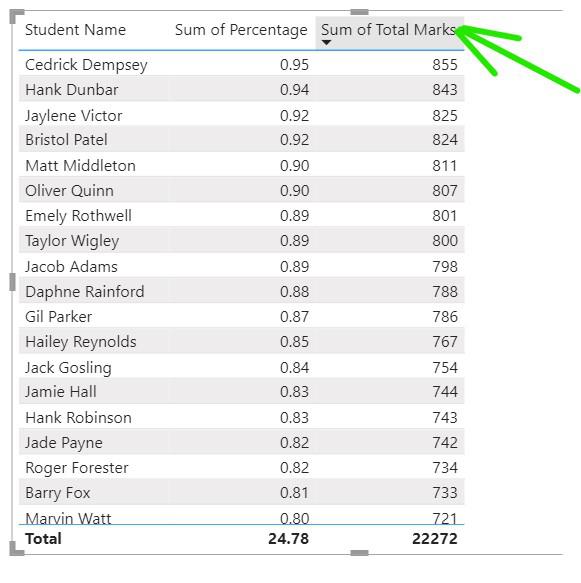
1. To sort the column in ascending or descending order just click on the column heading and it will be sorted.
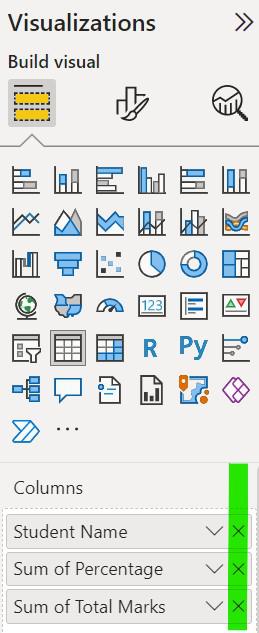
2. To remove any field from the table Click on the 'X' mark in the column section under the visualization
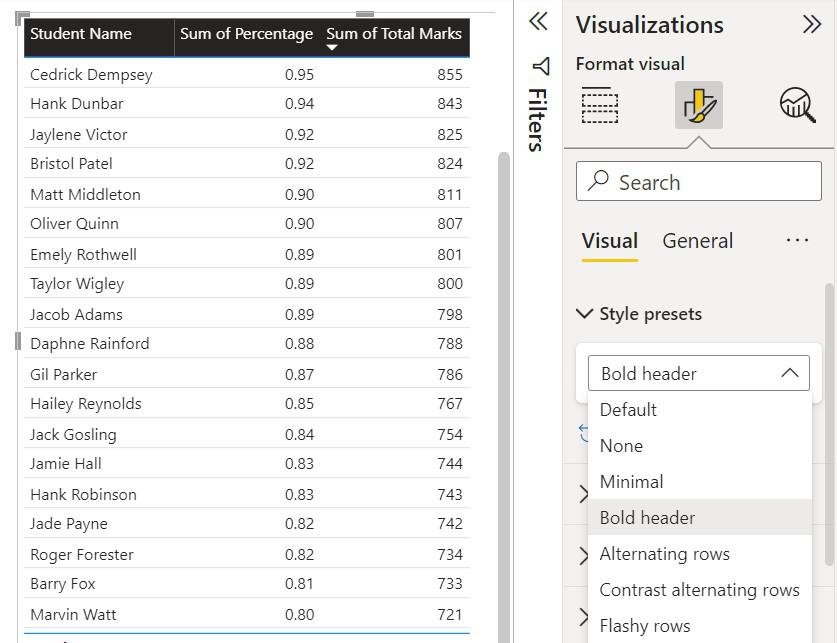
3. To format your visuals click on the format button present under the visualization.
Under this section there is plenty of options available that can be explored some of them are listed below:
To change the style of the table click on the 'Style Present' Tab and choose the style that you want to give
To apply the grids between the row and column click on Grid and 'on' the horizontal and vertical grid section from there.
To change the text color of the row alternatively, click on the values section and choose the color you want to give to the text
To remove the Total shown below the table click on the total tab and 'off' the value switch
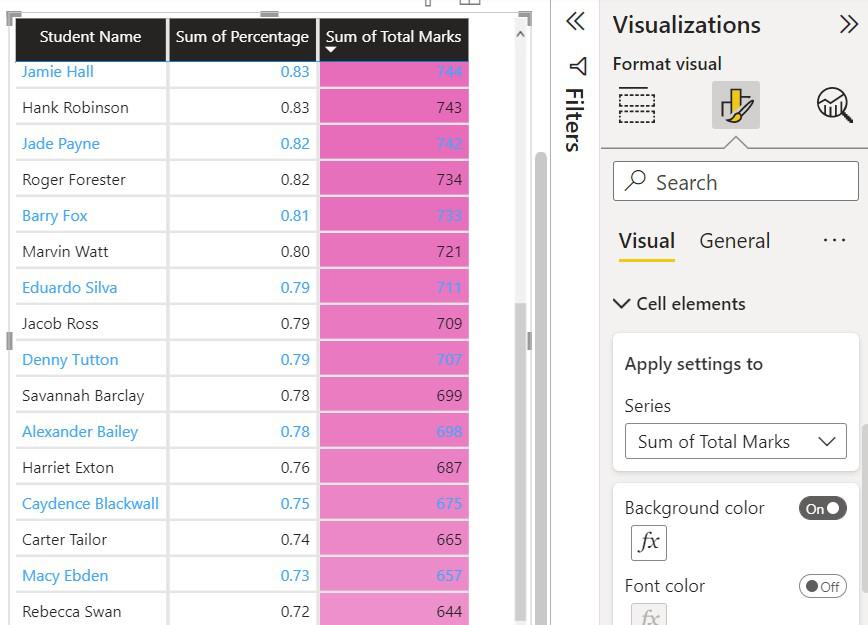
To change the background color of the cell click on the cell elements and select the column to which you want to give color
To change the size, positions click on 'General' under Visualization and it selects the properties
- Size: It is used to adjust the table size by changing the value of height and width
- Position: It is used to place the table concerning the page by changing the horizontal and vertical position of the table
- Advanced Options: It is used to lock the visual of the table
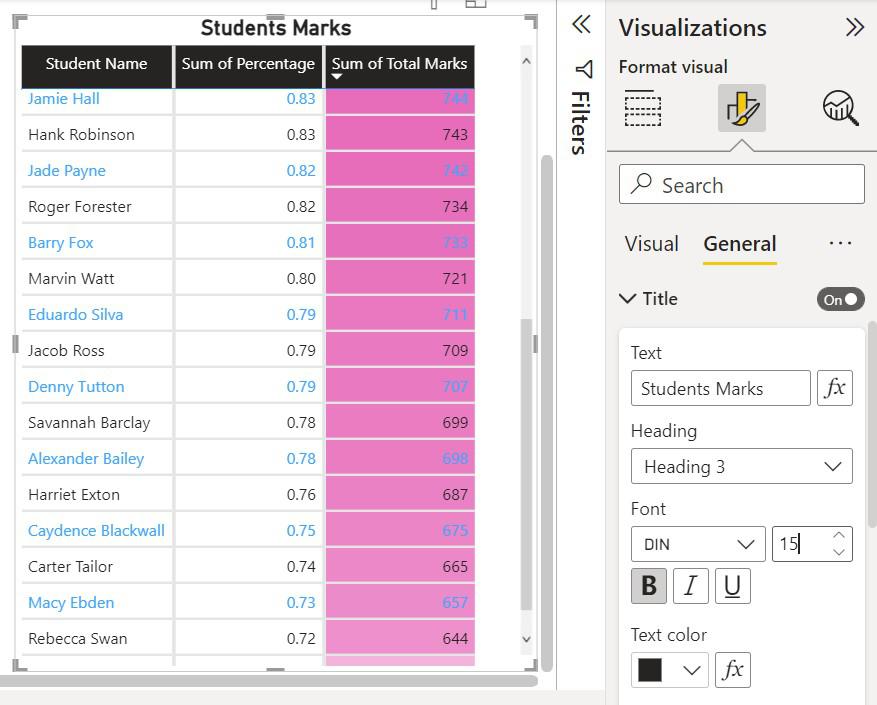
To add a Title to the table Expand the general bar under the title section and Write the name to the table
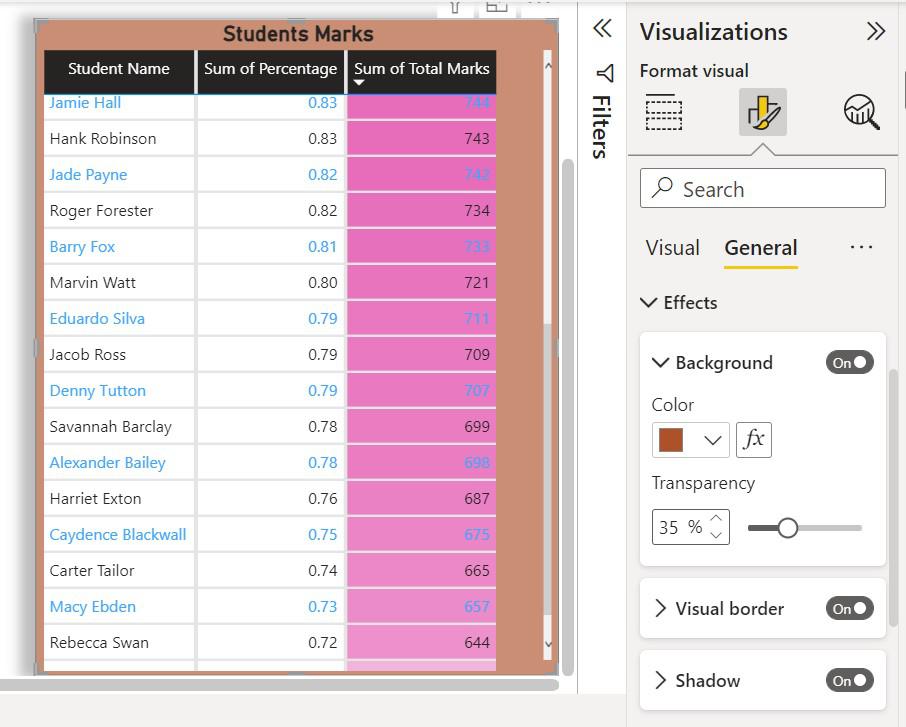
To add background color to the table effect tab is used
- Visual borders: Borders add a good looking to the design of the table
- Shadows: It gives shadow to the cell according to the need
There are still more options to format a table but these are the ones that are used more often.