|
VOOZH | about |
|
VOOZH | about |
Power BI allows users to convert data into visuals and graphics to explore and analyze data, collaborate on interactive dashboards and reports. A Power BI dashboard is one page that shows different charts and visuals all designed to explore and interact with your data easily.
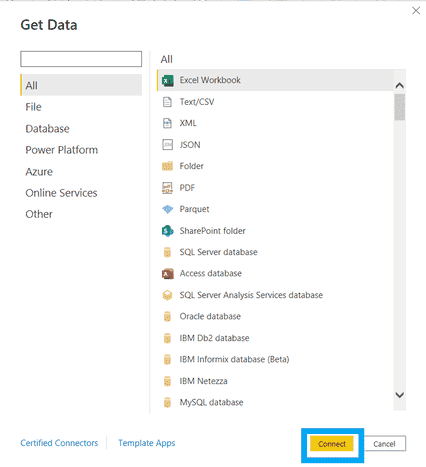
Open Power BI and import your dataset from any supported format by clicking the Get Data button
You can download dataset from here
2. In the navigation pane, select Files and browse to the folder containing your Excel workbook or other data file. Choose the file and click Connect to import it.
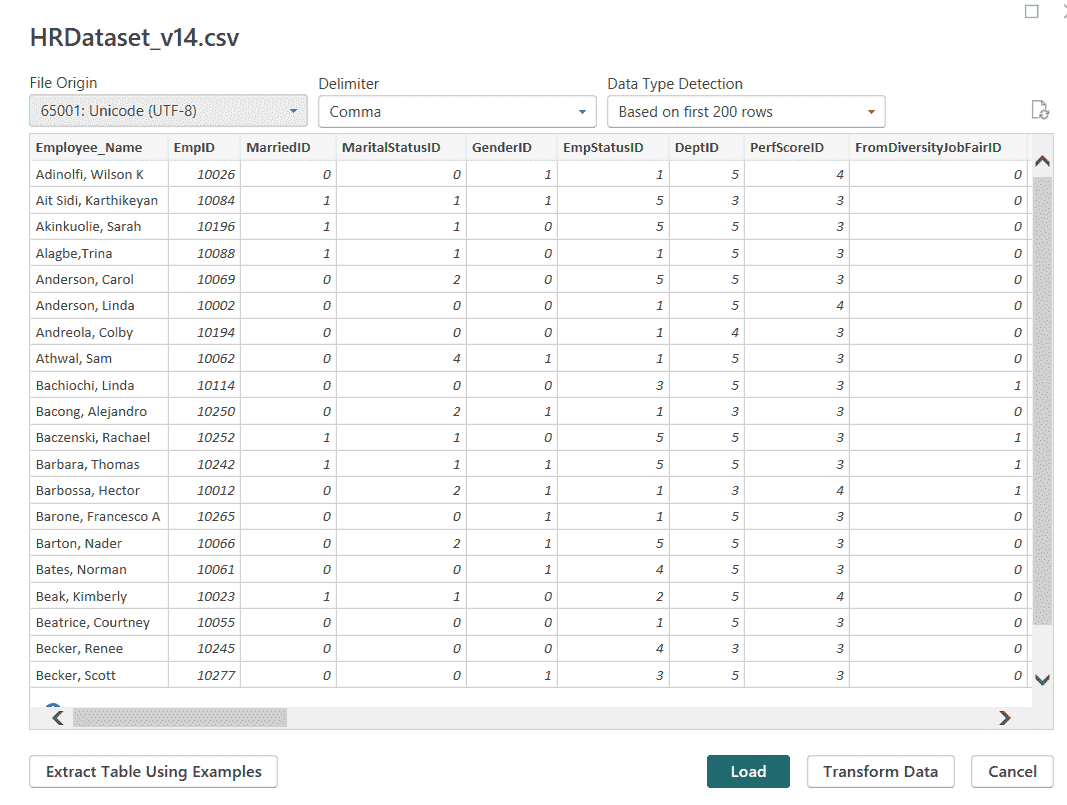
3. Processing time depends on the file size. After ensuring the data is extracted, click Load to import it.
From the Data tab you can view the tabular form of data. On the right you’ll find a list of fields within those tables.
Select a table or field and use the Modeling tab to change its datatype or format, such as date, time, currency or percentage.
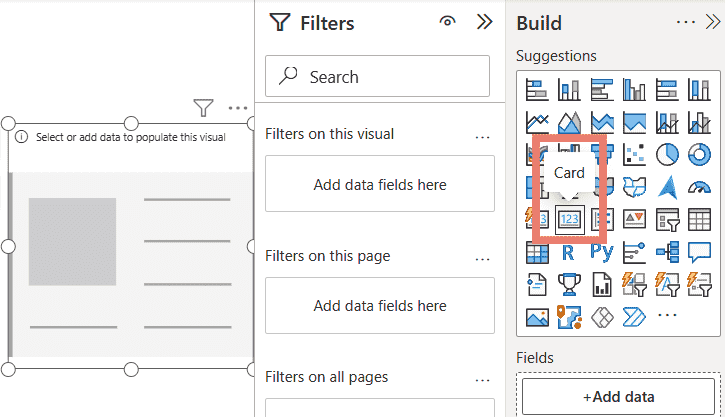
1. Select Card from the visualizations pane.
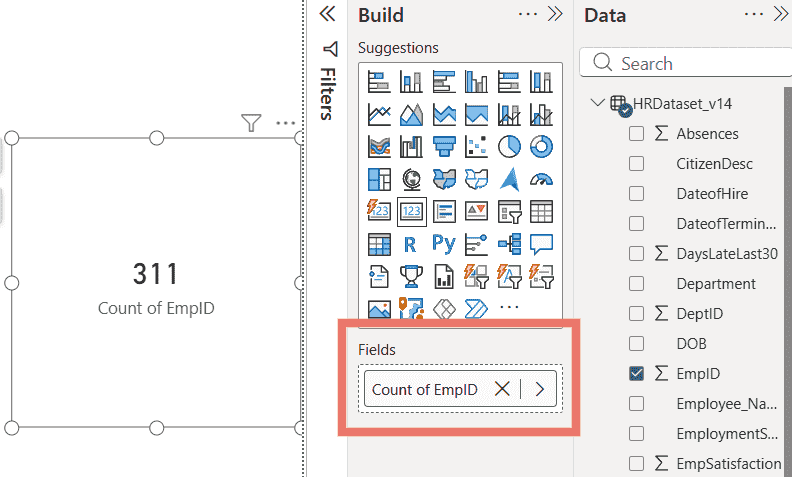
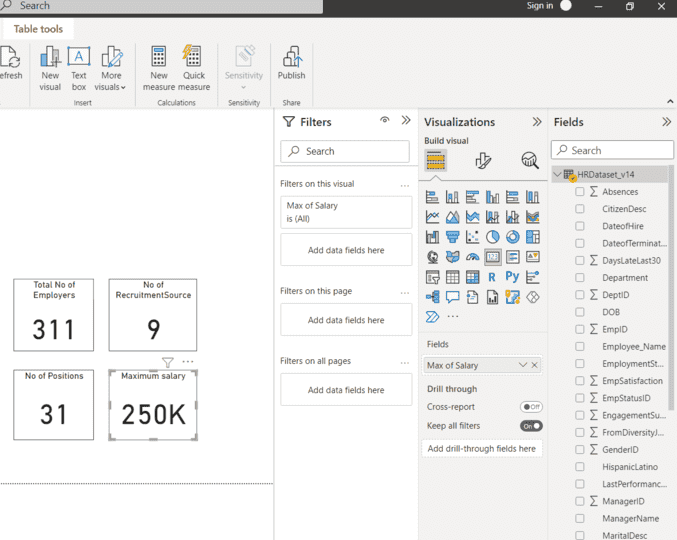
2. Select the columns you want to add to the visual from the Fields section. You can also drag and drop the fields into respective columns indicated by the image below.
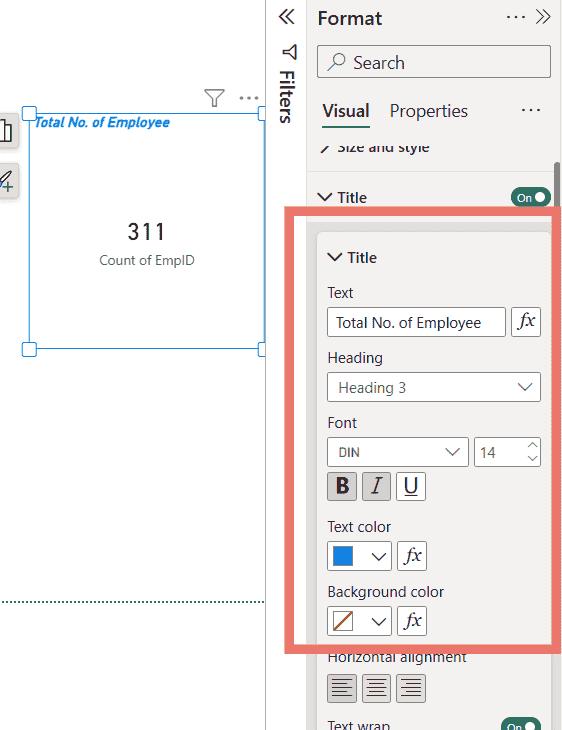
3. You can select columns, apply filters and format the visual from the Format icon. The first card we prepared shows the Total number of Employers.
4. The Same procedures were followed for the remaining cards. The second, third and fourth cards show the Number of Recruitment Sources, Positions and Maximum Salary respectively.
5. Next we’ll create a Pie Chart and a Donut chart which is going to show the Count of positions and Male - female rate respectively. Add this chart from the Visualizations.
6. Add a Funnel and Stacked Bar Chart to display yearly hires and recruitment sources, then format titles, labels, legends, axes and colors.
Note: You can also add some interactive colors to make it more attractive.
Here we compare reports and dashboard in Power BI
Feature | Dashboard | Report |
|---|---|---|
Function | Effective business data view from where navigation to reports originates | Built from datasets view data from multiple perspectives |
Pages | Single page summary | Multi-page report |
Availability | Power BI Service only | Power BI Desktop and Service |
Data Sources | Can use one or more datasets/reports | Uses a single dataset |
Alerts | Email data alerts supported | Email alerts not supported |
Interactivity | Supports only Bookmarks | Supports Bookmarks, Filters and Slicers |
Both dashboards and reports are effective; dashboards provide a high-level view, while reports allow in-depth exploration.