|
VOOZH | about |
|
VOOZH | about |
DAX Date Functions are built-in tools in Power BI that help you analyze and manage date and time data effectively. They allow you to create calculated columns and measures, find differences between dates, extract specific date components such as day, month or year and perform time-based analysis for better reporting insights.
Below dataset includes a Date column which will be used to illustrate each DAX date function with practical examples.
You can download dataset from here
The CALENDAR Function generates a continuous range of dates between a specified start date and end date. This is helpful when you want to create a date table for time-based analysis.
Syntax: CALENDAR(<start_date>, <end_date>)
The DATE Function returns a date based on the year, month and day you specify. It's useful for creating a date from individual year, month and day values.
Syntax: DATE(<year>, <month>, <day>)
The DATEVALUE Function converts a date in text format into a date value and allow Power BI to work with dates in text form.
Syntax: DATEVALUE(date_text)
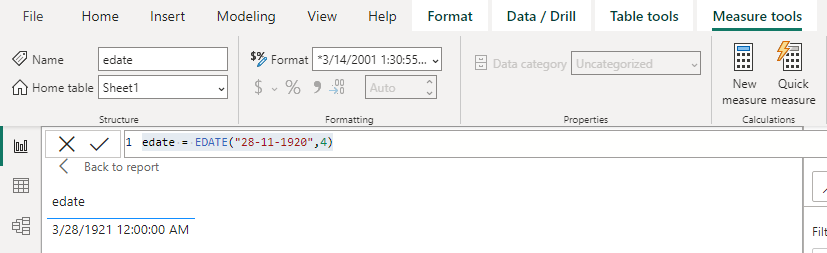
The EDATE Function returns a date that is a specific number of months before or after a given start date. It’s useful for calculating future or past dates such as due dates.
Syntax: EDATE(<start_date>, <months>)
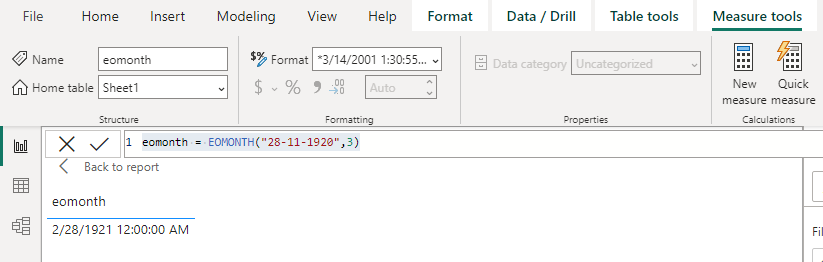
The EOMONTH Function returns the last day of the month before or after a specified number of months. It’s useful for calculating end-of-month dates.
Syntax: EOMONTH(<start_date>, <months>)
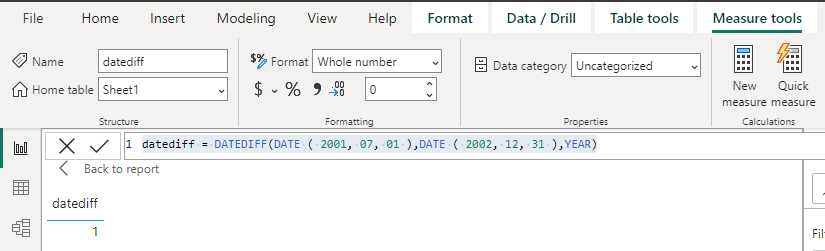
The DATEDIFF Function calculates the difference between two dates in a specified time unit like days, months, years.
Syntax: DATEDIFF(<Date1>, <Date2>, <Interval>)
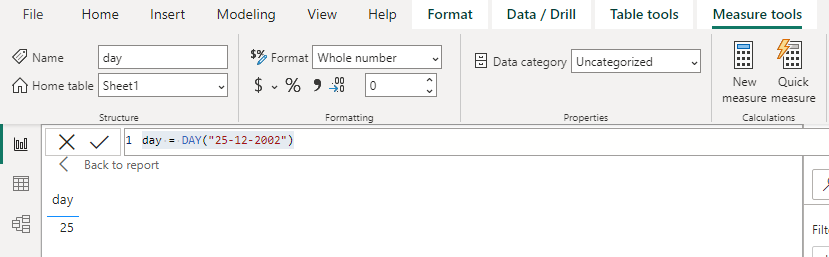
The DAY function extracts the day of the month from a given date. It returns a number between 1 and 31.
Syntax: DAY(<date>)
The MONTH Function extracts the month from a given date and return a number between 1 (January) and 12 (December).
Syntax: MONTH(<datetime>)
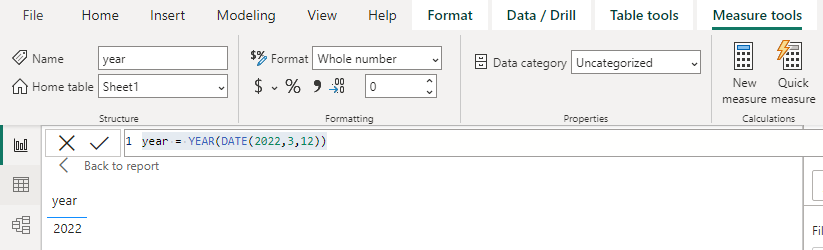
The YEAR Function extracts the year from a given date and return a 4-digit integer between 1900 and 9999.
Syntax: YEAR(<date>)
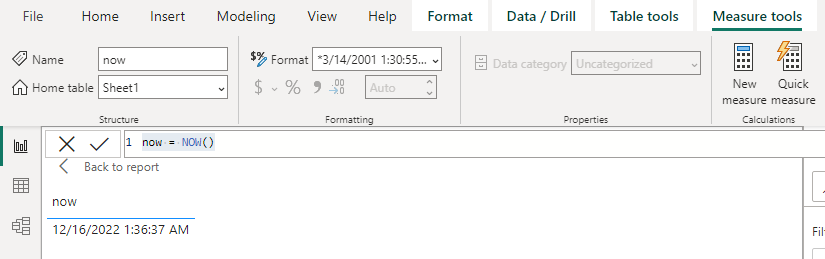
Returns the current date and time. It’s used for calculating real-time information or dynamically update time-sensitive reports.
Syntax: NOW()
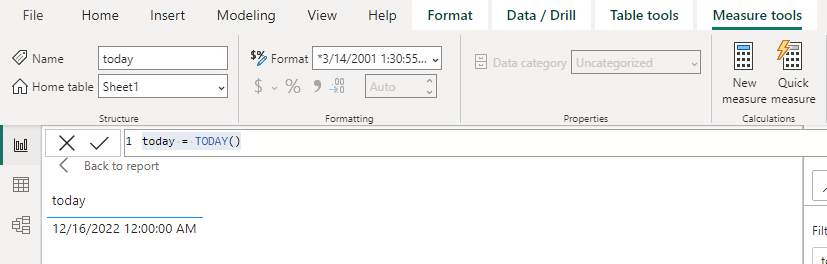
The TODAY Function gives the current date and updates automatically every time the workbook is opened. It can also be used to calculate intervals by subtracting dates.
Syntax: TODAY()
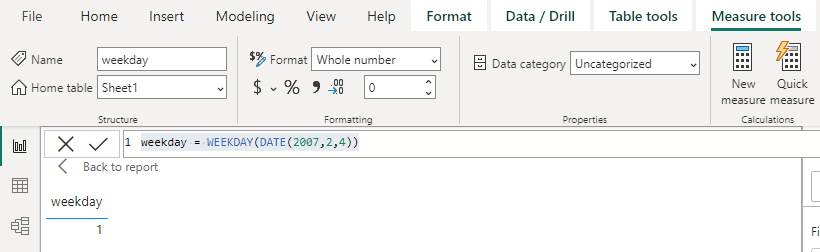
The WEEKDAY Function returns a number between 1 and 7 that represents the day of the week. By default 1 is Sunday and 7 is Saturday.
Syntax: WEEKDAY(<date>, <return_type>)
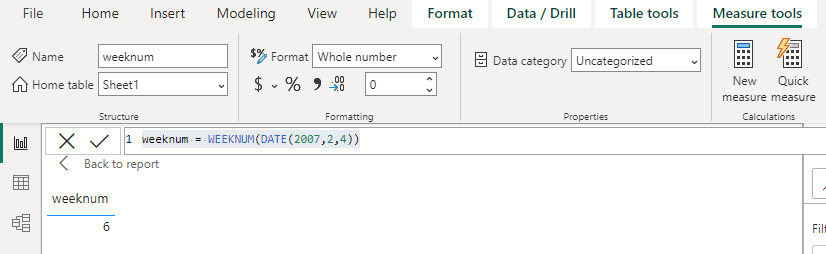
DAX WEEKNUM returns the week number for a given date based on two systems:
You can choose which system to use by specifying a return type value.
Syntax: WEEKNUM(<date>[, <return_type>])
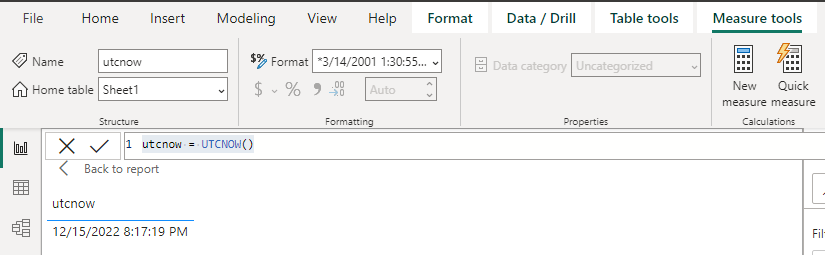
Gives the current date and time in UTC. The Utcnow Function output only varies when the formula is updated. It isn't always being updated.
Syntax: UTCNOW()
Gives the current date in UTC.
Syntax: UTCTODAY()
With these methods we can easily work and manipulate date datatype in Power BI.