|
VOOZH | about |
|
VOOZH | about |
DAX (Data Analysis Expressions) measures in Power BI are dynamic calculations used to aggregate, filter and analyze data based on context. They can perform simple aggregations as well as complex calculations using user-defined formulas
Syntax of DAX Measures:
MeasureName = FunctionName(TableName[ColumnName])
Alternatively for more complex expressions:
MeasureName = FunctionName(TableName[Column1], Expression, TableName[Column2])
Parameters:
A measure is a dynamic calculation performed on data fields that can include arithmetic operations or aggregation functions. In Power BI, measures are created using DAX functions like SUM, AVERAGE, MAX, MIN and COUNT. It help in summarizing data and generating insights based on user-defined criteria.
Examples of Measures: Total Sales, Total Salaries, Average Quantity, Average Order Value, Count of Customers, Year-to-Date (YTD) Sales, etc.
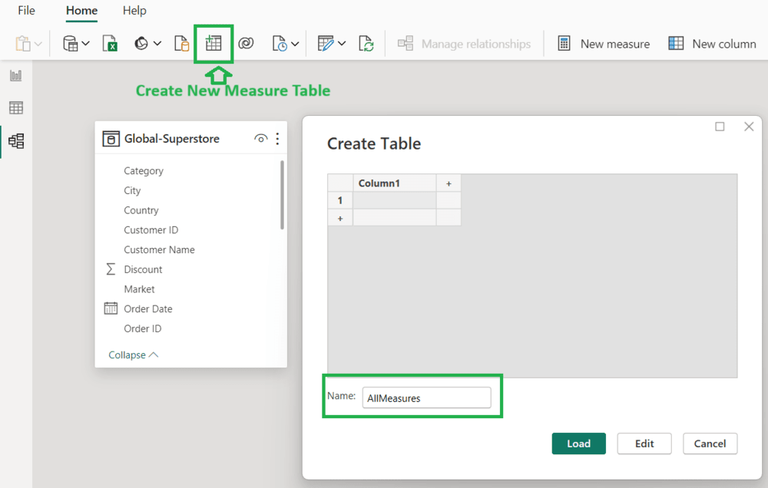
A Measure Table in Power BI is a special table used to store all the DAX measures created in our report. It helps organize measures for better management and clarity in our data model. To create a new Measure Table in Power BI:
We can easily create new measures and add them to our Measure Table in Power BI. To create a new measure:
1. Open Power BI Desktop
2. Import Data from a Data Source like Excel, SQL Server, Access, Oracle, MySQL or any other data set like XML, JSON, Text File
3. Once the data source is loaded, the Fields list will be added to the right of the window.
4. Create a New DAX Measure by clicking the 'New Measures' button at the tool bar at the top.
5. Input New Measure Name and default will be 'Measure' and add '=' sign
6. Add Function Name like Sum, Average, MAX, MIN or any other calculation function and open a bracket '('.
7. Select the Column name from the list of columns after typing in the table name and close the bracket ')'
8. The new measure is ready. The new measure will be displayed with the fields list.
9. Use the Measure to create Visualization in Power BI as below.
AggregateX functions are used to perform row-wise calculations over a table or table expression. These functions aggregate values based on expressions evaluated for each row. These are some of the commonly used AggregateX function: SUMX, AVERAGEX, COUNTX, MINX and MAXX
Syntax:
AggregateX(Table, Expression)
Example:
AggregateX Demo = SUMX('Global-Superstore','Global-Superstore'[Shipping Cost] - 'Global-Superstore'[Sales])
| Function Name | Description |
|---|---|
| AVERAGE | Returns the average (arithmetic mean) of the numbers in a column. |
| AVERAGEA | Returns the average of values including logical and text values. |
| AVERAGEX | Calculates the average of expressions evaluated over a table. |
| COUNT | Counts numeric values in a column. |
| COUNTA | Counts non-blank rows in a column. |
| COUNTX | Counts rows with numeric values or expressions that evaluate to numbers. |
| COUNTBLANK | Counts the number of blank cells in a column. |
| COUNTROWS | Counts the total number of rows in a table. |
| DISTINCTCOUNT | Counts the number of distinct values in a column. |
| MAX | Returns the largest numeric value in a column or between two expressions. |
| MAXA | Returns the largest value in a column including logical values and text. |
| MAXX | Returns the largest value from an expression evaluated for each row in a table. |
| MIN | Returns the smallest numeric value in a column or between two expressions. |
| MINA | Returns the smallest value including logical values and numbers as text. |
| MINX | Returns the smallest value from an expression evaluated for each row. |
| SUM | Adds all numeric values in a column. |
| SUMX | Sums an expression evaluated for each row in a table. |
AggregateX functions like SUMX, AVERAGEX, COUNTX, MINX and MAXX are known as iterator functions. These functions are useful when we need to perform calculations across rows of a table involving columns from different related tables. An iterator function calculates the given expression for each row of the table specified. This allows us to perform row-wise operations and aggregate the results.
Example: Consider an example where we want to calculate the sum of cookies shipped but only for values above 800:
SumOfCookiesabove800 =
SUMX(
'Order Data',
IF('Order Data'[Cookies Shipped] > 800,'Order Data'[Cookies Shipped],0))
In this example, SUMX iterates over each row in the Order Data table and for each row, it checks if the value of Cookies Shipped is greater than 800. If it is, it adds the value to the total sum otherwise it adds 0. This allows us to sum only the rows that meet the specified condition.
Calculated columns are new columns created in an existing data table using a DAX formula. Once created these columns become part of the table and can be used in Power BI visualizations like any other field. To create a new calculated column in Power BI:
The CALCULATE function in Power BI is one of the most fundamental DAX functions. It is used to find an expression with the application of filters or conditions which allows us to change the context in which the calculation is performed.
Syntax:
CALCULATE(Expression, [Filter1], [Filter2], ...)
Example: To calculate the total sales for a specific country, we can use the CALCULATE function:
SalesUSA = CALCULATE(SUM('Sales'[Revenue]), 'Sales'[Country] = "USA")
This formula calculates the sum of the Revenue column but only for the rows where the Country is "USA".
The VALUES function in DAX is used to retrieve distinct values from a column or table. This can be useful when we need to work with unique values for calculations.
Syntax:
VALUES(TableORColumnName)
Example: To count the number of distinct cities:
Number of Cities = COUNTROWS(VALUES(City[CityName]))
The FILTER function in DAX is used to return a filtered table based on specified conditions. It is used in combination with other functions like CALCULATE
Syntax:
FILTER(Table, FilterCondition)
Example: To calculate the sum of Forecast for the countries "USA" and "Italy":
FilterDAX1 = Calculate(SUM(Forecast[Forecast]),FILTER(Forecast, Forecast[Country]="USA" || Forecast[Country]="Italy"))
Variables in DAX are used to store intermediate values and reuse them within the same formula. Using variables can make our formulas more readable and maintainable.
Below is the Syntax of how a variable is used:
VAR variable_name = expression
RETURN result_expression
Example: Calculating the discount offered based on the quantity of cookies shipped:
DiscountOffered = VAR SaleQuantity = SUM('Order Data'[Cookies Shipped])
VAR CostOfCookies=SUM('Order Data'[Cost])
Return IF(SaleQuantity > 800, CostOfCookies * 10/100, SaleQuantity * 5 / 100)
In this example, two variables are created: SaleQuantity and CostOfCookies. The discount is calculated based on the number of cookies shipped which helps in applying different rates for quantities above or below 800.
Output:
DAX Studio is a tool to write, execute and analyze DAX queries in Power BI. It provides a range of features that help developers create, test and optimize DAX formulas. It integrates seamlessly with Power BI which allows direct connections to Power BI models and datasets.
With DAX Studio, we can:
Writing Queries in DAX Studio
To write a query or calculation in DAX Studio, the query typically starts with the EVALUATE keyword as shown in the example below:
EVALUATE
SUM('Order Data'[Cost])
This query calculates the total cost from the Order Data table.
Example of Using DAX Studio Editor: