|
VOOZH | about |
|
VOOZH | about |
Managing active vs inactive relationships becomes very crucial when dealing with data models that involve multiple tables and relationships in Power BI. And before we start to talk about what are active or inactive relationships and how to manage them we should first know,
Relationships are referred to as connections established among different tables within the same data model. They determine how two or more tables are connected. Conceptually, relationships in Power BI are similar to joins in SQL databases.
In Power BI, active and inactive relationships signify the status of connections between tables in a data model. These concepts come into play notably in situations with multiple pathways or links between tables, providing adaptability in how these relationships are employed for various purposes within a report.
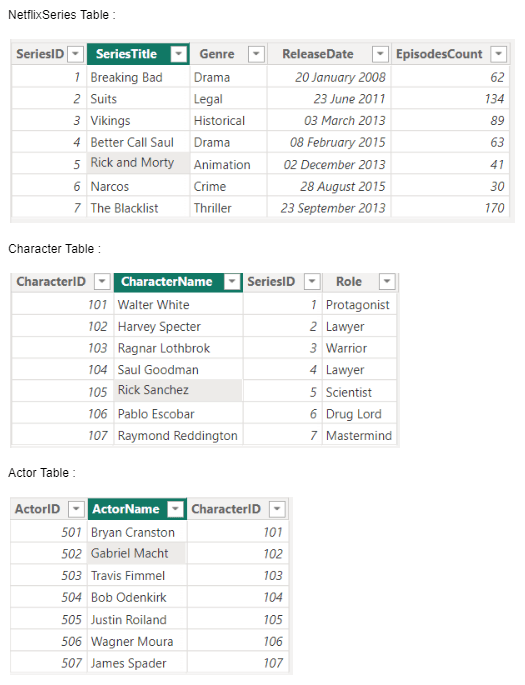
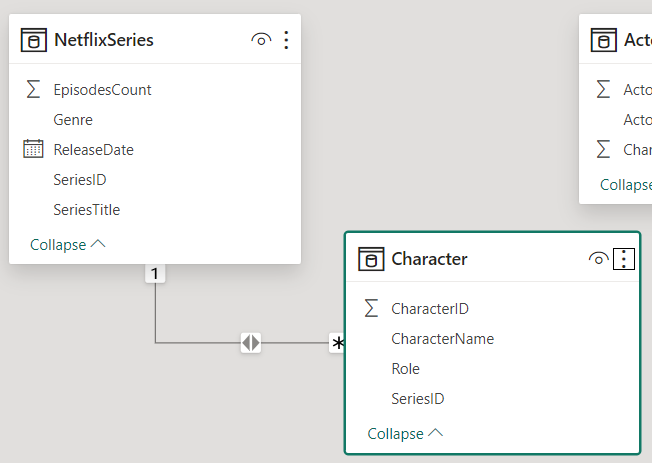
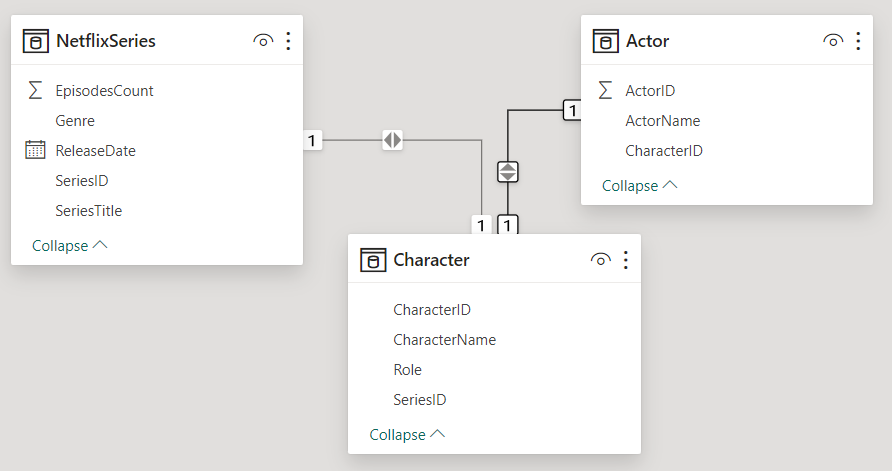
To illustrate the concept of active & inactive relationships, we're gonna use a practical example for better clarification. Consider random data analysis for Netflix web series through three tables: 'NetflixSeries,' 'Character,' and 'Actor.'
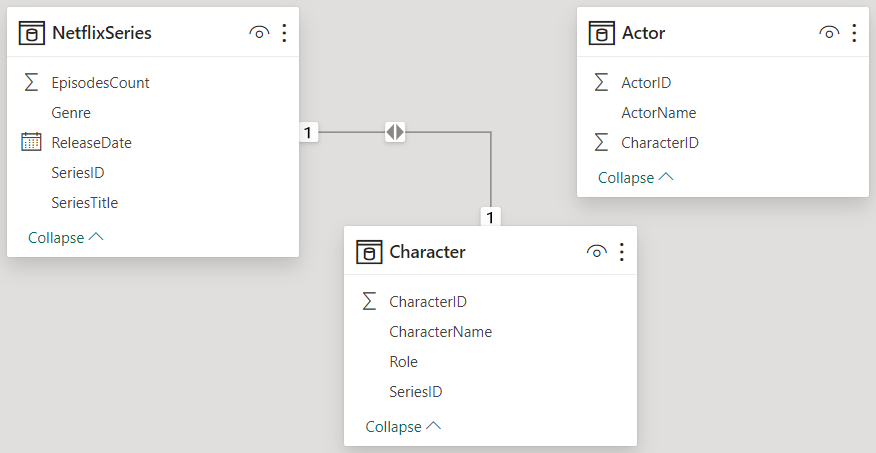
Active relationships are created in Power BI Desktop's "Model" view. To establish one, drag and drop a field from one table onto the corresponding field in another table. Power BI automatically detects relationships based on column names, but users can also create them manually.
Note that relationship line here is a solid line between 'NetflixSeries' and 'Character' table, indicating an active relationship.
Active relationships play a crucial role in filter propagation. When a filter is applied to a field in one table, it affects the related table through the active relationship, ensuring accurate context and relationships between data tables.
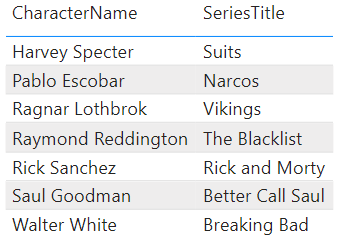
To illustrate this feature of an Active Relationship go to the "Report" view. Create a table visual with columns from the 'Character' table. Drag the 'SeriesTitle' field from the 'NetflixSeries' table into the table visual.
Here, for basic understanding we have introduced a 1:1 active relationship therefore selections in one table may not visibly impact the other table if there's a unique match for each row. Filter propagation might not be as noticeable due to the one-to-one nature of the relationship.
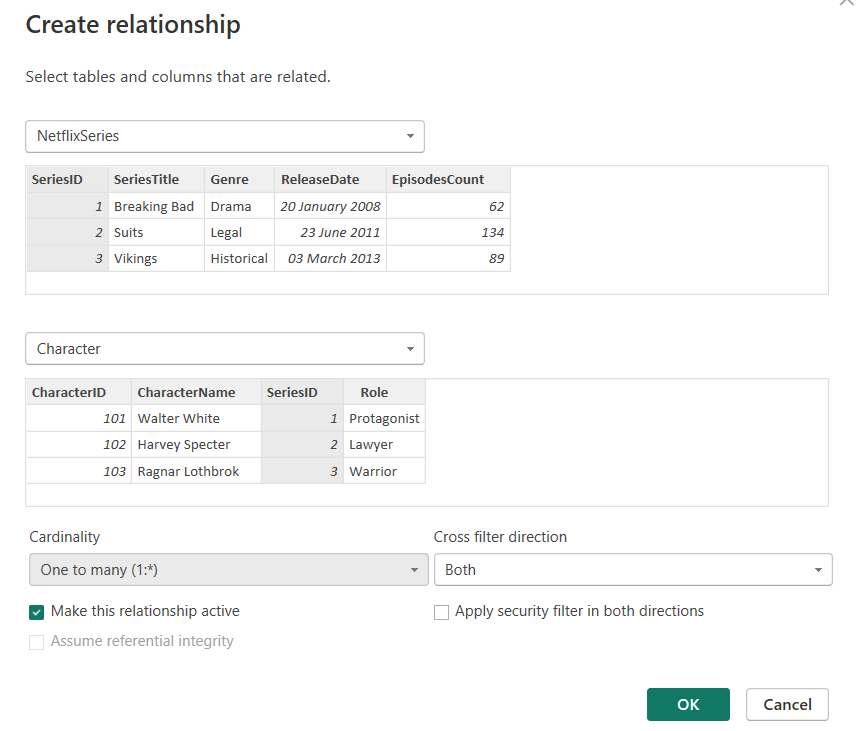
Therefore, to illustrate filter propagation better we will create a 1:N active relationship between 'NetflixSeries' and 'Character' table. For that we have to ensure that 'SeriesID' field in the 'NetflixSeries' table has unique values for each series and we will also remove any existing relationships between the 'NetflixSeries' and 'Character' tables as there can exist only one active relationship at a time.
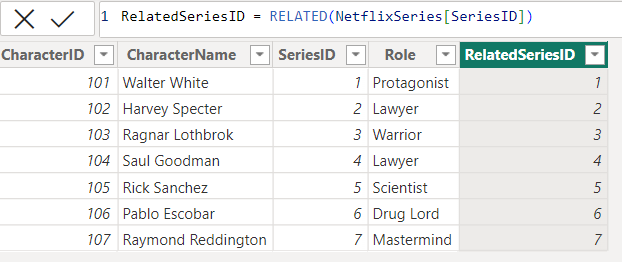
Create a new column to the 'Character' table named 'RelatedSeriesID' to represent the relationship.
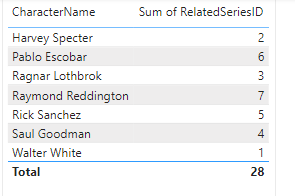
Navigate to "Report" View. Drag the 'CharacterName' and '[RelatedSeriesID]' fields from the 'Character' table into the report canvas to create a table visual.
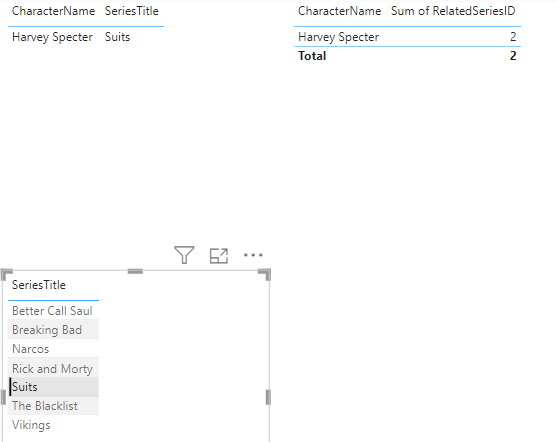
Select 'SeriesTitle' in NetflixSeries Table. In the 'NetflixSeries' table, select a specific series, for example, "Suits." Observe Filter Propagation. Observe how the 'Character' table adjusts dynamically based on our selection of "Suits."
The 'Character' table should now display only characters related to the selected series, which is "Suits" in this case.
In Power BI, relationships are connections between tables based on common columns. By default, each table can have one active relationship with another table. Inactive relationships are additional relationships that we create between tables but are not used by default in calculations.
Suppose we want to create a report based on our very initial data model.
We want to create a report that counts the number of characters in each Netflix series, we also want a specialized count based on the actors' roles in those characters. This scenario introduces the need for an inactive relationship. In our data model, the primary relationship is likely between the 'NetflixSeries' and 'Character' tables based on the 'SeriesID' column.
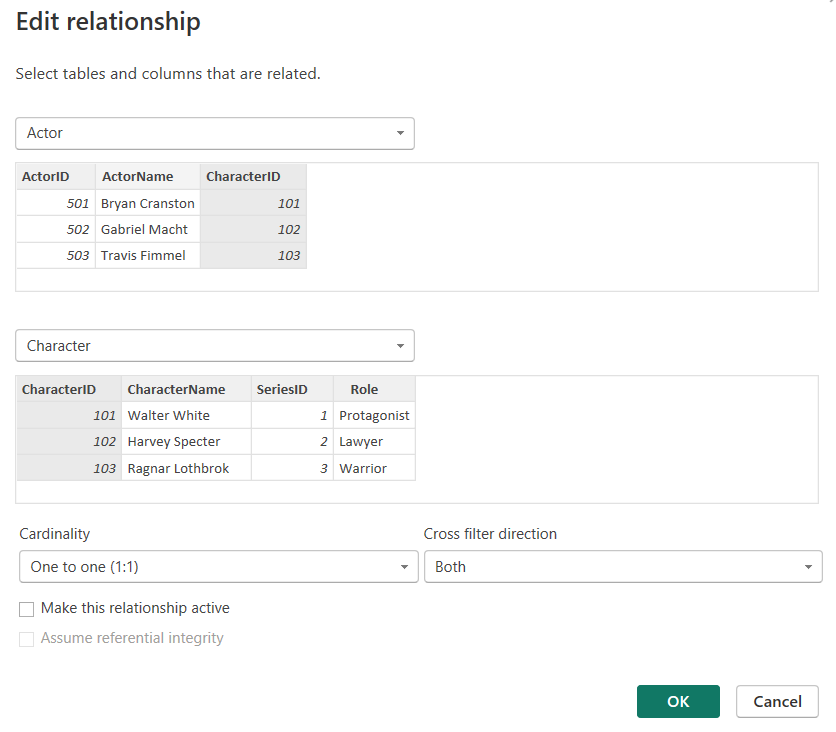
In the "Model" view, locate and click on the "Manage Relationships" button. Click on "New" to create a new relationship. In the "Create Relationship" dialog, select the Character table on left and the Actor table on right. Connect the tables based on the 'CharacterID' column. Before clicking "OK," check the box that says "Mark as Inactive." Click "OK" to create the inactive relationship.
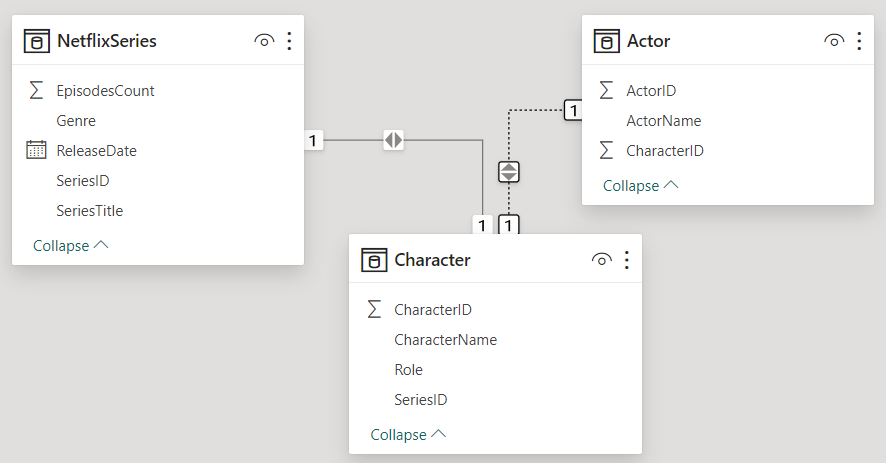
In our scenario, we just have to unmark the active relationship box to create an inactive relationship.
Dotted line implies inactive relationship.
Inactive relationships in Power BI are a mechanism to address and resolve both ambiguous path and conflicting filters problems.
The USERELATIONSHIP function in Power BI is used to explicitly specify a relationship to be used during the evaluation of a particular DAX expression. This function allows us to override the automatic relationship detection that Power BI performs based on the relationships defined in the data model. It's particularly useful in scenarios where there are multiple relationships between tables, and we want to control which relationship should be used for a specific calculation.
For an instance, in our scenario we took, in report view create a new measure 'Character Count' measure as follows using DAX formula in 'NetflixSeries' table:
then, create a new measure named 'Actors Roles Count' with the DAX formula as follows in 'Character' table:
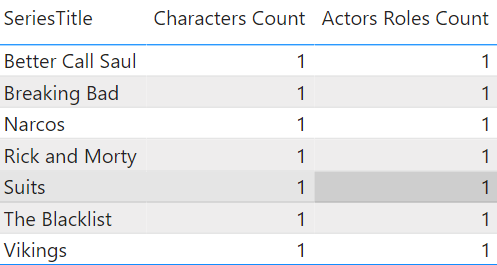
In the "Report" view, create a table visual. Drag and drop the 'SeriesTitle' column from the 'NetflixSeries' table into the table visual. Add the Characters Count and Actors Roles Count measures to the "Values" area of the table visual.
Active relationships are essential for propagating row-level security filters. Even with the explicit addition of 'UseRelationship' in a measure definition, such filters remain exclusive to active relationships and won't extend to inactive ones.