|
VOOZH | about |
|
VOOZH | about |
Managing and editing table relationships involves defining and maintaining the connections between tables in a relational database. These relationships are essential for ensuring data integrity, enforcing referential integrity and enabling efficient data retrieval during analysis and Power BI provides us multiple tools to do this.
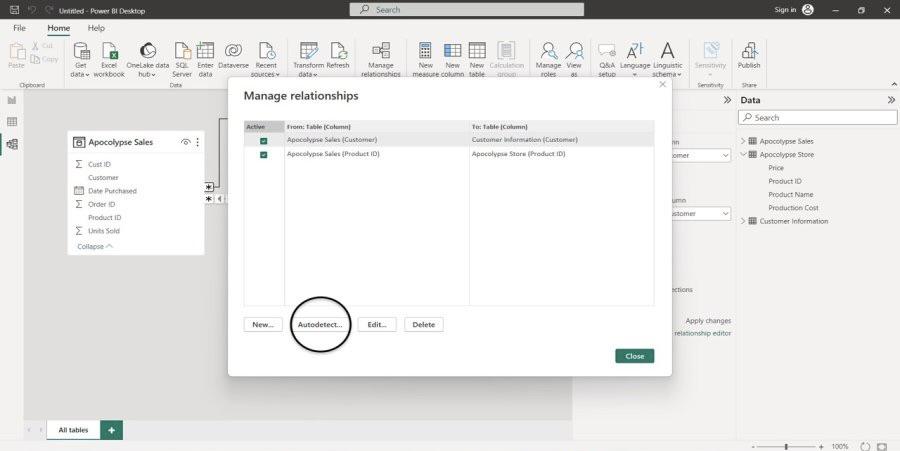
When Power BI does not automatically create relationships between the loaded tables, the Autodetect tool can be used to establish them
To automatically create relationships between tables, follow the steps below:
If Power BI does not create the correct relationships automatically you can manually create relationships between tables by following these steps:
If none of the selected columns contain unique values an error will appear stating that one of the columns must have unique values. At least one column must be unique to build a relationship.
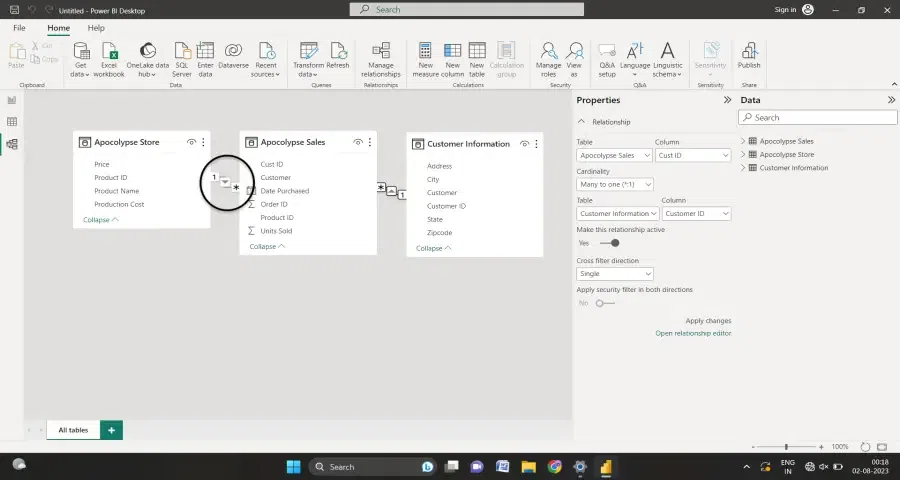
Alternatively you can create a relationship directly in the Model view by dragging a column from one table and dropping it onto the corresponding column in another table.
Editing relationships in Power BI allows you to modify, update or remove connections between tables to ensure accurate data modeling and reporting.
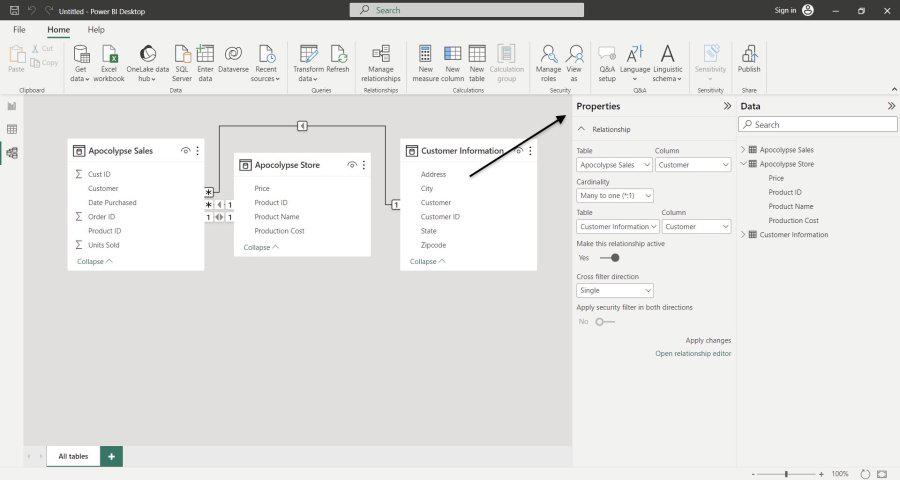
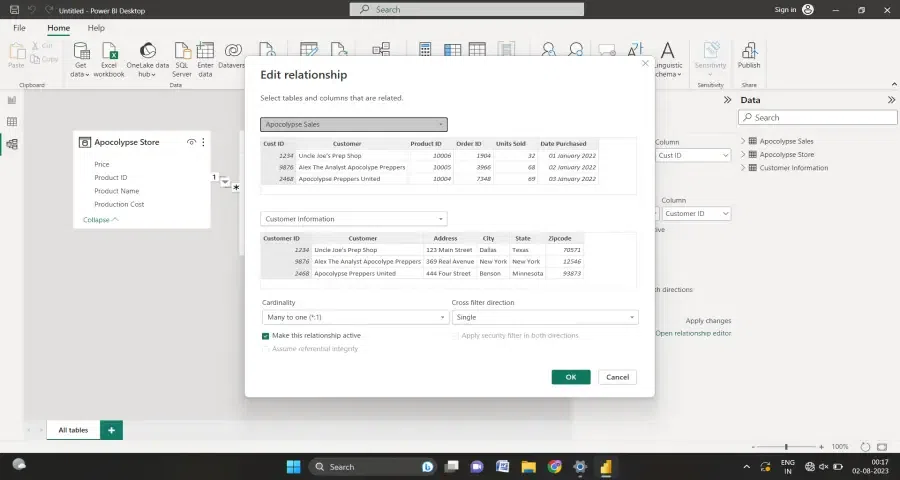
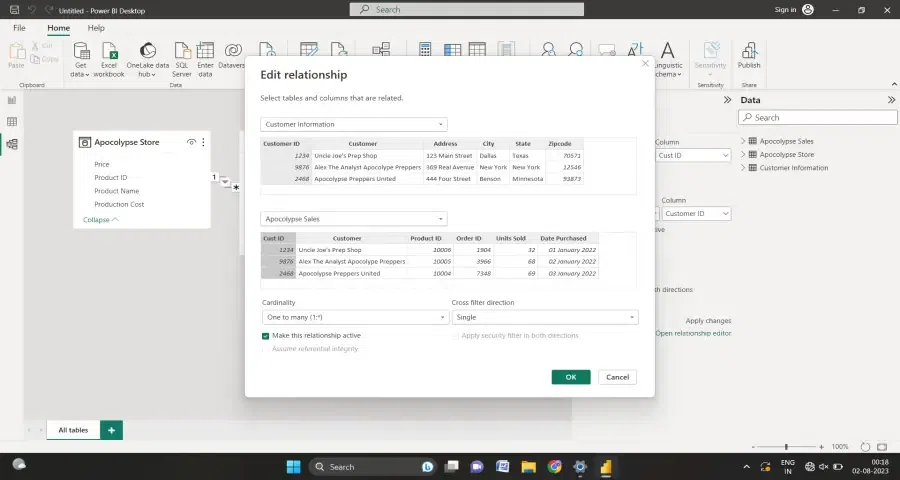
Power BI provides two ways to edit relationships between tables: using the Properties pane or the Relationship Editor dialog box.
Power BI lets you edit relationships via the Properties pane or Relationship Editor and delete them by pressing Delete with confirmation.
Power BI provides multiple ways to edit relationships between tables primarily through the Edit Relationships dialog box or the Properties pane.
Editing relationships in Power BI lets you control how tables connect and interact, ensuring accurate data modeling and reporting.
When creating or editing relationships you can customize several configuration options. By default Power BI makes an automatic guess and sets these options but you can adjust them to suit your specific needs.
Cardinality defines the type of relationship between tables in Power BI describing how data in one table corresponds to data in another.
1. Many-to-One: This is the default cardinality. A column in one table can have multiple instances of a value while the corresponding column in the related table has only one instance.
Here in Sales table and Customer Information table, the customer table contains unique customer ID but the sales table can have multiple entries for the same customer. Here the relationship is many-to-one.
2. One-to-One: Each value in the column of one table corresponds to exactly one value in the related table and vice versa.
3. One-to-Many: In this relationship a column in one table has a single instance of a value while the related table can have multiple instances of the same value. Reversing the tables in a many-to-one relationship converts it into a one-to-many relationship.
4. Many-to-Many: Both tables contain columns with duplicate values allowing multiple instances of the same value in each table.
Cross filter direction determines how filters flow between two related tables in Power BI. There are two main types:
1. Single: Filters propagate in one direction only commonly used with one-to-many and many-to-many relationships.
2. Both: Also called bi-directional filters propagate in both directions typically used in one-to-one relationships or when filtering needs to affect both tables.
You can check the cross-filter direction in the Model view a single arrow indicates a one-way filter while a double-sided arrow indicates a bi-directional filter.
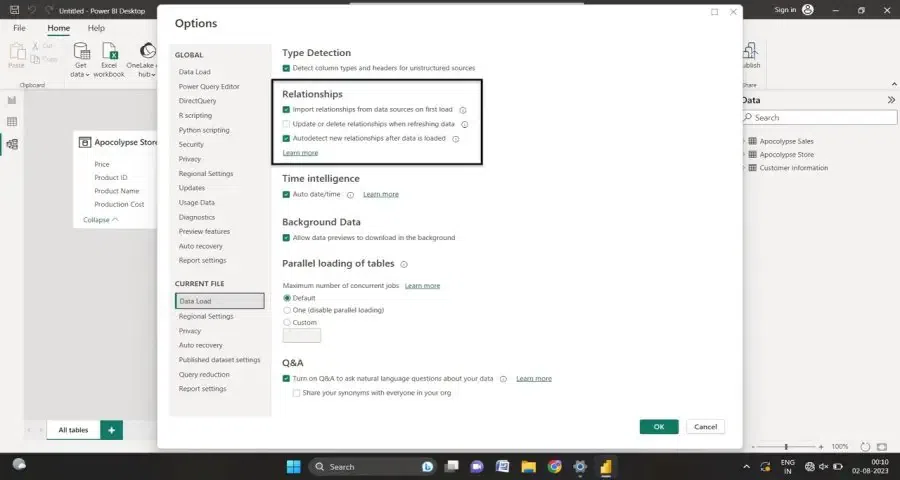
Power BI provides options to control how relationships are handled when loading or refreshing data. These settings can be accessed from File, then Options and Settings and then Options, followed by selecting Data Load from the left pane.

.webp)