|
VOOZH | about |
|
VOOZH | about |
Power BI is a data visualization tool used to create interactive reports and dashboards. It allows combining data from multiple sources using Merge and Append queries, where Merge joins tables based on a common column and Append stacks tables vertically to add rows.
Merge Queries combine data from two tables based on a common column, adding related information from one table to another in a horizontal manner.
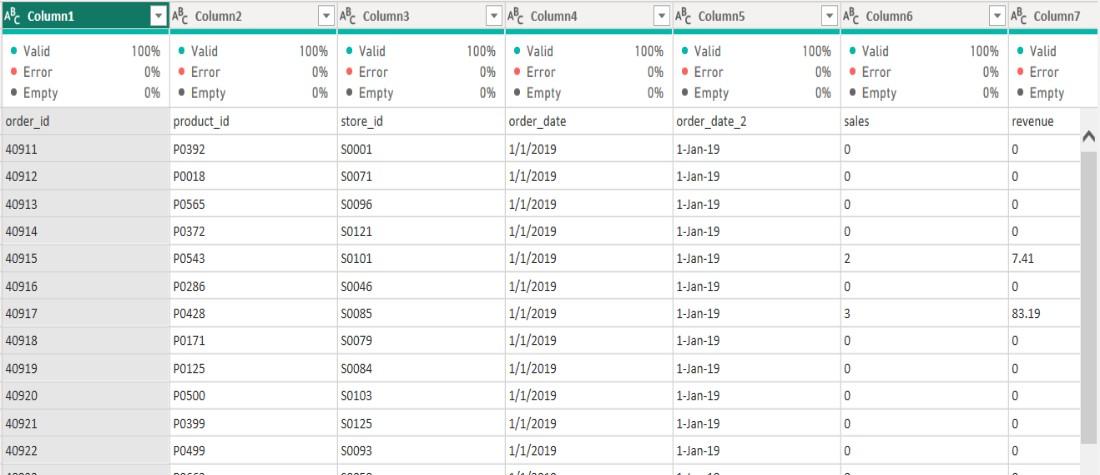
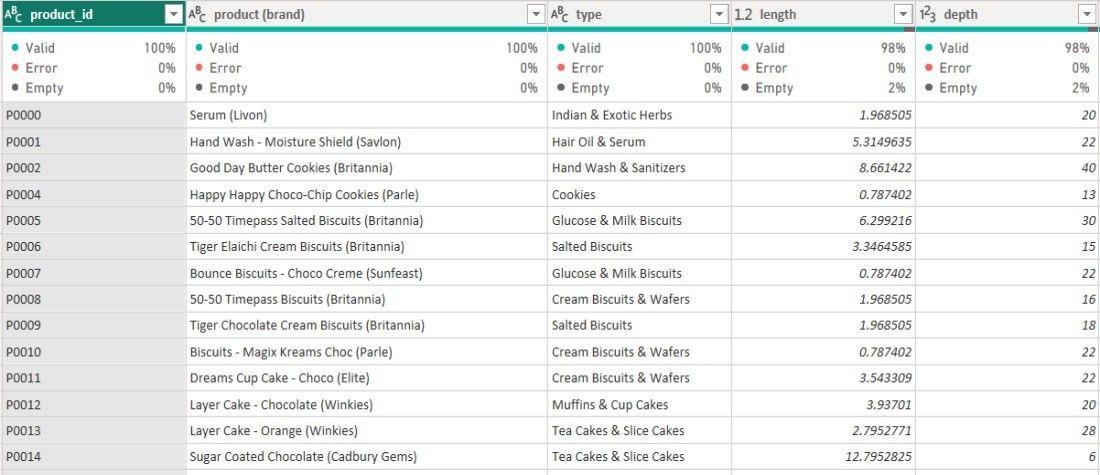
Consider the following two tables:
1. Sales Dataset
You can download full dataset from here
2. Product Dataset
Step 1: Open Power Query Editor and select the primary table you want to merge from the left pane.
Step 2: With the table selected go to the Home tab to access the Ribbon menu.
Step 3: In the Combine section click Merge Queries.
Step 4: Choose Merge Queries to merge directly into the selected table or Merge Queries as New to create a new merged table.
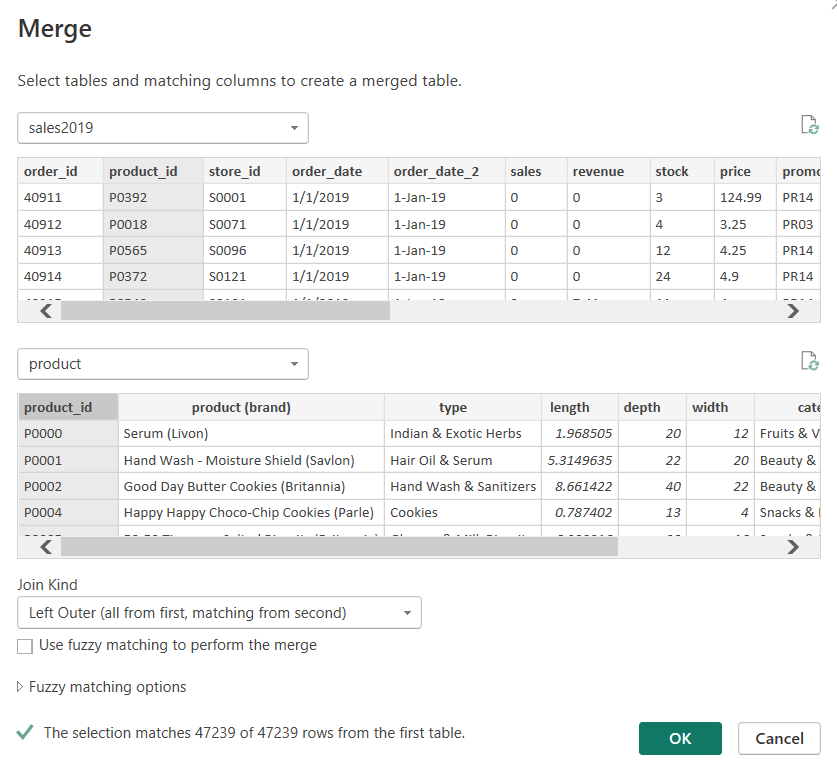
Step 5: From the first drop-down select sales Data and choose the common column
Step 6: From the second drop-down select product and choose the matching column .
Step 7: The matching data from the secondary table will be added to the selected (primary) table based on the chosen key.
There are several types of joins we can choose from when performing a merge:
When using the merge function, we have the option to perform fuzzy matching. This increases the merge’s reach by matching similar but not necessarily identical, values in the tables. The similarity threshold ranges from 0 to 1:
This feature is useful when our data might have slight differences in text values but should still be considered a match.
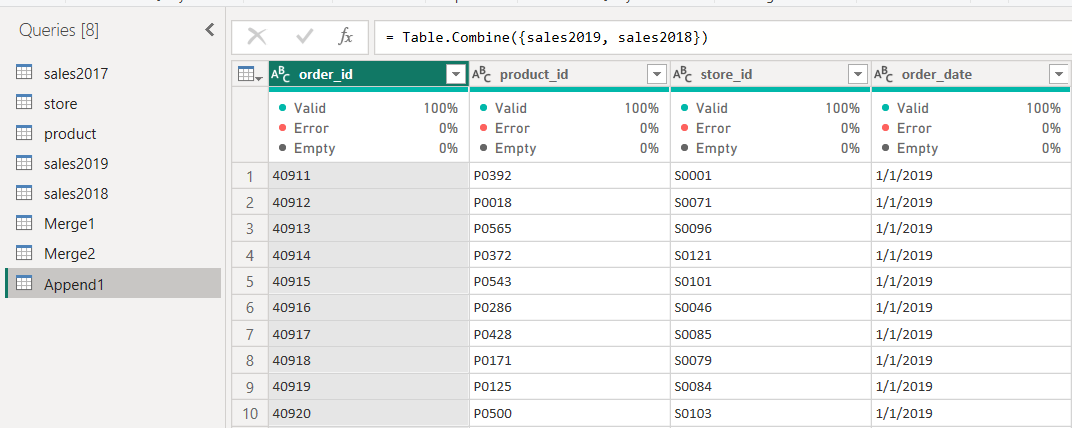
Append Queries are used to combine multiple tables by stacking them vertically, adding rows from one table to another. When the column structure matches data from the appended table is placed below the existing data in the base table.
Follow these steps to append queries in Power BI:
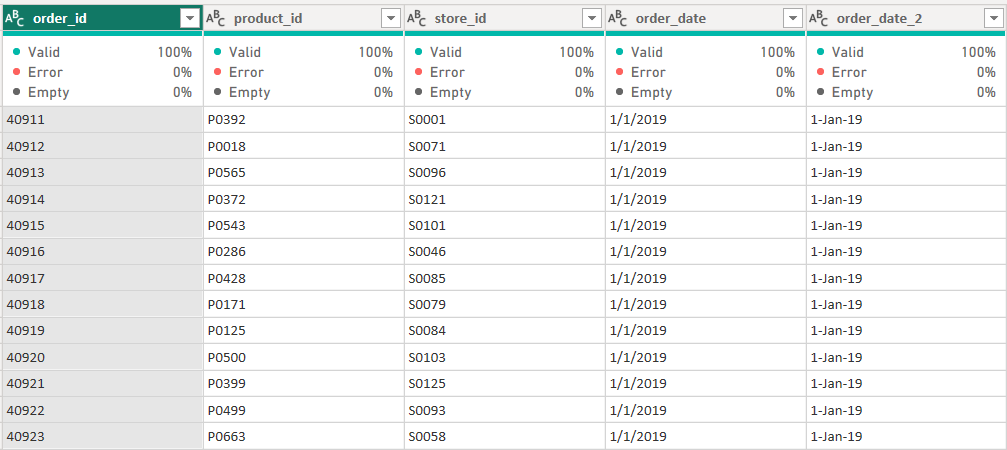
You can download sales 2018 dataset from here
Step 1: In the Power Query Editor, select the query (table) that we want the other query to append to. For example, choose Sales Data.
Step 2: After selecting Sales Data Table click the Home Tab to access the Ribbon Menu.
Step 3: Select Append Queries from the Combine menu.
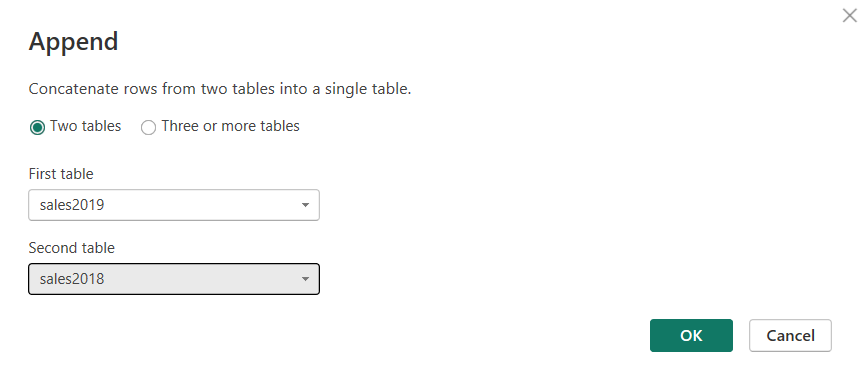
Step 4: Select Add Queries as New. A pop-up menu will appear.
Step 5: Pick first query from the first drop-down selection.
Step 6: Choose second query from the second drop-down selection.
Step 7: Once selected click OK to append the queries.
Note: If we want to preserve the current query result and generate a new query with the appended data, select Add Queries as New. Otherwise, choose Append Queries.
Duplicate rows cannot be eliminated by appending queries instead we must use Group by or remove duplicate records.
If the columns in the source queries are different, Power BI will add a column for each new one. Rows without values for the new columns will show null. This is similar to SQL UNION ALL where rows are appended without any changes to the column structure.
Combining queries provides several benefits:
Here we compare merge and append queries in PowerBI
| Feature | Merge Query | Append Query |
|---|---|---|
| Purpose | Combines two tables based on a shared column. | Stacks two or more tables vertically, combining them into one. |
| Requirement | At least one matching column must exist between the tables. | Tables to be appended should have the same columns. |
| Number of Columns | The number of columns may differ between the queries. | All tables must have the same number of columns to be appended. |
| Result | Adds new columns to the existing query. | Adds more rows to the existing query. |
| When to Use | When combining data from two tables based on a common column or creating new relationships. | When adding more rows of data to an existing table. |