|
VOOZH | about |
|
VOOZH | about |
Power BI Service enables secure sharing and real-time updates of reports and dashboards with team members, stakeholders or clients. It offers multiple sharing options, including email, workspaces and shareable links allowing teams to collaborate efficiently and make data-driven decisions.
Here we have a report named Sample and want to share the report with selected or restricted users.
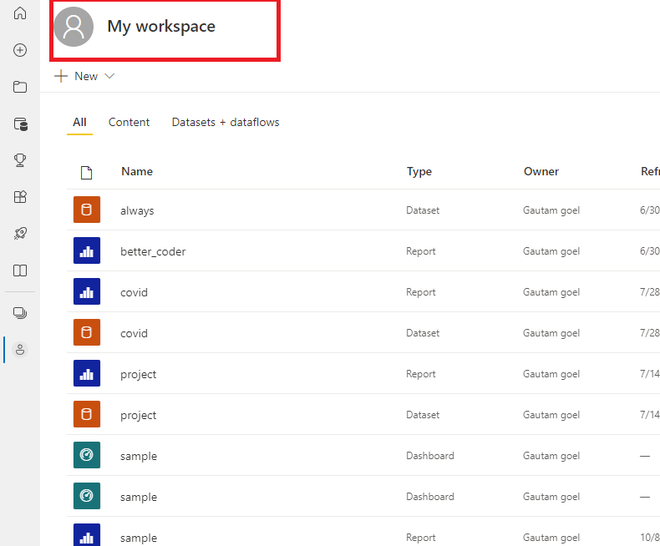
Step 1: Open your Power BI online service. Go to My workspace.
Step 2: All reports and datasets published on the power bi online service will be visible here.
Step 3: Here, there is a report named Sample available in My Workspace.
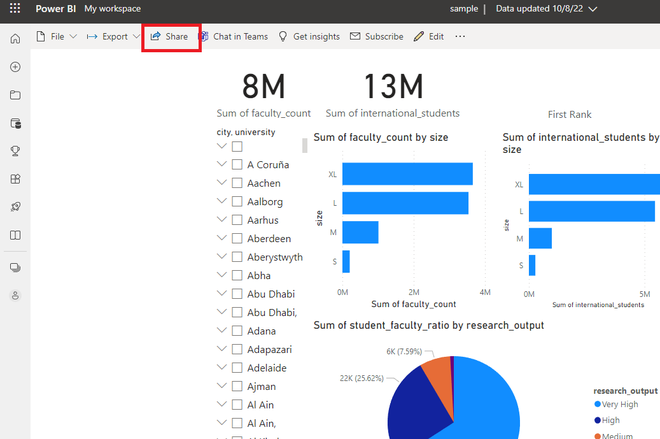
Step 4: The report is opened. Click on the Share button.
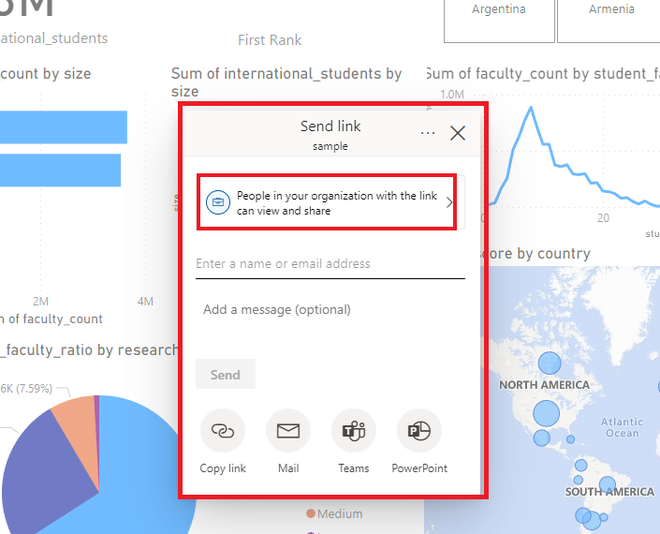
Step 5: The Send link dialog box opens which allows you to configure and share the report link.
Step 6: Click on the first section to view three sharing options, which are self-explanatory by their names. Select the required checkboxes based on your needs, then click Apply to save the settings.
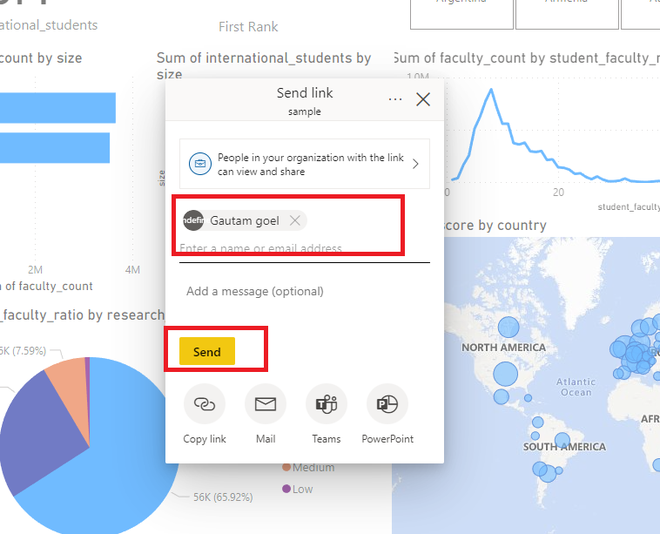
Step 7: Type the name of the person/email, to which you want to provide access. Click on the Send button.
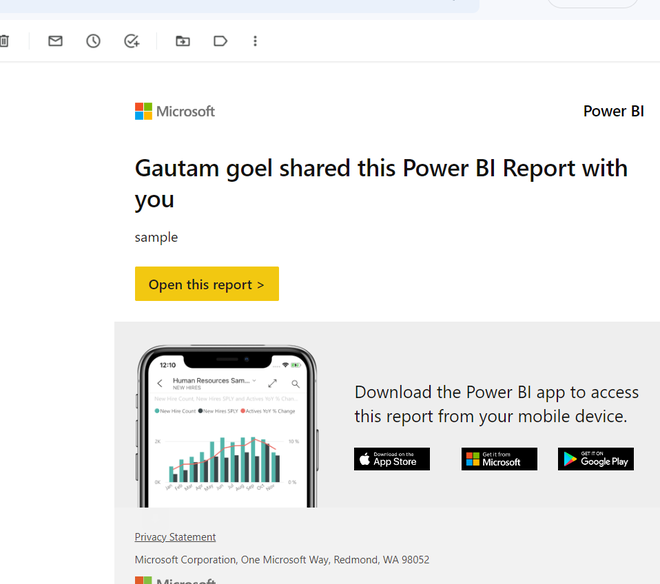
Step 8: The link has been sent to the recipient and the report has been successfully shared.
Step9: A mail, will be received by the recipient.