VOOZH about

URL: https://www.geeksforgeeks.org/power-bi/power-bi-line-charts/

⇱ Power BI - Line Charts - GeeksforGeeks


  • Courses
  • Tutorials
  • Interview Prep

Power BI - Line Charts

Last Updated : 6 Sep, 2025

A line chart is a visual representation of data points connected by straight lines. It is used to show trends over time or to compare multiple data sets and it uses two axes:

  • The x-axis (horizontal axis) represents the time or categories such as years, months or any other sequential data.
  • The y-axis (vertical axis) represents the values or measurements associated with each data point.

Line charts are ideal for tracking continuous data such as sales figures, stock prices or the number of applicants to a course over time. They are useful when we want to visualize trends, detect patterns and make comparisons between multiple variables.

Also a line chart can display one or multiple lines each representing a different data series. This allows us to compare multiple trends on the same chart helps in making it easy to spot relationships in data.

Use Cases for Line Charts:

  1. Trend analysis: Track changes in data over time like the rise and fall of stock prices or sales.
  2. Comparisons: Compare multiple data sets like sales figures for different products over a specific period.
  3. Predictive analysis: Analyze historical data to predict future trends like market growth or customer behavior.

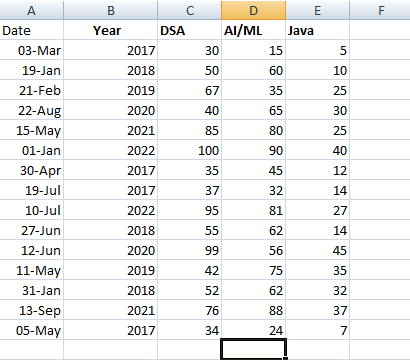
Let’s assume we have a dataset with data on course from 2017 to 2022 for the practical understanding of Line charts. The dataset includes the following columns:

  • Year: Representing the timeline (used on the x-axis).
  • AI/ML: Number of applicants for the AI/ML course (y-axis).
  • Java: Number of applicants for the Java course (y-axis).
  • DSA: Number of applicants for the DSA course (y-axis).

You can download dataset from here.

πŸ‘ Power BI - Line Charts
Dataset

Steps to Create a Line Chart in Power BI

Now we will see the steps to create a line chart using the Power BI Desktop tool by using a "DataSet" Excel sheet file as given above in the "Dataset" section.

Step 1: Importing Data

1. Open Power BI Desktop.

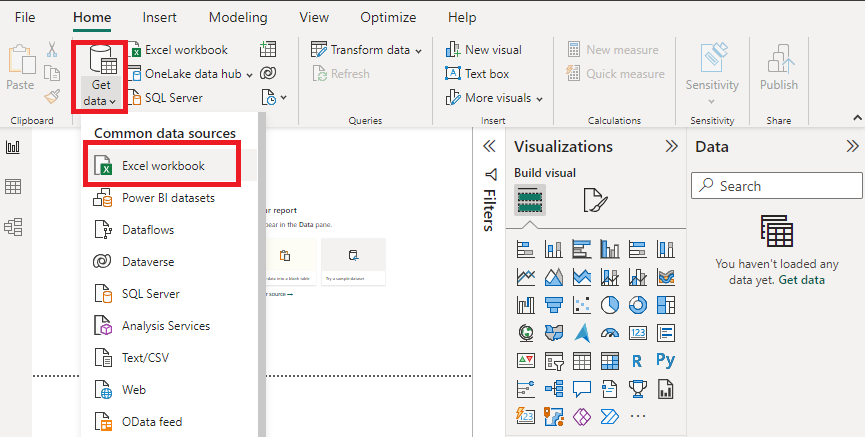
2. Click Get Data and choose Excel workbook.

πŸ‘ Image
Get Data

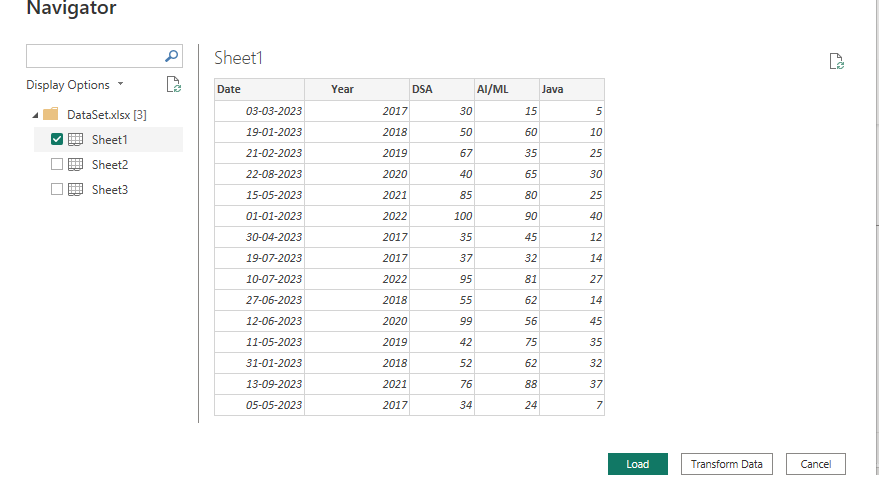
3. Select the relevant file (e.g "DataSet.xlsx") from the folder.

4. Click Load to import the data into Power BI.

πŸ‘ Image
Loading

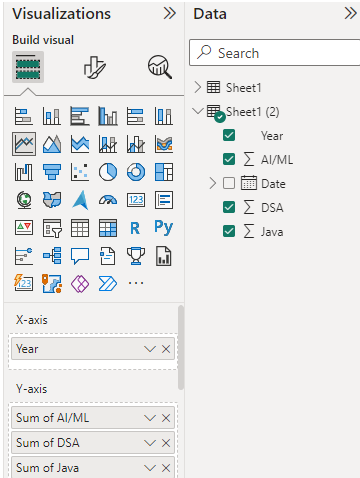
Once the file is loaded, we'll see the Visualizations and Fields panes on the right which will allow us to work with our data.

πŸ‘ Image
Fields panes

Step 2: Creating the Line Chart

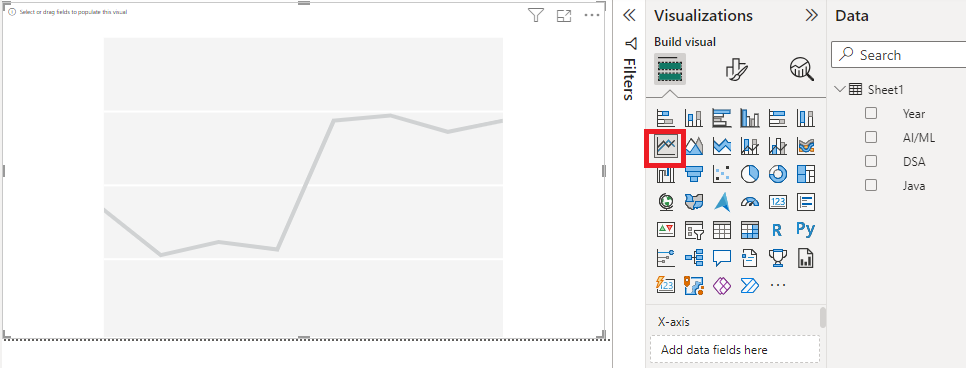
  1. In the Visualizations pane, select the Line Chart icon (the first option in the second row) that can be dragged for the "Report" view for further process.
  2. Resize the chart as needed by dragging the corners.
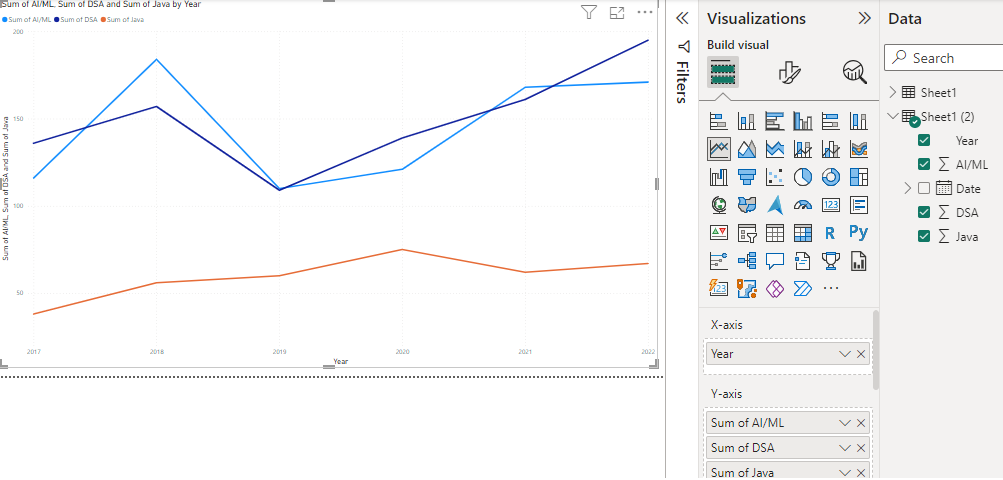
  3. Drag the field we want for the X-Axis (e.g Year or Date) into the Axis field well.
  4. Drag the field we want for the Y-Axis (e.g Number of Applicants) into the Values field well.
  5. For multiple data series, add additional fields to the Values field well.
  6. Customize the appearance of our line chart by adjusting line colors, styles, axis labels and gridlines using the Format pane to enhance readability.

Refer to the Power BI format line charts article for more customization.

πŸ‘ Power BI - Line Charts
Visual styles
πŸ‘ Power BI - Line Charts
Visual styles

Output:

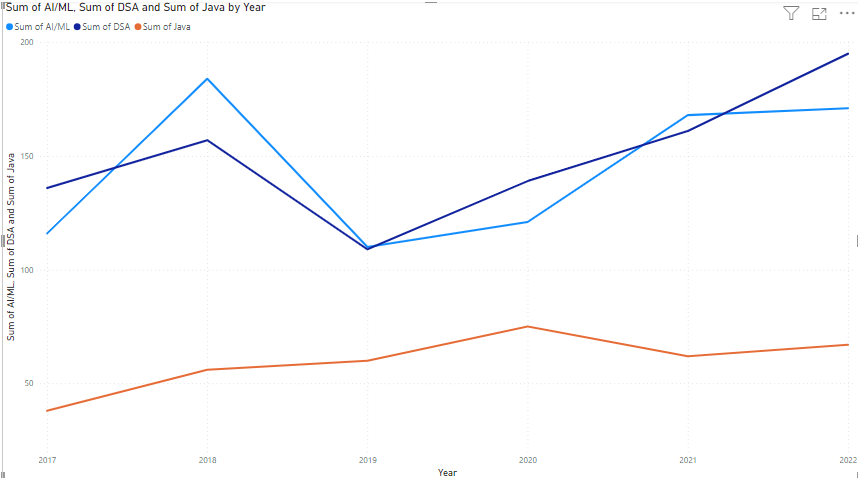
The total number of applicants on all three courses are taken by their sum over the yearly time period from 2017 to 2022.

πŸ‘ Power BI - Line Charts
total number of applicants

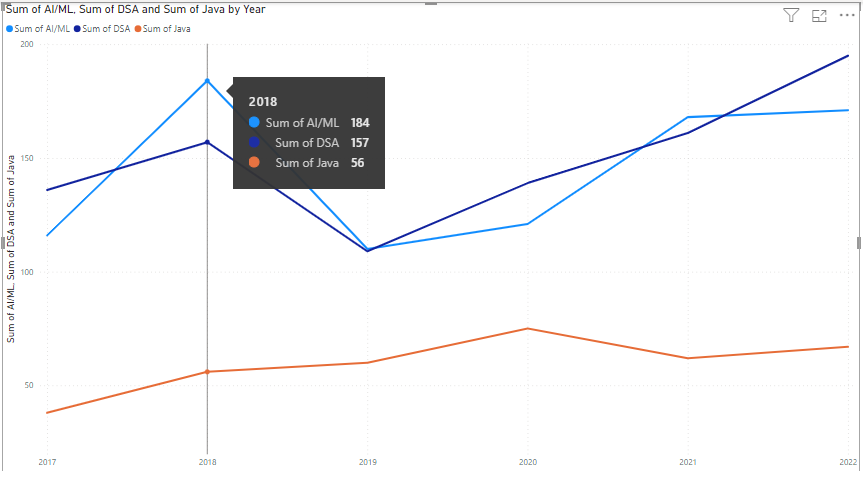
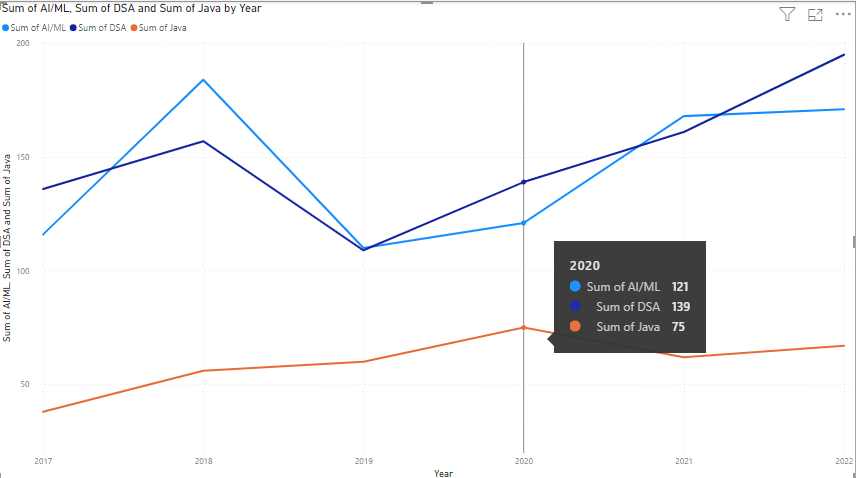
By hovering over a data point, we can view the exact number of applicants for that year.

πŸ‘ Power BI - Line Charts
Year wise data

In the year 2020, the number of applicants for AI/ML courses is 121, 139 for DSA and 75 for Java.

πŸ‘ Power BI - Line Charts
Comment
Article Tags:
Article Tags:

Explore