Power Query Editor is a Power BI tool used to transform and prepare data. It lets users connect and clean data from multiple sources, then load it for analysis. It is available in Desktop and Online modes. To understand its use more clearly:
Data Transformation: Cleans and organizes data before analysis.
Handles Multiple Sources: Works with data from Excel, web, SQL and other sources.
Improves Data Quality: Removes unwanted rows, splits columns and changes formats.
Prepares Data for Analysis: Ensures data is in the right format before creating reports and dashboards.
Launching Power Query Editor
To open the Power Query Editor, click Transform Data under the Home tab in Power BI Desktop. This opens the editor where you can load and transform your data. After opening, you can proceed with the following:
Add Data: Load data into the Query Editor.
Perform Operations: Apply transformations as required.
Prepare for Analysis: Clean and shape data before using it in reports.
In the Power Query Editor, click New Source to add data from sources like Excel, SQL or the web. After importing, you can apply necessary transformations to the data.
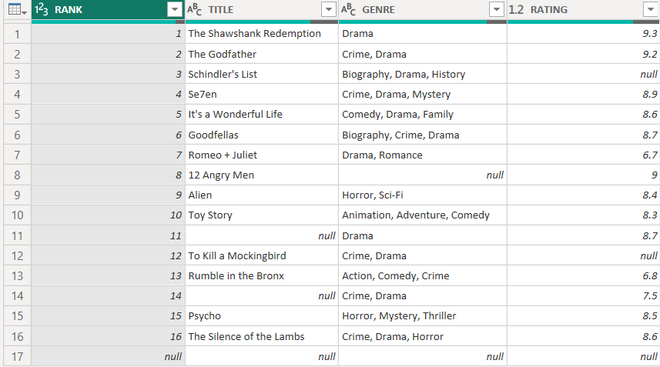
For this example, we use an Excel file named “My movie list.xlsx”, and its data is shown below.
On loading this data on the query editor it appears as:
👁 list-2.png Excel sheet in the power query editor
Common Data Transformations
1. Renaming Elements
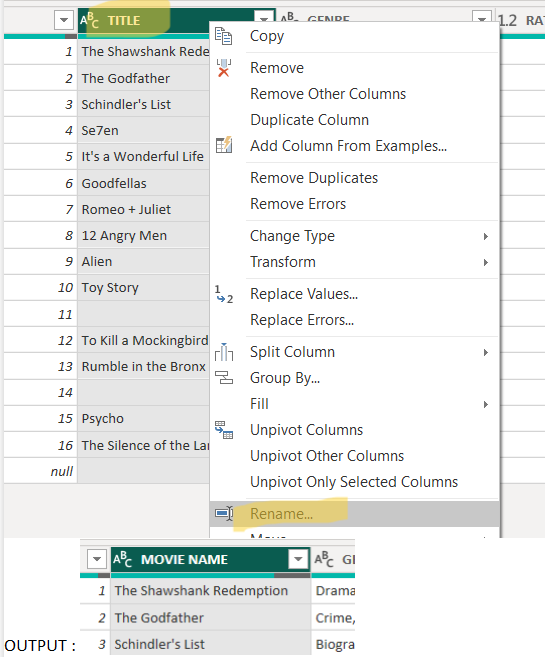
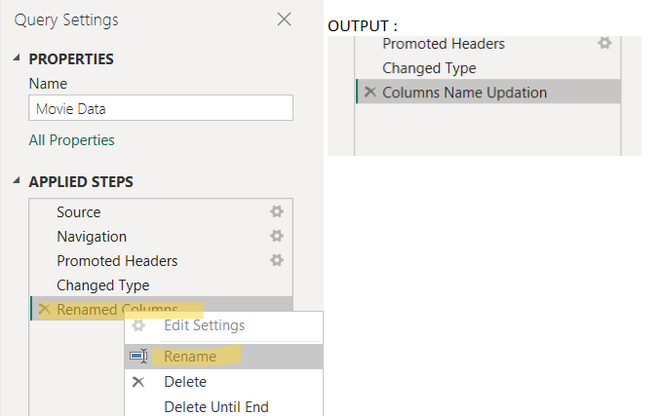
The power query editor provides us with a variety of possible renaming. We can rename the data sources or tables, columns and queries. We will look into each of them one by one.
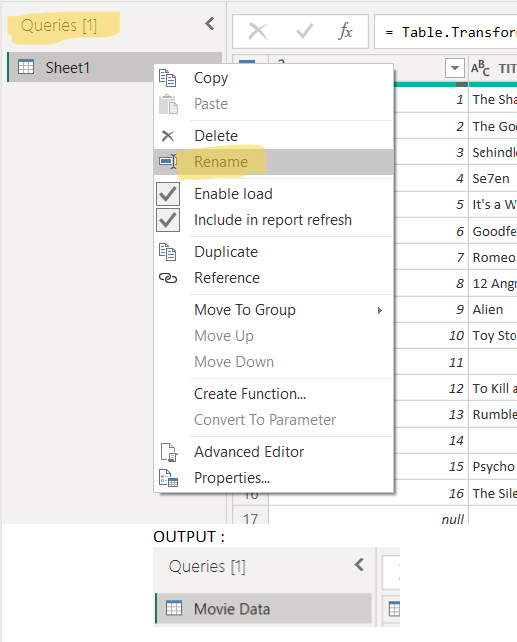
Rename Data Source
You can rename a data source by right-clicking on it and selecting the Rename option.
In this example, the source is renamed from Sheet1 to Movie Data. After renaming, the updated data is shown below.
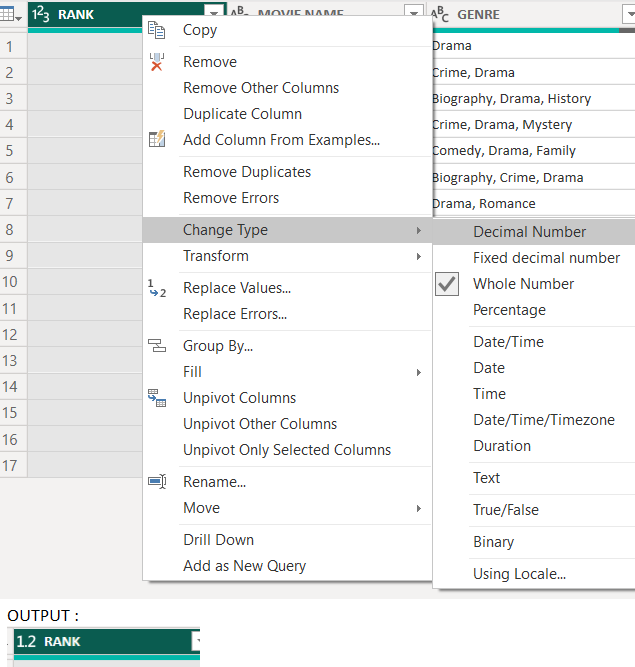
You can change a column’s data type by right-clicking the column, selecting Change Type, and choosing the required type (e.g., Whole Number to Decimal Number). You can also do this from the Home tab under Data Type.
For example, the “RANK” column was changed from whole numbers (1, 2, 3) to decimal values (1.2, 2.3, 3.4).
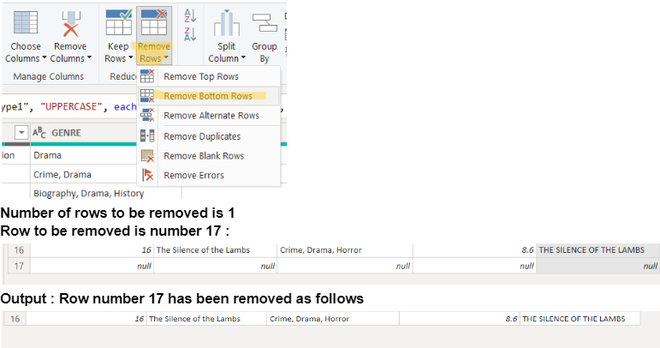
The Reduce Rows feature in the Home tab is used to remove unwanted rows in Power BI. It provides options to remove or keep specific rows based on your requirement. It includes:
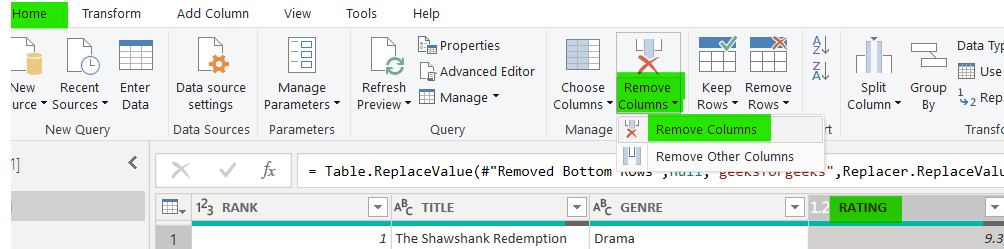
The Remove Columns feature is used to delete one or more columns in Power BI. It is available under the Home tab in the Manage Columns section. It includes:
Remove Columns : Deletes the selected column
Remove Other Columns : Keeps selected column and removes the rest
Example : Removing the “RATING” column removes it from the dataset
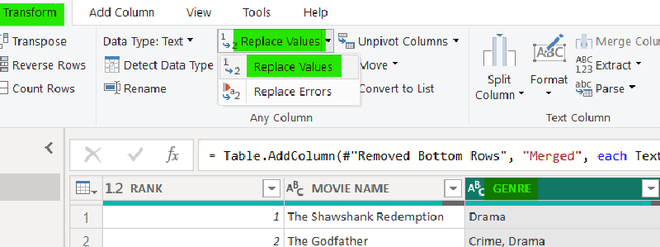
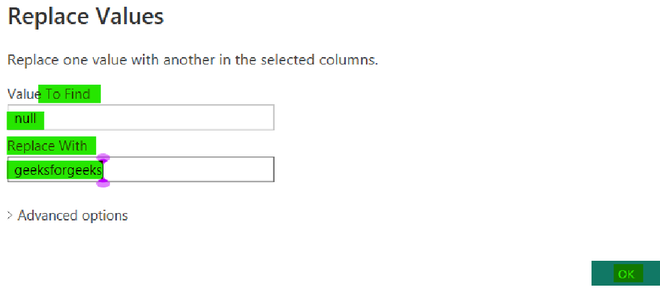
Replace values operation replaces some specific value to our desired value. It's present in the "Transform" bar as "Replace Values". Here, we have replaced "null" to "geeksforgeeks" for column "GENRE".
👁 71.png Replacing values of column "GENRE"👁 72.png Replacing "null" to "geeksforgeeks"
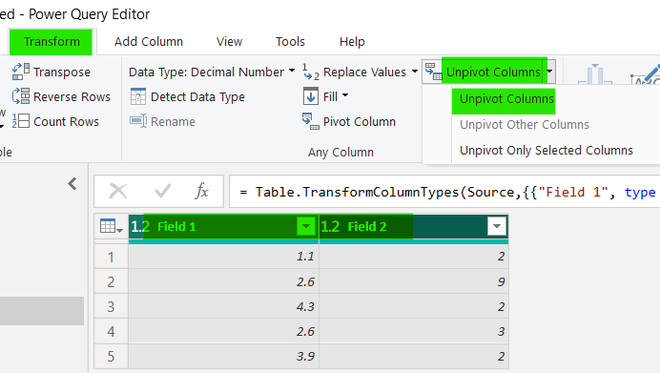
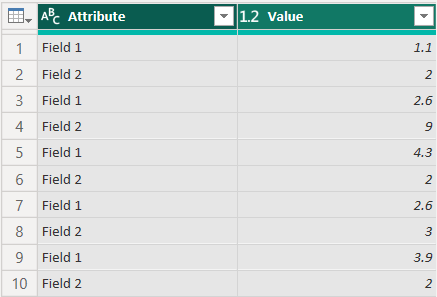
The Unpivot Column feature is used to convert columns into rows, which is the opposite of pivot. It gathers similar values under a single column with corresponding labels. It includes:
Column to Row Conversion : Converts multiple columns into rows
Organizes Data : Combines values under one label for better structure
Opposite of Pivot : Reverses the pivot operation
👁 100.png Unpivot operation implemented on Field 1 and Field 2 both