VOOZH about

URL: https://www.geeksforgeeks.org/tableau/control-chart-in-tableau/

โ‡ฑ Control Chart in Tableau - GeeksforGeeks


  • Courses
  • Tutorials
  • Interview Prep

Control Chart in Tableau

Last Updated : 13 Feb, 2026

A Control Chart is a statistical chart used to monitor process performance over time and identify variations that fall outside acceptable limits. It helps distinguish between normal variation and special-cause variation by using upper and lower control limits. They are useful for:

  • Identifying outliers and abnormal trends
  • Monitoring the stability of a process over time
  • Understanding variation using standard deviation
  • Visualizing upper and lower control limits
  • Supporting data-driven decision-making

Creating a Control Chart

Tableau does not provide a direct Control Chart option, but it can be created using table calculations, parameters and a dual-axis setup.

Note: For this article, a sample dataset "vgsales.csv" is used, to download click here.

Step 1: Create the Base Line Chart

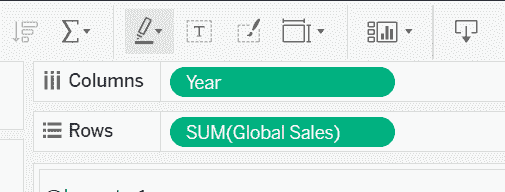
Drag the Year field to the Columns shelf and drag Global_Sales to the Rows shelf.

๐Ÿ‘ Screenshot-2026-01-30-155603
Year field to Column shelf and Global_Sales to Rows shelf

Step 2: Create Parameter for Standard Deviation Level

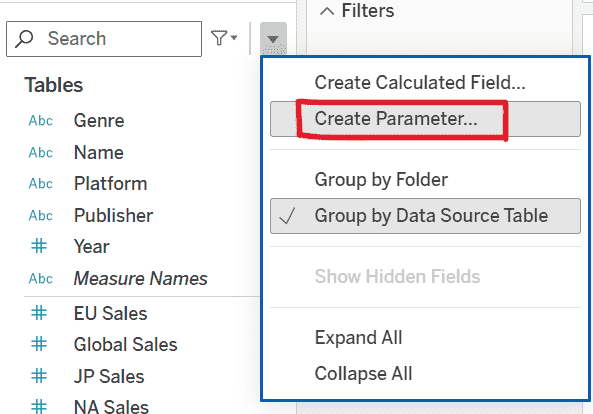
1. Click the drop-down arrow in the Data pane and select Create Parameter.

๐Ÿ‘ Screenshot-2026-01-30-160030
select Create Parameter

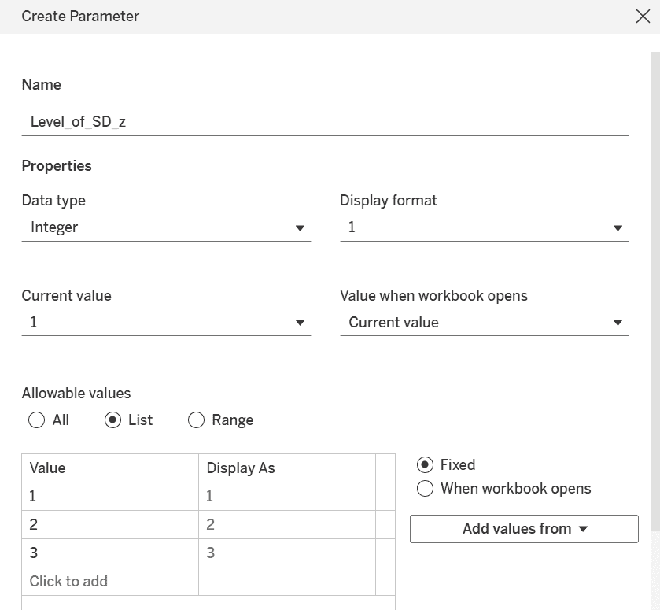
2. Configure the parameter as follows:

  • Name: Level_of_SD_z
  • Data Type: Integer
  • Allowable Values: List
  • List of Values: 1, 2, 3
  • Click OK.
๐Ÿ‘ Screenshot-2026-01-30-160537
after adding all the values

Step 3: Create Upper Bound (UB)

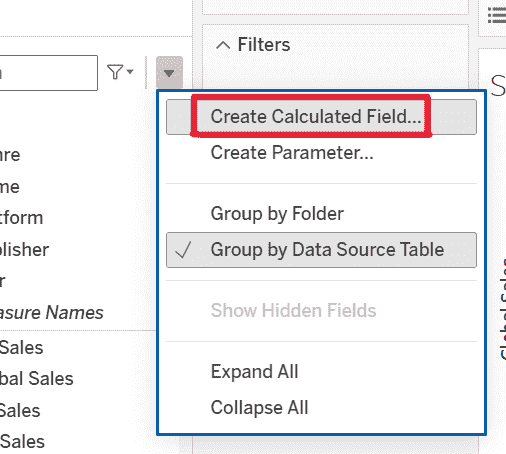
1. From the Data pane drop-down, select Create Calculated Field and name the field UB.

๐Ÿ‘ Screenshot-2026-01-30-161406
select calculated field

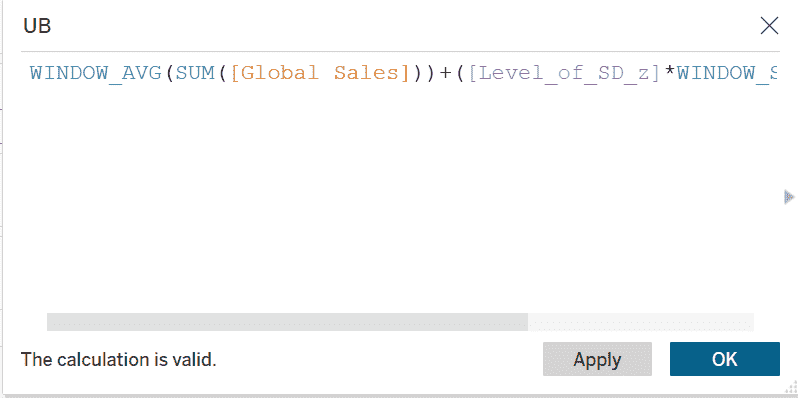
2. Enter the following formula:

WINDOW_AVG( SUM( [Global_Sales] ) ) + ( [Level_of_SD_z] * WINDOW_STDEV( SUM( [Global_Sales] ) ) )

๐Ÿ‘ Screenshot-2026-01-30-162220
Create upper bound calculated field

Step 4: Create Lower Bound (LB)

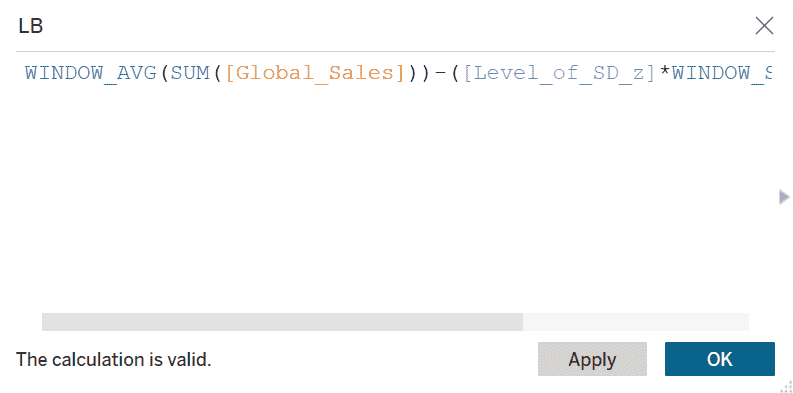
Again select Create Calculated Field and name the field LB. Enter the following formula:

WINDOW_AVG( SUM( [Global_Sales] ) ) - ( [Level_of_SD_z] * WINDOW_STDEV( SUM( [Global_Sales] ) ) )

๐Ÿ‘ Screenshot-2026-01-30-162514
Create lower bound calculated field

Step 5: Identify Outliers

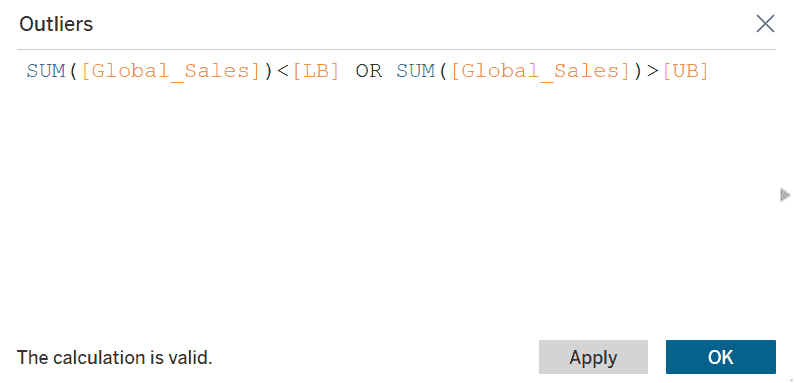
Create another calculated field and name it Outliers and enter the following condition:

SUM( [Global_Sales] ) < [LB] OR SUM( [Global_Sales] ) > [UB]

๐Ÿ‘ Screenshot-2026-01-30-162744
Create outlier calculated field

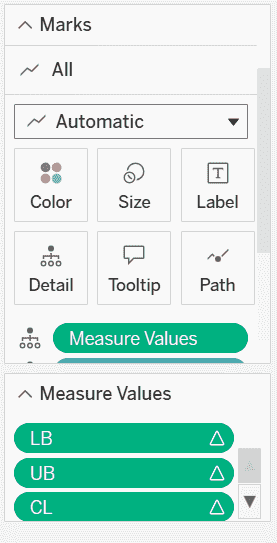
Step 6: Configure Measure Values

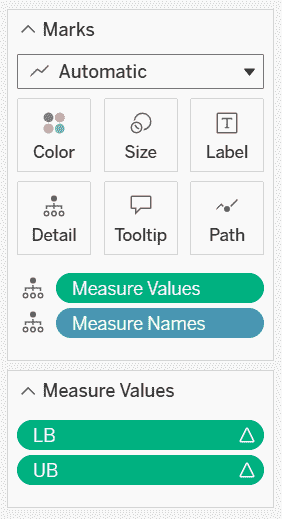
Drag Measure Values to the Marks card and in the Measure Values shelf, keep only LB and UB

๐Ÿ‘ Screenshot-2026-01-30-163137
Measure Values

Remove all other measures.

Step 7: Create Dual Axis

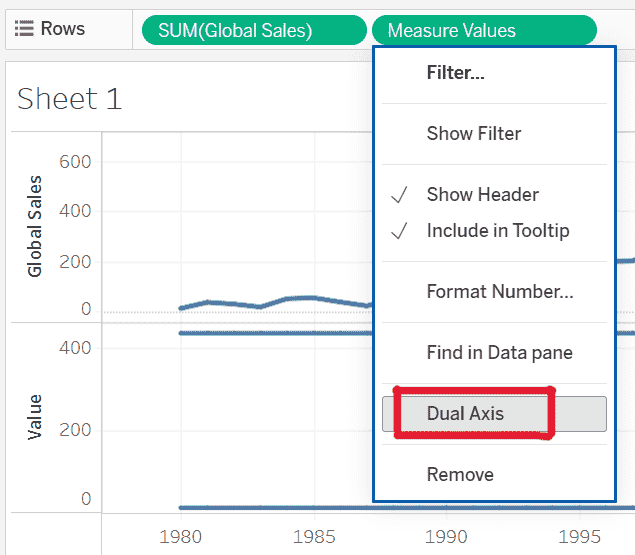
Drag Measure Values to the Rows shelf and right-click the second axis and select Dual Axis.

๐Ÿ‘ Screenshot-2026-01-30-163321
select dual axis

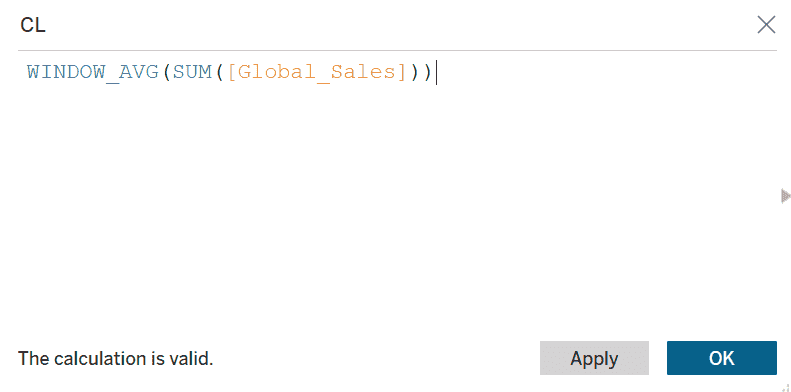
Step 8: Add Central Line (CL)

Create a new calculated field named CL and enter the formula:

WINDOW_AVG( SUM( [Global_Sales] ) )

๐Ÿ‘ Screenshot-2026-01-30-163728
create central line calculated field

Drag CL into Measure Values.

๐Ÿ‘ Screenshot-2026-01-30-163908
drag and drop CL field to Measure Values

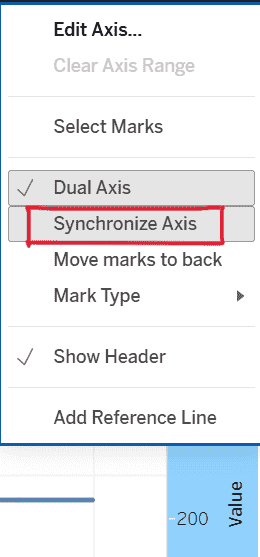
Step 9: Synchronize Axes

Right-click on the Value axis and select Synchronize Axis.

๐Ÿ‘ Screenshot-2026-01-30-164254
select synchronize axis

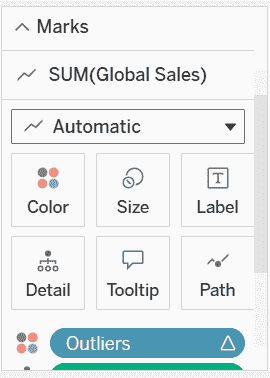
Step 10: Highlight Outliers

1. In the Global_Sales Marks card, drag Outliers to the Color shelf.

๐Ÿ‘ Screenshot-2026-01-30-164624
drag and drop Outliers to Color

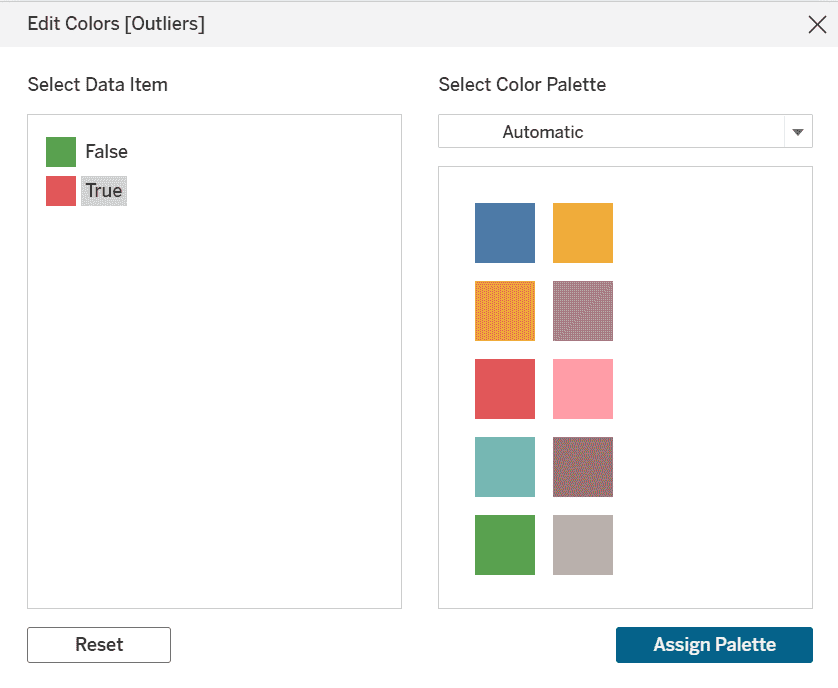
2. Click Edit colors: False -> Green and True -> Red.

๐Ÿ‘ Screenshot-2026-01-30-164706
modify false as green and true as red for outliers

Step 11: Show Parameter Control

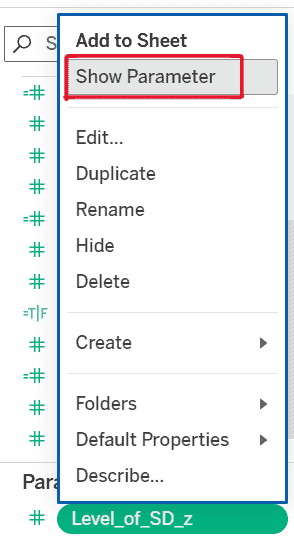
Go to the Parameters pane right-click Level_of_SD_z and select Show Parameter.

๐Ÿ‘ Screenshot-2026-01-30-165909
select show parameter

Step 12: Adjust Control Limits

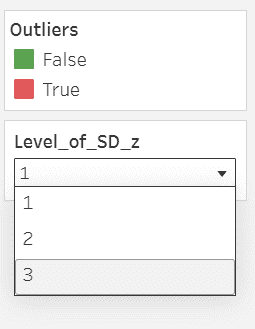
Change the Level_of_SD_z value to:

  • 1 for tighter limits
  • 2 for moderate limits
  • 3 for wider limits
๐Ÿ‘ Screenshot-2026-01-30-170341
after showing Level_of_SD_z parameter

Final Output

๐Ÿ‘ Screenshot-2026-01-30-170609
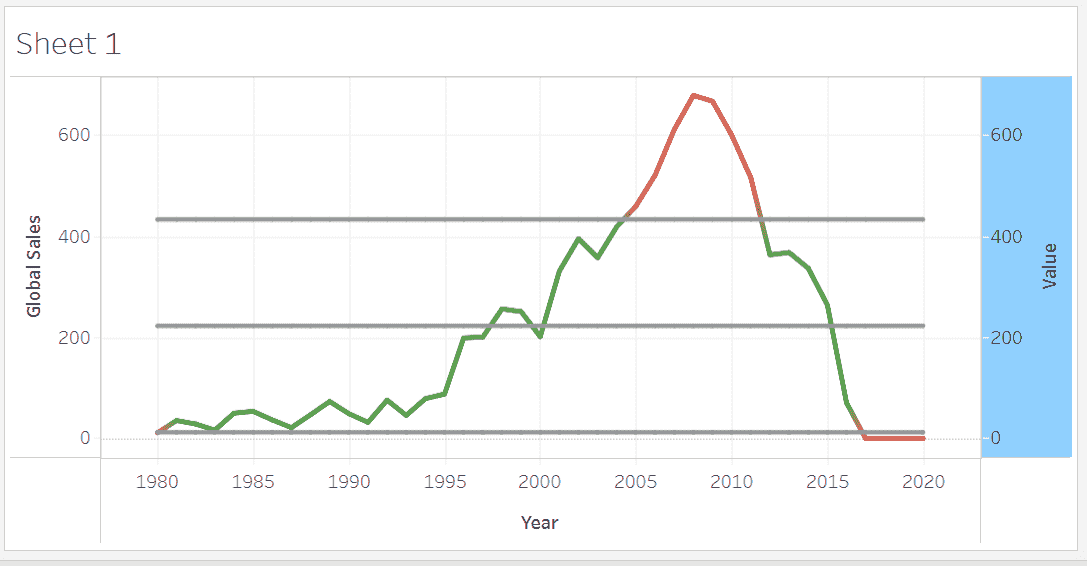
Control Chart

The final Control Chart displays:

  • A central average line (CL)
  • Upper and lower control limits (UB & LB)
  • Sales trends over time
  • Outliers highlighted clearly in red
  • Interactive control using standard deviation levels

This chart is ideal for monitoring stability, detecting anomalies and analyzing process behavior over time.

Comment
Article Tags:
Article Tags:

Explore