In this article we will learn how to form a crosstab in tableau worksheet to do further operations. For this first look into two terms :
- Tableau : Tableau is a very powerful data visualization tool that can be used by data analysts, scientists, statisticians, etc. to visualize the data and get a clear opinion based on the data analysis. Tableau is very famous as it can take in data and produce the required data visualization output in a very short time.
- Crosstab : A crosstab is a table showing the relationship between two or more variables. Where the table only shows the relationship between two categorical variables, a crosstab is also known as a contingency table.
Below are the steps to create a Crosstab in tableau:
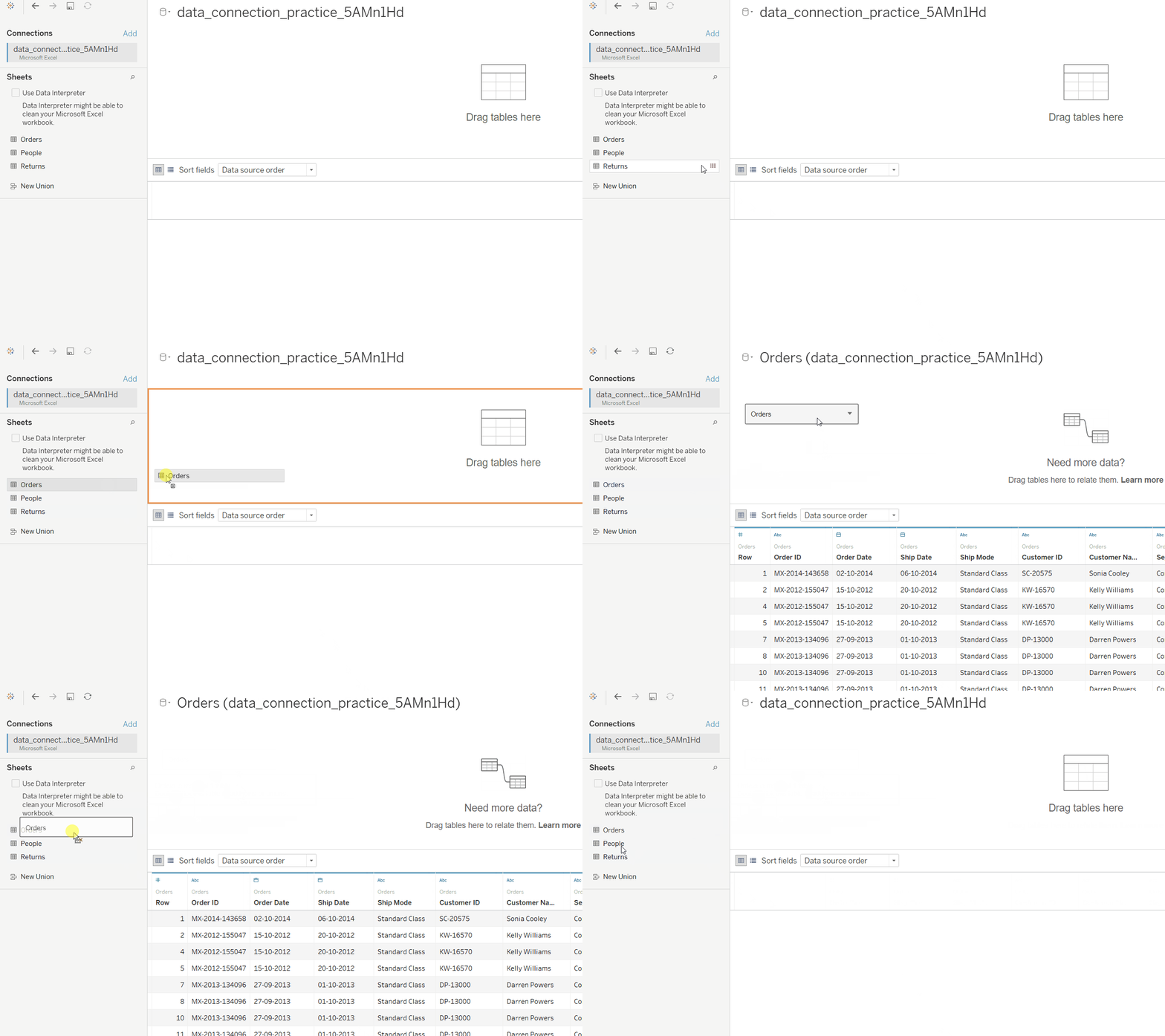
1) Open Tableau tool and connect a dataset into it.
๐ Image
2) Drag and drop the one sheet of connected dataset.
๐ Image
3) Click on sheet1 to open the tableau worksheet.
๐ Image
4) On clicking Sheet1 you will get whole dataset attributes on left side and a worksheet for work.
๐ Image
5) To draw a crosstab you have to select minimum two attributes( one in row and one in column) by drag and drop then select another attribute for mark option.
๐ ImageBelow are some examples of the above approach:
Example 1:
This example is drawn similar to the above steps with some extra marks and which is explained in steps given below :
- Select the Date and Sub-category fields as column and row respectively.
- Apply marks by color of profit.
- Apply marks by text of sales.
๐ Image
Example 2:
This example is also drawn similar to above example 1 with some extra marks and which is explained in steps given below :
- Select the Date and Category with Sub-category fields as column and row respectively.
- Apply marks by color of profit.
- Apply marks by text of sales.
๐ Image