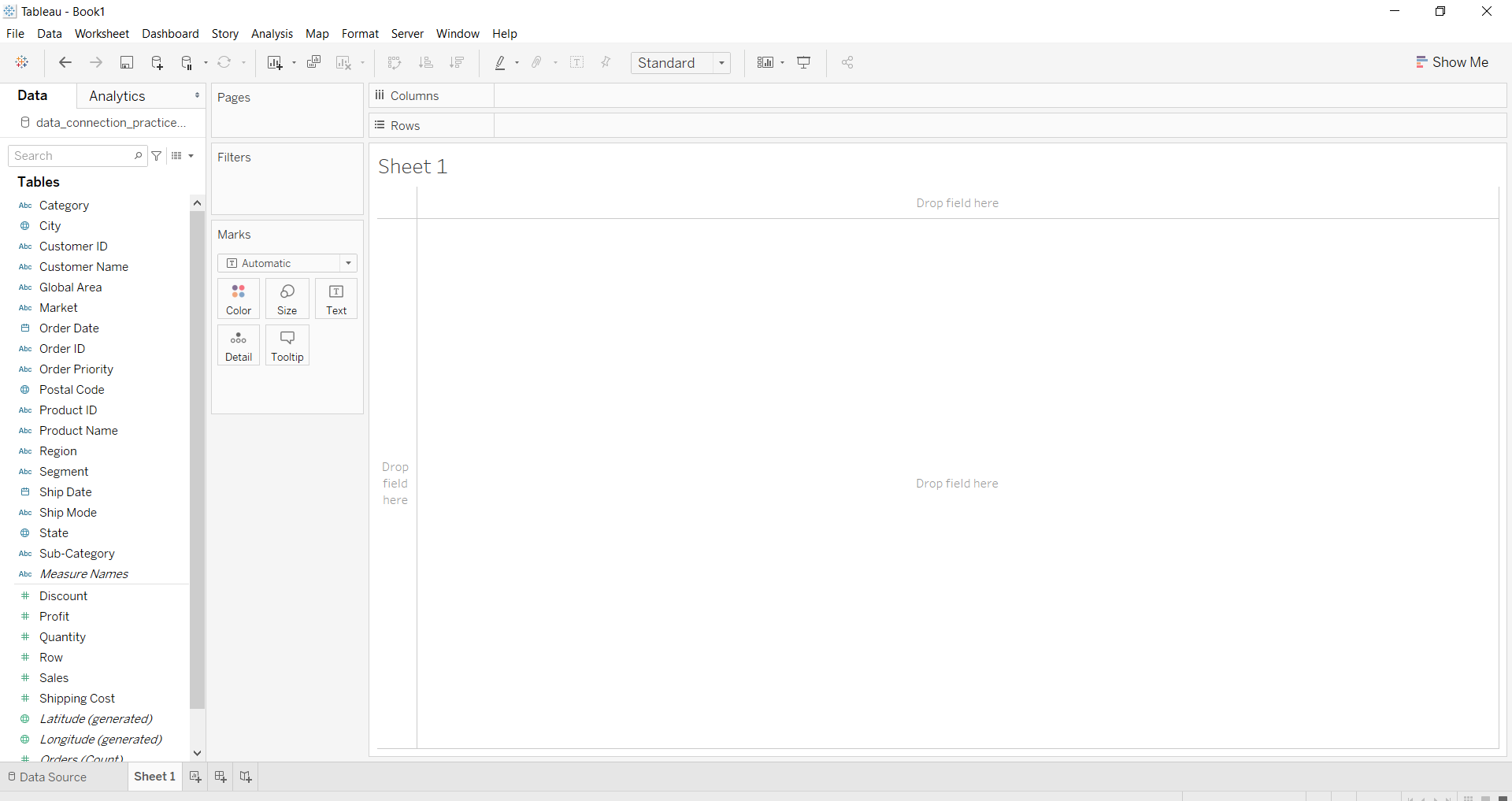
Pie Chart is a circular statistical graphic divided into slices, where each slice represents a proportion of the total. They are widely used visualization for showing percentages of a whole. The arc length, central angle and area of each slice are proportional to the value it represents.
Pie charts are useful for:
- Showing relative sizes of categories.
- Comparing parts of a whole.
- Visualizing distribution of categorical data.
Creating a Basic Pie Chart
To create a basic pie chart in Tableau:
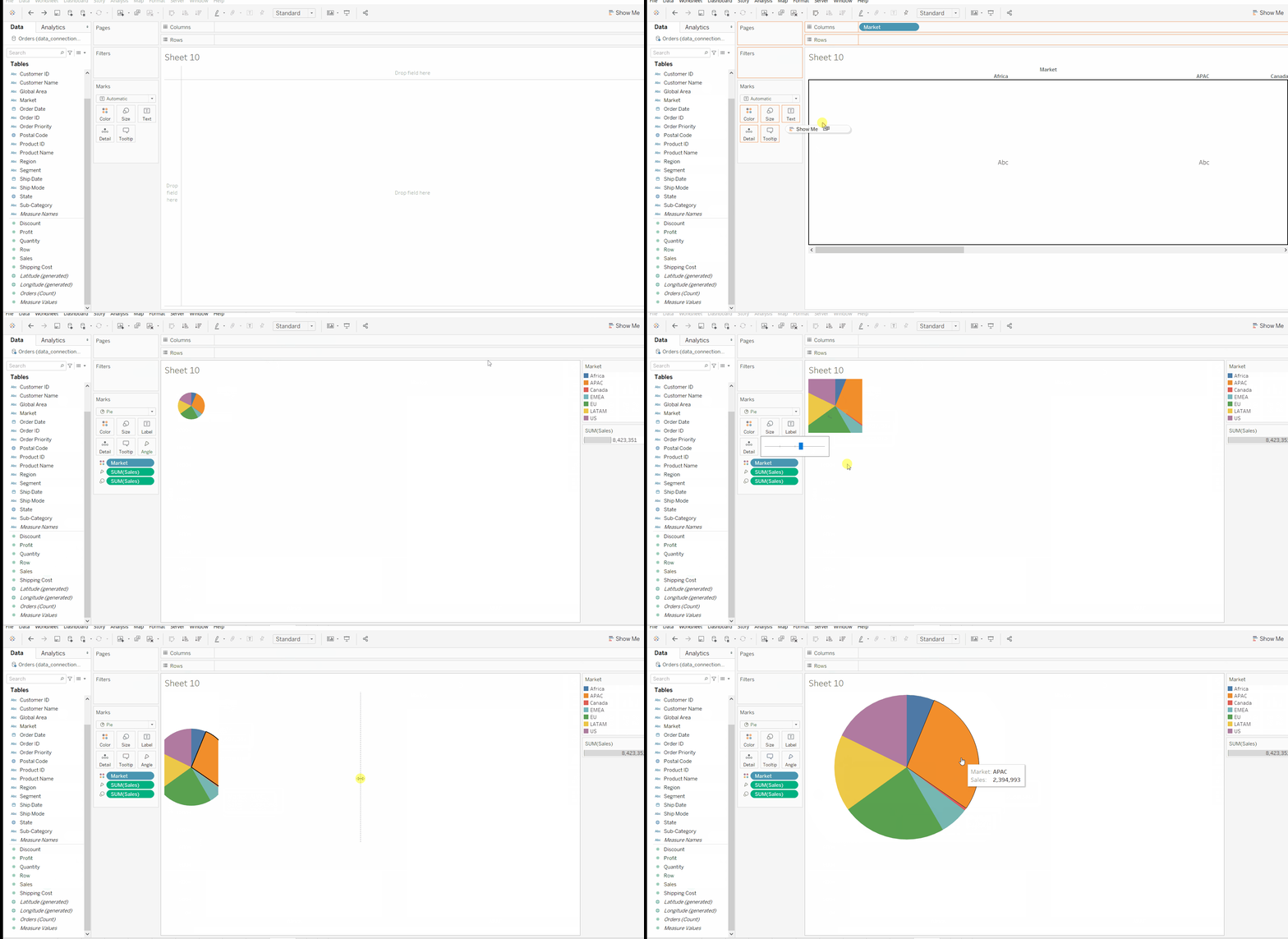
- Select at least two fields, one for Rows and one for Columns.
- From the Show Me panel, select Pie Chart.
- Adjust the size of the pie chart by using the Size marks.
Note: You can use in-built datasets of tableau.
๐ ImageThis gives us a simple pie chart showing the proportion of each category based on the selected fields.
Example 1: Basic Pie Chart
- Drag and drop the desired fields for Rows and Columns.
- Click on Show Me and select Pie Chart.
- Increase the pie size by adjusting the Size marks.
๐ ImageThis chart provides a clear view of how each category contributes to the total.
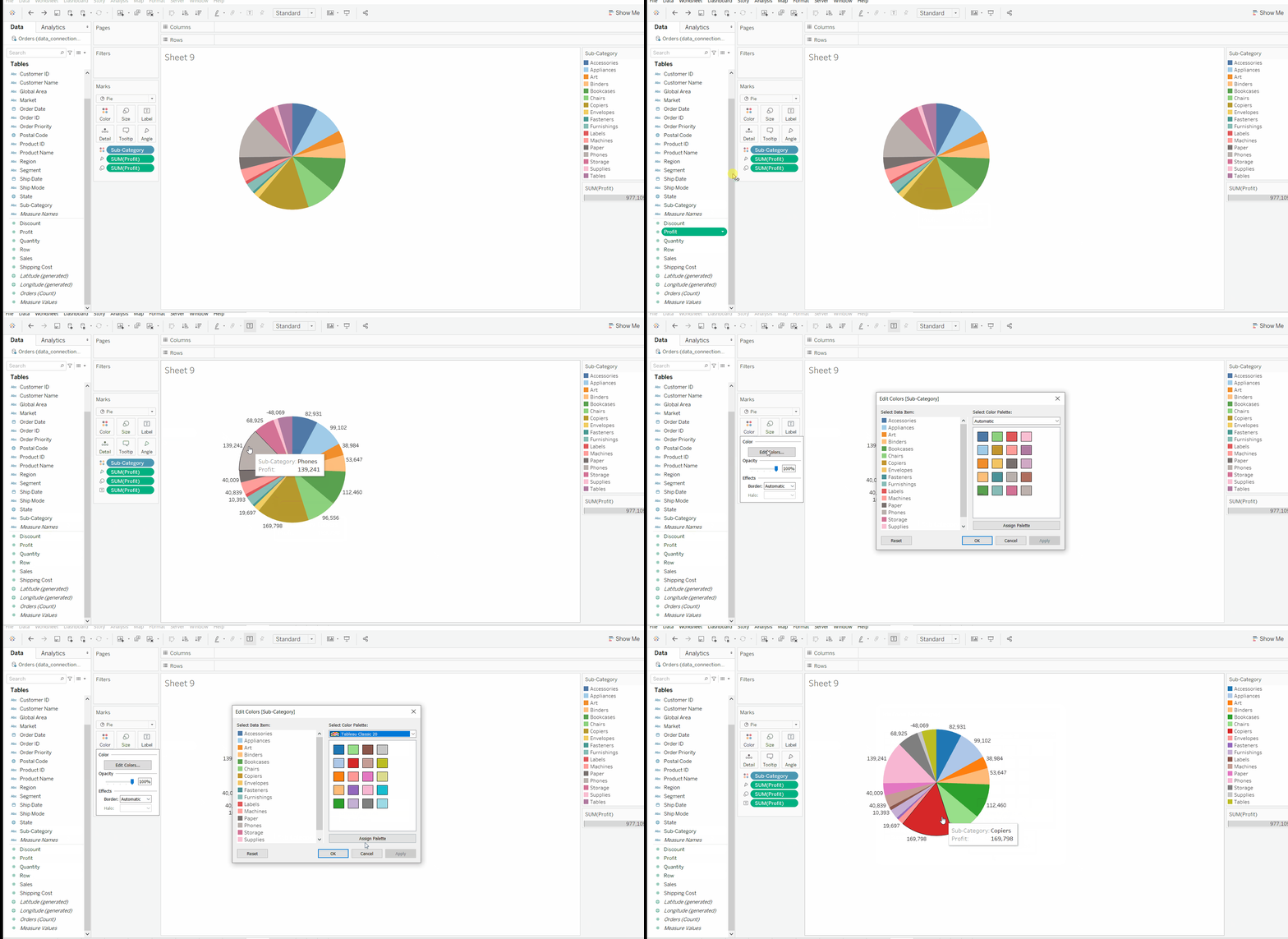
Example 2: Pie Chart with Labels and Colors
- Drag the Profit field to Label in the Marks section to display values.
- Click on Color in the Marks section.
- Change the slice colors by selecting a new color palette.
๐ ImageThis customization helps us highlight profit values while using colors to differentiate categories.
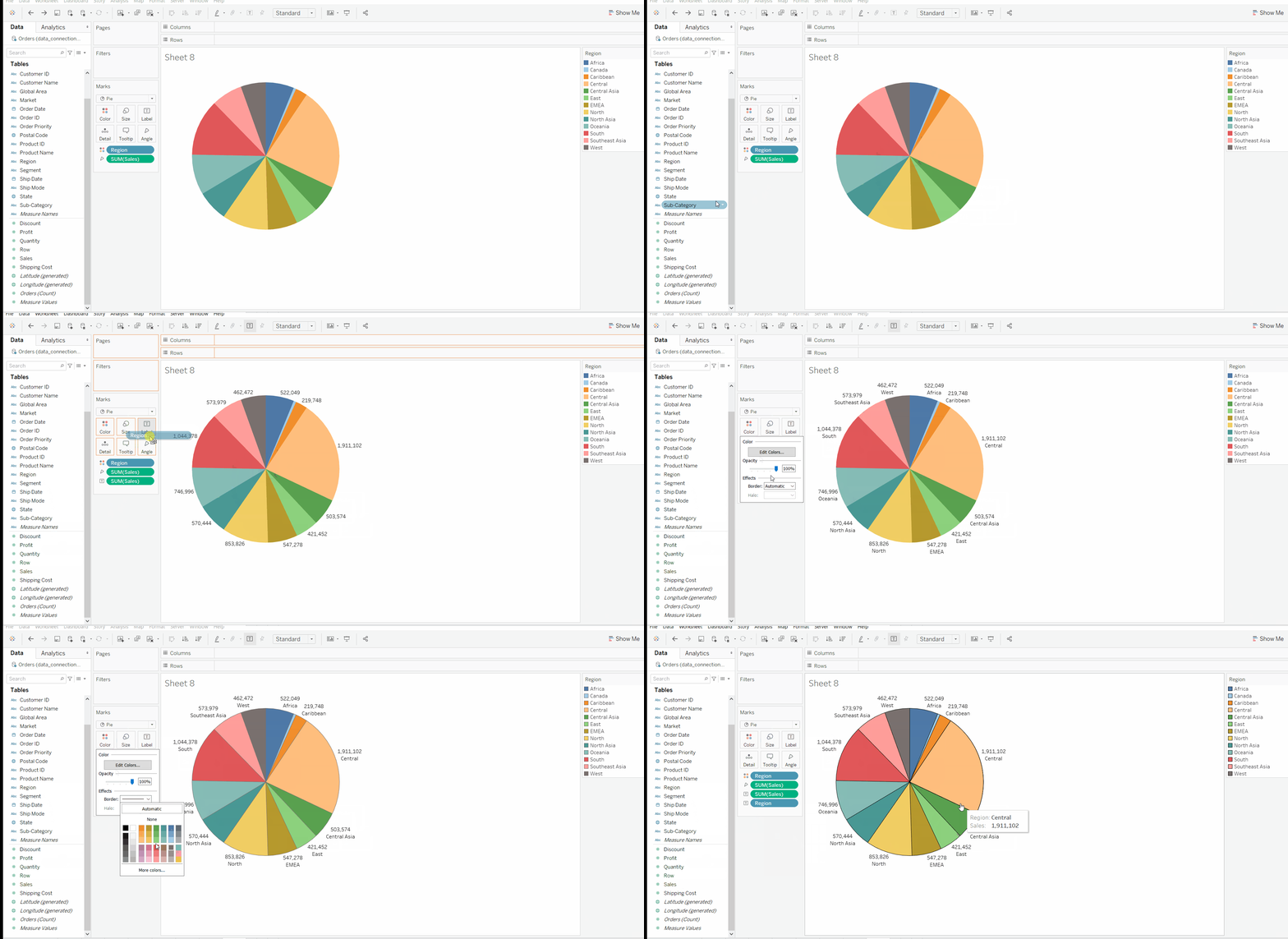
Example 3: Pie Chart with Multiple Labels and Borders
- Drag the Sales field and then Region field to Label in the Marks section to show detailed labels.
- Click on Color to adjust slice colors.
- Change the border color by selecting another color palette.
๐ ImageThis advanced pie chart allows us to display multiple metrics (Sales, Region) and customize both slice colors and borders for better visual distinction.