Text Object is used to add descriptive text, titles, instructions or annotations to make the dashboard more meaningful and easier to understand. It allows users to include plain text or formatted content like bold, italic or colored text directly within the dashboard hence enhancing both context and presentation.
Steps to Add a Text Object Let's see the steps to add a text object:
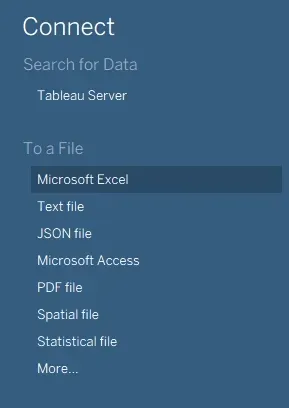
Step 1: Open Tableau and connect to a data source. We can also use inbuilt data source.
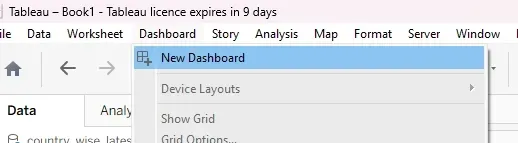
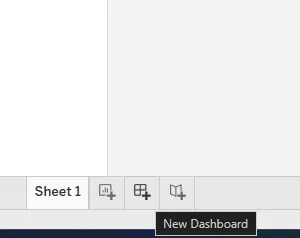
๐ Screenshot-2025-07-23-131229 Data Source Step 2: Find and select New Dashboard option. There are two ways to do so:
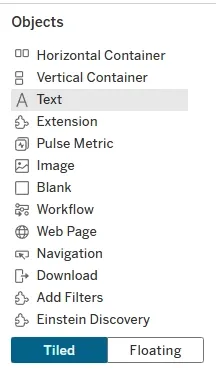
Select New Dashboard from the dashboard menu on top. ๐ Screenshot-2025-07-23-124157 New Dashboard Or click on New Dashboard button on the bottom tab. ๐ Screenshot-2025-09-10-095801 New Dashboard Step 3: On the left panel, we will find different Dashboard Objects. Select the Text option.
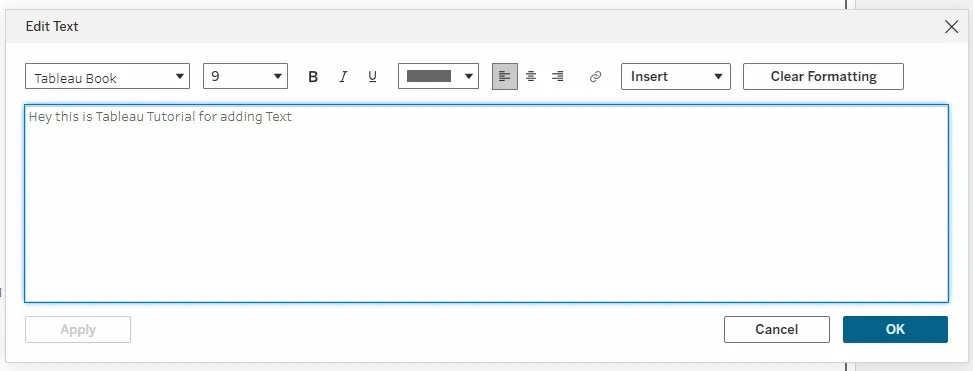
๐ Screenshot-2025-09-10-100057 Objects Step 4: Enter our desired text and use the formatting options to style it.
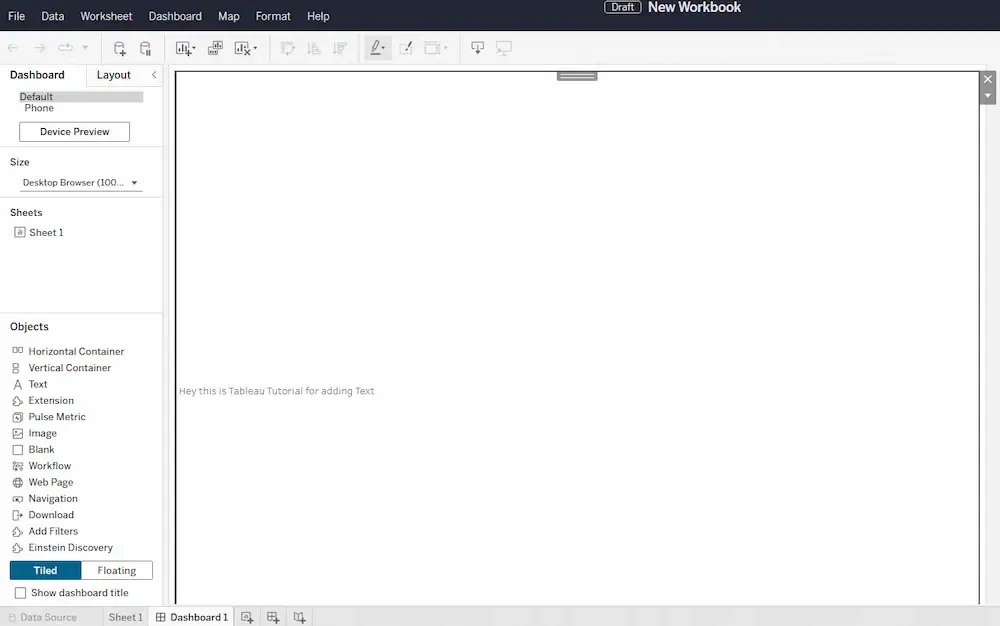
๐ aa Edit Text Step 5: Preview the added text on the dashboard.
๐ Screenshot-2025-09-10-102607 Dashboard Let's discuss this procedure and some features with some examples given below :
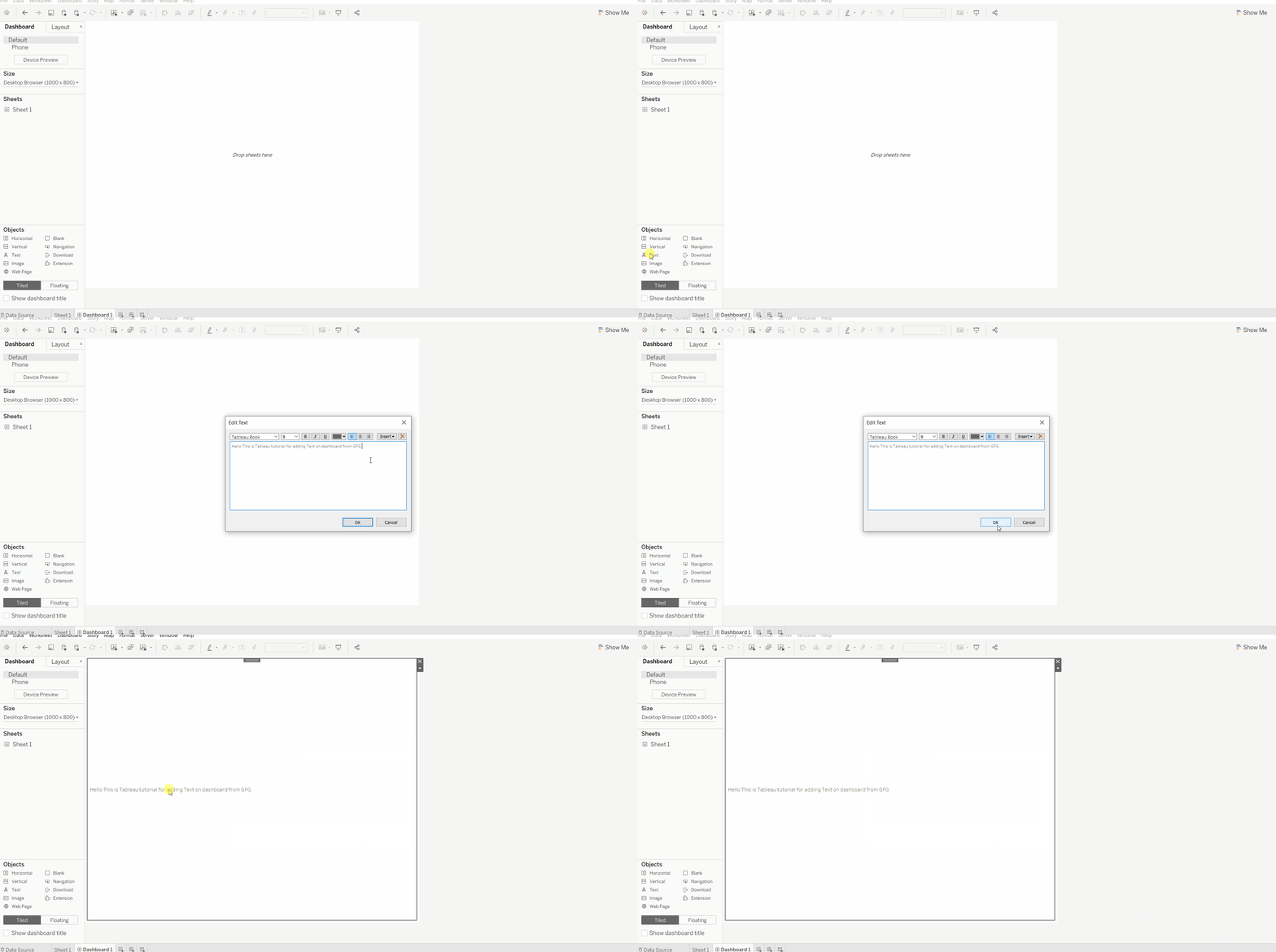
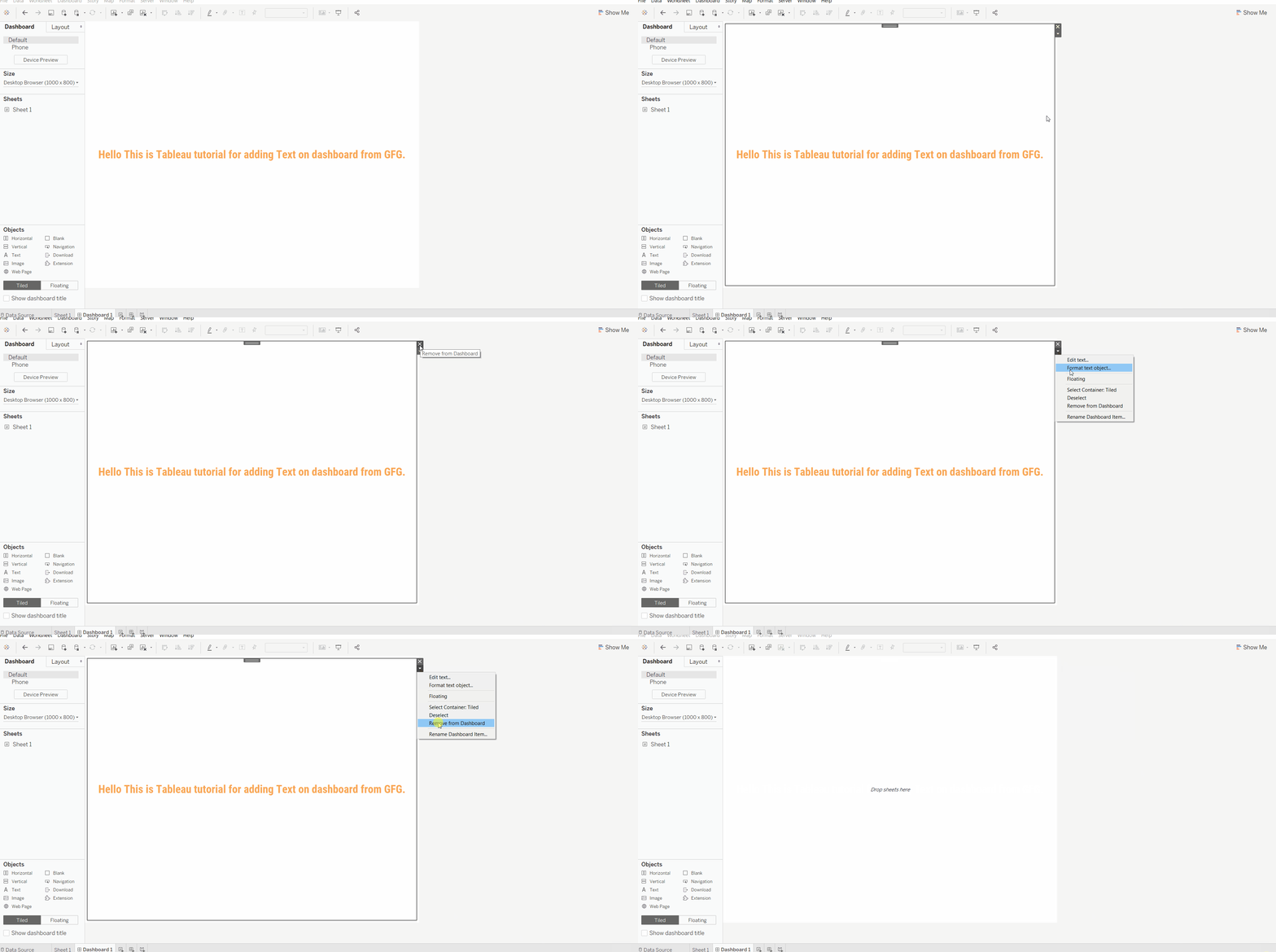
Example 1: Adding Text to a Dashboard Drag a Text Object into the dashboard area. Type our text and click OK. The text will now appear on the dashboard. ๐ Image Example 2: Using Text Object Features Text Objects come with multiple features that help in customizing dashboards:
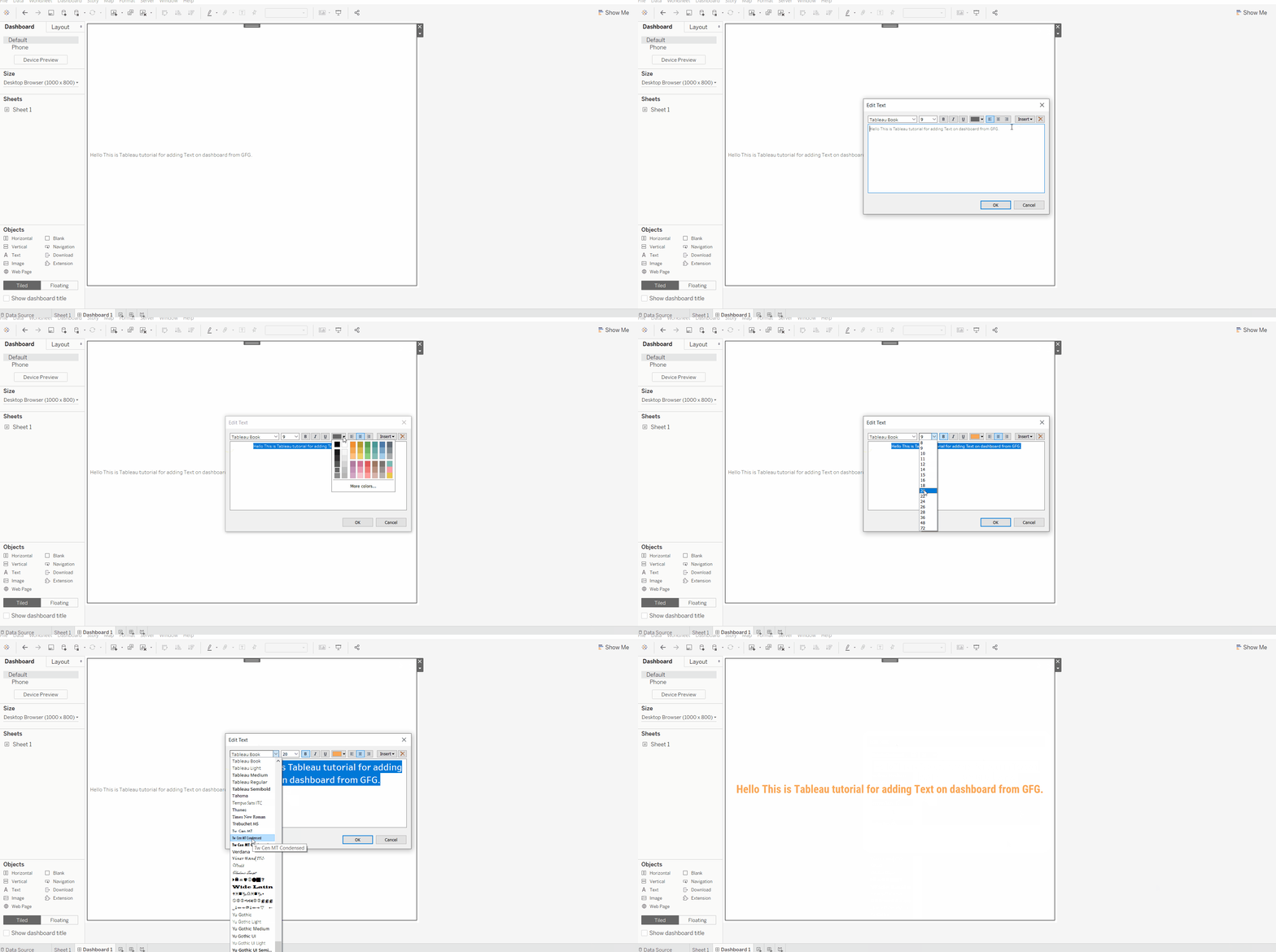
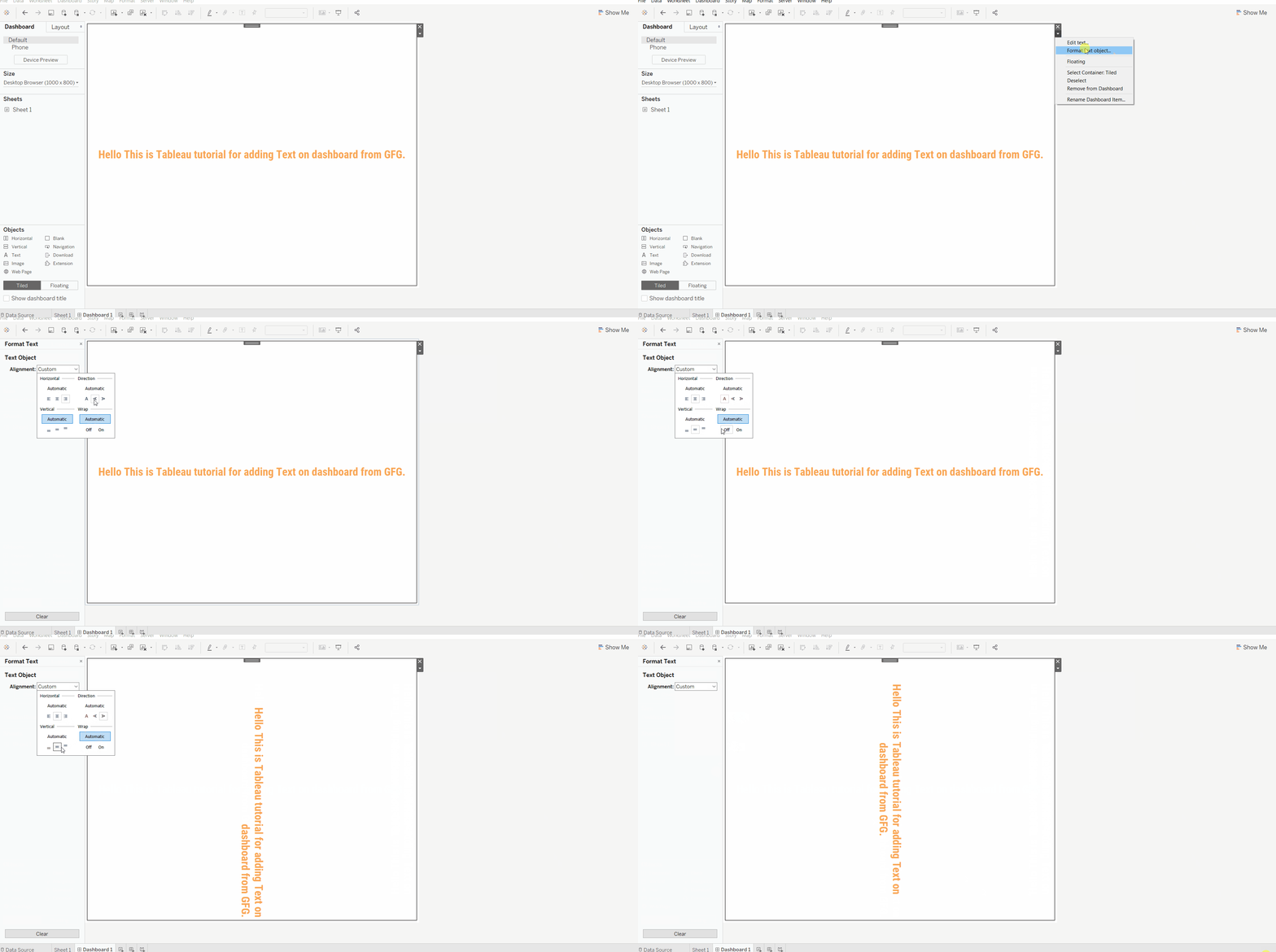
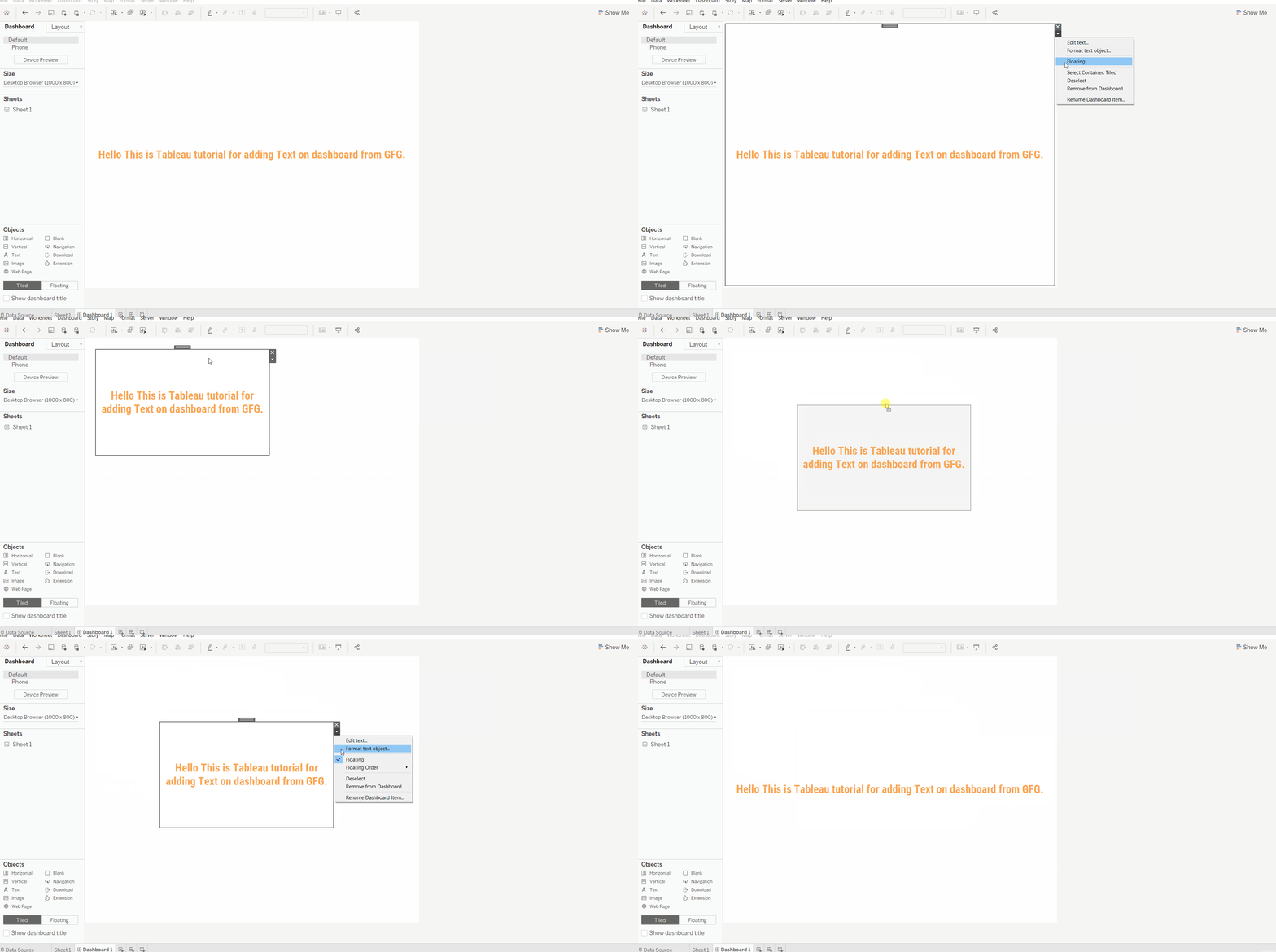
Edit Text: Change or update the text at any time. ๐ Image Format in Text: Apply formatting such as font size, color, bold, italic or alignment. ๐ Image Floating Object: Place the text object as a floating element anywhere on the dashboard for flexible positioning. ๐ Image Example 3: Removing Text from a Dashboard Click on the Text Object we want to remove. Either press the X (close) icon or click the drop-down arrow and select Remove from Dashboard. ๐ Image