VOOZH about

URL: https://www.geeksforgeeks.org/nextjs/create-select-menus-ui-using-next-js-and-tailwind-css/

⇱ Create Select Menus UI Using Next.JS and Tailwind CSS - GeeksforGeeks


  • Courses
  • Tutorials
  • Interview Prep

Create Select Menus UI Using Next.JS and Tailwind CSS

Last Updated : 23 Jul, 2025

Creating a Select Menu UI using Next.js and Tailwind CSS involves several steps. Below is a detailed approach to guide you through the process without providing specific code.

Prerequisites:

Approach to Create Select Menus UI

  • Begin by initializing your Next.js application, which will create a new project folder with all the necessary configurations. After setting up your project, you will navigate to the project directory to install Tailwind CSS.
  • Create a new component dedicated to the Select Menu. This component will include the necessary HTML structure for a dropdown menu, utilizing the <select> element and its associated <option> elements for the selectable items.
  • To make the Select Menu interactive, you will need to manage its state using React's state management features.
  • After developing the Select Menu component, you will integrate it into one of your Next.js pages, allowing users to see and interact with the menu. Finally, run your Next.js application to test the Select Menu's functionality.

Steps to Create Select Menus UI

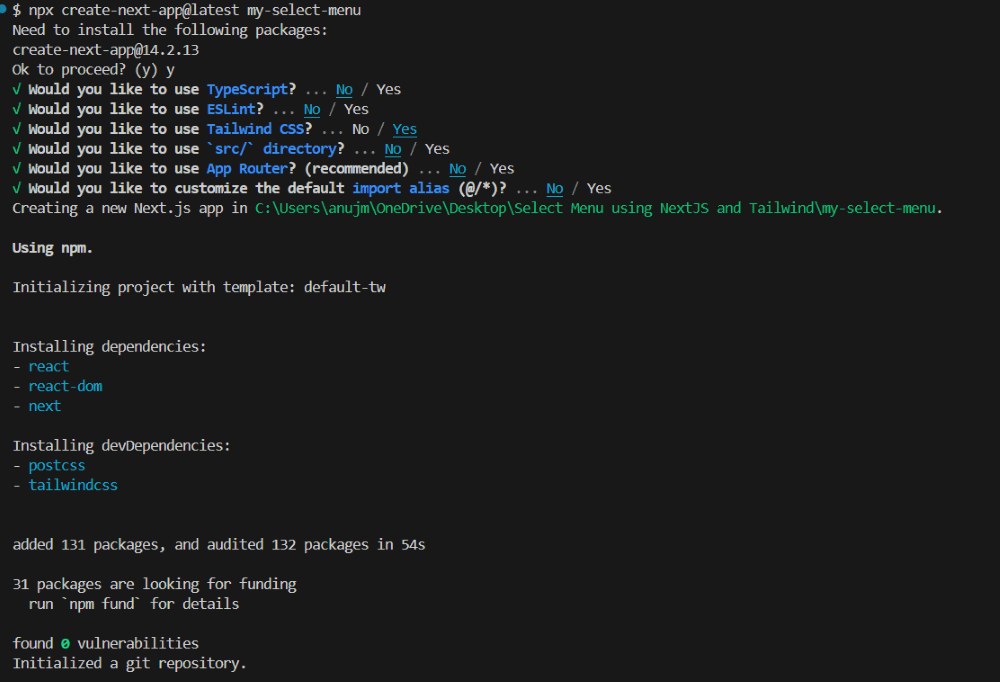
Step 1: Set Up the Next.js Project

npx create-next-app@latest my-select-menu
cd my-select-menu
👁 install-next-js-1
creating Nextjs project

Step 2: Install Tailwind CSS by following these commands:

npm install -D tailwindcss postcss autoprefixer
npx tailwindcss init -p

Step 3: Configure Tailwind CSS

/** @type {import('tailwindcss').Config} */
module.exports = {
content: [
'./pages/**/*.{js,ts,jsx,tsx}',
'./components/**/*.{js,ts,jsx,tsx}',
],
theme: {
extend: {},
},
plugins: [],
}

Step 4: Configure Globals.CSS

@tailwind base;
@tailwind components;
@tailwind utilities;

Step 5: Next, import the global styles in pages/_app.js

import '../styles/globals.css'

function MyApp({ Component, pageProps }) {
return <Component {...pageProps} />
}

export default MyApp

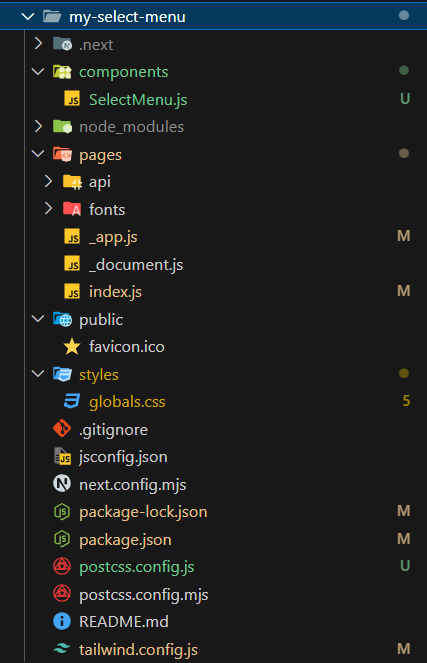
Folder Structure

👁 Image
Folder Structure

Updated Dependencies:

 "dependencies": {
"next": "14.2.14",
"react": "^18",
"react-dom": "^18"
},

Example: In this example we will create the select menu component using the next.js and tailwind css

Now, let's create the Select Menu component using Tailwind CSS. If you don't have components folder, create a components folder inside that folder create SelectMenu.js file.

To run the Application use the command

npm run dev
Output

Comment
Article Tags:

Explore