|
VOOZH | about |
|
VOOZH | about |
Create Next App is the official CLI tool provided by Vercel to quickly set up a new Next.js project with zero configuration.
System Requirements:
Let's see the installation process:
Installation of next.js require npm and node.js. You can install node.js from here. Confirm the installation by running these commands on the terminal.
node -v
npm -v
To get started, use the following command:
npx create-next-app@latest

# Create Next App can be installed via yarn:
yarn create next-app

# Create Next App can be installed via npm:
npm create next-app
You can create a TypeScript project with the --ts (--typescript flag):
npx create-next-app@latest --ts
# or
yarn create next-app --typescript
# or
pnpm create next-app --ts
choose options based on your requirement
√ What is your project named? ... my-app
√ Would you like to use ESLint? ... No / Yes
√ Would you like to use Tailwind CSS? ... No / Yes
√ Would you like to use `src/` directory? ... No / Yes
√ Would you like to use App Router? (recommended) ... No / Yes
√ Would you like to customize the default import alias (@/*)? ... No / Yes
The dependencies for nextjs project in the package.json file are:
"dependencies": {
 "react": "^18",
 "react-dom": "^18",
 "next": "14.2.5"
},
"devDependencies": {
 "typescript": "^5",
 "@types/node": "^20",
 "@types/react": "^18",
 "@types/react-dom": "^18"
}
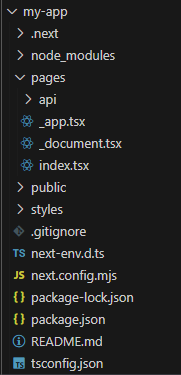
Example: This demonstrate a next.js demo app created using the create-next-app command.
Steps to run the application: Write the below code in the terminal to run the application:
npm run dev
# OR
yarn dev
Output:
Now, you can make changes at pages/index.js and see the updated result in your browser/localhost. And now you are ready to start using Next Js for building an interactive website.