|
VOOZH | about |
|
VOOZH | about |
The Next.js Pages are the components used to define routes in the next application. Next.js uses a file-based routing system that automatically maps files in the pages directory to application routes, supporting static, dynamic, and nested routes for efficient web development.
Each file with the js, ts, jsx, tsx extensions automatically renders as a route in Next.js.
You can create a new NextJS project using the below command:
npx create-next-app gfgAfter creating your project folder (i.e. gfg), move to it by using the following command.
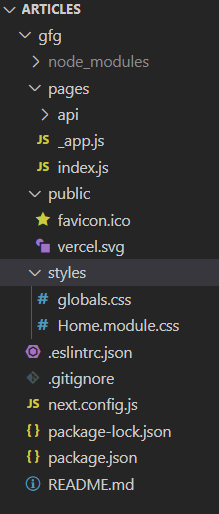
cd gfgIt will look like this.
👁 ImageWe can create static pages without using router in next.js
pages directory.getStaticProps if you want to fetch data at build time.Example: This example demonstrate creating static page on /gfg route.
Now we can easily access both pages in our app by running the app in the browser.
Step to Run Application: Run the application using the following command from the root directory of the project.
npm run devOutput:
👁 Imagepages/gfg.js creates a static route at /gfg, showing the message “Welcome to the GFG Page!”.pages/index.js represents the home page (/) and displays “Welcome to the Home Page!”.For this, we are going to create a new folder with the name route and inside this folder, we are going to create our dynamic file with the name [gfg].js.
We have 2 approaches for dynamic pages in next js mentioned below:
create a dynamic page in Next.js, use useRouter from next/router to display the current route dynamically.
Create a dynamic page in Next.js, use usePathname from next/navigation to display the current route dynamically.
Step to Run Application: Run the application using the following command from the root directory of the project.
npm run devOutput:
👁 Imagepages/route/[gfg].js defines a dynamic route where [gfg] acts as a placeholder (e.g., /route/123).useRouter() is used to access the current path via router.asPath.usePathname() (App Router API) is used to display the current route directly.