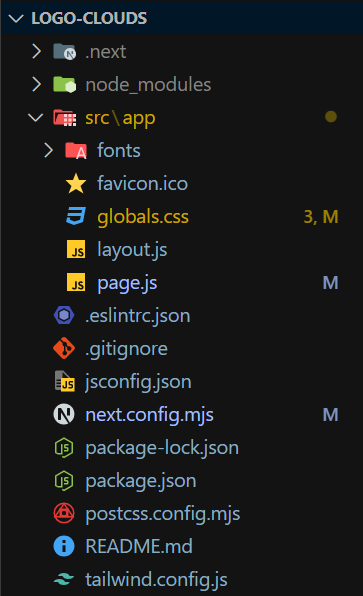
|
VOOZH | about |
|
VOOZH | about |
A logo cloud is a collection of logos that are displayed on a webpage to showcase partnerships, clients, or supported platforms. This component is often used to establish credibility or showcase affiliations. Using Next.js with Tailwind CSS you can create a responsive and customizable logo cloud that adapts to various screen sizes providing an elegant presentation. We will create Logo Clouds in Next.js using Tailwind CSS.
In this approach, we have created an array of logo objects containing image URLs and alt text. The array is then mapped over using JavaScript's map() function to dynamically render each logo one by one. We have used the built-in <Image /> component from Next.js. For the styling and layout, We have used Tailwind CSS to create a responsive grid structure.
Step 1: Create a Next.js application using the following command.
npx create-next-app@latest logo-cloudsStep 2: It will ask you some questions, so choose the following.
√ Would you like to use TypeScript? ... No
√ Would you like to use ESLint? ... Yes
√ Would you like to use Tailwind CSS? ... Yes
√ Would you like to use `src/` directory? ... Yes
√ Would you like to use App Router? (recommended) ... Yes
√ Would you like to customize the default import alias (@/*)? ... Yes
Step 3: After creating your project folder i.e. logo-clouds, move to it using the following command.
cd logo-cloudsStep 4: Install the Tailwind CSS module.
npm install -D tailwindcss postcss autoprefixer
npx tailwindcss init -p
@tailwind base;
@tailwind components;
@tailwind utilities;
"dependencies": {
 "react": "^18",
 "react-dom": "^18",
 "next": "14.2.15"
 },
 "devDependencies": {
 "postcss": "^8",
 "tailwindcss": "^3.4.1",
 "eslint": "^8",
 "eslint-config-next": "14.2.15"
 }
Note: Remove the included extra CSS from global.css file
Example: The below example demonstrates creating of logo clouds in Next.js using Tailwind CSS.
To run the Application open the terminal in the project folder and enter the following command:
npm run devOutput: