|
VOOZH | about |
|
VOOZH | about |
GitHub is a widely-used platform for version control and collaborative development, but it’s also an excellent platform for documentation, writing, and formatting content using Markdown. Whether you're writing README files, documentation for your projects, or contributions to a wiki, understanding how to format text on GitHub will improve the readability and professionalism of your work.
This article will guide you through the essentials of writing and formatting on GitHub using Markdown, along with some useful tips and tools to enhance your writing.
Markdown is a lightweight markup language that allows you to format text in a simple and easy-to-read manner. It is used extensively on GitHub for writing README files, issues, pull request descriptions and more. Markdown syntax is intuitive and designed to be readable even in its raw form, making it ideal for collaborative writing and documentation.
Markdown files typically use the .md file extension.
Here are some common Markdown formatting techniques that you can use in your GitHub repositories:
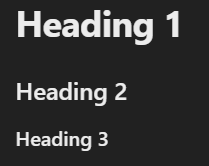
Headings are created using the # symbol followed by a space. The number of # symbols denotes the heading level (from h1 to h6).
# Heading 1
## Heading 2
### Heading 3
Output:
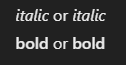
You can italicize or bold text using * or _ for italics and ** or __ for bold.
*italic* or _italic_
**bold** or __bold__
Output:
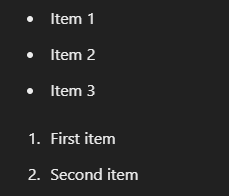
You can create ordered and unordered lists easily in Markdown:
* Item 1
- Item 2
+ Item 3

1. First item
2. Second item
Output:
To insert a link, use the following syntax:
[GitHub](https://github.com/)To insert an image, use the same syntax but prepend an exclamation mark (!):
Markdown on GitHub supports inline code and code blocks. Syntax highlighting is available for most programming languages.
Inline code: Use backticks to format inline code.
Here is some `inline code`.Code block: For a block of code, use triple backticks (```) with the language specified.
```javascript
const hello = 'Hello, world!';
console.log(hello);
Output:
const hello = 'Hello, world!';
console.log(hello);
This formatting helps make your code readable and understandable, especially when collaborating with others.
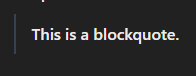
You can create blockquotes using the > symbol. Blockquotes are useful for quoting text or emphasizing important sections.
> This is a blockquote.Output:
To create horizontal lines, you can use three or more hyphens (---), asterisks (***), or underscores (___).
---Tables in Markdown are easy to create. Use pipes (|) to separate columns and hyphens (-) to define headers.
| Header 1 | Header 2 |
| -------- | -------- |
| Cell 1 | Cell 2 |
| Cell 3 | Cell 4 |
Output:
Tables are useful for presenting data in an organized way, especially for documentation.
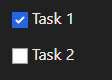
Task lists allow you to create checklists in issues, pull requests, and comments.
- [x] Task 1
- [ ] Task 2
Output:
Task lists are perfect for tracking progress on issues or tasks in a project.
GitHub Flavored Markdown extends standard Markdown syntax by adding support for additional formatting options, including:
~~This is strikethrough text.~~Output:
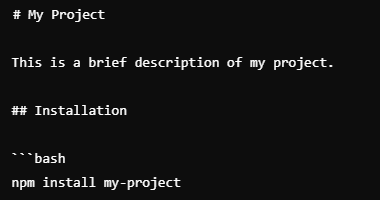
README files are one of the most important aspects of a GitHub repository. They give an overview of the project and typically include installation instructions, usage examples, and contact details.
Here’s a basic example of a README file:
GitHub wikis use the same Markdown syntax and are ideal for organizing documentation for larger projects. Each page in the wiki can be dedicated to a specific topic, and you can interlink pages to create comprehensive documentation.
Writing and formatting on GitHub using Markdown is a simple yet powerful way to create clear and professional documentation for your projects. Whether you’re writing a README, issues, or documentation pages, understanding the basics of Markdown will enhance your ability to communicate effectively.
By using the tools and tips in this guide, you can:
Mastering Markdown on GitHub is essential for any developer looking to contribute to or maintain open-source projects.