Open source is a space where people can modify and design something that is publiclycaly accessible to everyone. Software or codebases that are open source facilitate collaboration and innovation, which is not just limited to a team, but the whole public. GitHub is a platform that houses a wide range of projects and repositories from all over the world, enabling developers to contribute to public code, enhance their skills as well as improve the software that they rely on. The project owners also benefit by gaining expertise and innovating ideas from contributors all over the world.
In this article we are going to explore the general workflow followed by contributors while making contributions to public repositories present on GitHub. It is recommended that you create an account on GitHub and install the latest version of git, before commencing with the article. Note: This workflow has been designed keeping in mind the public repositories.
Primary Terminologies
The Git workflow for open-source collaboration typically involves the following steps:
Git:Git is a distributed version control system that allows developers to track changes to their code, collaborate with others, and manage different versions of their projects.
GitHub:GitHub is a web-based platform that provides hosting for Git repositories. It offers features like collaboration tools, issue tracking, and pull requests, making it popular for open-source development.
Fork : Forking a repository creates a personal copy of it under your GitHub account. It allows you to freely experiment with changes without affecting the original project.
Clone: Cloning a repository creates a local copy of it on your computer, allowing you to work on the code offline. It establishes a connection between your local copy and the remote repository on GitHub.
Branch: A branch is a parallel version of a repository's code, allowing you to work on different features or fixes separately from the main codebase. It enables isolation and organization of changes before they are merged back into the main branch.
Pull Request: A pull request (PR) is a request to merge changes from one branch into another. It allows collaborators to review and discuss proposed changes before they are merged.
Staging:Staging refers to the process of preparing changes to be committed in Git. It involves selecting which changes to include in the next commit using the git add command.
Commit: A commit records changes to the repository's history, creating a snapshot of the project at a specific point in time. It captures the changes made to files that have been staged with git add and includes a descriptive commit message.
Repository: A repository (repo) is a storage space where your project's files and version history are stored. It contains all the files and folders that make up your project, along with metadata like commit history and branches.
Upstream:Upstream refers to the original repository that your forked repository is based on. It allows you to keep your forked repository in sync with changes made in the original repository.
Push - Pushing refers to uploading local changes to a remote repository, typically on GitHub. It updates the remote repository with your latest commits, making your changes accessible to others.
Merge - Merging combines changes from one branch into another, typically merging a feature branch into the main branch. It integrates changes made in different branches, creating a single unified history.
Fetch - Fetching retrieves changes from a remote repository without merging them into your local branch. It allows you to see what changes have been made in the remote repository before deciding to merge them into your branch.
Pull - Pulling fetches changes from a remote repository and merges them into your local branch. It is a combination of the git fetch and git merge commands, updating your local branch with the latest changes from the remote repository.
Contribution To GitHub Repository: A Step By Step Guide
Step 1: Fork the Repository
Start by forking the repository of the project you want to contribute to. This creates a copy of the repository under your GitHub account.
Select the repository you want to fork, and click on the fork button on the upper right corner.
The fork has been created successfully in the personal account.
👁 6 A copy of the repository has been created in the personal account
Step 2: Clone The Repository
Clone the forked repository to your local machine using the git clone command.
This creates a local copy of the repository on your computer.
You can get the link of your repository by clicking on code and then copying the link.
Cloning using this link, will connect your local repository to your remote repository automatically and will help you avoid extra steps associated with other approaches.
git clone https://github.com/TAN347/Game-Aider
Now in the forked repository, click the Code button and copy the link provided.
If the upstream repository has any changes then fetch them using the following commands. This enables us to fetch changes from the original repository.
Note: this won't update you forked repository present on your account. It directly updates the local repository on your machine. If you want to update your forked repository, then you can always push the new changes using git push command.
git fetch upstream
After fetching changes from the upstream repository, you can merge them into your local branch (usually master or main).
Replace master with the branch name you are working on if it's different.
git merge upstream/master
Two avoid two steps you can directly use the following command, which basically fetches and then merges in one go.
git pull upstream
Alternatively, you can also rebase your changes onto the changes from the upstream repository.
Or you can manually fetch code from the upstream repository to your forked repository and pull it to your local repository.
3. Create a Branch
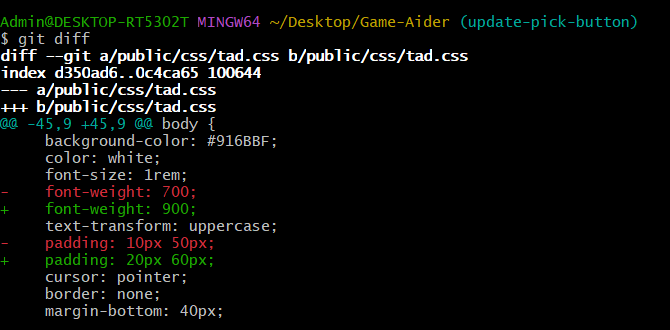
In this tutorial, we will change the following button on the Truth and Dare page by making it slightly bigger and the font more bold:
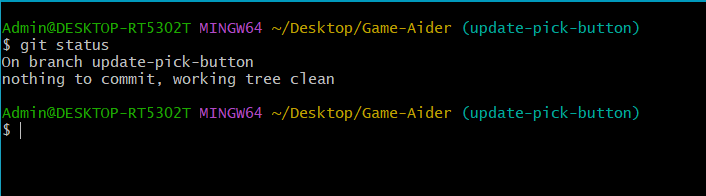
Create a new branch for your feature or bug fix. It's best practice to create a branch for each new feature or issue you're working on. The branch name should be short, descriptive and unique.
You can also check the changes that have been made using the git diff (checks all the files for changes) and git diff <file_name> (checks the particular file for changes).
Once you've made changes, stage them for commit using git add, and then commit them with a descriptive commit message.
git add .
git commit -m "Add feature or fix bug"
Note: git add . command adds all the files with changes to the staging area. If you don't want that and just want one or few select files to be staged, then you can do it like this:
git add <file_name1> <file_name2> <file_name3>
Step 5: Push Changes to Your Fork
Push your local branch to your forked repository on GitHub.
Go to your forked repository on GitHub and create a pull request (PR) from your feature branch to the original repository's main branch. Provide a descriptive title and description for your PR.
When a commit is made to the Remote Repository, it will automatically show that there are updates and by how many forks the code is ahead of the original repository.
It will also show the Compare & Pull Request option which we will use to create pull requests.
A form is displayed when click on Create Pull Request. It will show various details like from which repository to which repository the pull request is being created, which branch is being compared and whether the code is able to merge i.e. whether or not it creates any merge conflicts or not.
After naming the PR click on the create pull request button.


-(1)-compressed.jpg)




-(1).png)
-(1).png)

.jpg)