|
VOOZH | about |
|
VOOZH | about |
A merge conflict occurs when Git cannot automatically combine changes from different branches due to conflicting edits, requiring manual resolution by the developer.
Merge conflicts usually arise in the following scenarios:
1. Same line changed in two branches: If two people edit the same line in a file in different branches, Git can't choose which version is correct.
Example:
2. One branch deletes a file, another edits it: If one branch deletes a file and another changes it, Git doesn't know whether to keep the file or remove it.
3. File renamed in one branch, edited in another: If a file is renamed in one branch and edited in another, Git doesn't know how to join those changes.
Imagine there is a file called notes.txt, and it has this content:
Hello, this is the project note.Hello, this is the **updated project note** by A.Then commits the change.
Hello, this is the **feature note** by B.Then commits the change.
maingit merge featureBut Git gets confused! Both branches changed the same line differently. Git doesn’t know whose change to keep.
<<<<<<< HEAD
Hello, this is the **updated project note** by A.
=======
Hello, this is the **feature note** by B.
>>>>>>> feature
The below are different types of merge conflicts in git:
This happens when two people change the same line in a file in different branches. Git doesn't know which version to keep.
One branch deletes a file, and the other branch makes changes to it. Git gets confused should the file be kept or deleted?
One branch renames a file, while the other branch edits or deletes it. Git can't track the file properly because the name is different.
One branch turns a file into a folder, while the other branch still uses it as a file. Git doesn't know if it's a file or folder.
If both branches point to different versions of a submodule, Git doesn’t know which one to use.
If both branches make changes to a binary file (like an image or PDF), Git can’t compare them line-by-line. So it asks you to choose which version to keep.
One branch changes a file’s permissions (like making it executable), and the other branch doesn’t.
Git sees this as a conflict.
This happens inside Git’s staging area when things are changed in a way Git doesn’t know how to handle. Usually happens in more advanced Git operations like git rebase.
Executing the commands below will explicitly trigger a merge conflict in Git
Step 1: Create a new directory using the mkdir command, and cd into it.
Step 2: Initialize it as a new Git repository using the git init command and create a new text file using the touch command.
Step 3: Open the text file and add some content in it, then add the text file to the repo and commit it.
👁 CreatingmergeconflictPart1Step 4: Next, create and switch to a new branch that will introduce conflicting changes using the git checkout command.
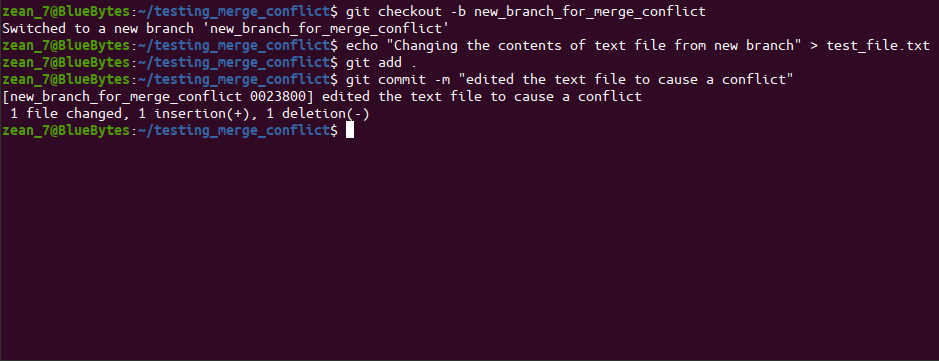
Step 5: Overwrite some conflicting changes to the text file from this new branch.
Step 6: Add the changes to git and commit it from the new branch.
👁 ImageOn the new_branch_for_merge_conflict branch, a commit is created that modifies and overrides the contents of test_file.txt.
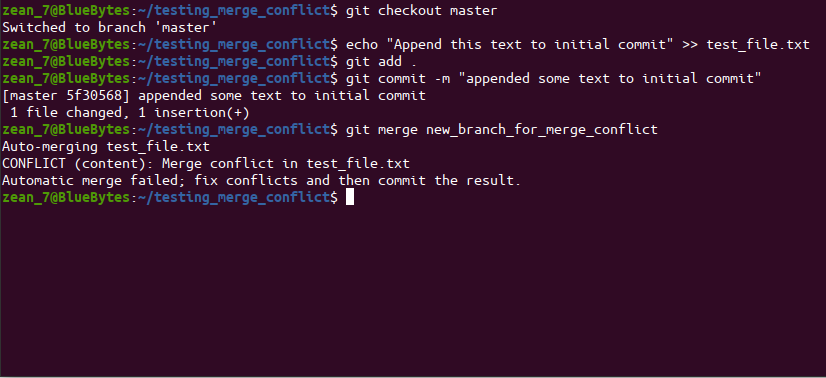
Step 7: Switch back to the master branch and append additional content to test_file.txt from the master branch.
Step 8: Add these new changes to the staging area and commit them.
Step 9: Finally, merge the new branch into the master branch and this operation will result in a merge conflict of the second type.
👁 ImageAfter the merge attempt, Git emits diagnostic output indicating that a conflict has occurred. To obtain detailed information about the conflict and the affected files, the git status command can be executed, which produces the following output:
On branch master
You have unmerged paths.
 (fix conflicts and run "git commit")
 (use "git merge --abort" to abort the merge)

Unmerged paths:
 (use "git add <file>..." to mark resolution)
 both modified: test_file.txt

no changes added to commit (use "git add" and/or "git commit -a")
On opening the test_file.txt we see some "conflict dividers". This is the content of our test_file.txt :
<<<<<<< HEAD
Adding some content to mess with it later
Append this text to initial commit
=======
Changing the contents of text file from new branch
>>>>>>> new_branch_for_merge_conflict
Git prompts you to resolve conflicts manually when changes are made to the same part of the code in both branches. Here’s how to resolve conflicts:
Git will display files that have merge conflicts. These files need manual resolution.
Use your preferred editor to open the conflicting files. Look for conflict markers
<<<<<<< HEAD
// Code from the current branch
=======
– Code from the merging branch
>>>>>>> branch-name
Remove the unnecessary changes, keeping the most relevant ones.
Once resolved, add the files to the staging area:
git add <file-name>After resolving conflicts commit the changes by using the below command.Including the message which gives information about changes made while resolving the conflicts.
git commit -m "message"Push the changes made to the remote repository by using. Below command.
git push 👁 ImageGit will not start a merge if there are uncommitted changes in the working directory or staging area, since they may be overwritten by the merge, and an error is displayed.
error: Entry '<fileName>' not uptodate. Cannot merge. (Changes in working directory)
or,
error: Entry '<fileName>' would be overwritten by merge. Cannot merge. (Changes in staging area)
During a merge, this conflict occurs when committed changes from different branches modify the same parts of a file. Git attempts an automatic merge, but when it fails, it marks the conflicting files and requires manual resolution.
CONFLICT (content): Merge conflict in <fileName>
Automatic merge failed; fix conflicts and then commit the result.