|
VOOZH | about |
|
VOOZH | about |
git log is a Git command used to view the commit history of a repository, helping developers track changes, analyse progress and understand contributions.
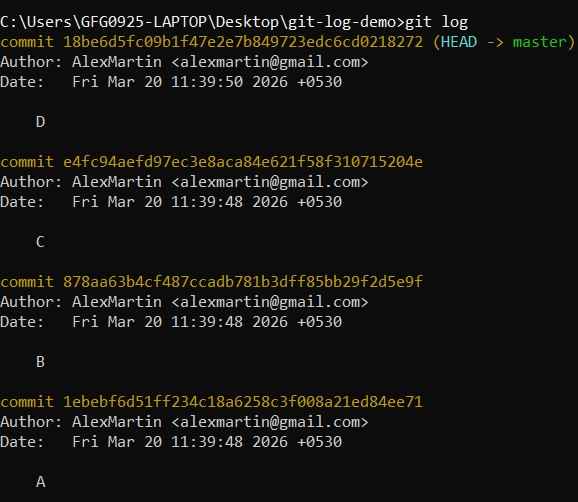
Syntax:
git logRunning this command shows a detailed list of all commits in your repository.
Each entry represents one commit.
Git Log has many options to customize how you view the commit history. Here are some of the most commonly used ones:
Shows each commit in a single line (commit hash and message only).
git log --onelineDisplays a visual branch structure along with commits.
git log --oneline --graphHelps to understand how different branches have diverged and merged.
View only commits made by a particular developer.
git log --author="Alice"Useful for reviewing contributions by a specific team member.
View commits within a certain date range.
git log --after="2025-09-01" --before="2025-10-01"Helps track progress during specific development periods.
Find commits with specific keywords in their message.
git log --grep="bug fix"Useful for locating when a specific feature or fix was introduced.
Show the list of modified files in each commit.
git log --statDisplays file-level changes and total insertions/deletions.
To view the full diff (code changes) in each commit:
git log -pUseful for debugging and code reviews.
You can add colors to your Git logs to make them more readable and visually organized.
Displays commits with colors, along with graph and branch details.
git log --oneline --graph --decorate --colorConfigure Git to automatically use colors in output.
git config --global color.ui autoGit uses different colors to distinguish elements:
Use color with other log options for a structured view.
git log --oneline --graph --decorate --color --allGit provides multiple ways to search through commit history, making it easier to locate specific changes based on messages, authors, dates, or files.
1. Search by Commit Message
Find commits containing specific keywords in their messages.
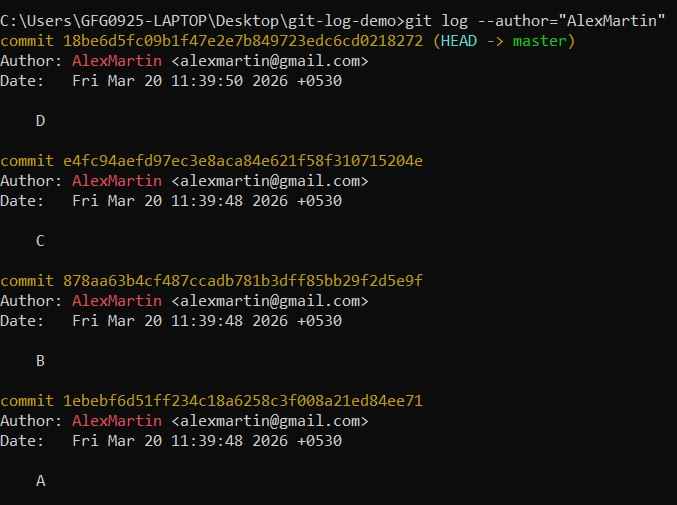
git log --grep="fix bug"2. Search by Author
View commits made by a specific contributor.
git log --author="Alex"👁 Screenshot-2026-03-20-135921Helps analyze individual contributions.
3. Search by Commit Hash
Find a commit using full or partial hash.
git log a1b2c3Displays matching commit details.
4. git grep
Search for a string inside files tracked by Git.
git grep "search-text"1. Search by Date
Filter commits within a specific time range.
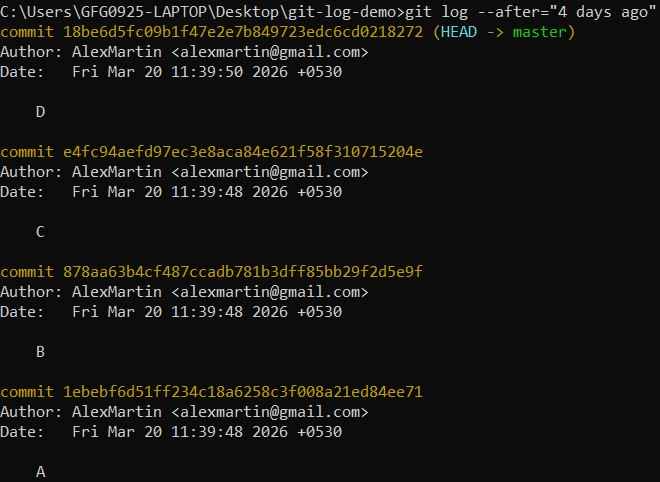
git log --after="2025-09-01" --before="2025-10-01"2. Search by Relative Time
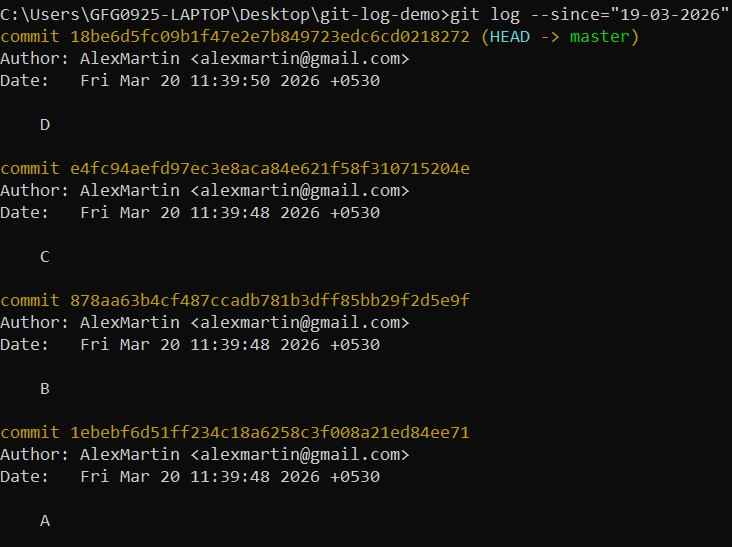
git log --after="4 days ago"3. Search By Specific Date
git log --since="19-03-2026"1. Search by File Changes
View commits that modified a specific file.
git log -- <file-path>Helps track history of a file.
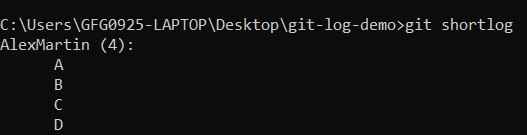
2. git shortlog
Displays commits grouped by author.
git shortlogParameter | Details |
|---|---|
| -s or --summary | It displays the number of commits and the committer's name |
| -e or --email | It displays the committer's name, number of commits, commit messages along with the mail id |
| -n or --numbered | It sorts the output by the number of commits instead of alphabetically by committer's name |
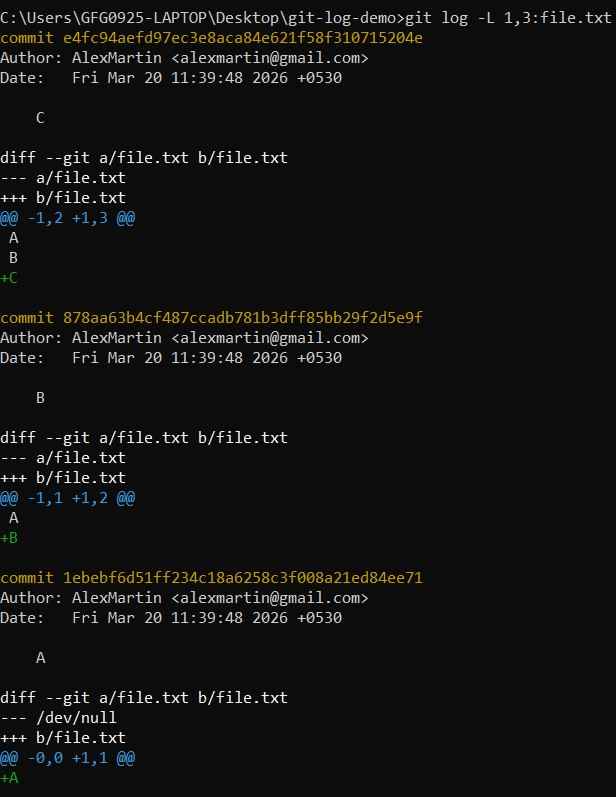
3. Line Range Tracking in a File
View changes within a specific line range.
git log -L <start>,<end>:<file-name>Tracks history of specific lines and useful for debugging.
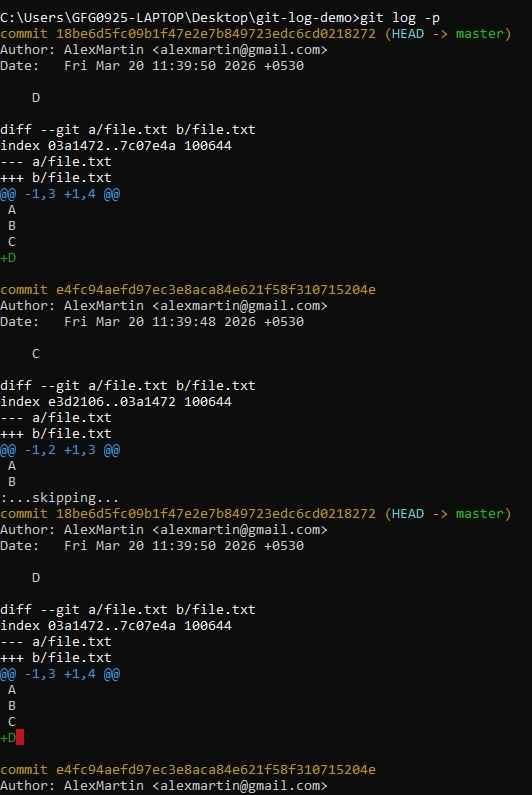
4. View Changes Inline (Diff)
Show actual code changes in commits.
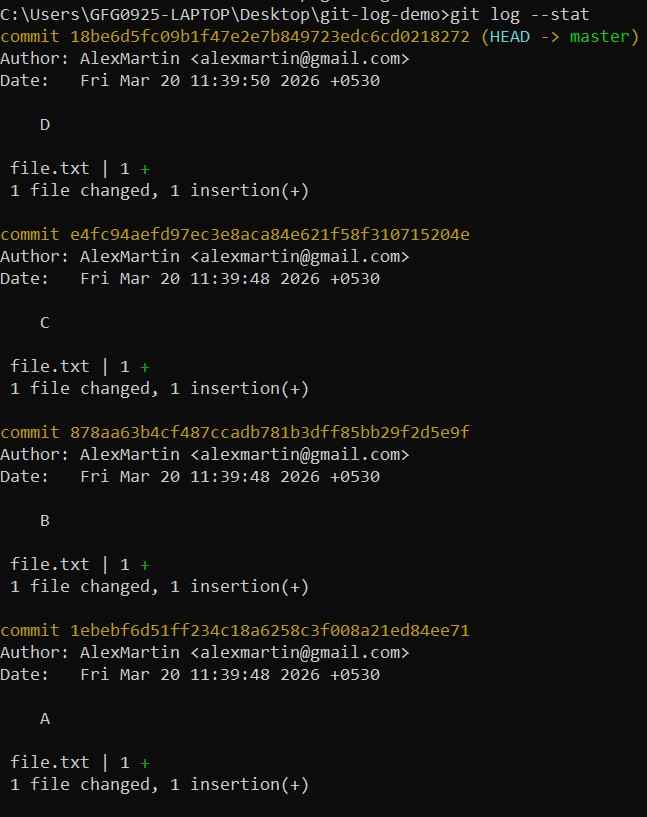
git log -p5. View Files Changed in Commits
Show file-level changes with statistics.
git log --statDisplay insertion and deletions.
6. Contents of a Commit
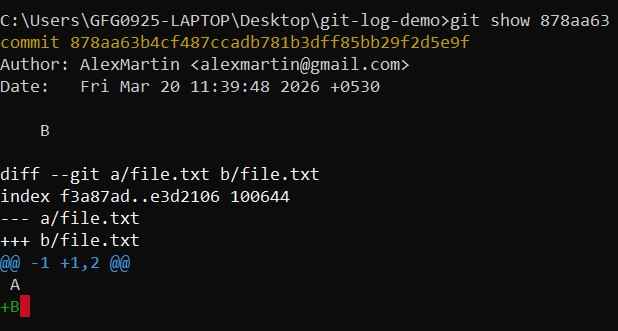
Show detailed information of a specific commit.
git show <commit-id>Display commit message and code changes.
7. View Committer Info in One Line
Display compact log with committer details.
git log --oneline --pretty=format:"%h %an %ar %s"