 |
VOOZH | about |
|
VOOZH | about |
Git Bash is a Unix-like command-line interface for Microsoft Windows that lets developers run Git commands and manage repositories from a terminal, bringing Linux-style workflows to Windows.
Git Bash is used to run Git commands and Unix-style CLI tools on Windows to manage repositories and automate development tasks.
Git GUI tools provide a visual interface to perform common version control tasks, making Git easier to use than the command line for many users.
The .exe file installer for Git Bash can be downloaded from "https://gitforwindows.org/" Once downloaded execute that installer, following window will occur.
Select the components that you need to install and click on the Next button.
Select the path where you want to install git as shown in the image below.
Let the installation process finish to begin using Git Bash. To open Git Bash navigate to the folder where you have installed the git otherwise just simply search in your OS for git bash.
Here are some fundamental Git Bash commands to get you started:
Navigating Directories:
Managing Files and Directories:
Using Git Commands:
Git Bash allows you to interact with the Git version control system in a command-line environment on Windows.
Open Git Bash and begin creating a username and email for working on Git Bash.
Set your username:
git config --global user.name "FIRST_NAME LAST_NAME"Set your email address:
git config --global user.email "MY_NAME@example.com"cd command refers to the command line change directory and is used to get into the desired directory. To navigate between the folders the cd command is used
cd folder_namels command is used to list all the files and folders in the current directory.
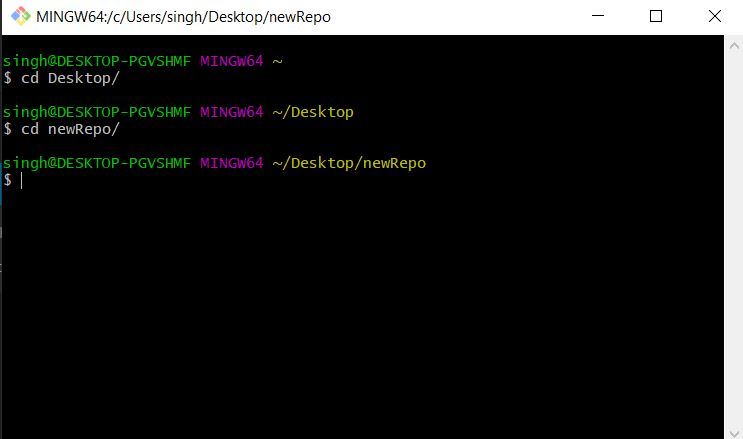
lsOpen Git Bash and change the current working directory to your local project by use of the cd command.
Initialize the local directory as a Git repository.
git init Stage the files for the first commit by adding them to the local repository
git add .By "git status" you can see the staged files after that Commit the files that you've staged in your local repository.
git commit -m "First commit"Now After the "git status" command, it can be seen that nothing to commit is left, Hence all files have been committed.
Follow the steps given below to initialize your Local Repository with Git. Open GitHub through the internet and click on create new repository Give a suitable name for your repository and create the repository.
Note: Initializing your GitHub repo with a README is optional, but if you do, the README won’t exist in your local repo unless you pull it first.
The following will appear after creating the repository
Go to the GitHub repository and in the code, section copy the URL and In the Command prompt, add the URL for your repository where your local repository will be pushed.
git remote add origin repository_URLPush the changes in your local repository to GitHub.
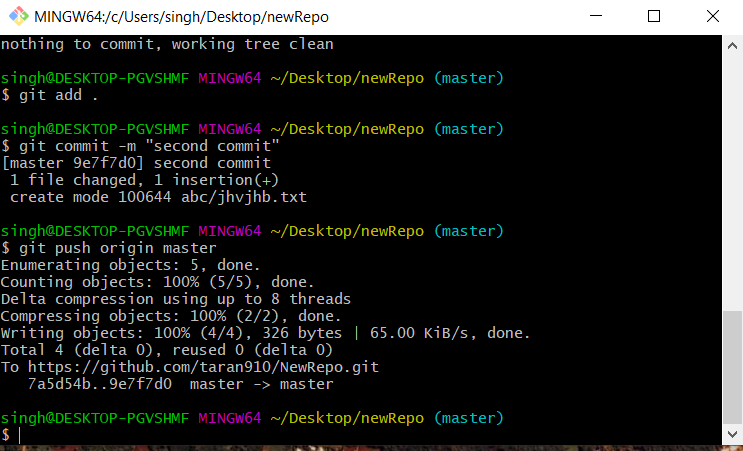
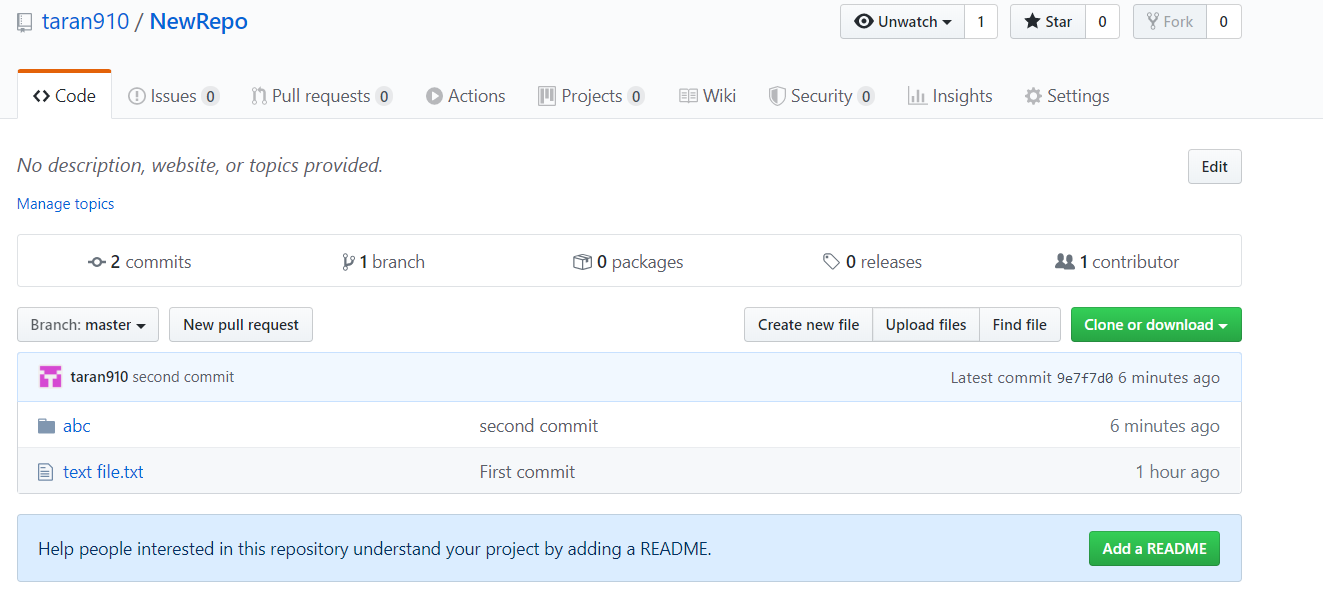
git push origin masterHere the files have been pushed to the master branch of your repository. Now in the GitHub repository, the pushed files can be seen.
Suppose the files are being changed and new files are added to the local repository. To save the changes in the git repository:
Download all the other changes from the remote repository to the local repository.
git pull Changes have to be staged for the commit.
git add .or
git add file_nameNow commit the staged files.
git commit -m "commit_name"Push the changes.
git push origin masterNew changes can be seen:
In a team workflow, each member works on a separate branch, and validated changes are merged into the main (master) branch. This branch-based workflow enables version control, parallel development, and easier source code maintenance.
git branchgit branch branch_namegit branch -d branch_namegit branch -D branch_namegit checkout -b new_branch_namegit checkout branch_nameAfter checkout to the branch, you can see a * on the current branch Now the same commit add and commit actions can be performed on this branch also.
First, reach the target branch
git checkout branch_nameMerge the branch to target branch
git merge new_branchCloning is used to get a copy of the existing git repository. When you run the git clone command it makes the zip folder saved in your default location
git clone urlThis command saves the directory as the default directory name of the git repository To save the directory name as your custom name an additional argument is to be passed for your custom name of the directory
git clone url custom_nameWhen there is a situation when you forget to add some files to commit and want to undo any commit, it can be committed again using --amend
Syntax:
git commit --amend

.webp)
.webp)
.webp)
.webp)
.webp)
-(1).webp)
.webp)