|
VOOZH | about |
|
VOOZH | about |
Git, a powerful version control system, offers various methods to manage branches and integrate changes. Rebasing is one such technique used to incorporate changes from one branch onto another, creating a linear history. This article will walk you through the process of rebasing a local branch onto a remote master in Git.
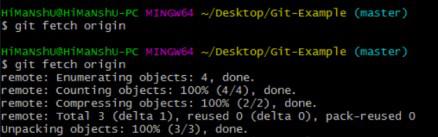
Before rebasing, it's essential to ensure that your local repository is up-to-date with the latest changes from the remote repository. Use the following command to fetch the latest changes:
git fetch originThis command fetches the changes from the remote repository named "origin" and updates your local references.
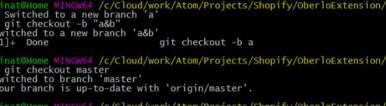
Switch to the local branch that you want to rebase onto the remote master. You can do this using the following command, replacing <branch-name> with the name of your local branch.
git checkout <branch-name>Once you're on the local branch, rebase it onto the remote master branch. Use the following command
git rebase origin/masterThis command instructs Git to rebase the current branch onto the origin/master branch, applying the commits from the remote master on top of your local branch. Git will attempt to apply each commit from your branch onto the tip of the remote master, one by one.
During the rebase process, Git may encounter conflicts if the changes made on your branch conflict with changes on the remote master branch. If conflicts occur, Git will pause the rebase process and prompt you to resolve these conflicts manually.
Open the files with conflicts, resolve the conflicts, and then stage the changes using git add <file> for each resolved file.
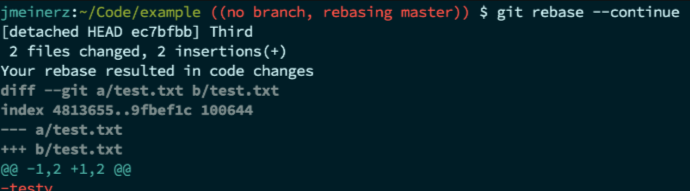
After resolving all conflicts, continue the rebase process by executing the following command:
git rebase --continueGit will apply the remaining commits and complete the rebase. If you encounter any issues during this process, you can abort the rebase using git rebase --abort and try again.
Once the rebase is complete, you may want to push the rebased branch to the remote repository to share your changes with others. Use the following command to push the rebased branch:
git push origin <branch-name> --forceBe cautious when using the --force flag, as it overwrites the remote branch's history with your rebased branch's history. Make sure you communicate with your team if you're rewriting shared history.
Rebasing a local branch onto a remote master in Git allows you to integrate the latest changes from the master branch into your feature branch, creating a linear history. By following the steps outlined in this guide, you can efficiently rebase your branches and collaborate effectively in a Git-based workflow.