VOOZH about

URL: https://www.geeksforgeeks.org/git/git-a-lock-file-already-exists-in-the-repository-which-blocks-this-operation-from-completing/

⇱ Resolve Git Lock File Conflict - GeeksforGeeks


  • Courses
  • Tutorials
  • Interview Prep

Resolve Git Lock File Conflict

Last Updated : 9 May, 2026

Git lock file conflicts occur when a lock file remains in the repository, blocking operations to prevent simultaneous changes.

  • Lock files prevent multiple Git processes from modifying the repository simultaneously.
  • Errors occur when a previous Git process is interrupted or not completed.
  • Removing the lock file safely allows operations to proceed.

Causes of Git Lock File Error

Occurs when a Git process is interrupted or multiple operations conflict, leaving a lock file behind.

  • Interrupted Operations: Stopped Git processes (pull, merge, rebase) may leave lock files.
  • Simultaneous Operations: Running multiple Git commands together can cause lock file conflicts.
  • System Crashes: Unexpected shutdowns during Git operations can leave lock files in place.

Steps to Reproduce and Fix the Error

This error occurs when a lock file blocks Git operations, and can be resolved by removing the lock file from the repository.

Reproducing the Error

Interrupt a Git operation (like git commit or git pull) midway and then immediately run another Git command, causing the existing index.lock file to block the operation.

  • Add or open a local repository.
  • Create a new repository in the project folder.
  • Attempt to commit changes.
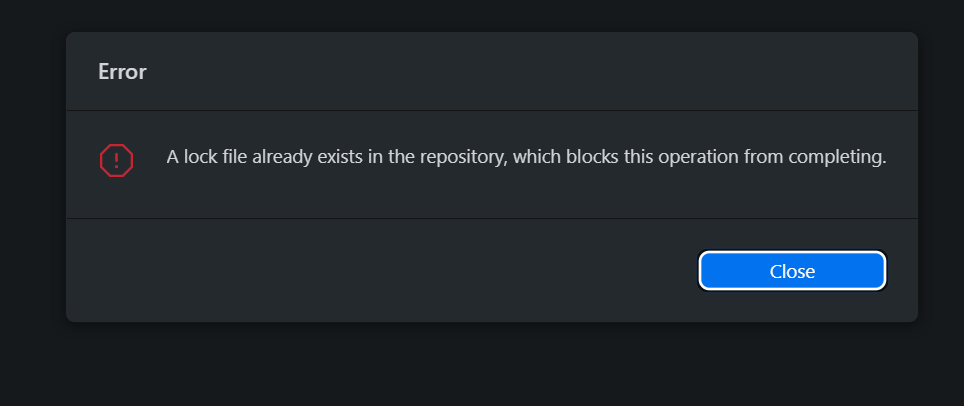
  • Error appears: A lock file already exists in the repository

Expected: Commit should complete successfully.

Actual: Commit fails due to existing lock file.

👁 A lock file already exists in the repository, which blocks this operation from completing.
A Lock File Already Exists error

Steps to Fix the Error

Follow a step-by-step process to remove the lock file and resume Git operations normally.

Step 1: Open the folder in your system.

👁 Open the folder in your system
A Lock File Already Exists- open Folder

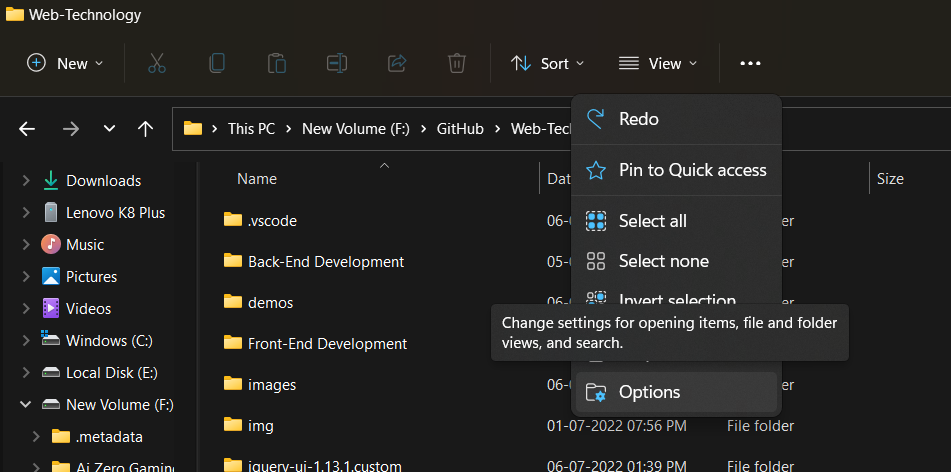
Step 2: Click on { 3. (…) after options }.

👁 Select Options
A Lock File Already Exists In The Repository, Which Blocks This Operation From Completing

Step 3: Click view

👁 Click view
A Lock File Already Exists In The Repository, Which Blocks This Operation From Completing

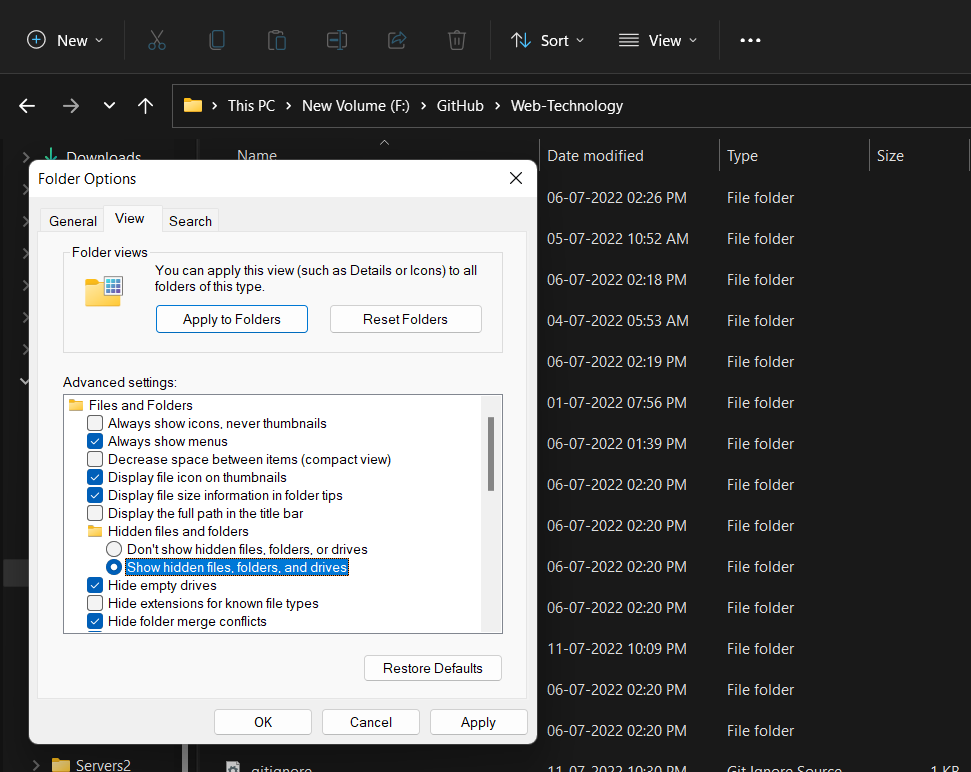
Step 4: Hidden file and folder > Show hidden file and folder ( click on ) and click on ok.

👁 Show hidden file and folder
A Lock File Already Exists In The Repository, Which Blocks This Operation From Completing

Step 5: Locate and delete the index.lock file

👁 delete the inde x.lock.
A Lock File Already Exists In The Repository, Which Blocks This Operation From Completing

Step 6: Reopen GitHub Desktop or Git tool

👁 open GitHub Desktop
A Lock File Already Exists In The Repository, Which Blocks This Operation From Completing

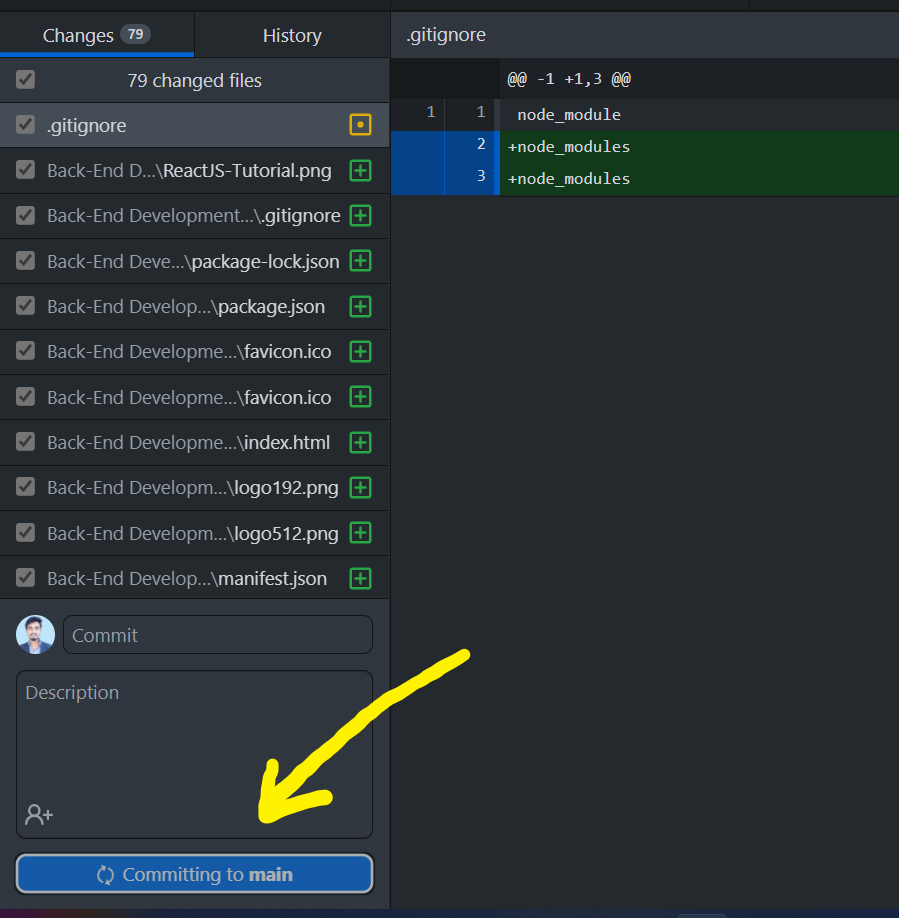
Step 7: Retry committing changes

👁 Click on the commit
A Lock File Already Exists In The Repository, Which Blocks This Operation From Completing
  • Lock file is removed.
  • Git operations resume normally.
  • Commit is completed successfully without errors.
Comment
Article Tags:
Article Tags:

Explore