|
VOOZH | about |
|
VOOZH | about |
Git move is used to relocate files or directories within a repository while preserving their history.
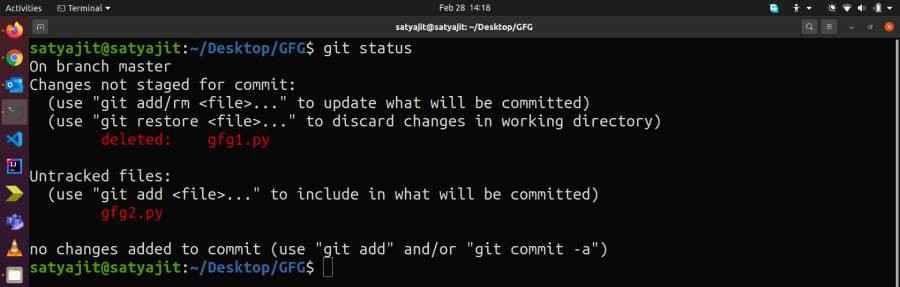
When a file is renamed manually, Git treats it as a deletion and a new file addition instead of a rename, which can affect proper tracking of file history.
git mv provides options to control and customize file move or rename operations.
To rename a file within a Git repository, use the git mv command, which updates the file name while preserving its version history.
git mv oldfilename newfilenameLet’s take the earlier example. This time, we rename the file using the git mv command:
git mv gfg1.py gfg2.py Now, Git recognizes this as a rename operation instead of a delete and add. This will be reflected in the output of the git status command, where the file is shown as renamed.
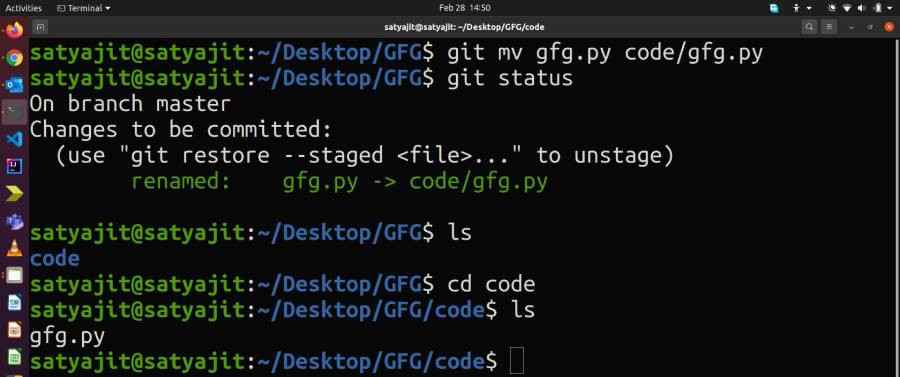
Files can be moved within a Git repository using the git mv command, which updates the file location while preserving its history.
git mv filename dir/filenameExample:
git mv gfg.py code/gfg.pyConsider moving gfg.py to code/gfg.py using git mv, which updates the file location while preserving its history and is reflected in git status.
When moving files, you might encounter conflicts, especially if other team members are working on the same files. Here are some tips to handle conflicts: