|
VOOZH | about |
|
VOOZH | about |
GitLab is a popular Git repository hosting service with built-in tools for Continuous Integration/Continuous Deployment (CI/CD), issue tracking, and more. Branching is a fundamental aspect of Git workflow, allowing developers to isolate features, bugs, or experiments from the main codebase. This guide will walk you through creating and committing changes to a branch in GitLab.
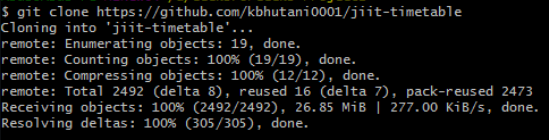
To work with a GitLab repository locally, you first need to clone it onto your machine.
git clone <repository_url>For example:
git clone https://gitlab.com/users/sign_inThis will create a local copy of the repository in your working directory.
Once you have the repository cloned, navigate to the repository’s folder and create a new branch using the git checkout command:
git checkout -b <new-branch-name>For example, to create a branch called feature/add-login:
git checkout -b feature/add-loginThis command creates a new branch named feature/add-login and switches you to that branch.
Now that you're on the new branch, make the necessary changes to your files. You can edit, add, or delete files in the repository.
For example, let’s say you edited a file called index.js to add some new functionality.
Once you've made changes, you need to stage the changes before committing them. Staging tells Git which files you want to include in your next commit.
To stage changes:
git add <file-name>For example, to stage the index.js file:
git add index.jsIf you want to stage all changed files, use:
git add .After staging the changes, commit them with a descriptive message:
git commit -m "Added login feature"After committing your changes locally, you need to push the new branch to the remote GitLab repository. You can do this using the git push command:
git push origin <new-branch-name>For example:
git push origin feature/add-loginThis command pushes your local branch feature/add-login to the GitLab repository.
In GitLab, after pushing your branch, it’s common to create a Merge Request (MR) to merge the branch back into the main branch (usually main or master). This allows for code review and CI/CD checks.