|
VOOZH | about |
|
VOOZH | about |
Publishing a static website on GitHub is a great way to share your work with the world. GitHub Pages is a service offered by GitHub that allows you to host your static websites directly from a GitHub repository. In this article, we’ll walk you through the steps to publish your static website on GitHub.
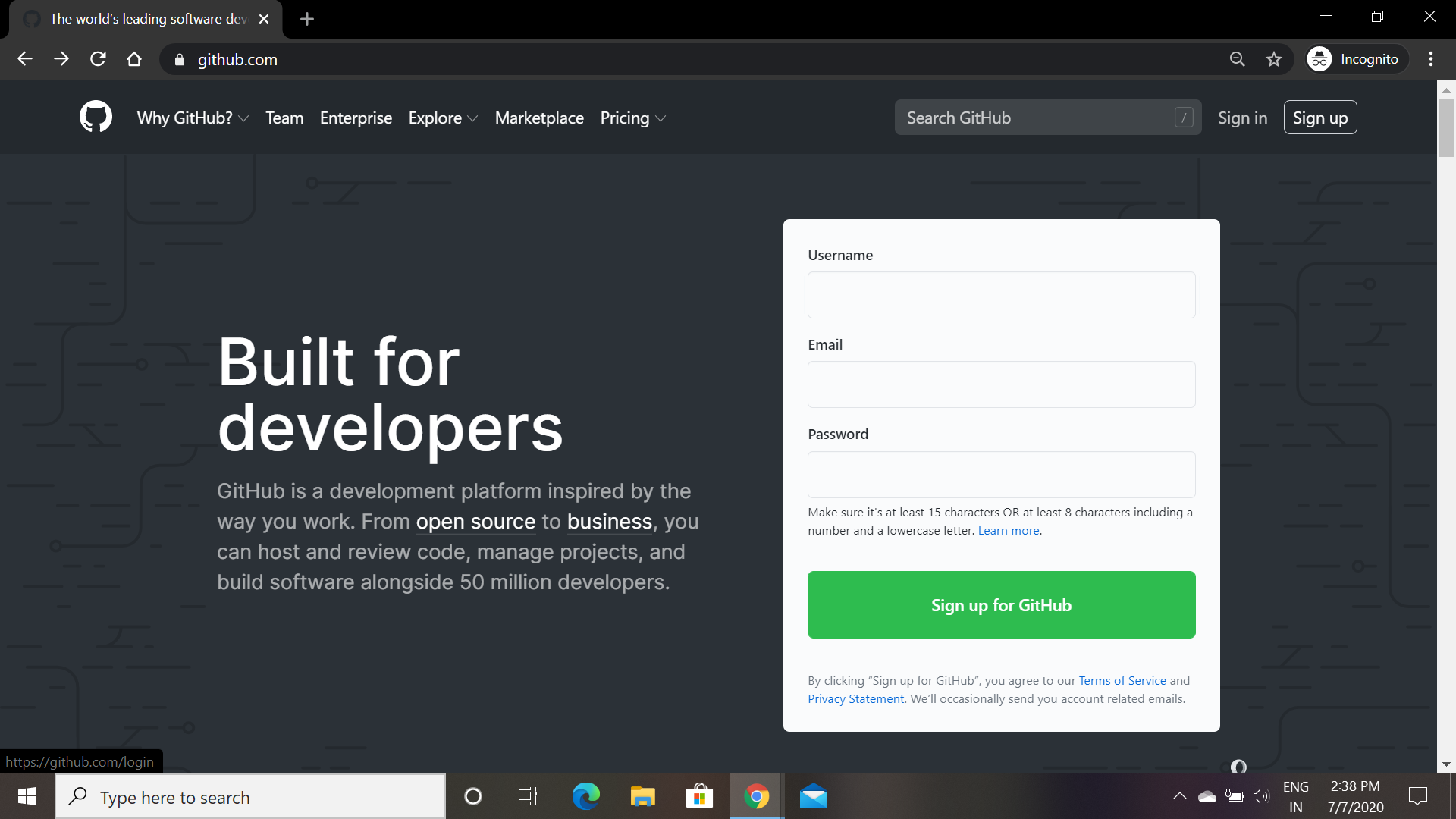
👁 How to Publish a Static Website on GitHubHosting a website enables many web users to access our web pages at the same time. If you want to run a website you need web hosting because unless you've got unlimited funds you would not be able to afford the web servers. GitHub has a lot to offer, it provides free hosting to your static website. To host the website via GitHub you'll require a valid git account, the git software, and all the codes and files of your static website.
👁 Image
Check Out: An Ultimate Guide to Git and Github
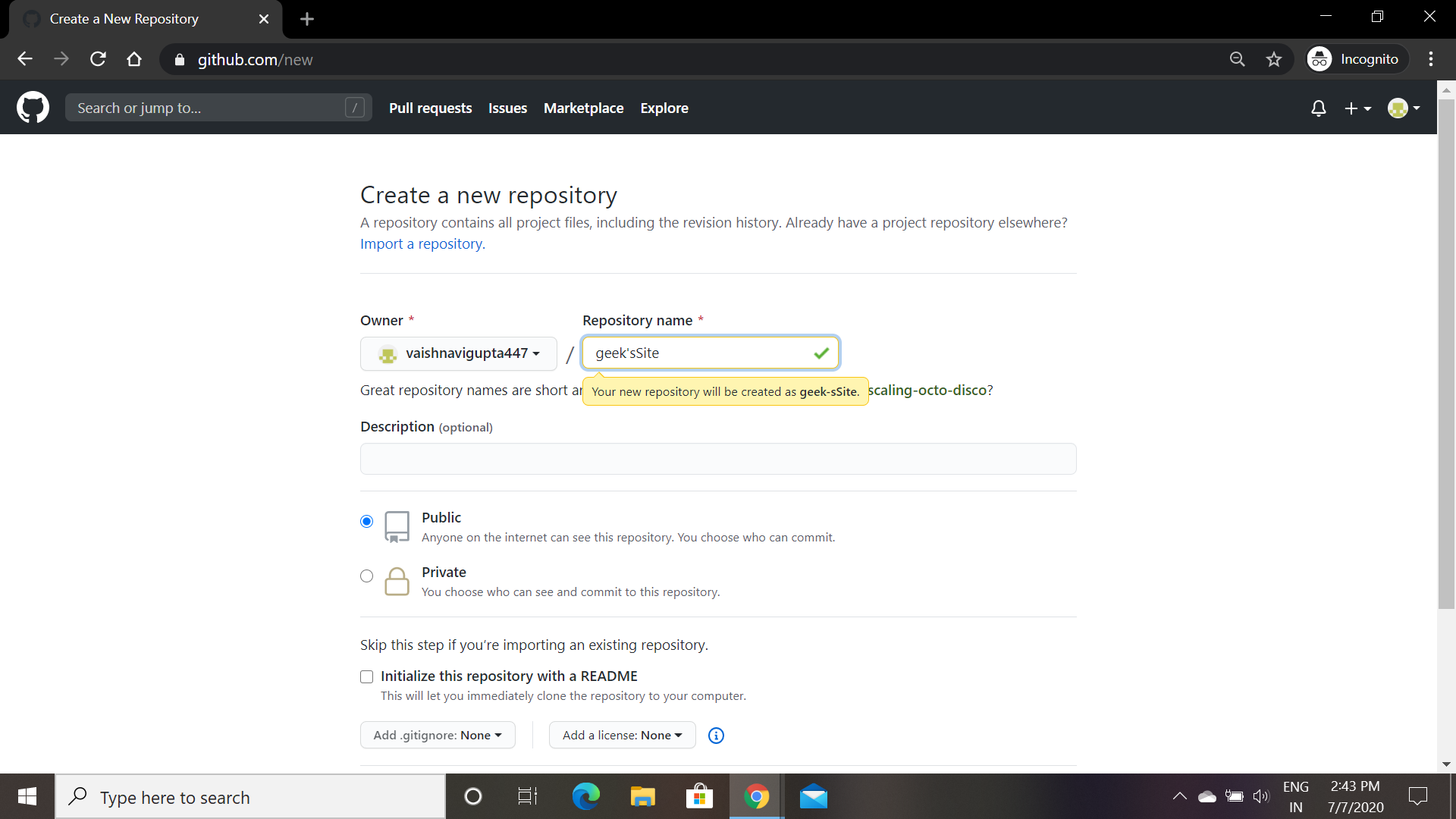
Note : Please keep this Repository name handy we will require Repository Name while adding remote for pushing our code.
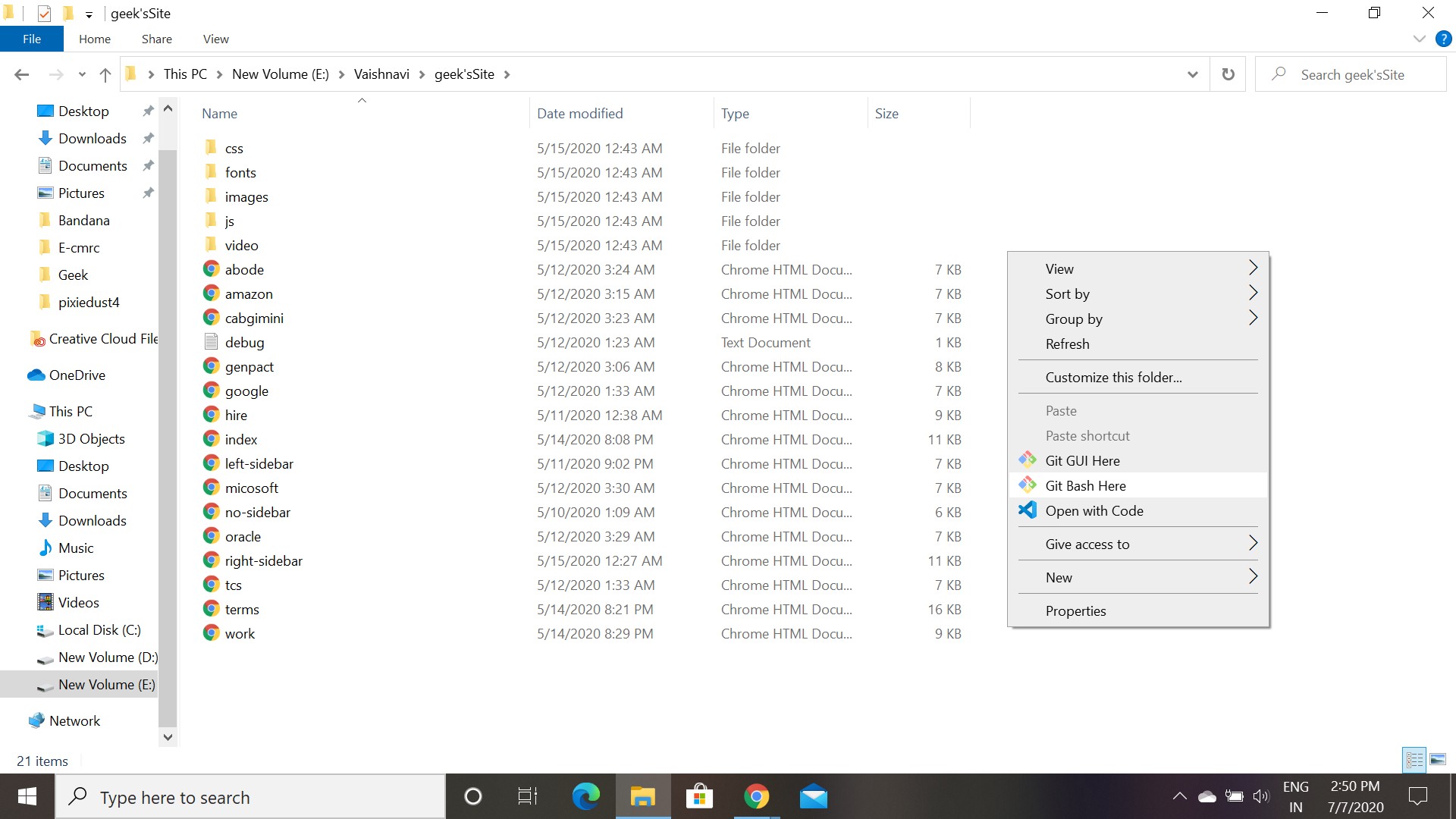
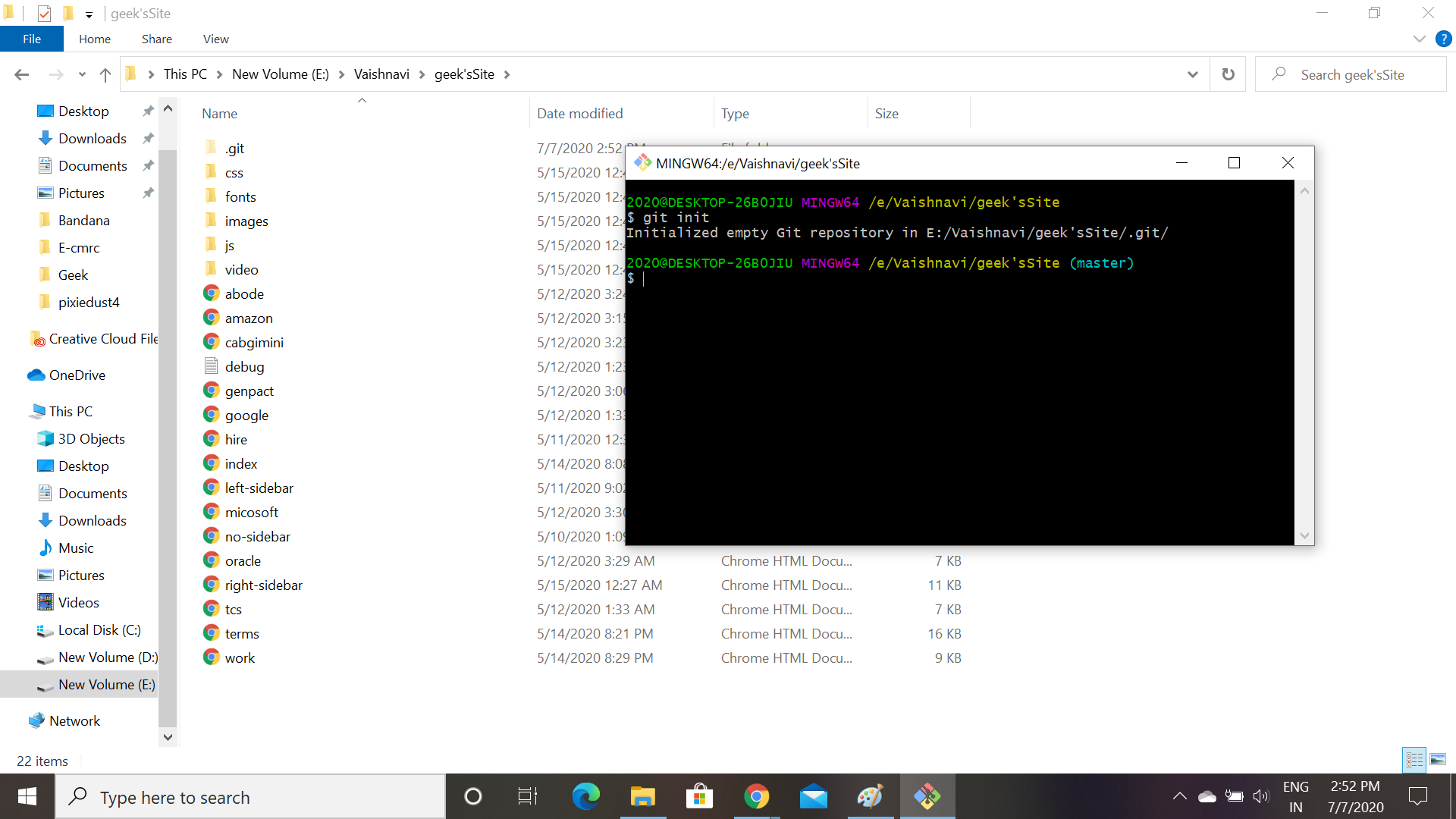
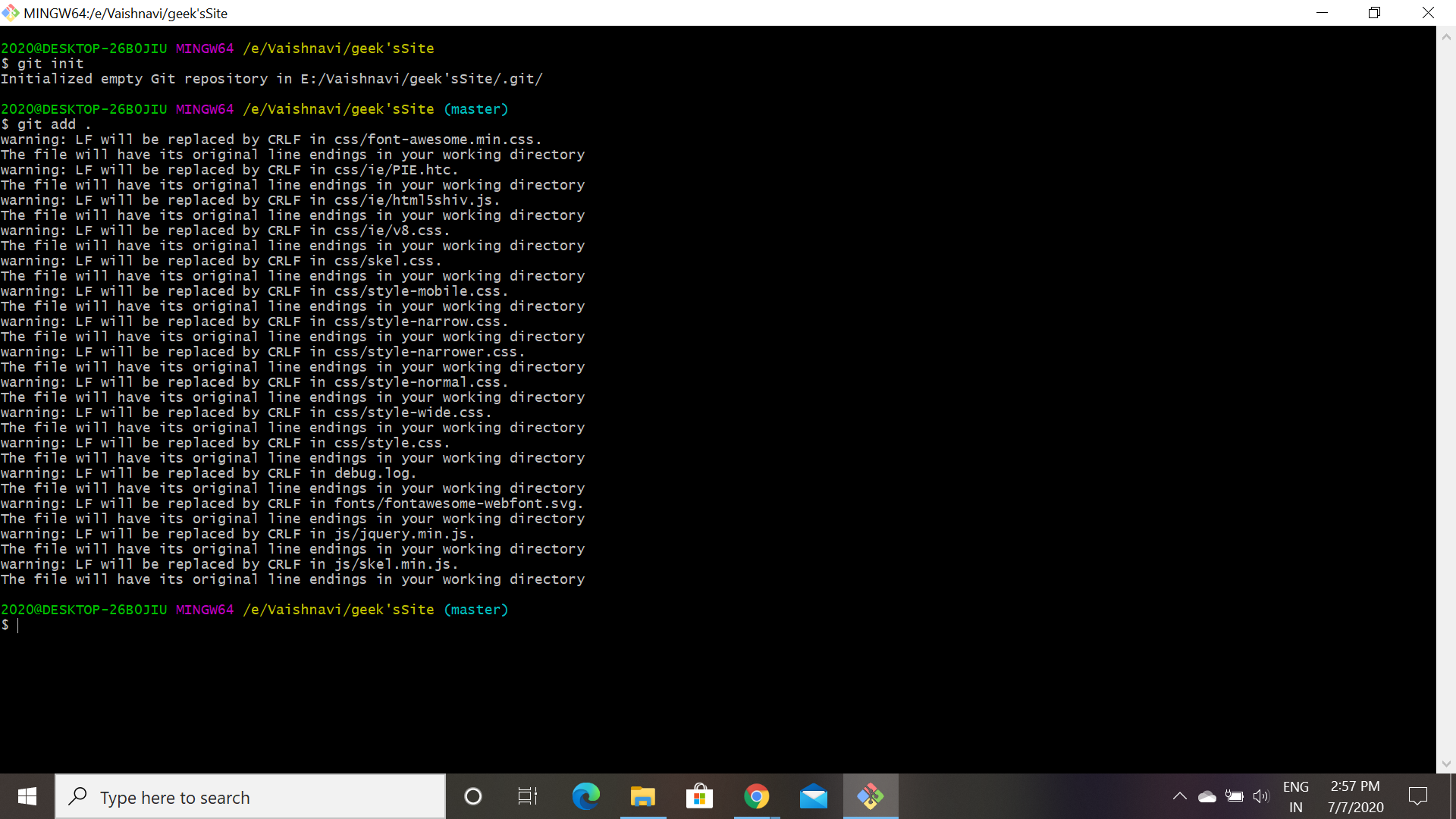
git init and press Enter. This command initializes a newGit repository in your current directory.In the GitBash Window, type git add . and press Enter. The dot (".") tells Git to add all files in the current directory to the repository.
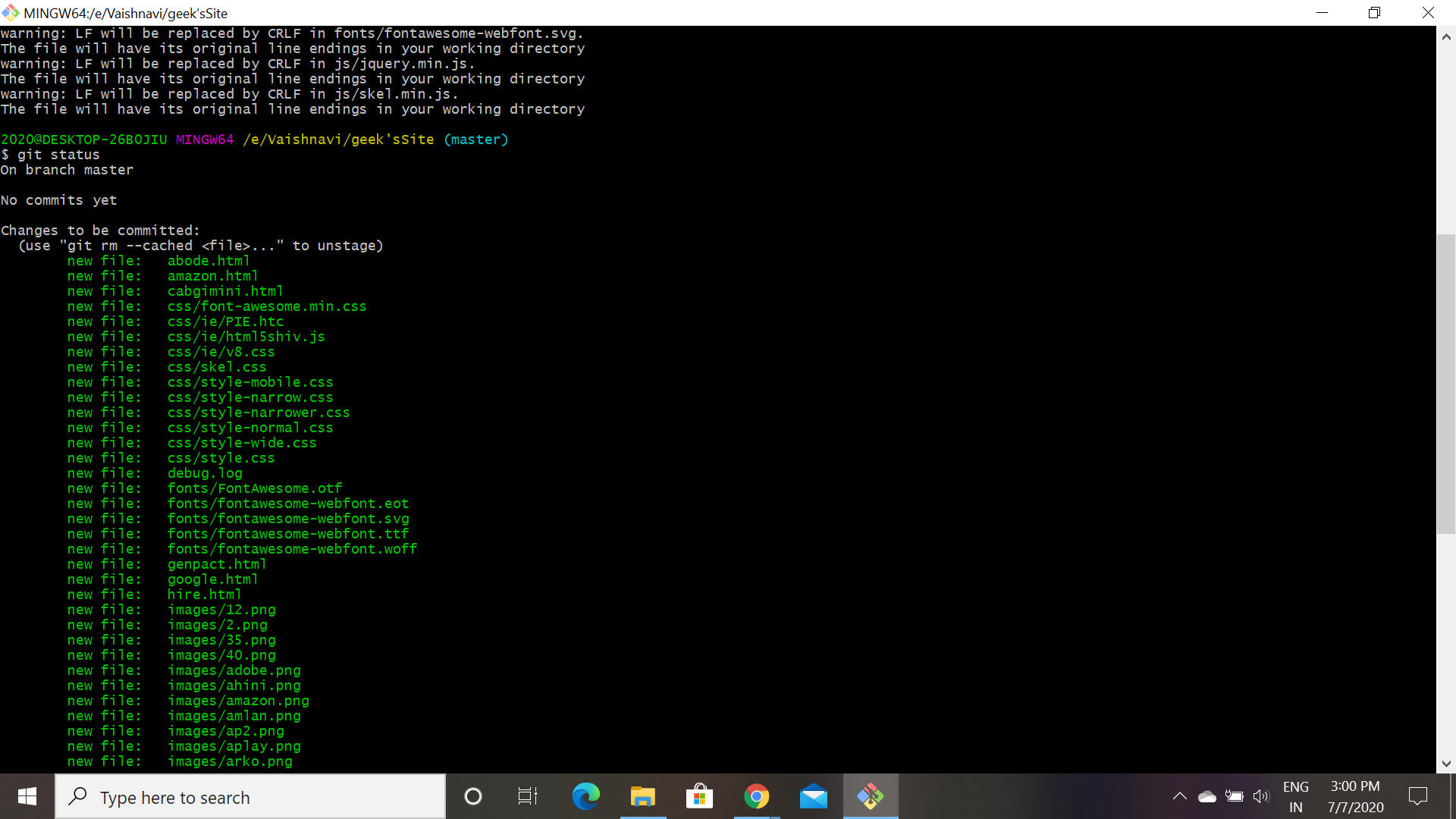
Now check the status of the repository by giving the command "git status", if all the files are in green means the files are successfully stored in the repository.
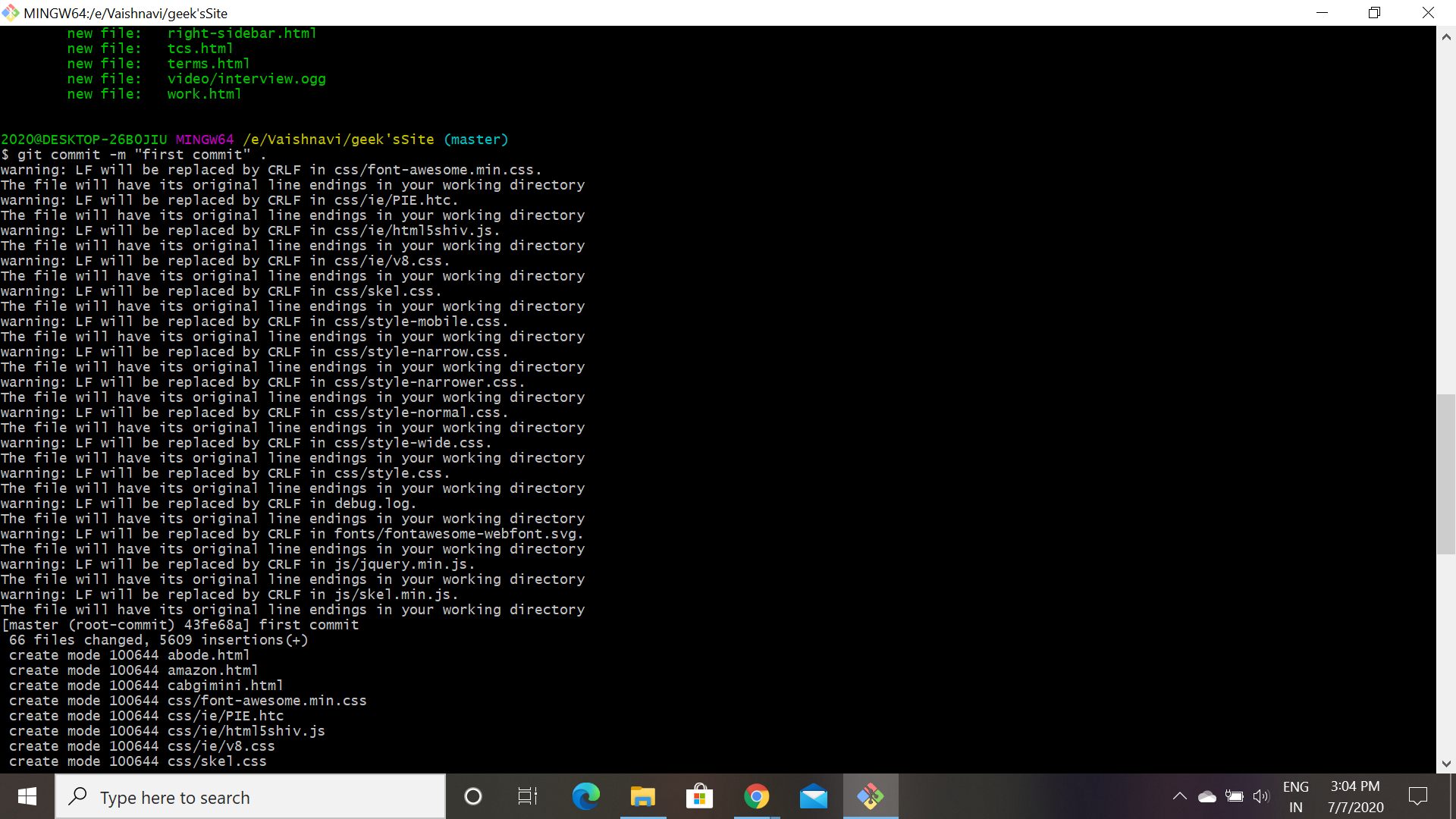
👁 ImageIn the Git bash, type git commit -m "first commit" and press Enter.
Replace "first commit" with a more descriptive message that summarizes the changes you're committing. This message will be helpful for tracking changes later.
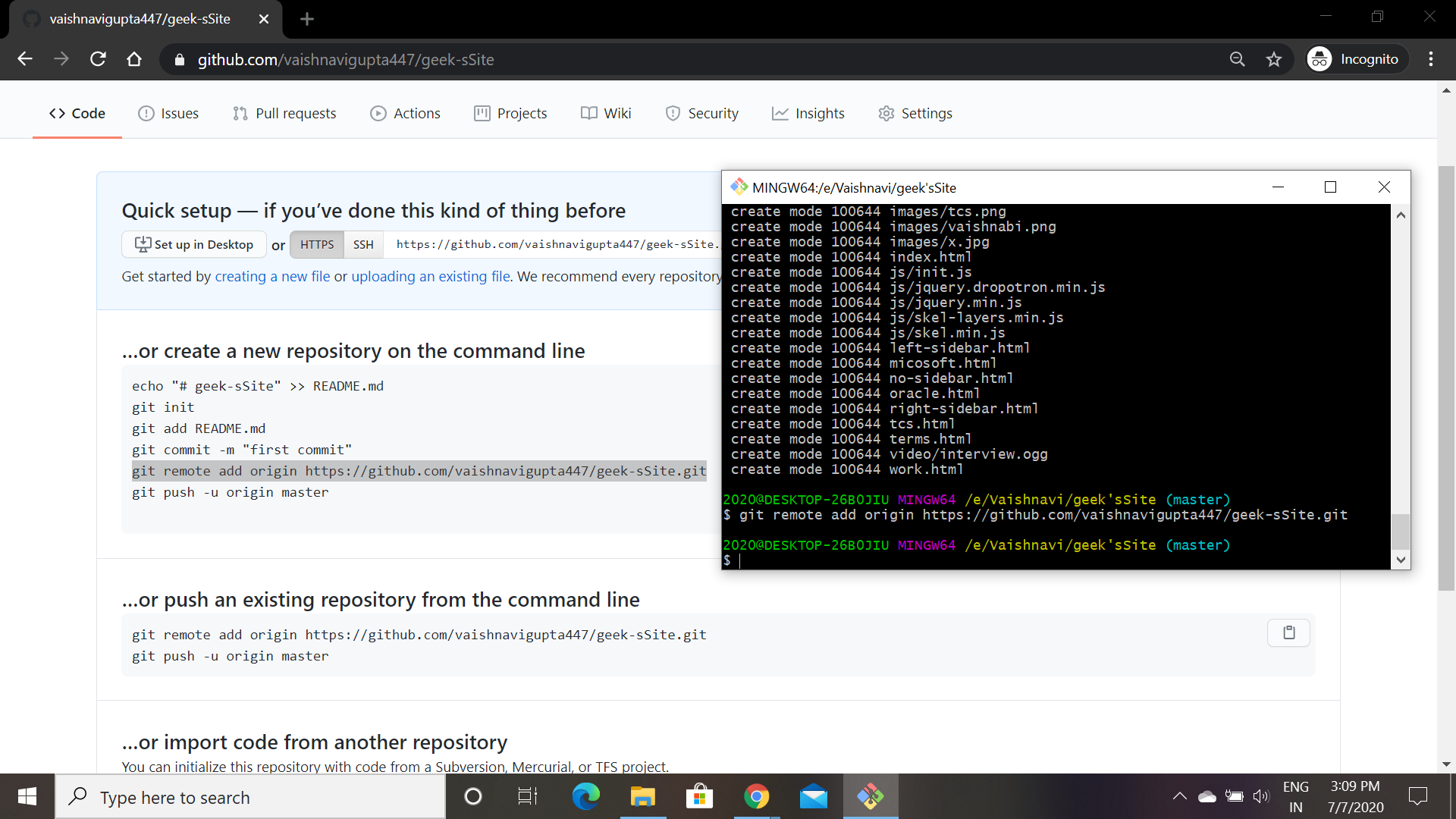
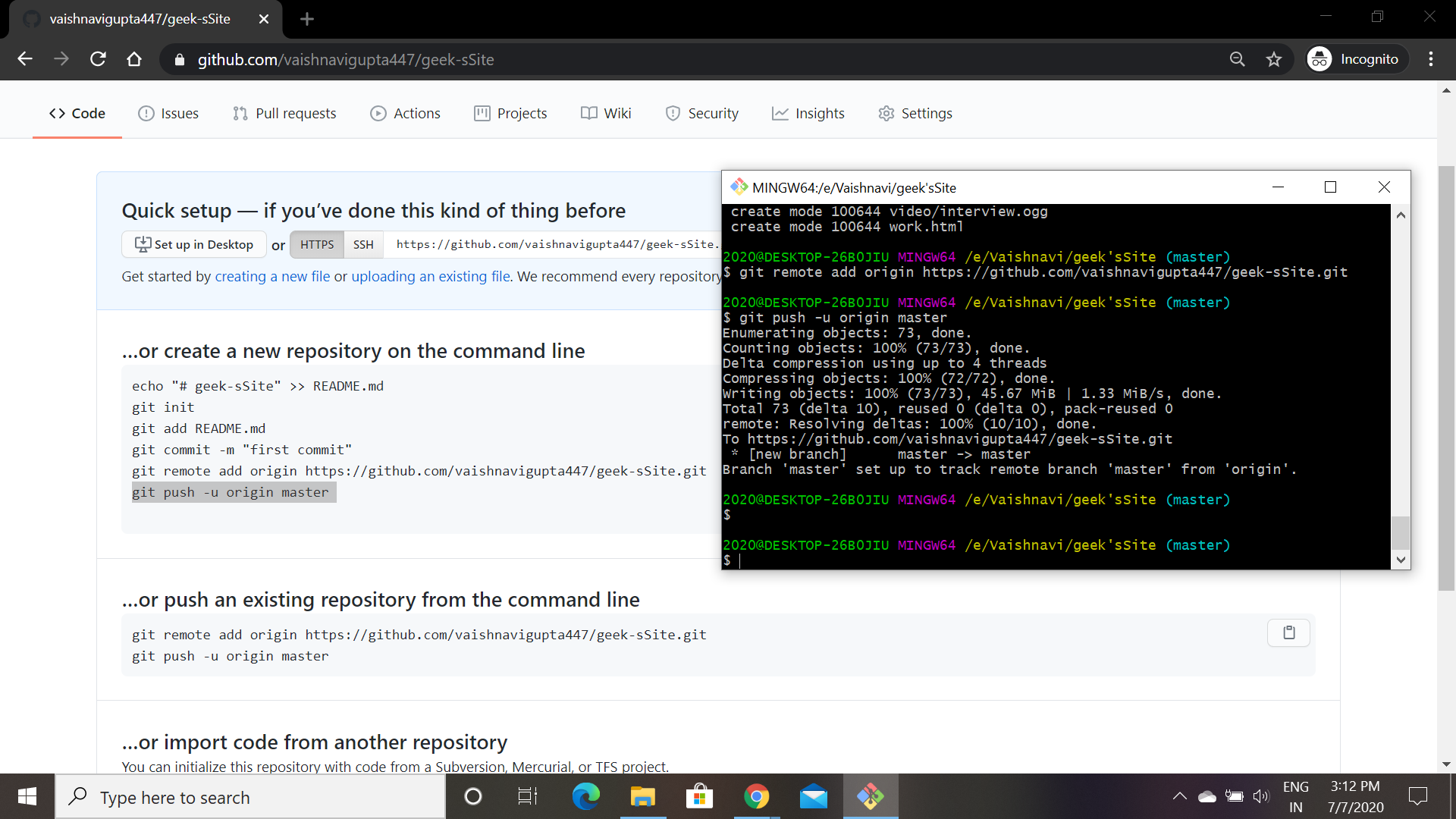
👁 ImageIn the Git bash, type the following command, replacing {yourGithubUserName} with your actual GitHub username and {repoName} with the name of your repository you created in Step 2:
git remote add origin https://github.com/%7ByourGithubUserName%7D/%7BrepoName%7DPress Enter. This command adds a remote repository called "origin" which points to your GitHub repository.
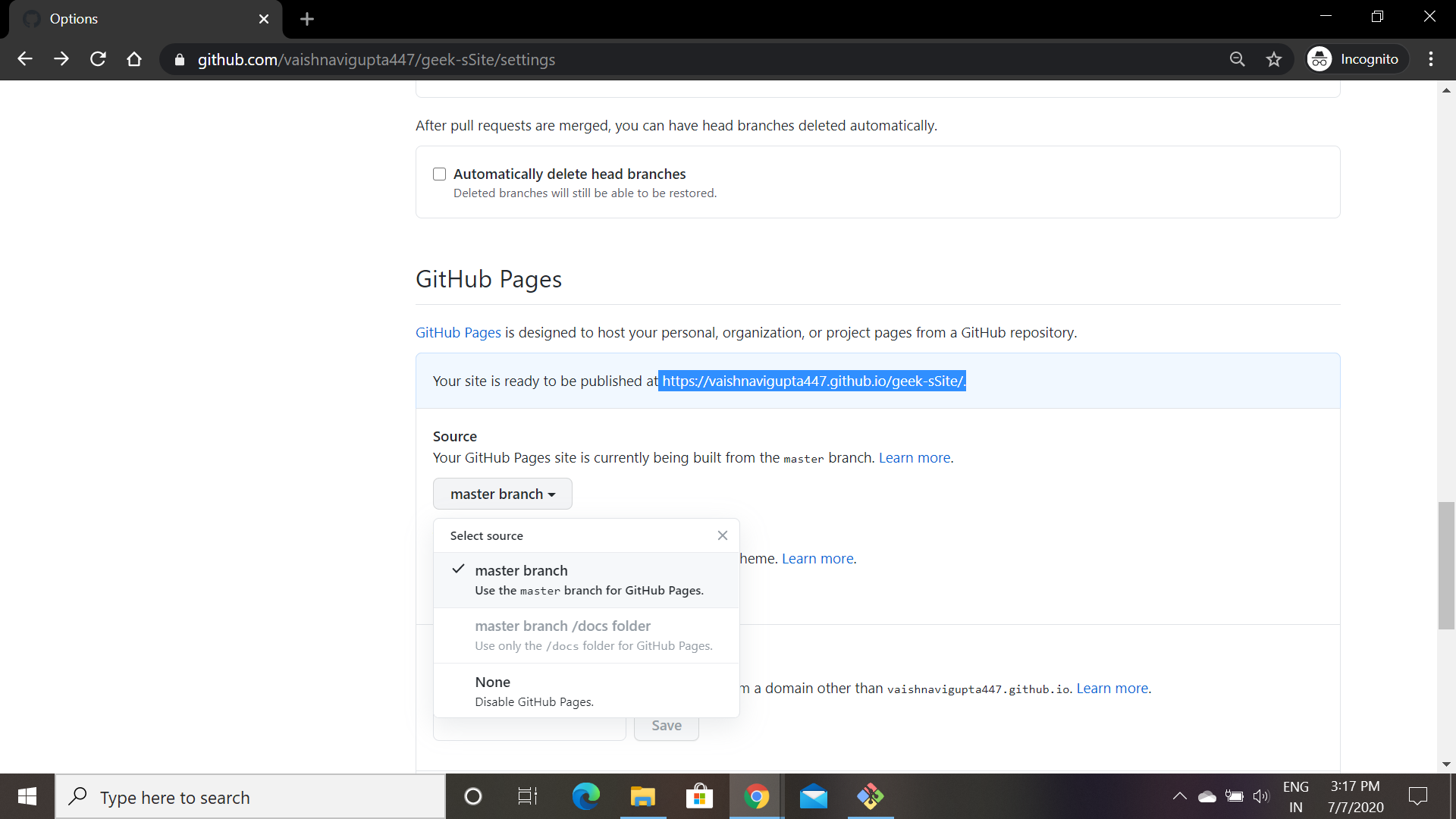
👁 Imagegit push -u origin master and press Enter.Go to the GitHub page, click on your project and you can see all the files are pushed in the repository. Go to the setting and find GitHub Pages, in the source section from the drop-down menu select master branch save the changes. And your Site is successfully published, copy the url and open it in the new tab.
👁 Imagehttps://{yourGithubUserName}.github.io/{repoName}{yourGithubUserName} with your GitHub username and {repoName} with the name of your repository.Must Read:
In conclusion, hosting your static website on GitHub Pages is a fantastic way to get your project online quickly and easily. It's completely free, requires minimal technical knowledge, and offers built-in version control for easy management. By following these steps, you'll have your website up and running in no time, ready to impress the world with your creativity and expertise.
For an extra dose of customization, explore the vast amount of free static site generators available online. These tools can streamline your workflow and empower you to create stunning websites without needing to write tons of code. With GitHub Pages and a static site generator at your fingertips, the possibilities for your online presence are limitless!