|
VOOZH | about |
|
VOOZH | about |
Git is a powerful version control system that allows developers to track changes in their codebase efficiently. It comes with a variety of configuration options that can be set globally (for all repositories) or locally (for a specific repository). Viewing your global Git configuration helps you understand and manage settings that apply across all your Git projects. This article will guide you through the process of displaying your global Git configuration.
Table of Content
Git configuration involves setting preferences that control how Git operates and manages repositories. These settings include user information, text editor preferences, merge and diff tools, and various behaviours for Git commands. Configurations can be set at three levels:
This article focuses on viewing global configurations.
To view your global Git configuration, you can use the git config command with specific flags that tell Git to show configuration settings.
Open the terminal or command prompt on your system. You can use any terminal emulator of your choice, such as Git Bash on Windows, Terminal on macOS, or a terminal emulator on Linux.
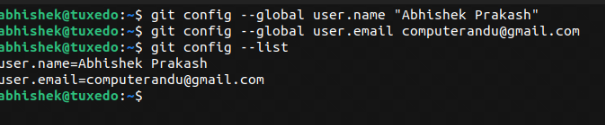
Use the following command to display all global configuration settings
git config --global --listThis command will output a list of all global configuration settings and their values. For example:
If you want to view a specific configuration setting, you can specify the key. For example, to view the global user email configuration, run
git config --global user.emailThis command will output the value of the user.email setting.
Here are some common global configuration settings you might see:
alias.co=checkout).If you need to change any of your global configuration settings, you can use the git config --global command followed by the key and value you want to set. For example, to change your global user name
git config --global user.name "Sagar Agarwal"To change your global user email:
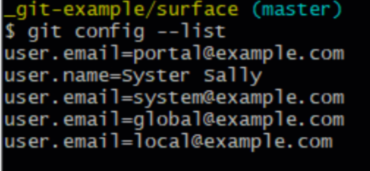
git config --global user.email "sagar@example.com"If you want to see the configuration settings at all levels (system, global, and local), you can use the --list flag without specifying --global
git config --listThis command will display settings from the system, global, and local configuration files. Note that local settings can override global and system settings.
Viewing your global Git configuration is a straightforward process that helps you manage and verify settings applied across all your repositories. By using the git config --global --list command, you can easily see all global configurations. This is useful for ensuring your Git environment is set up correctly and consistently. If needed, you can also modify these settings to better suit your workflow. Understanding and managing your Git configuration is essential for efficient and error-free version control.