|
VOOZH | about |
|
VOOZH | about |
Uploading your project to GitHub allows you to share your work with others, collaborate with team members and keep your code safe and accessible. This article will walk you through the process of uploading a project to GitHub, ensuring that you can efficiently manage your code and contributions.
To upload your project to GitHub, follow these steps:
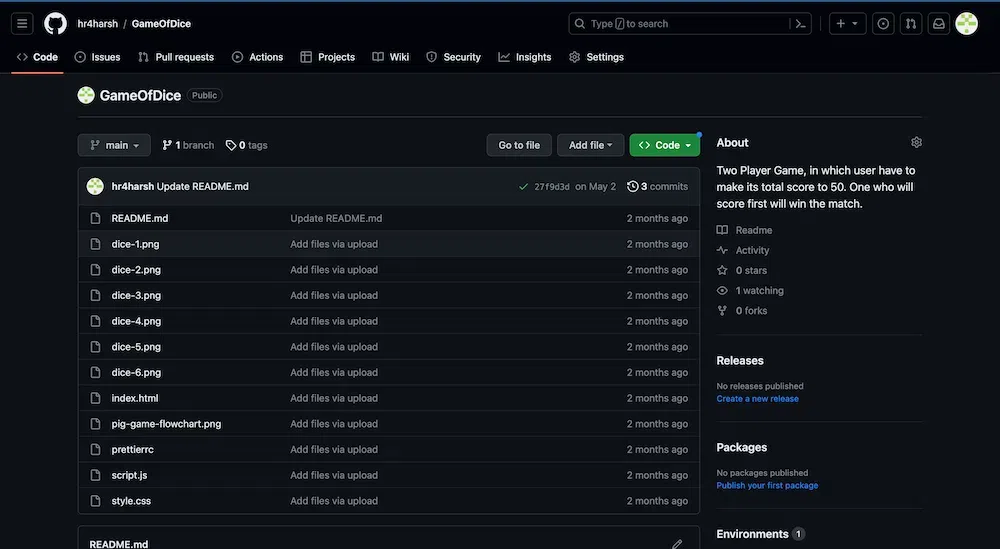
👁 Selecting the Project and Copying the link
Syntax:
git clone [your copy link]Example:
👁 Installing Git and Cloning a Project
Now you have cloned your Github repository to your system now add all your relevant codes in that cloned directory to upload it to your GitHub Profile.
Now in the terminal go to your Project folder in which you want to make changes.
👁 Moving to Our Project Folder
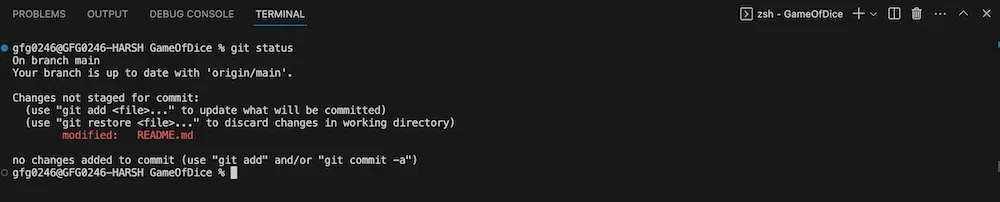
Now when you will type the commandgit statusyou will see all those files you have added to the directory in a red-colored untracked file segment like this. Here README.md is the unracked file that has the updated content in it.
Syntax:
git statusExample:
👁 Checking the StatusNow add these files into the staging area (Staging is a step before the commit process in git. That is, a commit in git is performed in two steps: staging and actually commit. As long as a changeset is in the staging area, git allows you to edit it as you like to replace staged files with other versions of staged files, remove changes from staging, etc.)
Syntax:
git add <files_Name with their respective extensions>Example:
Once the files are staged, you need to commit them. A commit captures a snapshot of your files at a specific point in time, which can be easily rolled back if necessary.
Syntax:
git commit -m “Your description”Example:
Now we have committed these changes in our local system and to upload these changes to our remote profile use the command
Syntax:
git remote -vExample:
👁 Uploading Changes to Remote Profile
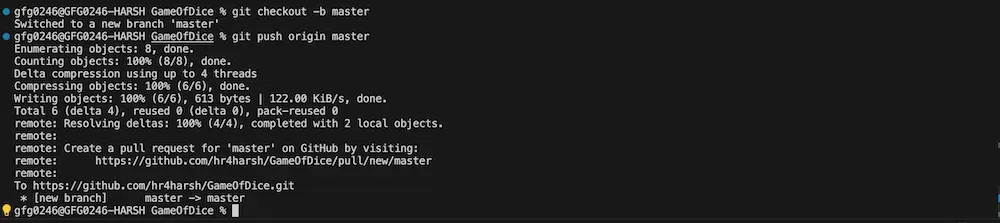
Great, Now just one step left is to push these changes into our GitHub repository. Use the command below to upload your files or any changes.
Syntax:
git push origin masterExample:
👁 Push Changes To Github
Great You have successfully uploaded your files to your GitHub repository.
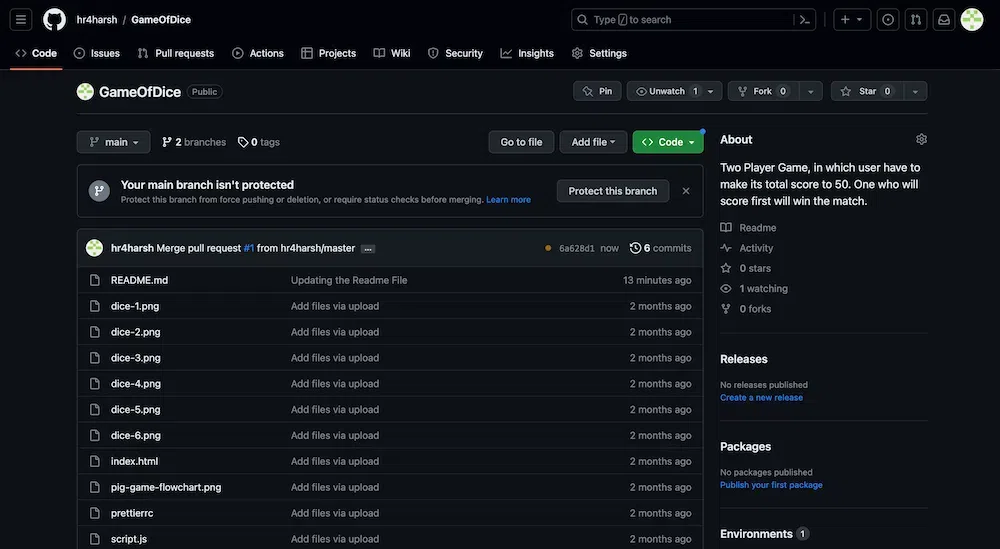
Final Repository
Here, in the front of the README.md file, you can see that the changes have been updated, a few minutes ago.
All the files and directories are uploaded to your Github account. Now you can manage, revert, access, or do any changes in your repositories like this.