|
VOOZH | about |
|
VOOZH | about |
R Studio is an integrated development environment (IDE) for R. IDE is a GUI, where you can write your quotes, see the results and also see the variables that are generated during the course of programming. R is available as an Open Source software for Client as well as Server Versions.
There are two ways to create an R file in R studio:
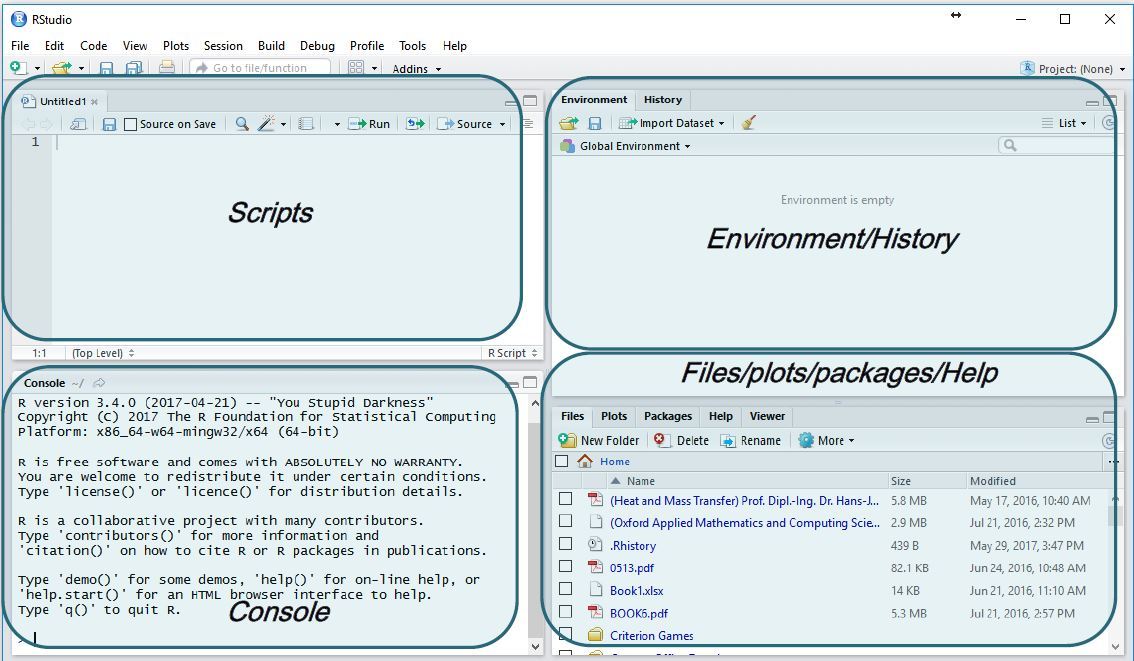
Once you open an R script file, this is how an R Studio with the script file open looks like.
👁 ImageSo, 3 panels console, environment/history and file/plots panels are there. On top left you have a new window, which is now being opened as a script file. Now you are ready to write a script file or some program in R Studio.
In R, a script is a series of commands written in a file. These commands are executed in order, and the results are produced step by step. Writing scripts to an R file is demonstrated here with an example:
a" will now hold the value 11.a to perform calculations. In this example, "b" is set to "a * 10", R will evaluate this expression and assign the result (which is 110) to "b".a" and "b" by concatenating them together and printing them. This will show both values at once.Let us see, how to save the R file. From the file menu if you click the file tab you can either SAVE or SAVE AS button. When you want to save the file if you click the SAVE button, it will automatically save the file has untitled x. So, this x can be 1 or 2 depending upon how many R scripts you have already opened.
👁 ImageOr, it is a nice idea to use the SAVE AS button, just below the Save one, so that, you can rename the script file according to your wish. Let us suppose we have clicked the SAVE AS button. This will pop out a window like this, where you can rename the script file as test.R. Once you rename, then by clicking the SAVE button you can save the script file.
👁 ImageSo now, we have seen how to open an R script and how to write some code in the R script file and save the file. The next task is to execute the R file.
There are several ways in which the execution of the commands that are available in the R file is done.
So, this is an example, where R file is executed, using the source with echo command.
👁 ImageIt can be seen in the console, that it printed the command a = 11 and the command b = a*10 and also the output print(c(a, b)) with the values. So, a is 11 and b is 11 times 10, this is 110. This is how the output will be printed in the console. Values of a and b are also shown in the environment panel.
| Command | Usage | Advantages | Disadvantages |
|---|---|---|---|
| Run | Executes selected lines of R code. | Helps with troubleshooting and debugging specific parts of the code. | Populates the console, making it messy with unnecessary output. |
| Source | Executes the entire R script file. | Runs the entire script, ensuring all code is executed in order. | Cannot selectively run or debug specific lines, executes everything. |
| Source with Echo | Runs the entire file and displays code in the console. | Allows to see the code as it’s executed, helpful for debugging. | May clutter the console with code output, especially for large scripts. |