|
VOOZH | about |
|
VOOZH | about |
In R, when a program terminates, all data is lost unless it is exported to a file. Exporting data ensures its preservation, even after the program ends, and allows for easy sharing, storage, and transfer between systems.
Exporting data is essential to prevent loss of information. It allows for:
R supports various file formats for exporting data, including .txt (tab-separated), .csv (comma-separated), or cloud storage.Exporting data to a text file.
One of the important formats to store a file is in a text file. R provides various methods that one can export data to a text file.
The R base function write.table() can be used to export a data frame or a matrix to a text file.
write.table(x, file, append = FALSE, sep = " ", dec = ".", row.names = TRUE, col.names = TRUE)
Parameters:
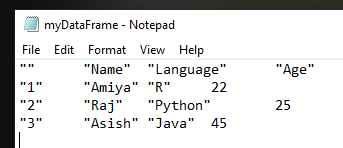
We are creating a data frame df with three columns: Name, Language, and Age. Then, we use the write.table() function to export the data frame to a tab-separated text file myDataFrame.txt, including row names but excluding column names.
Output:
This write_tsv() method is also used for to export data to a tab separated (“\t”) values by using the help of readr package.
write_tsv(file, path)
Parameters:
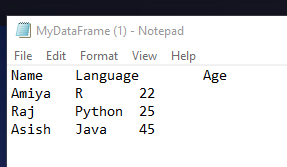
We are installing the readr package and loading it using library(). Next, we create a data frame df with three columns: Name, Language, and Age. Then, we use the write_tsv() function from the readr package to export the data frame to a tab-separated text file named MyDataFrame.txt.
Output:
Another popular format to store a file is in a csv(comma-separated value) format. R provides various methods that one can export data to a csv file.
The R base function write.table() can also be used to export a data frame or a matrix to a csv file.
write.table(x, file, append = FALSE, sep = " ", dec = ".", row.names = TRUE, col.names = TRUE)
Parameters:
We are creating a data frame df with three columns: Name, Language, and Age. Then, we use the write.table() function to export the data frame to a CSV file named myDataFrame.csv, with tab-separated values (sep = "\t") and without row names (row.names = FALSE).
Output:
👁 Image
This write.csv() method is recommendable for exporting data to a csv file. It uses “.” for the decimal point and a comma (“, ”) for the separator.
write.csv(x, file, row.names = TRUE, ...)
Parameters:
.csv extension).TRUE).We are creating a data frame df with three columns: Name, Language, and Age. Then, we use the write.csv() function to export the data frame to a CSV file named my_data.csv. The write.csv() function automatically separates values with commas and includes column names by default.
Output:
👁 Image
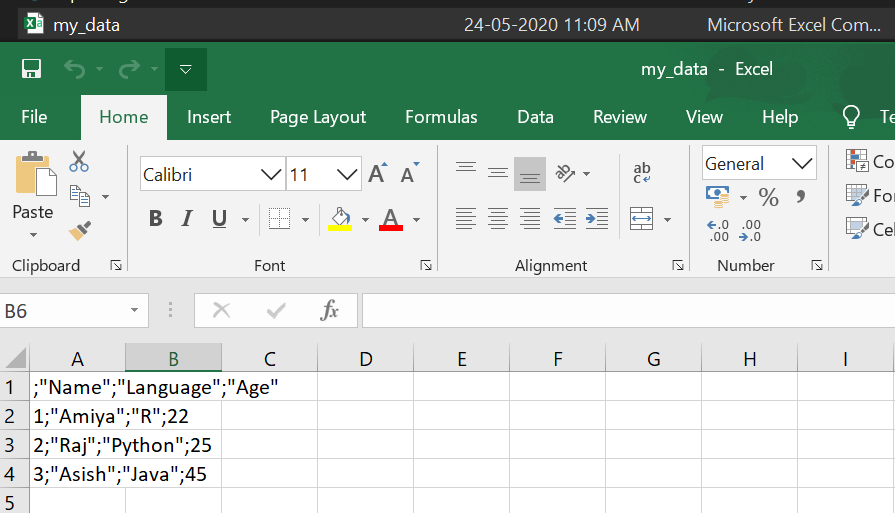
This method is much similar as write.csv() but it uses a comma (“, ”) for the decimal point and a semicolon (“;”) for the separator.
write.csv2(x, file, row.names = TRUE, ...)
Parameters:
.csv extension).TRUE).We are creating a data frame df with three columns: Name, Language, and Age. Then, we use the write.csv2() function to export the data frame to a CSV file named my_data.csv.
Output:
👁 Image
This method is also used for to export data to a comma separated (“, ”) values by using the help of readr package.
write_csv(file, path)
Parameters:
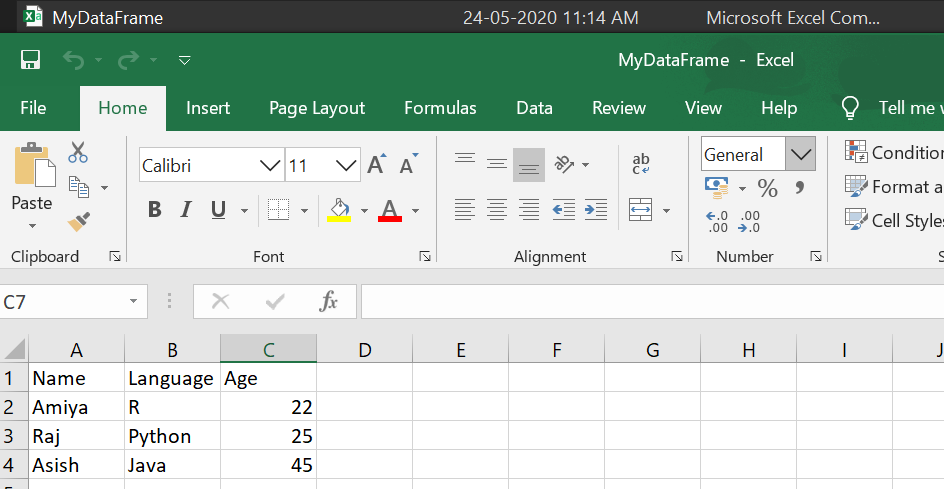
We are installing the readr package and loading it using library() function. Next, we create a data frame df with three columns: Name, Language, and Age. After that, we use the write_csv() function from the readr package to export the data frame to a CSV file named MyDataFrame.csv. This function automatically separates the values with commas and saves the data in a CSV format.
Output:
👁 Image
In this article, we explored how to export data from R scripts using functions like write.table(), write_tsv(), and write.csv(), enabling efficient data storage and transfer in various formats.