File Transfer Protocol (FTP) is a standard network protocol for transferring files between a client and server. It is a widely used method for transferring files over the internet from one computer to another. It allows users to upload, download, and manage files on a remote server. FTP is like a file storage facility where we can access the data stored on a server from our computer. It is commonly used for transferring bulk files. FTP is one of the oldest protocols in use on the internet, offering a reliable way to manage files between local and remote machines. It is also used to download files from the server using R Programming Language.
Why it's used for downloading files?
It is used for downloading files because it is reliable and efficient to use FTP methods, which helps transfer large amounts of data between a client and server. Below are the reasons why:
Bulk File Transfers: It is designed to handle large-scale file transfers, whether want to download a single large file or multiple large files in one session. To move the data quickly and efficiently FTP provides an infrastructure that makes FTP ideal for bulk downloads.
Remote Access to Files: users can access files stored on a remote server from anywhere with an internet connection and this is useful for sharing datasets, software packages, documents and multimedia files across locations.
Control Over Transfer: We can protect sensitive data and manage downloads by enabling users to set restrictions on who can download the files by providing secure and anonymous file access using FTP.
Help in resuming Interrupted Downloads: due to issue in connection or power failure, if a download is halted then FTP allows the process to pick up where it left off, and avoid the need to start over.
Allows Automation: downloads file at regular intervals and this helps in backups or daily data retrieval.
Use Cases of FTP
Here are the some main Use Cases of FTP:
Download the Data for Analysis: for the purpose of research, researchers or data analysts often use FTP to download public datasets for analysis, like downloading weather data from National Oceanic and Atmospheric Administration.
Corporate Sharing of File: By using FTP large files such as financial reports or CAD drawings are shared between offices or external partners in a corporate environment, as FTP ensures secure and fast transfers.
Media File Transfer: Media files like videos or high-resolution images can be transferred using FTP by Media companies. This is useful when files are too large to be shared through email or cloud services.
Software Distribution: users can download software packages or updates directly from FTP servers, and companies also distribute software updates, patches, and drivers.
Management of website and Backup: With the help of FTP web developers download website files, like HTML, CSS, and images from hosting servers to manage or update websites.
Data Recovery and Backup: with the help of FTP in businesses downloads backups of databases, documents or configuration files for recovery purposes in case of data loss.
R Packages for handling FTP connections
Here are the main R Packages for handling FTP connections:
RCurl: It is a powerful and flexible R package and for making HTTP and FTP requests this provides an interface. It is in libcurl library and can handle wide range of protocols like FTP, HTTP, HTTPS, and FTPS.
curl: It is an alternative to RCurl which works similar to RCurl, and designed for handling basic file transfers via FTP or HTTP. Functions like curl_download() and curl_fetch_memory() provided by curl that makes easy to download files or fetch data from remote servers.
FTP: This package is specially designed to work with FTP servers in R. It is lightweight and focuses on FTP-related operations such as download or upload the files on from server and list the files as well. To perform basic FTP operations this package is useful. Features like simple interface, suitable for FTP servers without advanced security or authentication requirements.
1: Connect to FTP Using RCurl
To work with FTP in R, RCurl is the package that is commonly used. It allows R to communicate with FTP servers.
Step 1: Installing RCurl
First, install RStudio to use RCurl, then install RCurl:
Install.packages("RCurl")
library(RCurl)
Now after installing the package and loading them, we are ready to connect with an FTP server.
Step 2: Downloading Files from FTP Servers
To download FTP files we need:
FTP URL: The location of the file that we will download, from the FTP Server, that FTP server has some address. This address/URL is required to move further.
Username and Password: If the FTP server requires login credentials, only then we need this.
Path of the File: The specific file we need to download has some location on the FTP server.
First Prepare the FTP details:
ftp://example.com/data/file.csv
If the FTP server requires login credentials: we need to format it like this:-
"username: password"
Connect and Download
Once we get the URLL off the FTP Servers and credentials, We can download the required files directly into R using the getURL() function from the RCurl package.
# Define the FTP URL ftp_url <- "ftp://example.com/data/file.csv" # Replace with your FTP URL
# Username and password (if needed) userpwd <- "username : password" # Replace with your FTP credentials
# Fetch the file from the FTP server ftp_data <- getURL(ftp_url, userpwd = userpwd)
# Save the downloaded file to your local system write(ftp_data, file = "file.csv")
#If want to specify a different folder for saving the file, then we can provide the full path.
getURL() function is used to download the file from the provided URL and save it in our local machine with the help of the write() method. The above syntax helps to download a file from the FTP servers and saves it as file.csv on our computer. If we enter all the details correctly then the file from the FTP server is downloaded successfully and saved in our local machine with the provided file name.
Output:
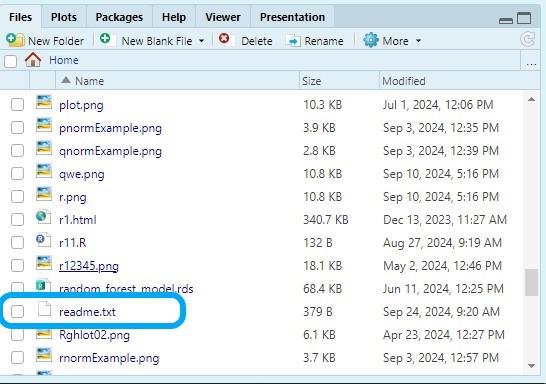
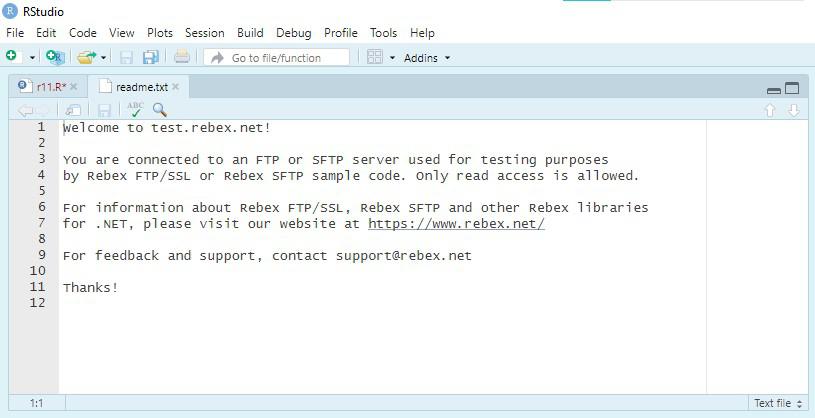
File downloaded successfully and saved to readme.txt
Define the URL of the file needed to be download and also the credentials like username and password to access this file. In this case username = demo and password = password.
Then define the local file path to save the downloaded file which is "readme.txt".
Then use curl_download() function to download the file and save it locally by passing URL of the file with the local path we created.
Then to confirm that file is downloaded or not use cat().
3: List and download multiple files from an FTP directory
results <- lapply(files, function(file_name) : this line start the lapply() function, which applies a function to each element in the list of files. In which files is the list of filenames we got from the FTP server and file_name is the temporary name for each file.
file_url <- paste0(ftp_url, file_name): This line creates the full URL for each file by combining the base ftp_url with specific name of file(file_name). And paste0() concatenates two strings without spaces.
Then using getBinaryURL() the files from the FTP server are downloaded, this function will retrieves the file's data and stores it in the binary)data variable.
Then save the downloaded data on our local system and then prints the message to the console, which confirms that the file has been successfully downloaded.
return(file_name): this will return the names of the downloaded file. Then print the results.
Conclusion
We explored how to download files from the File Transfer Protocol(FTP) server using the RCurl package in R. We learned about how we can download files from FTP servers using RCurl in R. We learned about how we connect with the FTP servers using RCurl and access the files then we also able to download the files from FTP Servers using RCurl package, in this package getBinaryURL() is the function which is used to fetch files from FTP servers and save them locally using writeBin() for binary files and write() for other files. The above code illustrates how to manage different types of FTP access like if authentication is required.