|
VOOZH | about |
|
VOOZH | about |
One of the widely used visualizations is heat maps. They proved to be very helpful in analyzing the highly correlated features in the input data. In this article we will learn different ways by using which we can draw heatmaps using the pheatmap package in R.
Heatmaps are a popular way of visualizing complex data sets in a two-dimensional form. Heatmaps represent data using a color scale, where the intensity of the color represents the magnitude of the data value. In R Programming Language, pheatmap is a widely used package for creating heat maps. This package provides many customization options to make heatmaps more visually appealing and informative.
Concepts related to the topic:
Before we dive into creating heatmaps with pheatmap, let's quickly go over some key concepts related to heatmaps:
Output:
This code loads the mtcars dataset, creates a custom color palette, and creates a heatmap of the first six columns of the dataset using pheatmap. The clustering_distance_rows argument specifies that the rows should be clustered using euclidean distance, while clustering_method specifies that both rows and columns should be clustered using the ward.D method. This example demonstrates the use of custom color palettes and different clustering methods in pheatmap.
Output:
This code loads the built-in faithful dataset and creates a heatmap of the data using pheatmap. The fontsize_row and fontsize_col arguments control the size of the row and column labels, respectively. The cellwidth and cellheight arguments control the size of each heatmap cell. This example demonstrates how to customize the appearance of the heatmap by adjusting label sizes and cell dimensions.
Output:
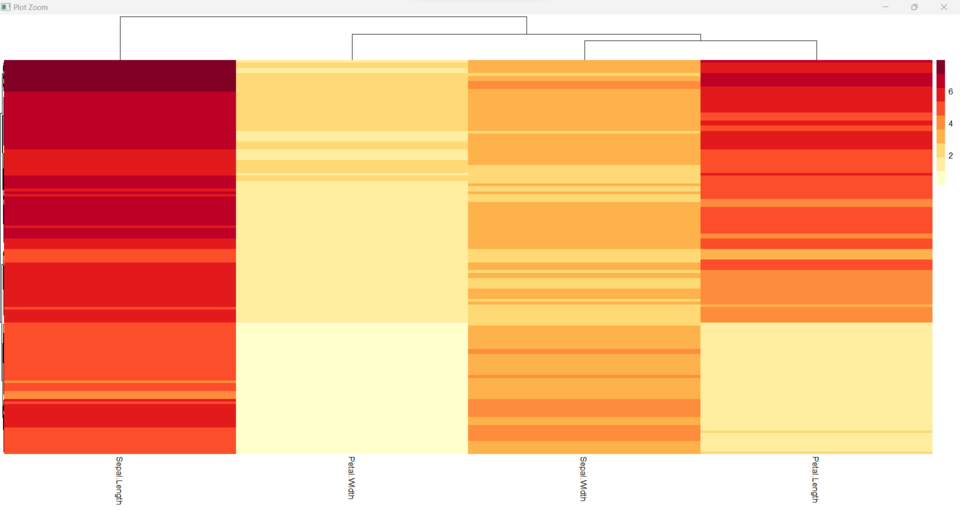
This code loads the iris dataset and creates a heatmap of the first four columns using pheatmap. The brewer.pal function from the RColorBrewer package is used to create a custom color palette for the heatmap. The cluster_rows argument specifies that the rows should be clustered using default parameters, while show_rownames argument specifies that the row names should not be displayed in the heatmap. The treeheight_row argument controls the height of the row dendrogram and the fontsize_row argument controls the size of the row label font. This example demonstrates how to use a custom color palette and control the appearance of the dendrogram and row labels in the heatmap.
Output:
We can use the breaks parameter to set the breaks for the color scale. Here is an example code to use a quantile color scale:
Output:
We can use the scale parameter to perform the transformation in the scale of the values. Here is an example code to perform the transformation in the scale of the values:
Output:
We can use the angle_col parameter to rotate column labels. Here is an example code to rotate column labels:
Output: