|
VOOZH | about |
|
VOOZH | about |
In this article, we are going to learn to plot linear regression in R. But, to plot Linear regression, we first need to understand what exactly is linear regression.
Linear Regression is a supervised learning model, which computes and predicts the output implemented from the linear relationship the model established based on the data it gets fed with. The aim of this model is to find the linear equation that best fits the relationship between the independent variables (features) and the dependent variable (target). This was some basic insight into the concept of Linear Regression. With this, now we can dive into how to plot linear regression in R.
Now we need to understand, why we chose R for this purpose, as we can go with any other language like Python which also has a number of libraries for machine learning and data analysis.
The Equation for Linear Regression is very simple which was covered in our primary standards,
y = bx + a
Here,
a: y-Intercept
b: Slope of the regression line (line of best fit)
x: independent variable or features
y: dependent variable or target
Now for a dataset Slope and Intercept can be calculated with the following formulas
Slope = sample covariance/sample variance
Intercept = ymean – slope* xmean
Loss function, often referred as Cost Function is basically the difference between the true value (y) and the value predicted by our Machine Learning model (ŷ) which is called error in general terms. This can be calculated using Mean Squared Error method which is a commonly used method in statistics to find out errors.
Mean Squared Error or MSE can be calculated by squaring the difference between the predicted and true value for the whole dataset and then calculating its mean by dividing it by the total number of observations
Cost Function = Mean Squared Error =
R is a popular programming language that was developed solely for statistical analysis and data visualization. Some of the machine learning models we use are already pre-trained into R (no need for installation of external libraries) including Linear Model (or Regression). Also, this language comes with a huge community and one of the best tools and libraries for Machine Learning, which makes it the first choice for Data Science and Machine Learning enthusiasts.
Now, let's start with plotting linear regression.
The dataset we are using for this is: placement.csv
Output:
Call:
lm(formula = package ~ cgpa, data = SalaryData)
Residuals:
 Min 1Q Median 3Q Max
-15.517 -9.794 -4.762 2.376 53.174
Coefficients:
 Estimate Std. Error t value Pr(>|t|)
(Intercept) -94.141 47.167 -1.996 0.0613 .
cgpa 17.415 6.704 2.598 0.0182 *
---
Signif. codes: 0 ‘***’ 0.001 ‘**’ 0.01 ‘*’ 0.05 ‘.’ 0.1 ‘ ’ 1
Residual standard error: 16.56 on 18 degrees of freedom
Multiple R-squared: 0.2726, Adjusted R-squared: 0.2322
F-statistic: 6.747 on 1 and 18 DF, p-value: 0.01819
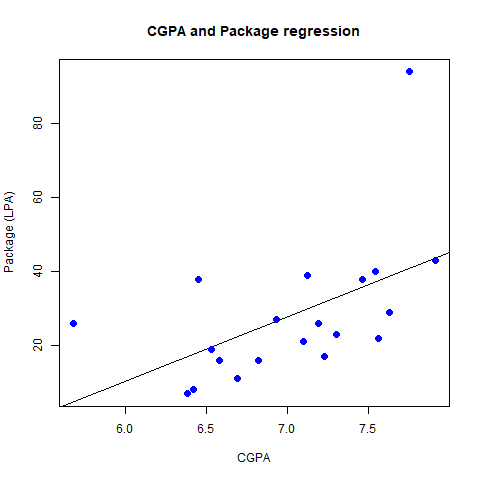
Running this script, will create a file "placement_stats.png" which has the plotted graph for the dataset in the current directory
Output:
Call:
lm(formula = package ~ cgpa, data = SalaryData)
Residuals:
 Min 1Q Median 3Q Max
-15.517 -9.794 -4.762 2.376 53.174
Coefficients:
 Estimate Std. Error t value Pr(>|t|)
(Intercept) -94.141 47.167 -1.996 0.0613 .
cgpa 17.415 6.704 2.598 0.0182 *
---
Signif. codes: 0 ‘***’ 0.001 ‘**’ 0.01 ‘*’ 0.05 ‘.’ 0.1 ‘ ’ 1
Residual standard error: 16.56 on 18 degrees of freedom
Multiple R-squared: 0.2726, Adjusted R-squared: 0.2322
F-statistic: 6.747 on 1 and 18 DF, p-value: 0.01819
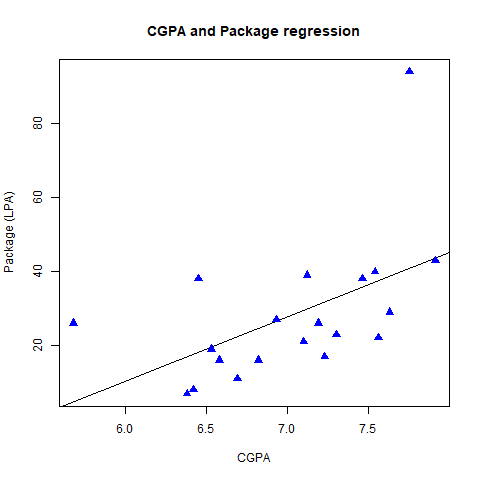
Changing the pch value from 16 to 17 changed the shape of plotting points from solid circles to triangles, while keeping everything same.
Output:
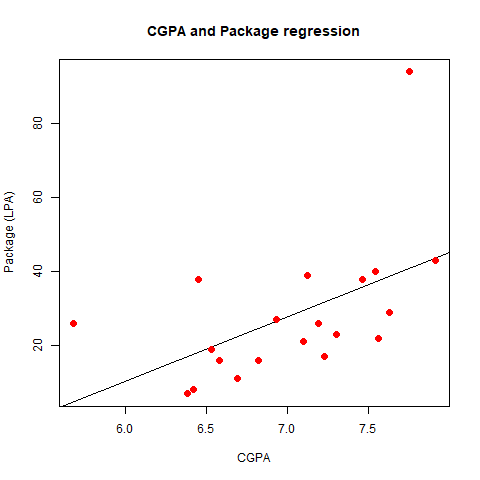
Changing the col from blue to red lead to change in the color of plotting points from blue (initial) to red (new), while keeping everything the same.
Additionally, abline function is used to add the regression line (line of best fit) to the plot.
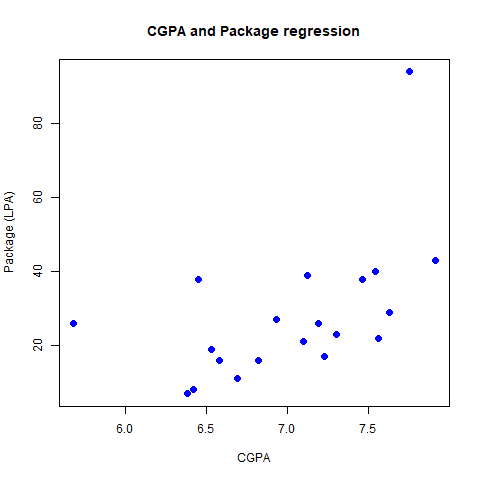
Removing it will result in a scatterplot.
Output:
When abline parameter is removed from the call of plot function, the line of best fit disappears from the grap, hence making it a scatterplot, while keeping everything the same.
This can also be plotted by using external libraries like ggplot2.
First, we need to install the library using following command
install.packages("ggplot2")
Then we can use it as usual by importing the library into script.
Output:
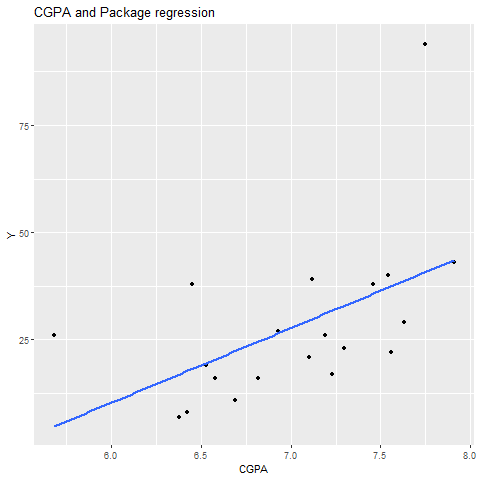
It works in similar manner as previous one, both line of best fit and points are plotted on the graph
Output:
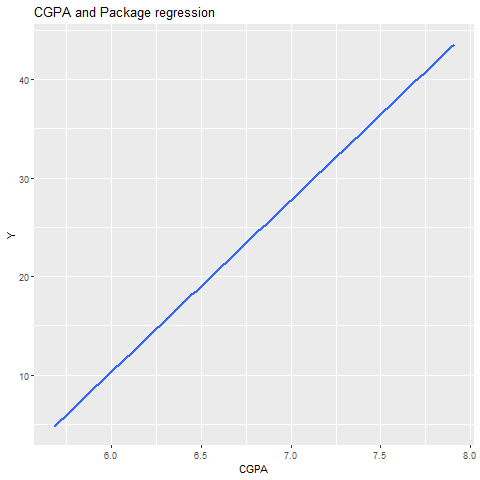
When removing geom_point parameter the plotting points are not displayed on the graph while keeping everything same.
Output:
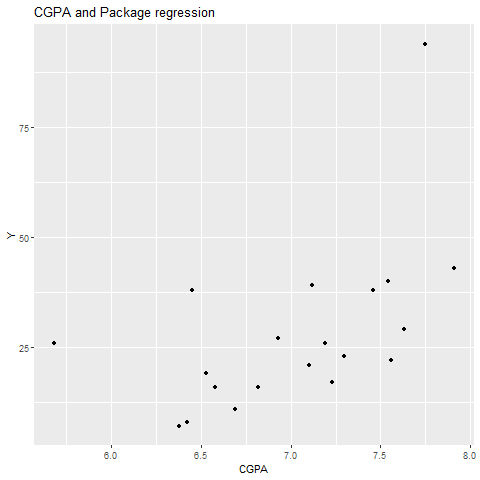
When removing geom_smooth parameter the line of best fit is not displayed on the graph while keeping everything same.
Output:
Call:
lm(formula = Test_Score ~ Hours_Studied, data = data)
Residuals:
 1 2 3 4 5 6 7
-3.03571 -0.64286 1.75000 3.14286 2.53571 -0.07143 -3.67857
Coefficients:
 Estimate Std. Error t value Pr(>|t|)
(Intercept) 45.8214 2.9683 15.44 2.07e-05 ***
Hours_Studied 6.6071 0.5512 11.99 7.13e-05 ***
---
Signif. codes: 0 ‘***’ 0.001 ‘**’ 0.01 ‘*’ 0.05 ‘.’ 0.1 ‘ ’ 1
Residual standard error: 2.917 on 5 degrees of freedom
Multiple R-squared: 0.9664, Adjusted R-squared: 0.9596
F-statistic: 143.7 on 1 and 5 DF, p-value: 7.128e-05
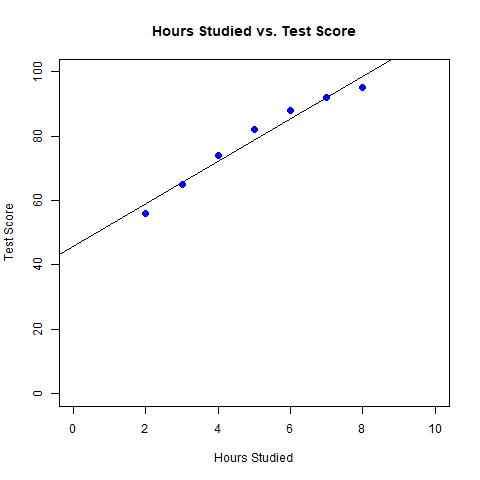
A graph has been plotted with the number of Hours studied on the X-axis and Score in the Test on the Y-axis along with a line of best fit.