|
VOOZH | about |
|
VOOZH | about |
When visualizing data in R using ggplot2, you often need to adjust the appearance of your plots to make them clearer and more visually appealing. Two common adjustments include rotating x-axis labels for better readability and changing the overall theme of the plot to suit your presentation style or publication standards. This article will guide you through the process of rotating x-axis labels and evolving themes in ggplot2 using R Programming Language.
Themes in ggplot2are an essential part of customizing the look of your plots. A theme controls the overall appearance, including background color, grid lines, font styles, and more. ggplot2 comes with several built-in themes, such as:
You can also create custom themes by modifying elements within the existing themes.
When you have long x-axis labels or a large number of categories, it can be challenging to display them clearly. Rotating x-axis labels can enhance readability and prevent overlapping.
theme() to Rotate LabelsYou can rotate x-axis labels using the theme() function in conjunction with the element_text() function. The angle parameter controls the rotation of the labels.
Output:
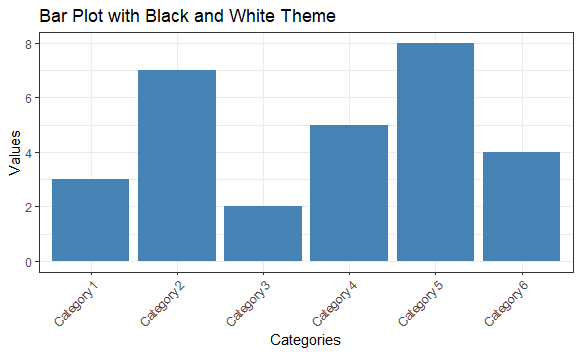
theme(axis.text.x = element_text(angle = 45, hjust = 1)): Rotates the x-axis labels by 45 degrees. The hjust parameter adjusts the horizontal justification, with 1 meaning the text is right-aligned. You can set hjust = 0.5 for center alignment or hjust = 0 for left alignment.
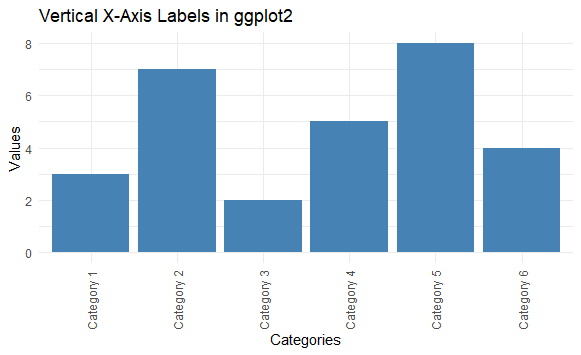
If the labels are particularly long, you might consider rotating them to vertical (90 degrees) for even better readability.
Output:
angle = 90: Rotates the labels to be vertical.vjust = 0.5: Centers the text vertically.Changing the theme of a plot can significantly alter its look and feel. You can easily apply a different theme by calling it after the ggplot function.
First we will Changing Themes in ggplot2 Using Built-in Themes.\
Output:
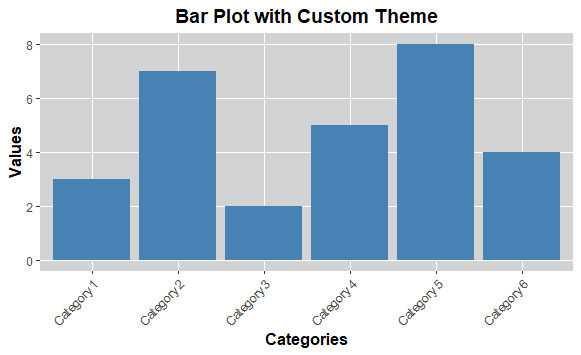
You can also create your own theme by modifying existing themes to suit your specific needs.
Output:
element_rect(fill = "lightgray"): Sets the background color of the panel.element_line(color = "white"): Changes the color of the major grid lines.element_blank(): Removes minor grid lines.axis.title and plot.title: Customize the text size and font style.Rotating x-axis labels and changing the theme in ggplot2 are essential skills for improving the clarity and aesthetics of your visualizations. By making the text readable and selecting an appropriate theme, you can significantly enhance your plots' effectiveness in conveying information. With ggplot2's flexibility, you can tailor your visualizations to meet your specific needs and style preferences.