|
VOOZH | about |
|
VOOZH | about |
MongoDB is a popular open-source NoSQL database designed for flexibility, scalability, and high performance. It is widely adopted for modern applications that require handling large volumes of real-time data efficiently.
Before installing MongoDB, ensure the system meets the following requirements:
To install MongoDB on MacOS, first download the MongoDB and then setup the command line. Follow these step-by-step instructions to install MongoDB on our macOS system using the .tgz tarball file.
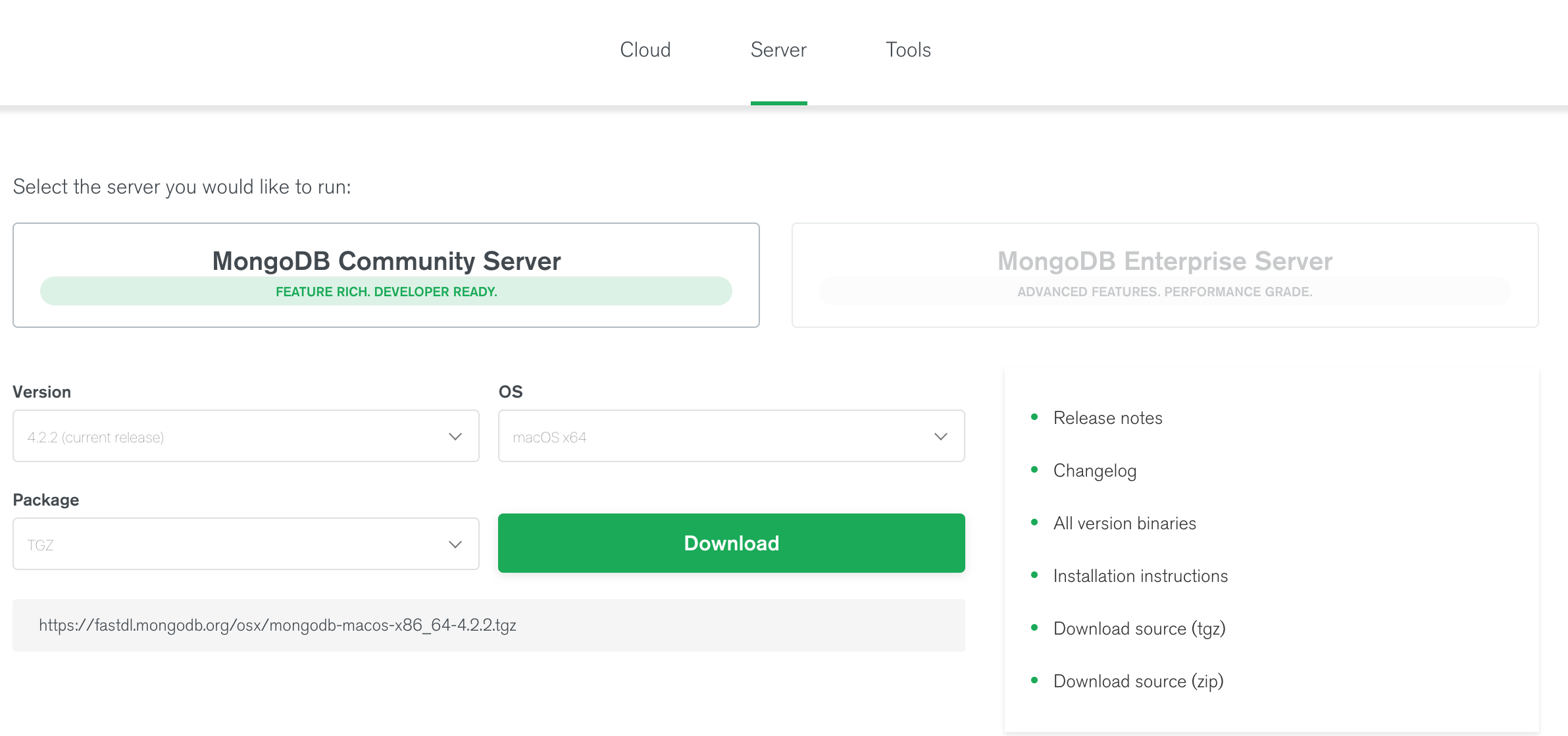
1. Go to MongoDB Download Center to download the MongoDB Community Server.
👁 download mongodb2. Here, We can select any version, OS, and package according to our requirement. For macOS we need to choose:
3. After selecting the appropriate version and settings, click on Download. Once the download is complete, you will have a .tgz file on your machine
1. Open Terminal and navigate to the folder where the .tgz file is located.
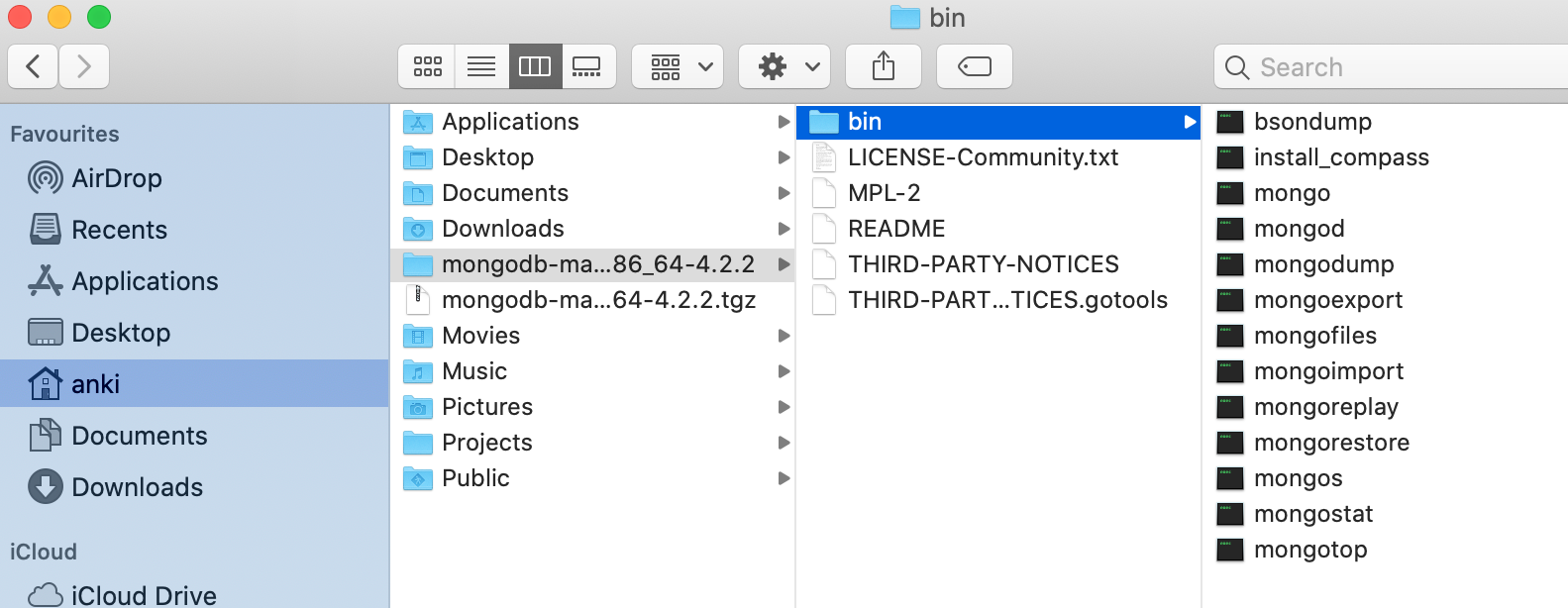
2. Extract the file with the following command
tar -xvzf mongodb-macos-x86_64-<version>.tgz👁 extract .tgz file3. The bin folder contains important executables:
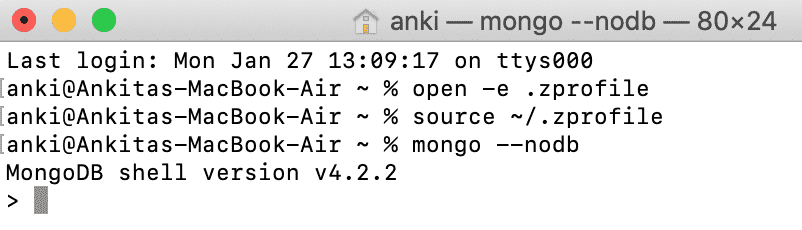
To run MongoDB Shell, set the environment path using a profile file.
1. Use .bash_profile (macOS Mojave or earlier) or .zprofile (Catalina or later).
2. Create the file if it doesn’t exist in the home directory.
Terminal commands:
Note: Hidden files can be viewed in Finder using Command + Shift + .
After creating or getting .bash_profile or .zprofile set your path. Like, as shown in the below image:
Here, /Users/anki/mongodb-macos-x86_64-4.2.2/bin points to the MongoDB binaries, while :$PATH ensures existing commands remain accessible. After updating .bash_profile or .zprofile, save the file and reload it using source so the terminal recognizes the new path.
Note: For Catalina users when you run mongo or mongo --nodb command in your terminal, your macOS would not allow to run mongo. So, to run mongo you need to give them permission manually i.e,
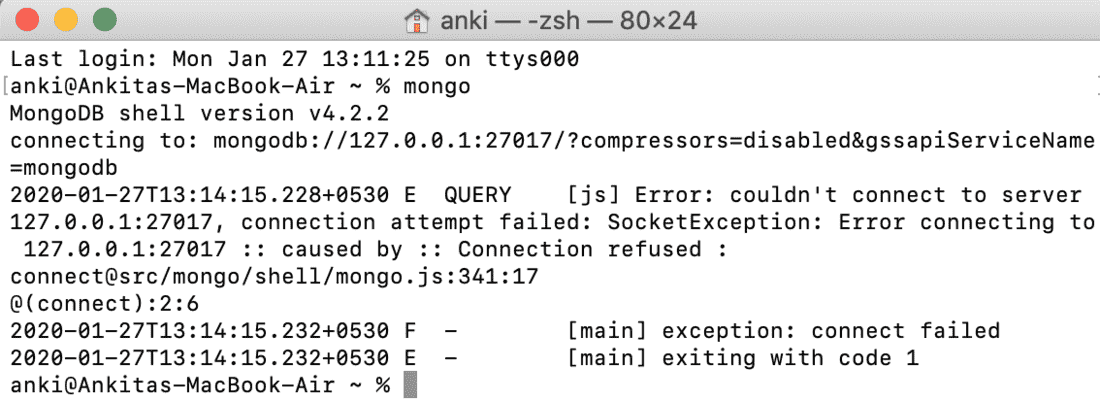
System Preferences > Security & Privacy > Allow AnywayAfter setting up the MongoDB Shell, connection attempts may fail because the MongoDB server (mongod) is not running. To use the shell, the mongod service must be started locally on the system.
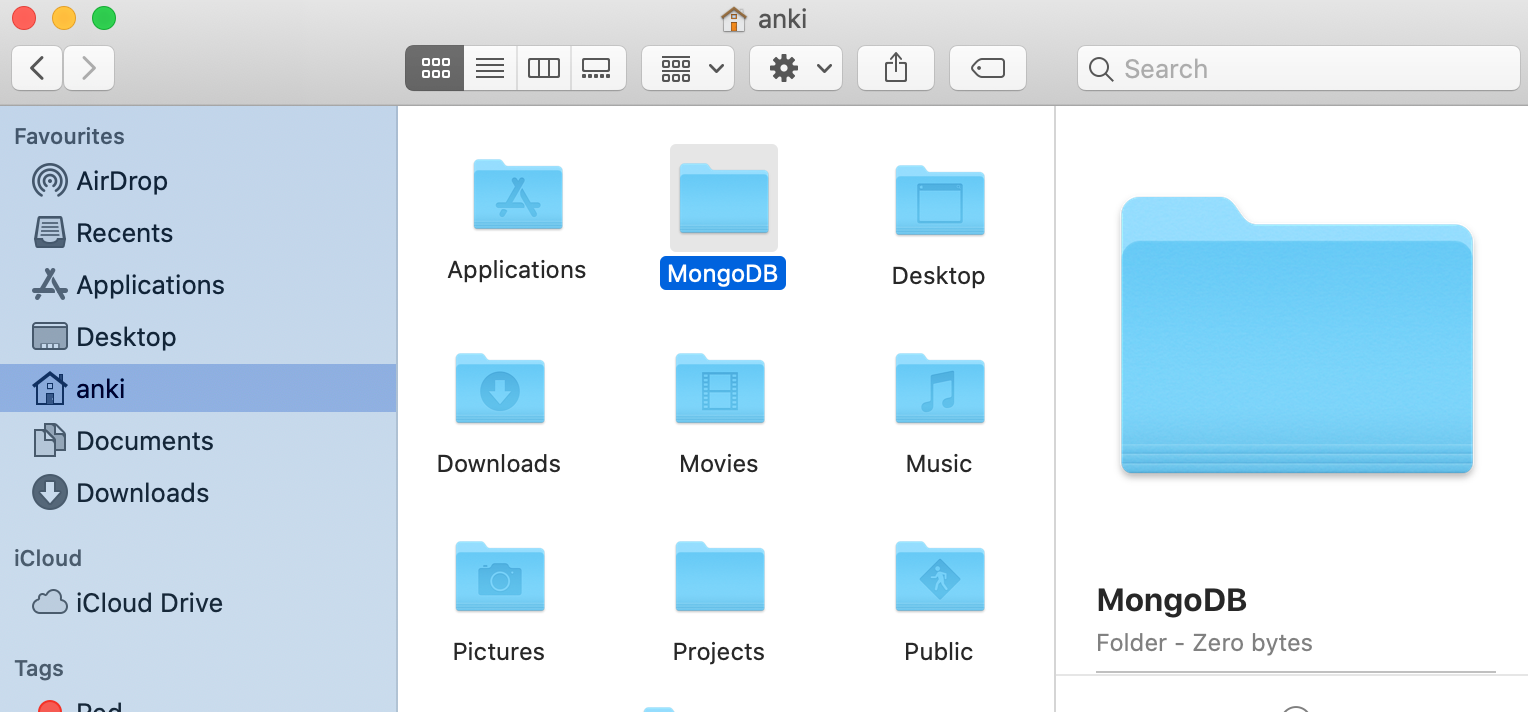
Before running mongod first we will create a folder or directory which will store all the data processed by the mongod.
1. Before running MongoDB, you need to create a directory to store MongoDB’s data.
2. Create the data directory using the following command:
mkdir -p ~/data/dbThis directory will store the MongoDB data during its operation.
👁 ImageNow we are going to run mongod with its data directory path. Here, mongod is the database server provided by the MongoDB. To start mongod you can use one of the following commands:
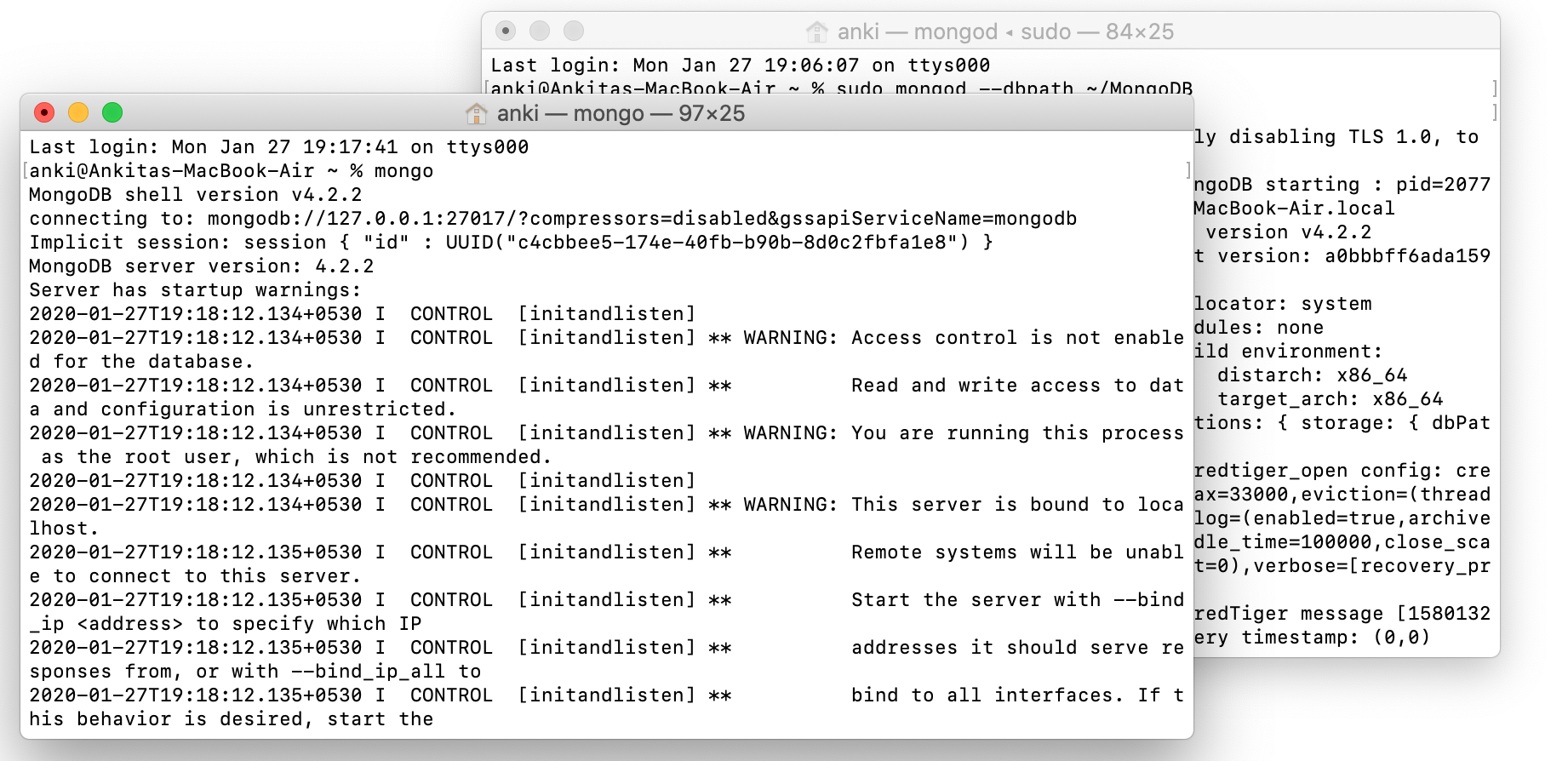
mongod --dbpath /data/dbsudo mongod --dbpath /data/db👁 sudo commandHere, sudo mongod --dbpath ~/MongoDB command to start mongod server and ~/MongoDB is data directory.
Now we are going to connect our server (mongod) with mongo shell. So, keep that mongod terminal window and open a new terminal window and write mongo and now our mongo shell will successfully connect to the mongod.
👁 connecti mongod and mongo shellNOTE:
- Please do not close the mongod terminal window, if you close this terminal window your server will stop working and you will not connect to the mongo shell.
- The mongo shell is deprecated and mongosh is used in modern MongoDB versions.
Now, we are ready to write queries in the mongo Shell.