|
VOOZH | about |
|
VOOZH | about |
MongoDB on Windows can be set up easily using the official installer, which configures the database server and required tools. After installation, MongoDB is ready to be used for application development or production environments.
Before installing MongoDB on Windows, ensure your system meets the following requirements:
The user running MongoDB services (mongod, mongos) must have membership in the following groups:
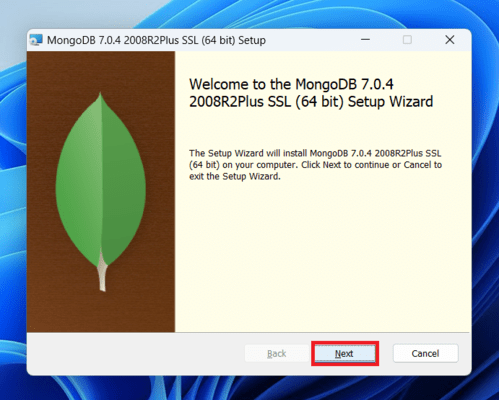
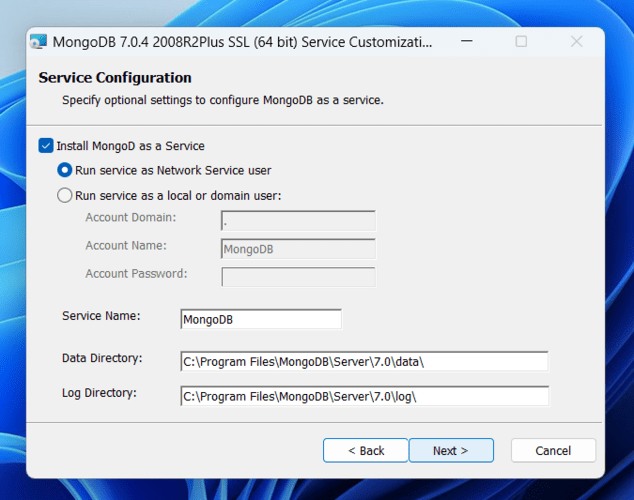
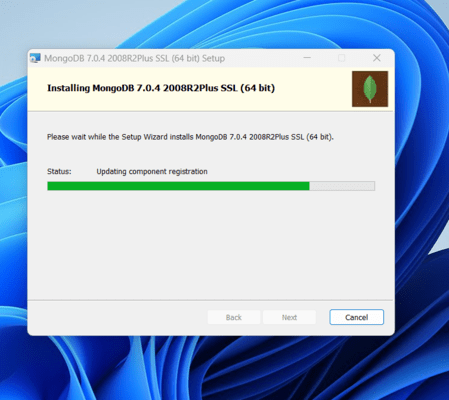
To install MongoDB on Windows, first, download the MongoDB server and then install the MongoDB shell. The Steps below explain the installation process in detail and provide the required resources for the smooth download and install MongoDB.
Go to the MongoDB Download Center to download the MongoDB Community Server.
👁 install-mongodb-on-windows-using-msi
Here, You can select any version, Windows, and package according to your requirement. For Windows, we need to choose:
👁 install-mongodb-on-windows-using-msi
👁 install-mongodb-on-windows-using-msi
👁 install-mongodb-on-windows-using-msi
👁 install-mongodb-on-windows-using-msi
👁 install-mongodb-on-windows-using-msi
👁 install-mongodb-on-windows-using-msi
👁 install-mongodb-on-windows-using-msi
👁 install-mongodb-on-windows-using-msi
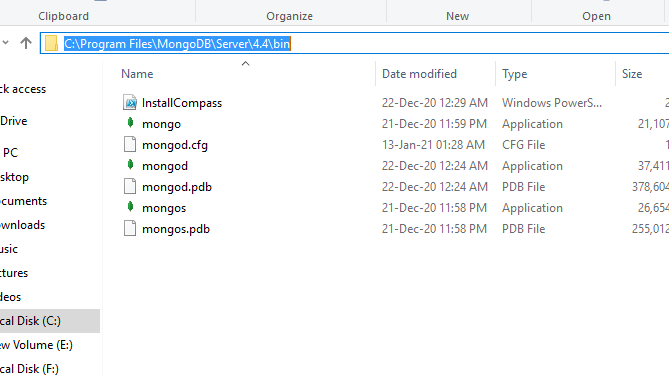
To run the MongoDB server (mongod) on Windows, follow these steps:
mongod
When you run this command you will get an error i.e. C:/data/db/ not found.
After creating these folders. Again open the command prompt and run the following command:
mongod
Now, this time the MongoDB server(i.e., mongod) will run successfully.
👁 install-mongodb-on-windows-using-msi
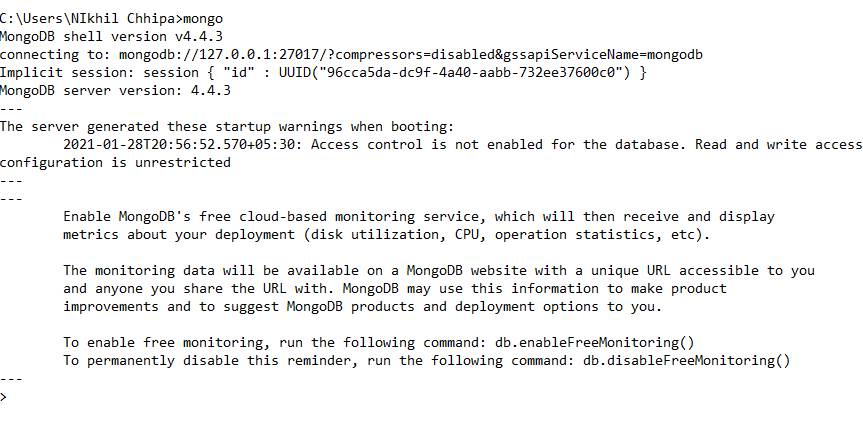
Starting from MongoDB version 5.0, the traditional MongoDB shell (mongo) has been deprecated. The recommended shell for interacting with MongoDB databases is now mongosh, which provides improved functionality, better syntax, and full compatibility with the latest MongoDB features.
mongoshPlease do not close the mongod window if you close this window your server will stop working and it will not able to connect with the mongo shell.
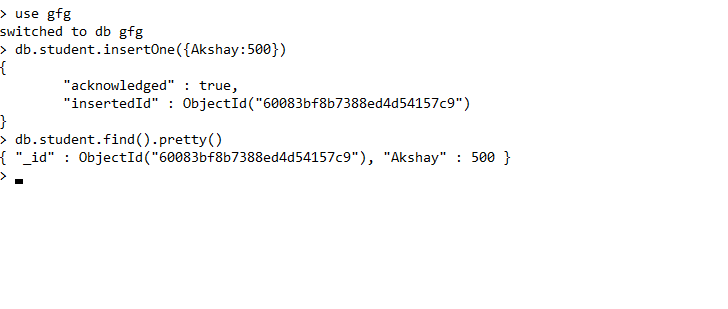
Now we can make a new database, collections, and documents in our shell. Use the following command within the mongosh shell to create a new database:
use database_nameThe use Database_name command makes a new database in the system if it does not exist, if the database exists it uses that database:
use gfgInsert a document into a collection using:
db.collection_name.insertOne({field: value})The db.Collection_name command makes a new collection in the gfg database and the insertOne() method inserts the document in the student collection:
db.student.insertOne({Akshay:500})Here is Step by Step process on How to Install MongoDB on Windows without Admin Rights -
Get the ZIP version of MongoDB from the official MongoDB website.
Extract the ZIP archive to a location on your computer where you have write permissions, such as your user directory.
Run the MongoDB server by executing the command with the path to the directory where you want to store MongoDB data files. Make sure to use a location where you have write permissions.
Command: mongod.exe --dbpath=path\to\data\directory, replacing "path\to\data\directory"mongo.exe By following these steps, you can install and run MongoDB on Windows without admin rights, allowing you to work with MongoDB databases on your local machine.
mongo is deprecated from MongoDB version 5.0 onward.mongosh command for compatibility with new features.mongod) runs continuously while interacting through mongosh.