|
VOOZH | about |
|
VOOZH | about |
Java Android world is quite amazing and here we will be deep diving into creating a Simple Android Application that can act as both a friendly Android Project and a Nice Surprise for a friend. The Best Way to greet your best friend is to create an Android Application that will wish him "Happy Birthday" on your behalf, unlike other boring messages.
This is a beginner-friendly Android Application focusing on the initial stage when you just started to learn Android Studio, its components, Front-end XML, Java Backend, etc. We will learn the basic usage of MediaPlayer, and ImageView in Android Studio.
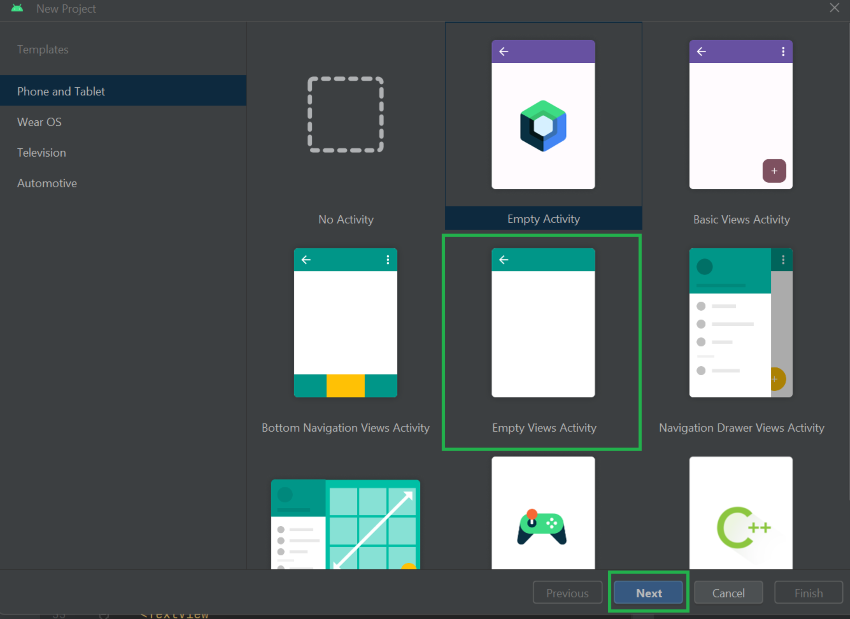
Step 1: Power up your Android studio and create a new project with empty Views activity.👁 create
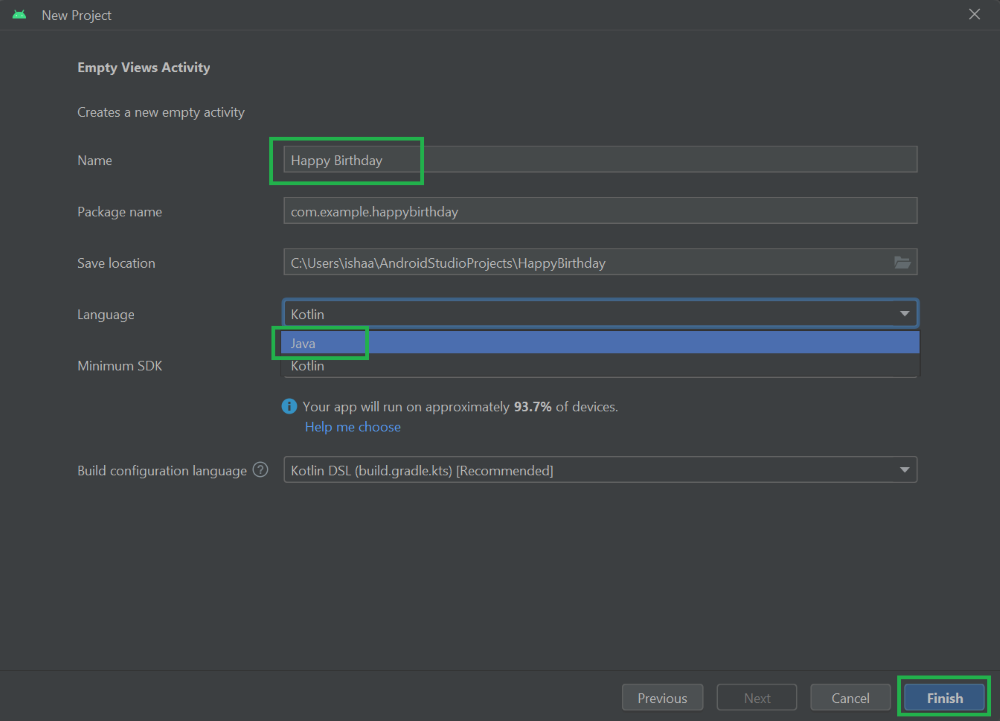
Step 2: Give your application any name you want, select language as Java and click Finish.
👁 Giving Name to the Application and Packages
This will make a new android project for you. Please wait for some time for the IDE to fully process the newly made project.
Before making the frontend, please be ready with these resources which are available freely on the internet.
After getting all these resources let's see how we can add these into our project.
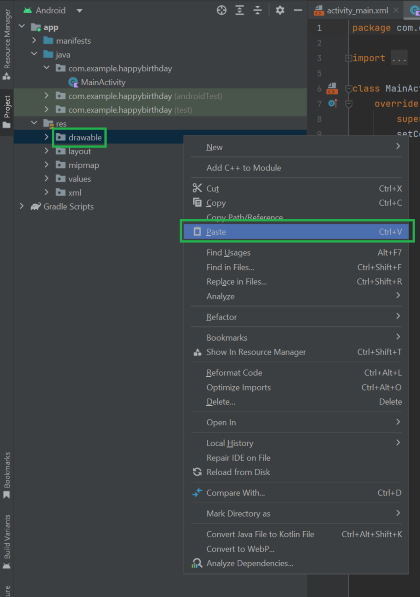
Step 1: Copy all the image files. After copying the files, open your android studio IDE and inside the 'res' folder, right-click on the drawable directory and select paste.
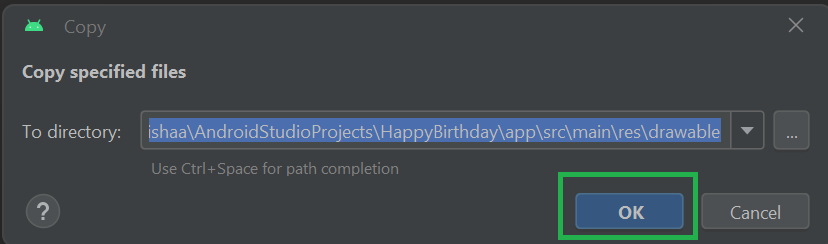
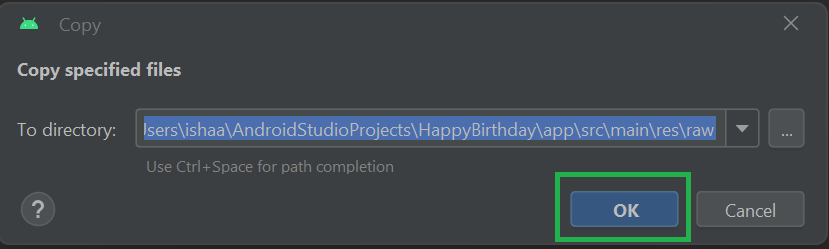
Step 2: Click OK.
👁 Adding the Files to the directory
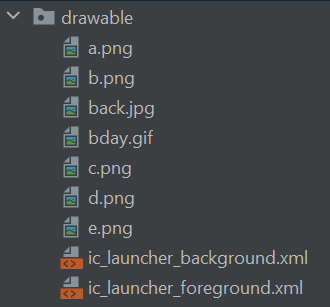
This will add all your images into the project directory which you can use to display in the frontend. Your Drawable directory should look something like this.
To add the .mp3 files into the android Project, follow these steps.
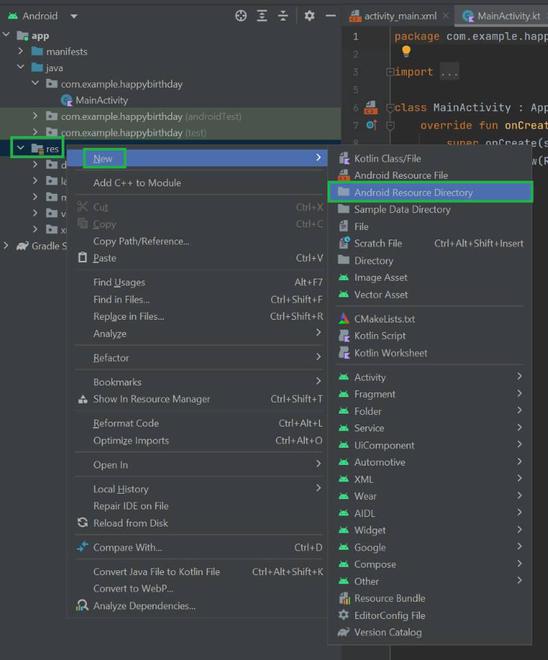
Step 1: Right-click on the res folder -> New -> Android Resource Directory.
👁 Adding the Audios to the Folder
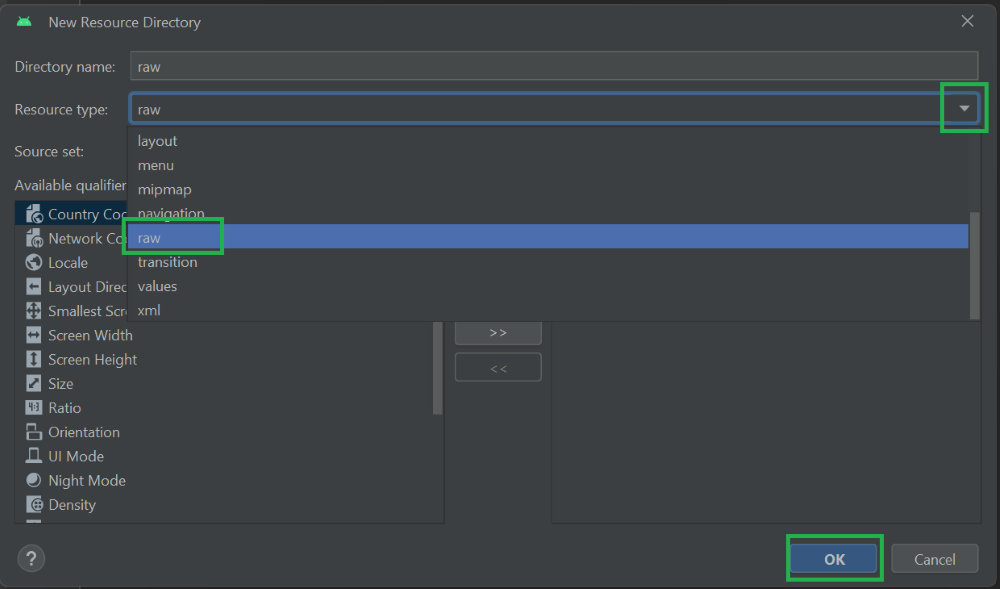
Step 2: A new window will open. You will have to choose the 'raw' option from the dropdown menu. This directory will contain the .mp3 files.
A new directory will be created inside the 'res' folder. In here you have to copy your .mp3 audio files.
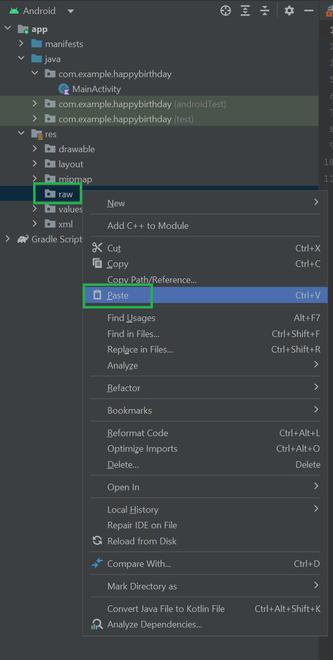
Step 3: Copy all the .mp3 files and right-click on the 'raw' directory and select paste.
Step 4: Click 'OK'
👁 Specifying the directory to the placed
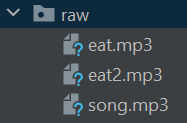
Your 'raw' directory should look something like this.
The above image is how my 'raw' directory looks like.
With this all the recourses have been successfully added into the project. Not its time to start the Front-End of the application.
The Front-End of the application will be written in XML. It is the default language of front-end in android studio. We will integrate all the image files with text to make our frontend user friendly.
To display a GIF inside the application, we need to add a dependency in the application files. To add the dependency:
-> Go to Gradle Scripts -> build.gradle.kts (module: app) and add the following line in the dependency block.
implementation("pl.droidsonroids.gif:android-gif-drawable:1.2.22")Now we will add all the GIF and images we collected in the frontend.
- All of these are bound together with constraint layout and vertical chains.
- The two song control buttons are specifically put inside a relative layout to give them a horizontal layout.
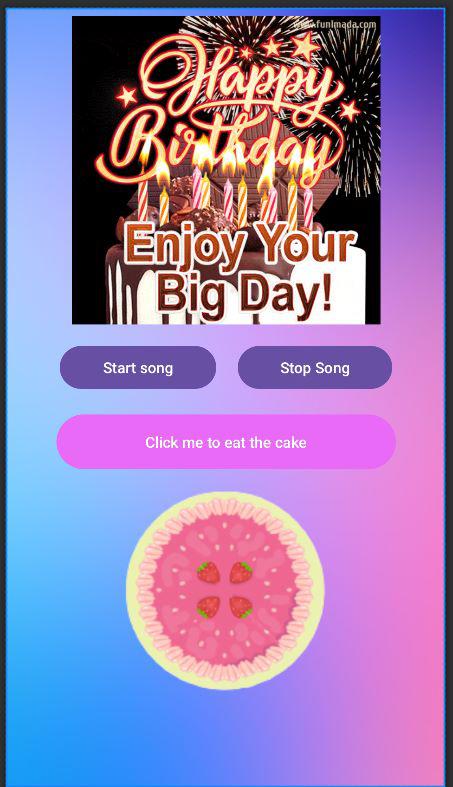
Here is what the Front-end may looks like:
It is pretty self-explanatory what each button is meant to do. So, let's direct dive into the logic of how it would be implemented in MainActivity.java file. The MainActivity.java file is the backend code for the Front-End. It defined the behavior of the buttons when clicked and how the audio files will play.
Video is muted as to avoid any copyright issue.
Click Here to Learn more about Android