 |
VOOZH | about |
|
VOOZH | about |
In this digital era, everyone would have experienced error 404 webpages not found, or many other website glitches. All this happens because of a reason - Not Clearing the DNS Cache. So, flushing DNS Cache should be a daily maintenance task, as it is not only recommended but also a good practice that maintains the optimal performance of the device.
👁 How-To-Clear-DNS-Cache-on-Android-Device
Now, before we can discuss on how to clear the DNS cache, let us understand the basics.
Domain Name System (DNS), also called the “Phonebook of the Internet”, is a crucial element of the Internet as it can translate readable Domain names into IP addresses. In general, domain Names are mapped to their corresponding IP addresses in the Server hosted by the respective websites.
The DNS Cache is a temporary storage where the recent searches of the DNS are stored in the Operating System. Whenever we search for an address on the Internet, the browser’s OS stores that IP address temporarily in the DNS Cache as Resource Records(RR).
There are some beneficial reasons to clear and erase the DNS Cache on Android devices regularly:
There are 3 effective methods to clear and erase DNS cache on Android Devices, these methods work for almost all the android devices ranging from Samsung, One Plus, Redmi, Xiomi etc. You can choose the method that works effectively for your device. So lets get into each methods in detail.
Step 1: To clear DNS cache using Chrome Browser, navigate to Chrome on your android device. Now, type the following in Chrome’s search bar as shown below:
chrome://net-internals/#DNS
Step 2: This will open up a window with multiple options. Select the DNS option as shown below:
Step 3: Now, click on the Clear Host Cache option on the right-hand panel to clear the DNS Cache.
This would clear your DNS cache.
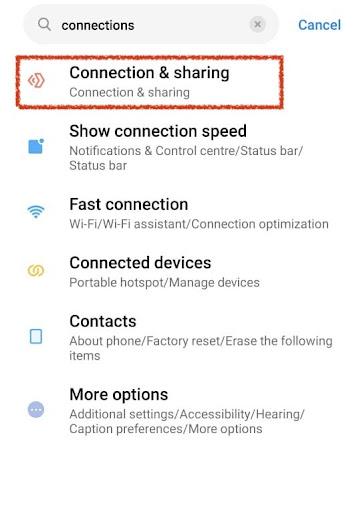
Step 1: To clear or erase the DNS Cache through settings, navigate to Android Settings App and search for Connections option and click on it as shown below:
Step 2: Now, a window with multiple options would be opened. Click on Private DNS option.
Step 3: Select Private DNS Provider Hostname. If there is any domain name saved, clear the domain name and click on Save as shown in the image below:
👁 Private-DNS-Provider-Hostname-(1)
This would clear or erase the DNS cache.
Step 1: To clear the DNS Cache by changing the Wi-Fi Network to Static, navigate to device Settings and search for Connections option. Now, click on the Settings icon next to the Wi-Fi network to which the device is currently connected as shown below:
Step 2: Wi-fi settings window would open up. Now, click on IP Settings as shown below:
Step 3: Now, IP settings window would open up. Click on View More dropdown button. Now, change it to Static option as shown below:
By doing this, DNS cache would be cleared.
Note: To carry out this method, it is necessary to be connected on a Wi-Fi network.
So, here comes your turn to clear DNS Cache from your Android Devices. You can also change your DNS server on Android for that you can check out Best DNS server for your Android.
In this digitalized world of the Internet, efficiency is one of the key factors that highly impact our online experiences. The higher the efficiency of the device, the better the online experience. Flushing DNS Cache should be a daily maintenance task, as it is not only recommended but also a good practice that maintains the optimal performance of the device.

.jpeg)
.jpeg)
.jpeg)
.jpeg)
.jpeg)
.jpeg)
.jpeg)
.jpeg)