|
VOOZH | about |
|
VOOZH | about |
In this article, an Android app is created to display a basic Stopwatch. The layout for Stopwatch includes:
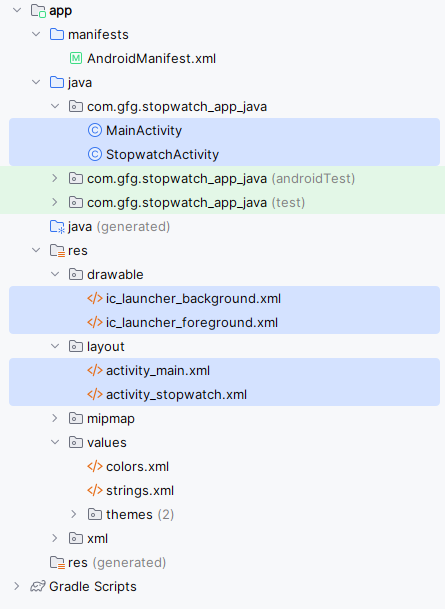
<activity android:name=".StopwatchActivity"></activity>Add String resources We are going to use three String values in our stopwatch layout, one for the text value of each button. These values are String resources, so they need to be added to strings.xml.
Add the String values below to your version of strings.xml:
<LinearLayout xmlns:android="http://schemas.android.com/apk/res/android"android:layout_width="match_parent"android:layout_height="match_parent"android:orientation="vertical"android:padding="16dp"><TextViewandroid:id="@+id/tvMainTitle"android:layout_width="wrap_content"android:layout_height="wrap_content"android:text="Welcome to MainActivity"android:textSize="18sp"android:layout_gravity="center_horizontal"android:paddingBottom="20dp"/><Buttonandroid:id="@+id/btnGoToStopwatch"android:layout_width="wrap_content"android:layout_height="wrap_content"android:text="Go to Stopwatch"android:layout_gravity="center_horizontal"/></LinearLayout>
activity_stopwatch.xml
<?xml version="1.0" encoding="utf-8"?><LinearLayoutxmlns:android="http://schemas.android.com/apk/res/android"xmlns:app="http://schemas.android.com/apk/res-auto"xmlns:tools="http://schemas.android.com/tools"android:layout_width="match_parent"android:layout_height="match_parent"android:orientation="vertical"android:background="#0F9D58"android:padding="16dp"tools:context=".MainActivity"><TextViewandroid:id="@+id/time_view"android:layout_width="wrap_content"android:layout_height="wrap_content"android:layout_gravity="center_horizontal"android:textAppearance="@android:style/TextAppearance.Large"android:textSize="56sp" /><Buttonandroid:id="@+id/start_button"android:layout_width="wrap_content"android:layout_height="wrap_content"android:layout_gravity="center_horizontal"android:layout_marginTop="20dp"android:onClick="onClickStart"android:text="@string/start" /><Buttonandroid:id="@+id/stop_button"android:layout_width="wrap_content"android:layout_height="wrap_content"android:layout_gravity="center_horizontal"android:layout_marginTop="8dp"android:onClick="onClickStop"android:text="@string/stop" /><Buttonandroid:id="@+id/reset_button"android:layout_width="wrap_content"android:layout_height="wrap_content"android:layout_gravity="center_horizontal"android:layout_marginTop="8dp"android:onClick="onClickReset"android:text="@string/reset" /></LinearLayout>
The layout defines three buttons that we will use to control the stopwatch. Each button uses its onClick attribute to specify which method in the activity should run when the button is clicked. When the Start button is clicked, the onClickStart() method gets called, when the Stop button is clicked the onClickStop() method gets called, and when the Reset button is clicked the onClickReset() method gets called. We will use these methods to start, stop and reset the stopwatch.
We will update the stopwatch using a method we will create called runTimer(). The runTimer() method will run code every second to check whether the stopwatch is running, and, if it is, increment the number of seconds and display the number of seconds in the text view.
To help us with this, we will use two private variables to record the state of the stopwatch. We will use an int called seconds to track how many seconds have passed since the stopwatch started running, and a boolean called running to record whether the stopwatch is currently running.
We will start by writing the code for the buttons, and then we will look at the runTimer() method.
Below is the following code to StopwatchActivity.java:
Output: