|
VOOZH | about |
|
VOOZH | about |
Android Studio is the official integrated development environment for Google's Android operating system, built on JetBrains' IntelliJ IDEA software and designed specifically for Android development. In this article we are going to discuss the following three things:
If you are new to Android Studio then to know about How to start Creating a basic Project in Android Studio. Refer To Android | Running your first Android app.
Constructors are used to initializing the state of an object. Like methods, constructors also contain a collection of statements(i.e. instructions) that are executed at the time of Object creation. Here, you will learn How to create a constructor without typing commands.
Step 1: Make sure your cursor is within the class. Right-click using your mouse and then select Generate as shown in the below image.
👁 ImageStep 2: Then, Click on the Constructor.
👁 ImageStep 3: Highlight all using Ctrl + A and then click on OK. You have created a constructor for your class.
👁 ImageEncapsulation is defined as the wrapping up of data under a single unit. It is the mechanism that binds together code and the data it manipulates. Another way to explain encapsulation is to think like, it is a protective shield that prevents the data from being accessed by the code outside this shield. Here, you will learn How to create getter/setter or both without typing commands.
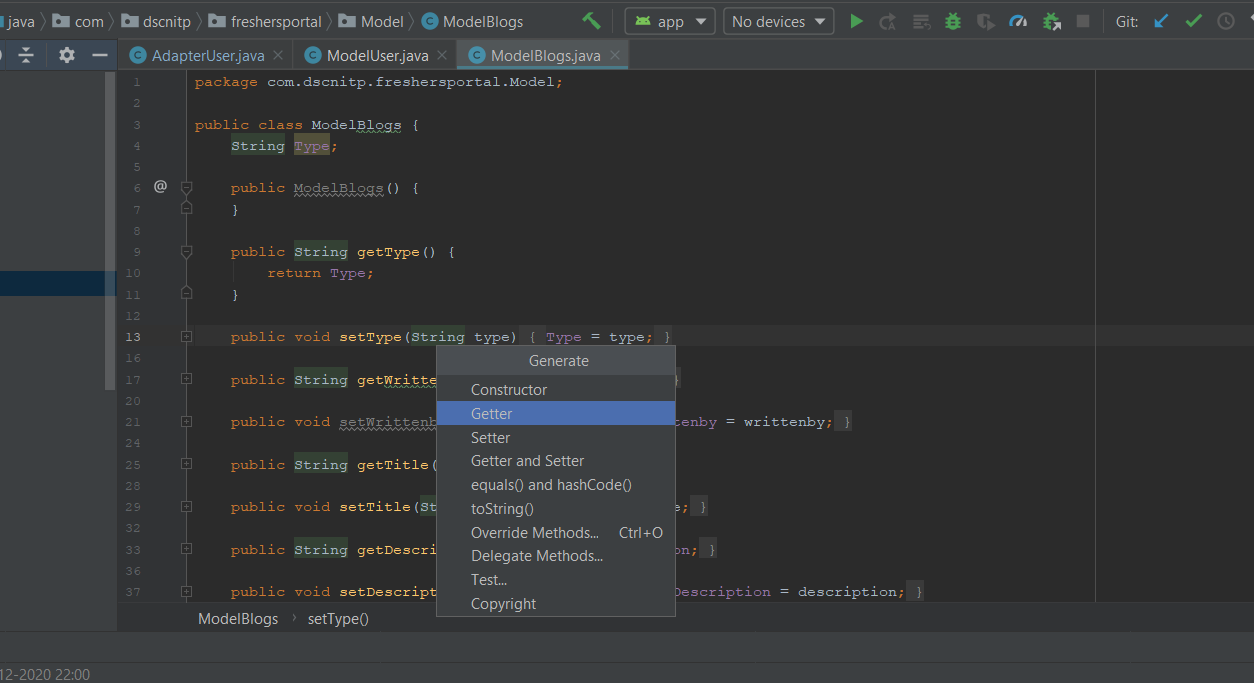
Step 1: Make sure your cursor is within the class. Right-click using your mouse and then select Generate.
👁 ImageStep 2: Then, Click on Getter/Setter/Getter and Setter according to your choice.
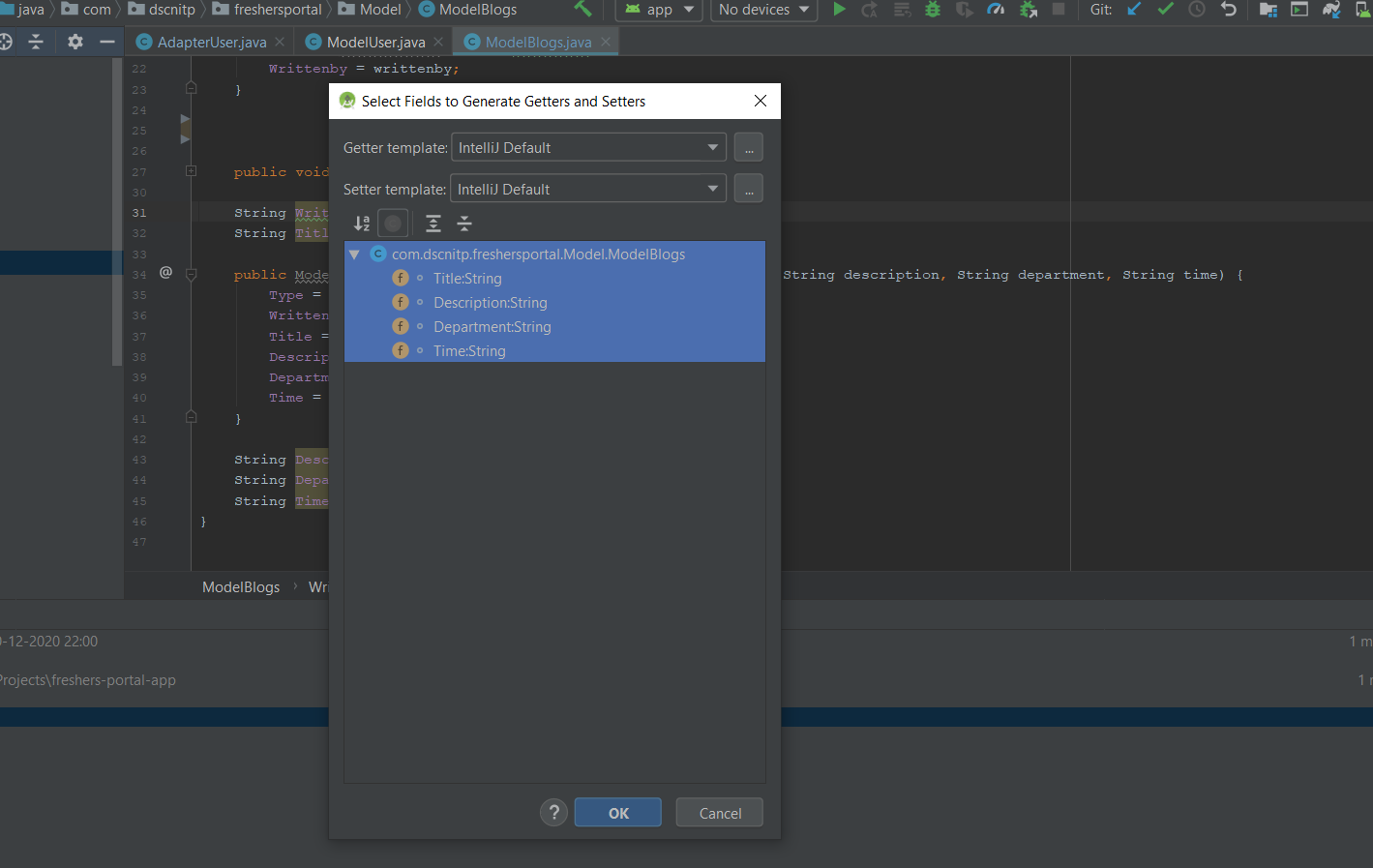
👁 ImageStep 3: Highlight all using the Ctrl + A and then Click on OK. And You are Done.
👁 ImageGenerally, when a developer wants to create a new project in the android studio he/she needs to select a project template which is consisting of many activities as shown in the below image. (Considering that the developer developing the android app for phone and tablet).
👁 ImageNote: To know more about the above activities please refer to Different Types of Activities in Android Studio.
So when you are developing a project and if there is a need to include a different activity in your project then you may follow the following steps.
Step 1: Right-click on the First button inside java (your app's package name), then click on New.
👁 ImageStep 2: Then Go to Activity > Empty Activity (The next step is to choose the Activity type. Activity in Android refers to a single screen with a user interface. For Beginners, “Empty Activity” is recommended. ). Click on Empty Activity.
👁 ImageStep 3: Now, A new Dialog Box will appear. Then, fill in the Activity Name text field. In Android studio, files named in CamelCase are preferred. An XML file is used to provide functionalities of the user interface for our app. An XML file of the activity is created using the first word in the Activity name. Click on Finish. And you have created your activity.
👁 Image