|
VOOZH | about |
|
VOOZH | about |
A Navigation Drawer is the UI panel that can show the app's main navigation menu. When the user swipes from the left edge of the screen or touches the app icon in the action bar and the drawer appears. It can provide a simple way to navigate between the different sections of the application.
This article will guide you through the process of setting up the navigation drawer of Android.
The Navigation Drawer in Android is the panel that can slide in from the left edge of the screen and contains the app's main navigation options. It is part of the Material Design guidelines. It can provide a consistent navigation experience across the different Android apps.
Example:
<androidx.drawerlayout.widget.DrawerLayout
 xmlns:android="http://schemas.android.com/apk/res/android"
 android:id="@+id/drawer_layout"
 android:layout_width="match_parent"
 android:layout_height="match_parent">
 <!-- Main content and navigation drawer go here -->
</androidx.drawerlayout.widget.DrawerLayout>
Example:
<com.google.android.material.navigation.NavigationView
 android:id="@+id/nav_view"
 android:layout_width="wrap_content"
 android:layout_height="match_parent"
 android:layout_gravity="start"
 app:menu="@menu/drawer_menu"
 app:headerLayout="@layout/nav_header"/>
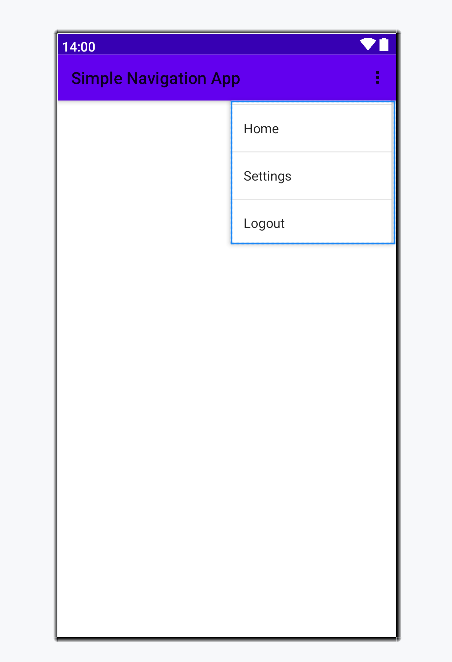
The menu resource file can defines the items that will be displayed in the navigation drawer. Each item in menu can represented by the <item> element. we can group items using the <group> elements of the android app.
Example:
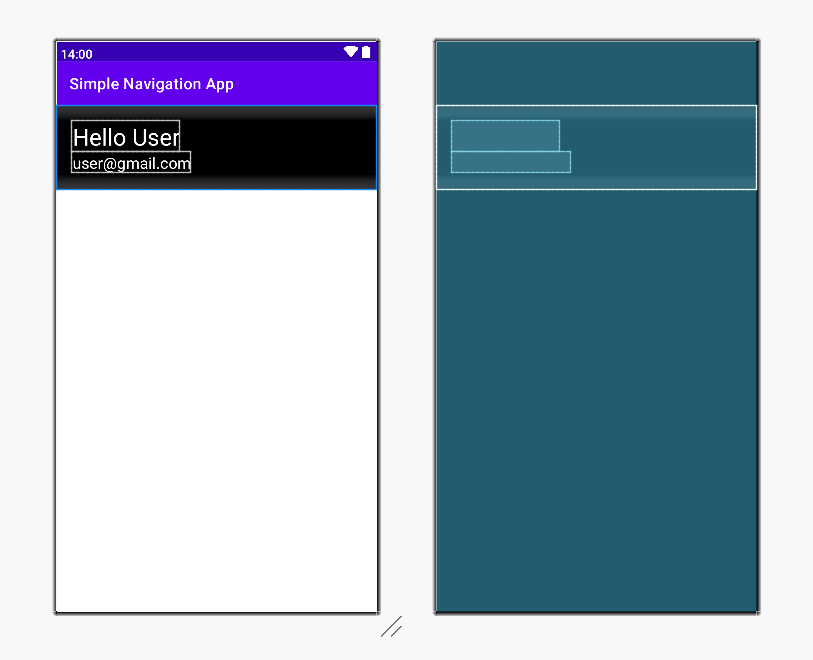
The header layout is the optional components that can appears at the top of the navigation drawer. It can typically contains the user information such as the profile picture, username and email.
Example:
Create the new project in Android Studio refer to How to Create the New Project in Android Studio.
Choose the below options:
- Language : Java
- Activity Type : Empty Activity
Once choose the following options then create the android project. Once create the project then file structure looks like the below image
Add the Gallery , Camera and Slideshow button as the resource being used in the Application.
The Navigation Drawer is the essential component for the android applications that requires the user friendly and accessible way to the navigate between the different sections. By the using DrawerLayout and NavigationView, we can create the consistent and intuitive navigation experience for the users.