|
VOOZH | about |
|
VOOZH | about |
Alert Dialogs are the UI elements that pop up when the user performs some crucial actions with the application. These window-like elements may contain multiple or single items to select from the list or have the error message and some action buttons. In this article, it's been discussed how to implement the Alert Dialogs with the single item selection. Look at the following image to differentiate the alert dialogs with action buttons and single item selection. We will implement this project using both Java and Kotlin Programming Languages for Android.
To create a new project in Android Studio please refer to How to Create/Start a New Project in Android Studio.
The code for that has been given in both Java and Kotlin Programming Language for Android.
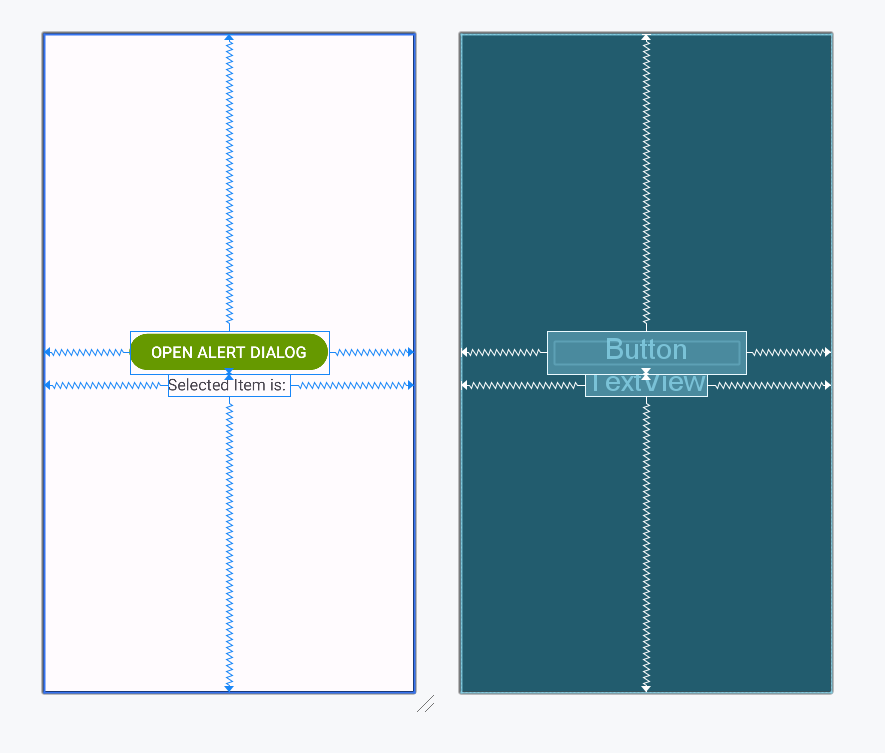
Next, go to the activity_main.xml file, which represents the project's UI. Below is the code for the activity_main.xml file. Comments are added inside the code to help you understand the code in more detail.
activity_main.xml:
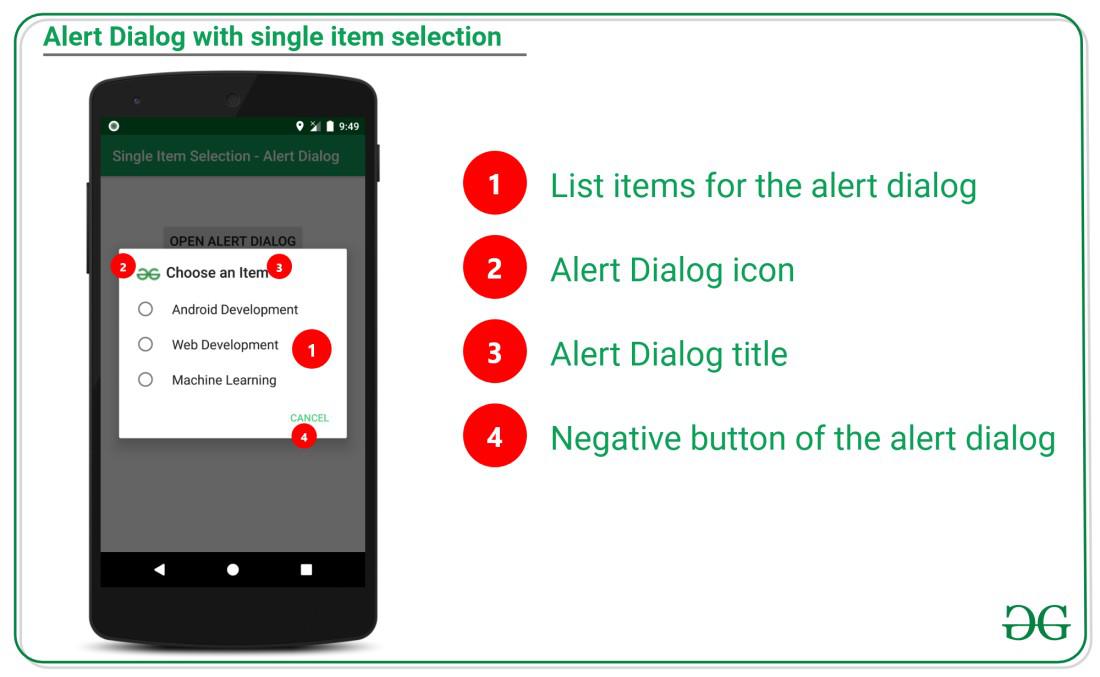
Go to the MainActivity File and refer to the following code. Below is the code for the MainActivity File. Comments are added inside the code to understand the code in more detail. There is a need to understand the parts of the AlertDialog with single item selection.
Have a look at the following image:
The function used for implementing the single item selection is setSingleChoiceItems which is discussed below:
alertDialog.setSingleChoiceItems(listItems, checkedItem[0]) { dialog, which ->

}
Invoke the following code. Comments are added inside the code for better understanding.