|
VOOZH | about |
|
VOOZH | about |
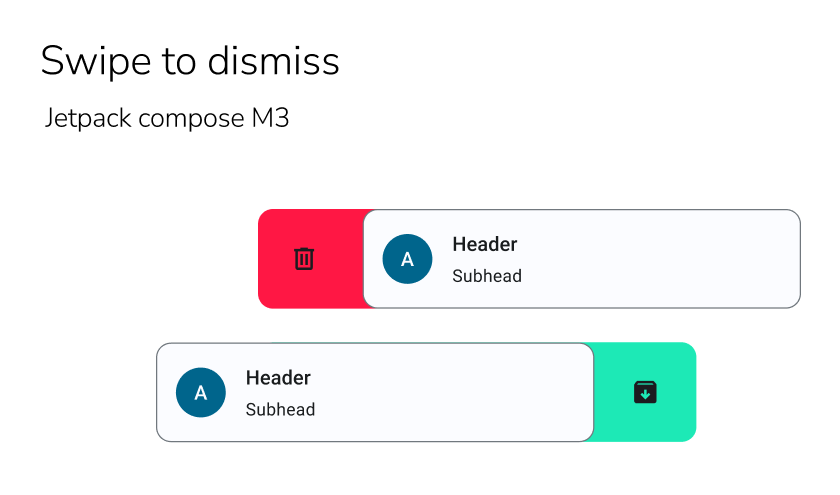
Swipe-to-dismiss functionality is a widely-used interaction pattern that allows users to easily remove items from a list or dismiss cards by swiping them off the screen. In this article, we will explore how to implement swipe-to-dismiss in Jetpack Compose with the new Material 3 components. We will use an email app as an example to demonstrate the usage of swipe-to-dismiss in a real-world scenario.
Swipe-to-dismiss is a gesture-based interaction pattern that allows users to remove items from a list or dismiss cards by swiping them horizontally. It provides a convenient way for users to interact with content and manage their data efficiently. Implementing swipe-to-dismiss in Jetpack Compose with Material 3 involves using the SwipeToDismissBox composable along with the new Material 3 components.
To demonstrate the swipe-to-dismiss functionality, we will create a simple email app using the new Material 3 components. The app will display a list of email messages, and users will be able to swipe left or right to dismiss individual messages. We will use Jetpack Compose LazyColumn to display the list of email items.
To create a new project in the Android Studio, please refer to How to Create a new Project in Android Studio with Jetpack Compose.
Create a data class for Email MessageThis data class represents an email message within the email application. It contains two properties the sender and the receiver similar to email. The EmailMessage data class is used to encapsulate the essential information related to an email message, allowing easy access and manipulation of its sender and message content.
EmailMessage.kt:
Step 3: Create a viewmodelCreate a new Kotlin class with the name EmailViewModel.kt. This class is responsible for managing email messages in the email application. This class acts as the intermediary between the UI components and the data source, handling the state and operations related to email messages. It provides methods for updating and manipulating the list of messages.
EmailViewModel.kt:
Each email item in the list will be represented by the EmailMessageCard composable. This composable will display the sender's name, message content, and a person icon using the Material 3 components. The EmailMessageCard will be responsible for rendering the visual representation of the email message.
EmailMessageCard.kt:
To provide visual feedback during the swipe-to-dismiss action, we need to create the DismissBackground composable. This composable will use the Row and Icon composables. The DismissBackground composable will be used as the background for each email item.
To enable swipe-to-dismiss functionality, we will use the SwipeToDismissBox composable provided by the Material 3 library. SwipeToDismissBox is a composable that can be dismissed by swiping left or right.
Parameters:
The SwipeToDismissBox composable allows us to wrap the email item and the dismiss actions together.
EmailItem.kt:
Once we have implemented the swipe-to-dismiss functionality, it's important to thoroughly check it. We should verify that swiping left or right on an email item correctly triggers the dismiss action and removes the item from the list. The MainActivity is an Android Component Activity a subclass that serves as the entry point for the Swipe to Dismiss feature in the email application. In the onCreate() method, the activity sets its content using the setContent function, which inflates the UI layout and displays the Email App composable. Run the application and check the output.
MainActivity.kt: