|
VOOZH | about |
|
VOOZH | about |
In Android, the Data Binding Library is a support library that allows you to bind UI components in your layouts to data sources in your app using a declarative format rather than programmatically.
If you don’t know how to create a new project in Android Studio then you can refer to How to Create/Start a New Project in Android Studio?
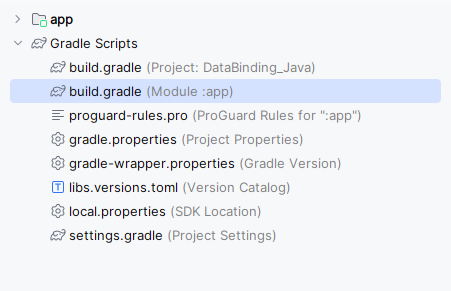
Navigate to Gradle Scripts > build.gradle.kts(module level).
Add the below code snippet to the build.gradle.kts (module level) file under the android{} scope to activate Data Binding in the application:
buildFeatures {
 dataBinding = true
}
Navigate app > kotlin+java > {package-name}. Right click on it and go to New > Kotlin Class/File or Java Class. Set the name Company for the file. Add the following code to the file.
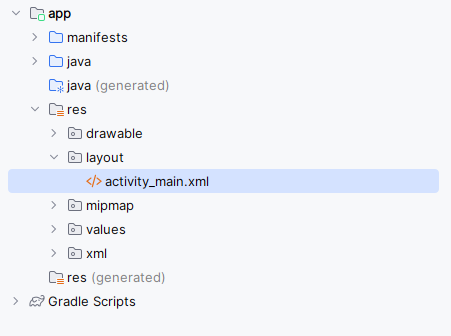
Navigate to the app > res > layout > activity_main.xml and add the below code to that file.
activity_main.xml:
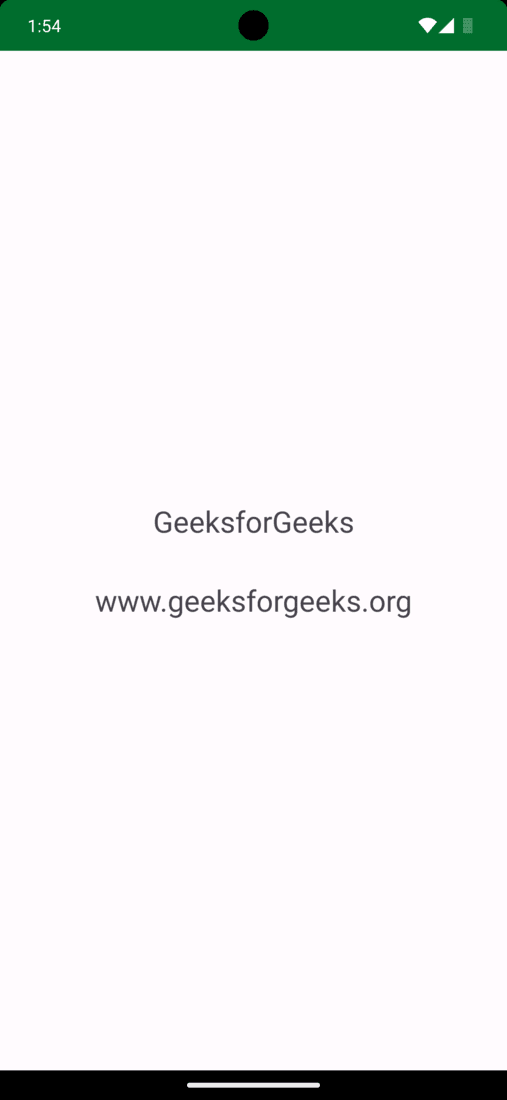
Navigate to the MainActivity.java/MainActivity.kt file and use the following code in it. Comments are added to the code to have a better understanding.